
Steam Privacy Settings: What Profile, Game Details, Inventory and Friends List Each Hide
What Steam's profile, game details, friends list and inventory privacy lines each hide, what stays visible anyway, and how to check from outside.
Article languages
On this page
Steam's privacy page is a stack of dropdowns that all offer the same three values: Public, Friends Only, Private. Picking Private hides something different on each line, though. That is how people end up with a "private" profile whose name is still visible, or with a hidden game library while friends still see them as in-game.
This guide takes the lines one at a time: what each one covers, what no setting removes, and how to check the result from outside your own account. The settings page itself only opens for a signed-in user, so I could not read it for this article. What follows rests on Steam Support's help pages, Valve's 2018 announcement and Privacy Policy, and the Steamworks developer documentation, which I read on October 31, 2026 (UTC), re-opening the Steam Support pages on November 1. Where those sources say nothing, I say so. I did not change settings on any account to test them.
Why you read "My profile" first
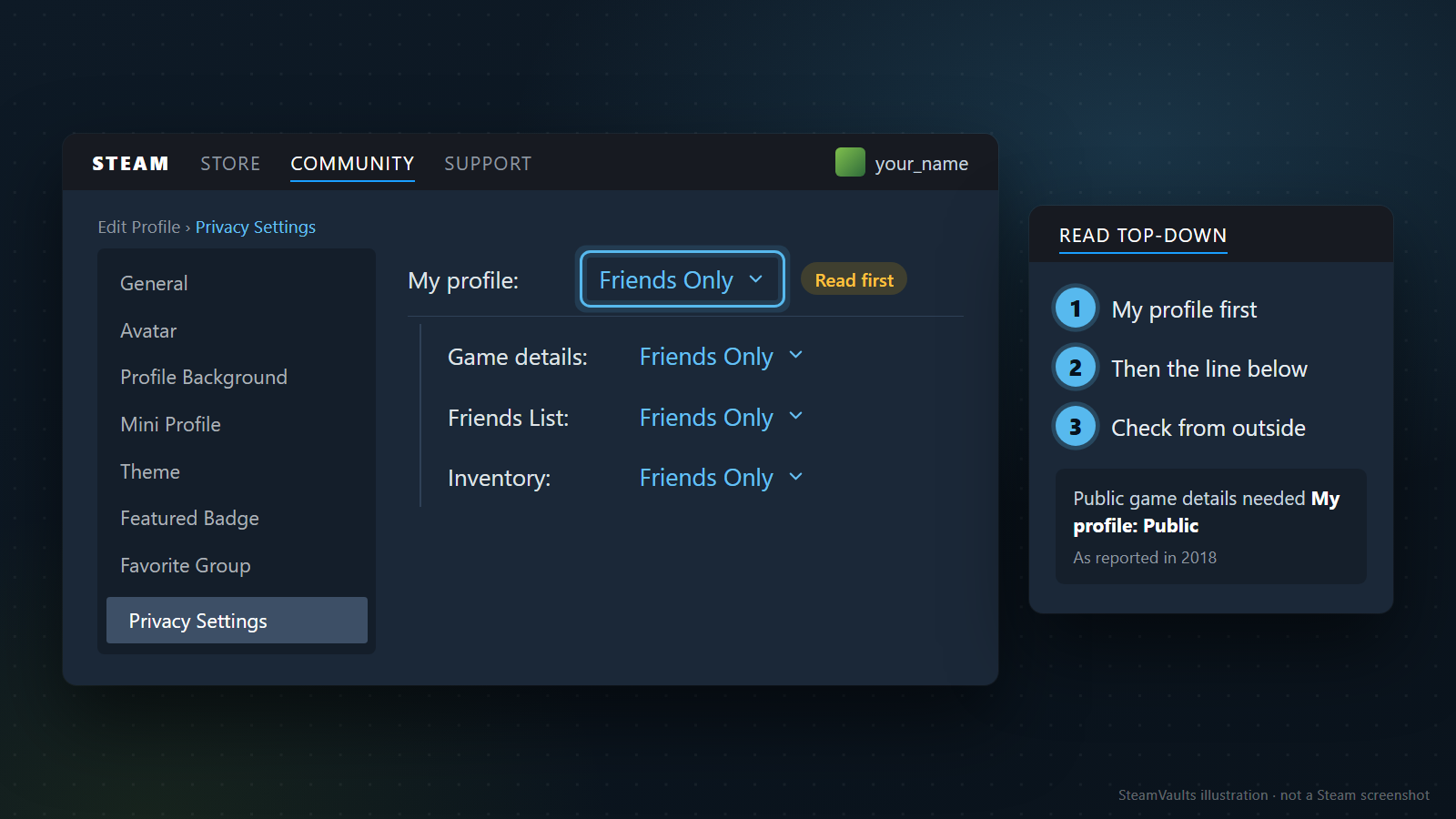
Steam Support's Steam Profile Privacy page says a profile has three privacy states, Public, Friends Only and Private, and that each state has subcategories controlling how you appear to other members. To get there, click the Edit Profile link under your displayed badge on your profile, then the Privacy Settings tab. Changes save automatically, so there is no button to look for.
The subcategories are game details, friends list and inventory. Coverage of the 2018 overhaul described them as sitting under the top line, "My profile"; the current layout is behind a sign-in and I could not check it. At the time, the German site ComputerBase reported that the option to show game details to everyone was available only when "My profile" was public. For game details, then, the line above set the ceiling for the line below. The same article says nothing about whether friends list and inventory work that way, and no Valve page I read confirms the relationship at all; the help page stops at "states with subcategories".
So read in this order: the My profile value, then the line you want to change, then the result from outside. If your profile is Friends Only and one line underneath says Public, do not assume strangers can see that line. Check.
If game details already says Friends Only and you never touched it, the 2018 change may be why. ComputerBase reported that after the update, game statistics were no longer public to everyone by default. I infer from that report that older accounts may hold values their owners never chose. The sources do not say what the default is for an account created now, so read the value on your own page rather than guessing.
"Friends Only" means accounts on your Steam friends list. Steam Support's trading page lists the inventory choices as public, friends only and private, with nothing for picking individual people, so showing one friend means showing all of them.
What no setting hides
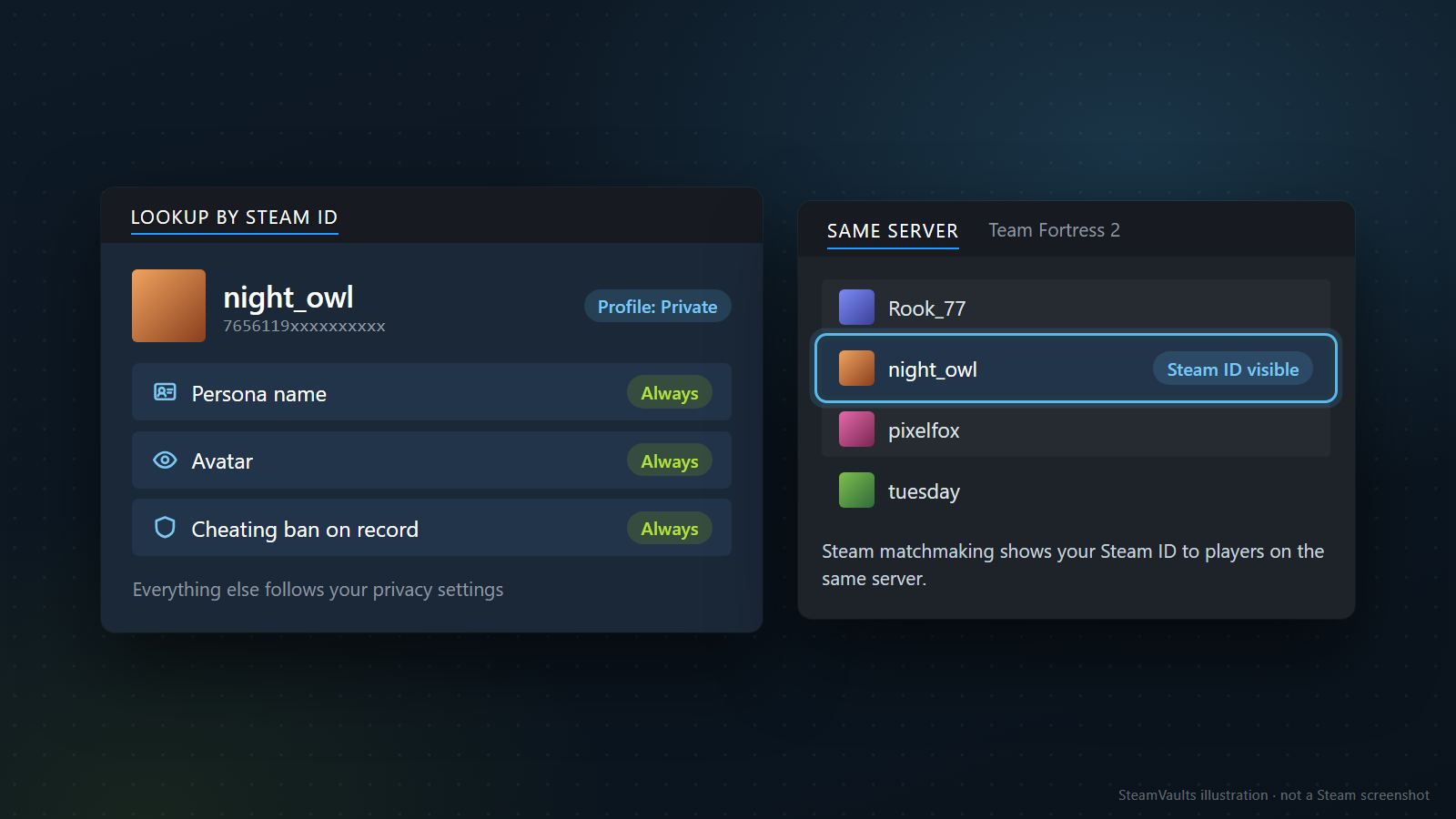
A private profile is still there. Section 5.4 of Valve's Privacy Policy says that, at a minimum, your persona name, your avatar, and whether your account has received a ban for cheating in a multiplayer game are accessible to anyone who queries your Steam ID through the Steamworks API. ComputerBase's 2018 report adds that Basic Details, meaning name and avatar, had no option other than Public.
Games expose you too. The Steam Private Games page says that in games using Steam matchmaking, your Steam ID is visible to other players on the same server. In the illustration a sample player, night_owl, shows up that way on a Team Fortress 2 server; the masked ID beginning 7656119 and the other names are invented. Anyone there can open your profile from that ID, and what they then see is whatever you left public. The same policy section notes that posts on boards, forums and chat are made publicly available. Privacy settings shrink what your profile shows. They do not hide that the account exists or take back what you posted.
Game details: owned games, wishlist, achievements and playtime on one line
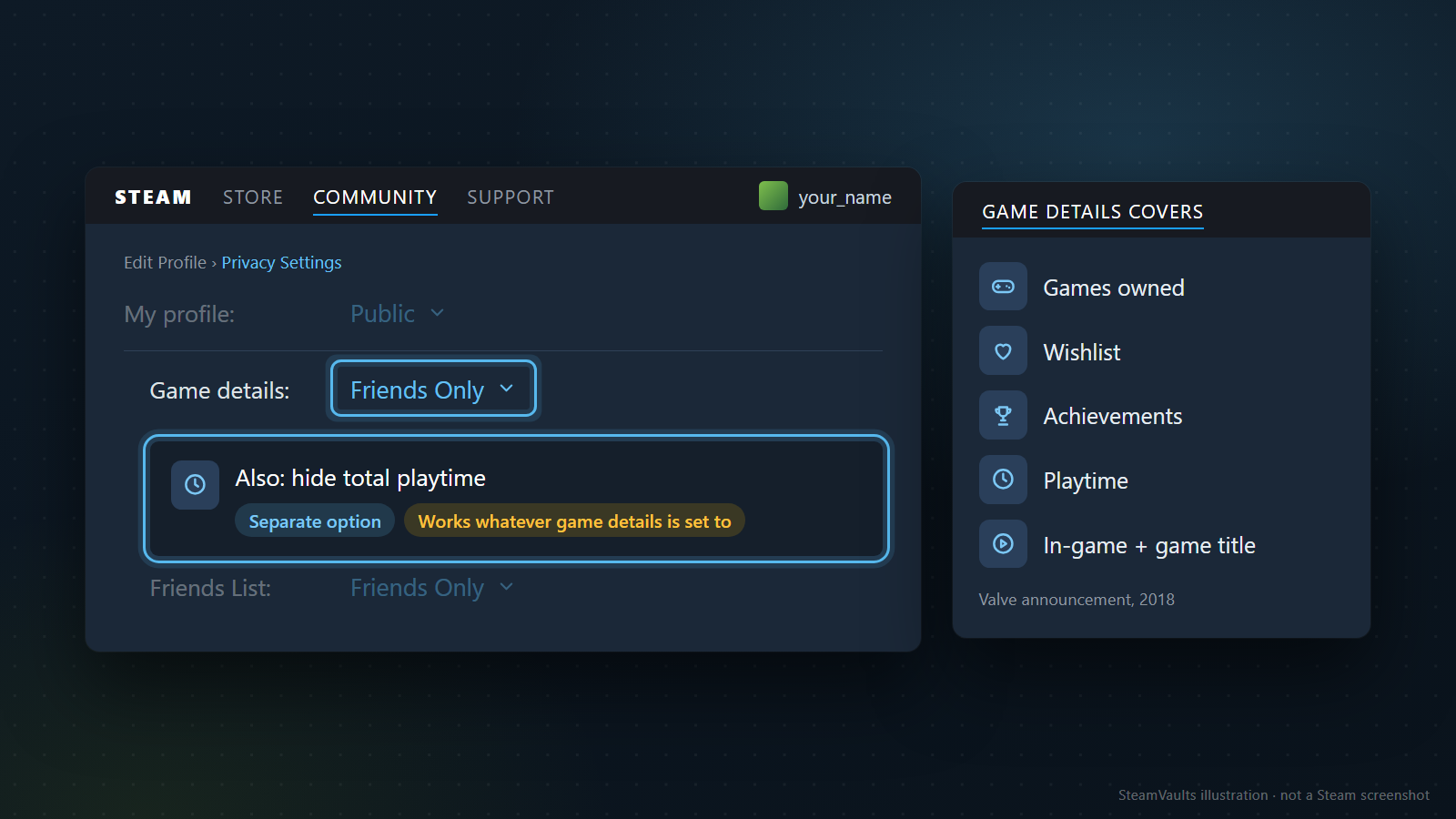
Most searches about Steam privacy end up here, and this line covers more than its name suggests. Valve's 2018 announcement introducing it lists:
- the games you have purchased
- the games on your wishlist
- your achievements
- your playtime
- whether you appear as in-game, and the title of the game you are playing
The wishlist surprises people. Plenty of players point friends at their wishlist before a birthday, and closing game details may close that too. That is how the 2018 announcement describes it; whether the wishlist has since got its own visibility line I could not see without signing in. If you are expecting gifts, change the setting and then ask a friend whether your wishlist still shows.
The last item matters more than it looks. Per the announcement, game details reaches past the profile page into the indicator that tells people what you are playing. Whether you are online at all is not on this line; that is under online status below.
The same announcement says total playtime can be kept private regardless of the game details setting. If you are fine with friends seeing your library but not the hours in one game, that is the option. ComputerBase likewise reported an extra setting that hides playtime even under Friends Only. I could not see its current wording, so look for it near the game details line.
Hiding the whole library and hiding one or two games are different jobs with different settings:
| What you want hidden | Setting to use | What changes |
|---|---|---|
| Owned games, wishlist and achievements, all of them | Game details to Friends Only or Private | The account's whole game record |
| Only the time; the list can show | The option to hide total playtime | Playtime display |
| One particular game | Mark that game Private (the button is called "Mark Private") | That game's ownership, in-game status, playtime and activity |
The third row is the only one that works on friends. With game details on Friends Only, friends still see everything. A game marked private appears to every other user, friends included, as if you did not own it. According to Steam Support it drops off your profile games list and recently played, you will not show as "In Game" in friends lists or chats, it leaves your friends' activity feeds and the store's "Friends who own this game", a friend buying it as a gift will not see you as already owning it, and showcases such as "Rarest Achievements" leave it out.
That has costs. Steam Support says you will not receive Steam Trading Cards for a game while it is marked Private (When Steam Trading Cards Stop Dropping covers drops), and other computers on your network cannot transfer it over the local network. The card condition is written for per-game private. None of the Valve pages I read say cards stop when game details as a whole is set to Friends Only or Private. You can mark a game private from the Manage submenu or the Privacy section of its Properties in the client, from your profile's games list in a browser, or on the cart page before buying. The difference between hiding and private is laid out in Steam Hidden Games vs Private Games.
If you want to show off achievements, the table still applies. Following the 2018 announcement, achievements sit on the game details line, so making it private should hide them as well, and the private-games page says a game marked private also drops out of achievement showcases. To show achievements but hide time, leave game details open and use only the playtime option.
An invented example. You are happy for people to see the co-op games you play with friends, but one solo game with several hundred hours bothers you. If it is the hours, the playtime option is enough. If it is owning the game at all, mark just that game private. Closing the whole library would also pull the co-op games off your friends' screens.
Whatever you choose here also reaches tools. Steamworks documents that GetOwnedGames returns a player's owned games only if their game details are visible to whoever is calling, and Privacy Policy 5.4 says data publicly available on your profile can be accessed automatically. Public game details means a playtime-statistics site can read the same list a person sees.
Friends list closes on its own
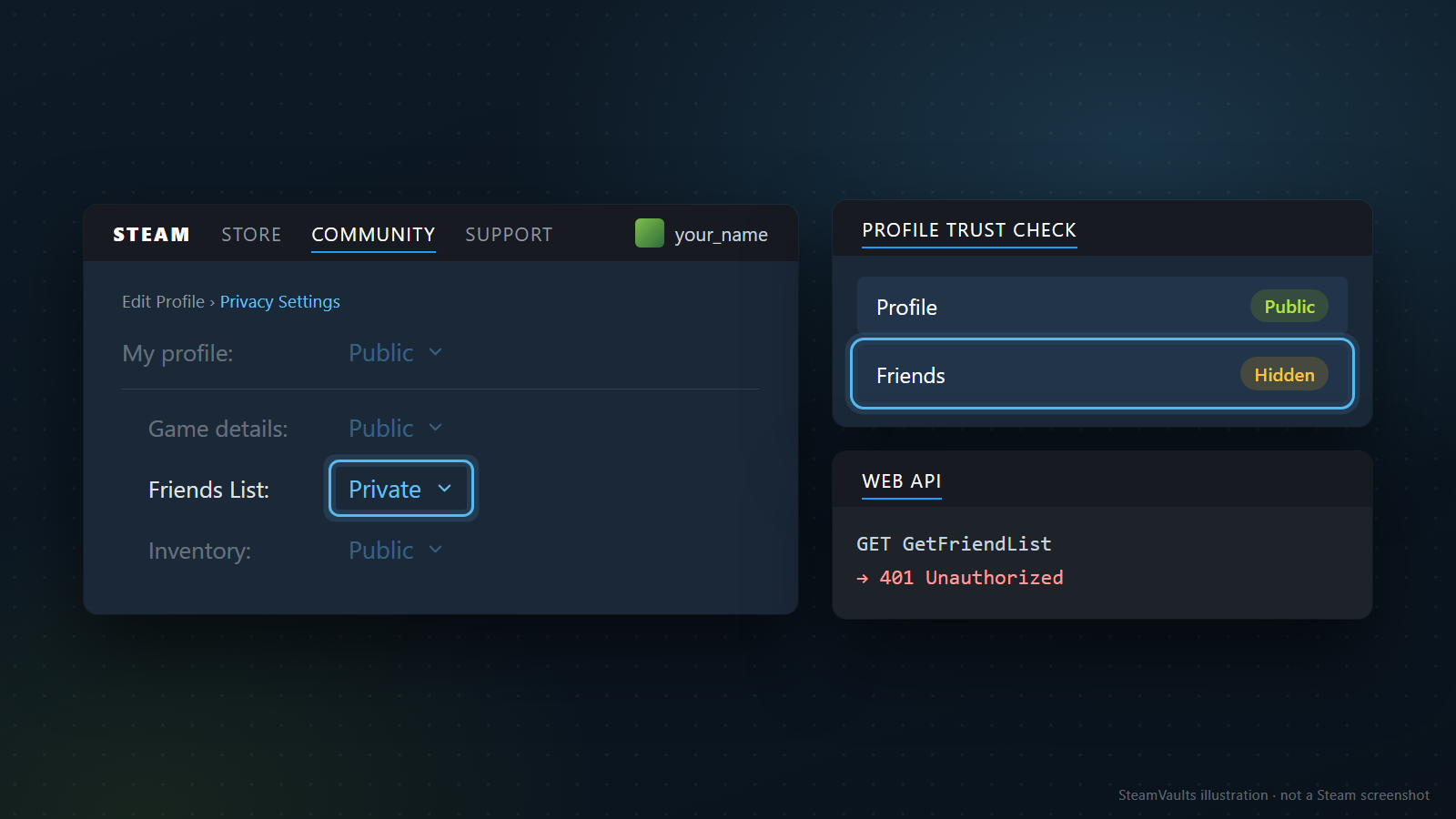
The friends list is a separate line. The Steamworks ISteamUser documentation says that calling GetFriendList for a user whose friends list is private returns 401 Unauthorized, so outside tools cannot read your friend count or names. In the illustration everything else stays Public, and a lookup tool still shows Profile as Public with Friends as Hidden.
This line controls your own list. How you appear on a friend's list that they have left public is not covered by any source I read; treat that as their setting.
Inventory: the line trading tools care about
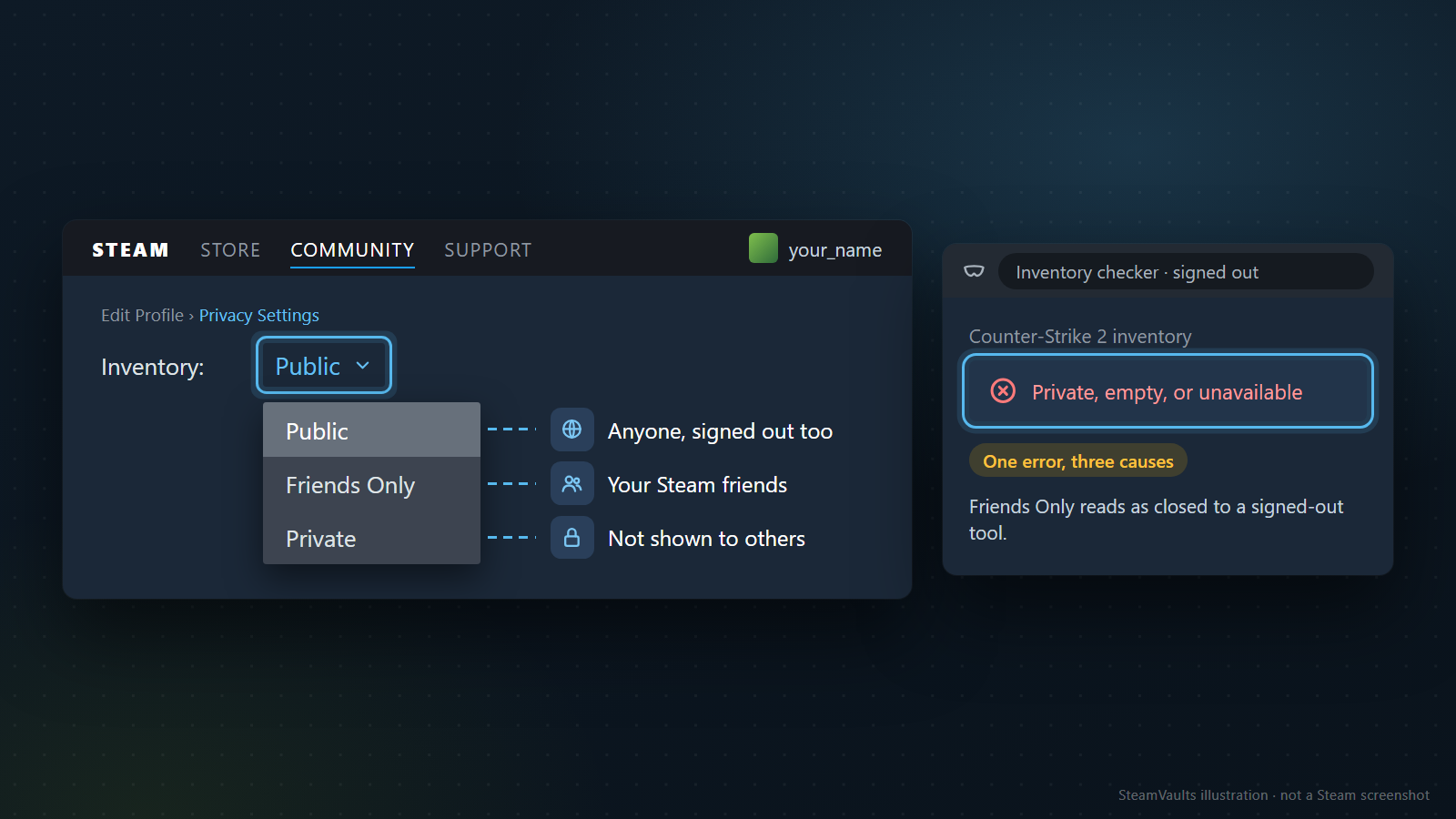
On Steam Trading, under "Who can see my items?", Steam Support says your inventory privacy setting decides who sees your items, with the options public, friends only and private, adjustable through the Inventory page or your general profile settings. Public reaches anyone, including people who are not signed in. Friends Only reaches your Steam friends. Private shows it to no one else.
If you use outside tools, check this line first. A tool that reads public inventories without signing in treats Friends Only the same as Private. SteamVaults' inventory checker reads only public inventories of TF2, Counter-Strike 2, Dota 2 and Rust, and it shows a single error, "Private, empty, or unavailable", for three different causes. A failed read from outside does not prove the inventory is set to private.
Inventory visibility also ties into trade offers. The Steam Trade Offers page says you can send an offer to any friend whose inventory you can view, or to anyone who has given you their Unique Trade URL. The first route depends on being able to view the inventory, so setting yours to private may stop friends from starting an offer from the friends list. That is my inference; the page does not discuss the combination. If you trade with friends often, ask one to try creating an offer after you change it. The trade URL route does not depend on this. If a leaked trade URL is bringing unwanted offers, creating a new trade URL is the fix, not privacy settings. Is it safe to share a trade URL? covers when to hand one out.
The same applies when selling Sacks of Gems to SteamVaults. Its How it works page says Steam must expose the inventory for the quote check, and that if Steam cannot expose it, the quote cannot proceed until the setting or restriction changes. Trading also needs Steam OpenID sign-in and your Trade URL. Visibility only lets the inventory be read; it has nothing to do with your login or password.
For the steps to make an inventory public, closing it again afterwards, and what to check when only one site cannot see it, see How to Make Your Steam Inventory Public. And visible is not the same as tradable: a public inventory does not make an item tradable.
"Online" and "In game" are not set on this page
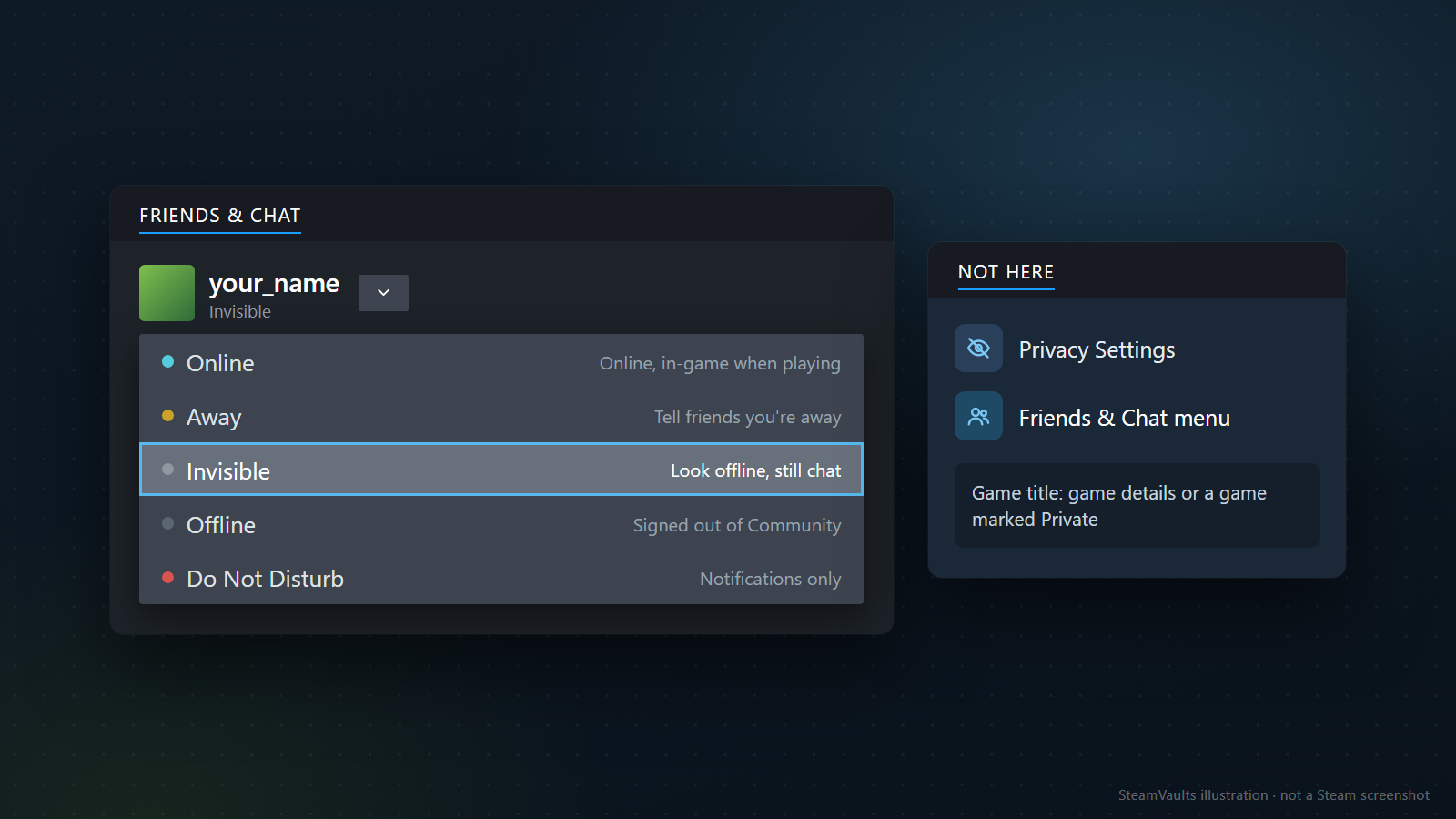
No privacy line hides that you are online. Presence lives in Friends & Chat, which opens in the lower right corner of the Steam client or in a web browser. Per Steam Support's Steam Friends & Chat page, the dropdown next to your avatar in its top left corner has five states:
- Online: the default. Friends see you online, and in-game when you play.
- Away: manually tells friends you are not available. Steam also sets it automatically after a long period of inactivity.
- Invisible: you appear offline to other players, but you can still see your friends list, send and receive messages, and use the community.
- Offline: actually signs you out of the Steam community. You cannot talk to friends, and features that need you online stop working.
- Do Not Disturb: only controls whether you get notifications from chat, invites and other requests. Nothing says it changes how others see you.
Two invented cases. Playing alone late at night but still wanting urgent messages: Invisible. Not wanting the pings but not caring who knows you are on: Do Not Disturb. Mix them up and you may switch on Do Not Disturb believing you have vanished from friends' lists. Whether a game title shows to friends while you are Invisible the page does not say beyond "offline to other players", so if that matters, ask a friend to look.
What you are playing is controlled in two other places. Game details covers in-game status and the game's title, per the 2018 announcement, and the private-games page says a game marked private will not show you as "In Game" in friends lists or chats. Hide being online with presence; hide the title with the game settings. There is one exception. If you invite a friend into a game marked private, that friend sees your in-game status until you exit the game or disconnect from Steam, which Steam Support says is so they can join.
Your own view shows everything: three ways to check from outside
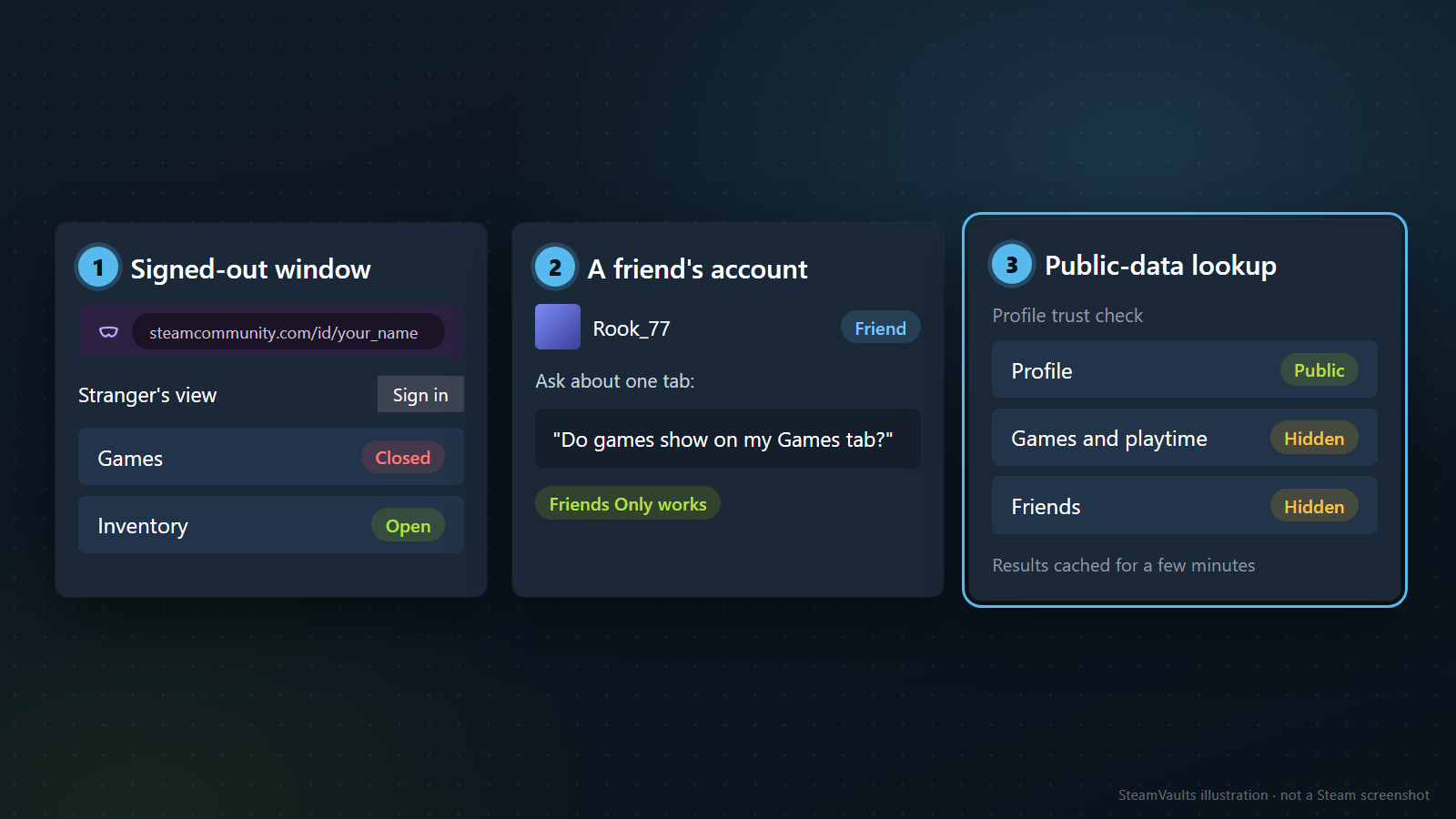
Open your profile after changing a setting and nothing seems different. That is expected: the owner sees everything. To know whether the audience is right you have to look from someone else's seat, and there are three of them. A stranger, a friend, and a program reading the API each see something different.
| Check | Whose seat | What it tells you | Limit |
|---|---|---|---|
| A browser window that is not signed in | A stranger | Whether lines set to Public really open | Useless if you sign in inside that window |
| A friend's account | A Steam friend | Whether lines set to Friends Only reach friends | You have to ask exactly what they opened |
| A public-data lookup tool | A program reading automatically | Whether the API returns a value or shows it as hidden | Shows only what that tool reads |
Step by step:
1. Copy your profile address. Open your profile while signed in and take the address from the address bar. An old bookmark or a link someone sent you may point to a different account. The address may look like steamcommunity.com/id/ plus a name or steamcommunity.com/profiles/ plus a long number; either is fine as long as it is your account.
2. Open it in a window that is not signed in. A private or incognito window is easiest. First check that the top of the page shows a sign-in link instead of your name; if you signed in there out of habit, you are back to the owner's view. Do not stop at the front page. Click games, friends and inventory one by one. In the illustration's sample, the stranger's view has Games closed and Inventory open. Only the lines you set to Public should open.
3. Ask a friend about the Friends Only lines. "Can you see my profile?" invites an answer based on the front page. Name the tab instead: "Do games show on my Games tab?"
4. Use a public-data lookup for the automated view. Put a SteamID64 or profile link into SteamVaults' Steam profile trust check and it shows what the Steam Web API returns publicly. Profile appears as "Public" or "Not public, can't verify", and games and playtime or friends appear as "Hidden" when Steam returns no value. The tool was built for checking trading partners, but your own profile works too. It does not read inventories or messages.
5. Check the inventory separately. The trust check does not cover it. Open the inventory in the signed-out window from step 2, or try the inventory checker; as noted above, its error does not separate private from empty.
When a result surprises you, do not flip the setting straight back. The trust check caches results for a few minutes to save Steam API calls, so a change you just made may not show yet. How long Steam itself takes to reflect a change in outside lookups is not in any official document I read. Wait, check the same way again, and if it still disagrees, re-read the My profile line; the ceiling from the first section may be the cause.
How to read what you see:
- Games open in the signed-out window: game details is public to everyone. If you did not intend that, set the line to Friends Only.
- Visible to a friend but closed signed out: Friends Only is doing its job.
- The lookup shows "Not public, can't verify": the top My profile line is not public. If you set a line below to Public and tools still cannot read it, suspect this line first.
- Only the inventory tool fails while the signed-out window shows items: suspect which games that tool supports, or a temporary lookup problem, before the setting.
If you want a record, three things are enough: date and time, which seat you checked from (signed out, friend or tool), and which tab showed what. That gives you a reference the next time a site says it "can't read your private profile".
When someone else's profile is private
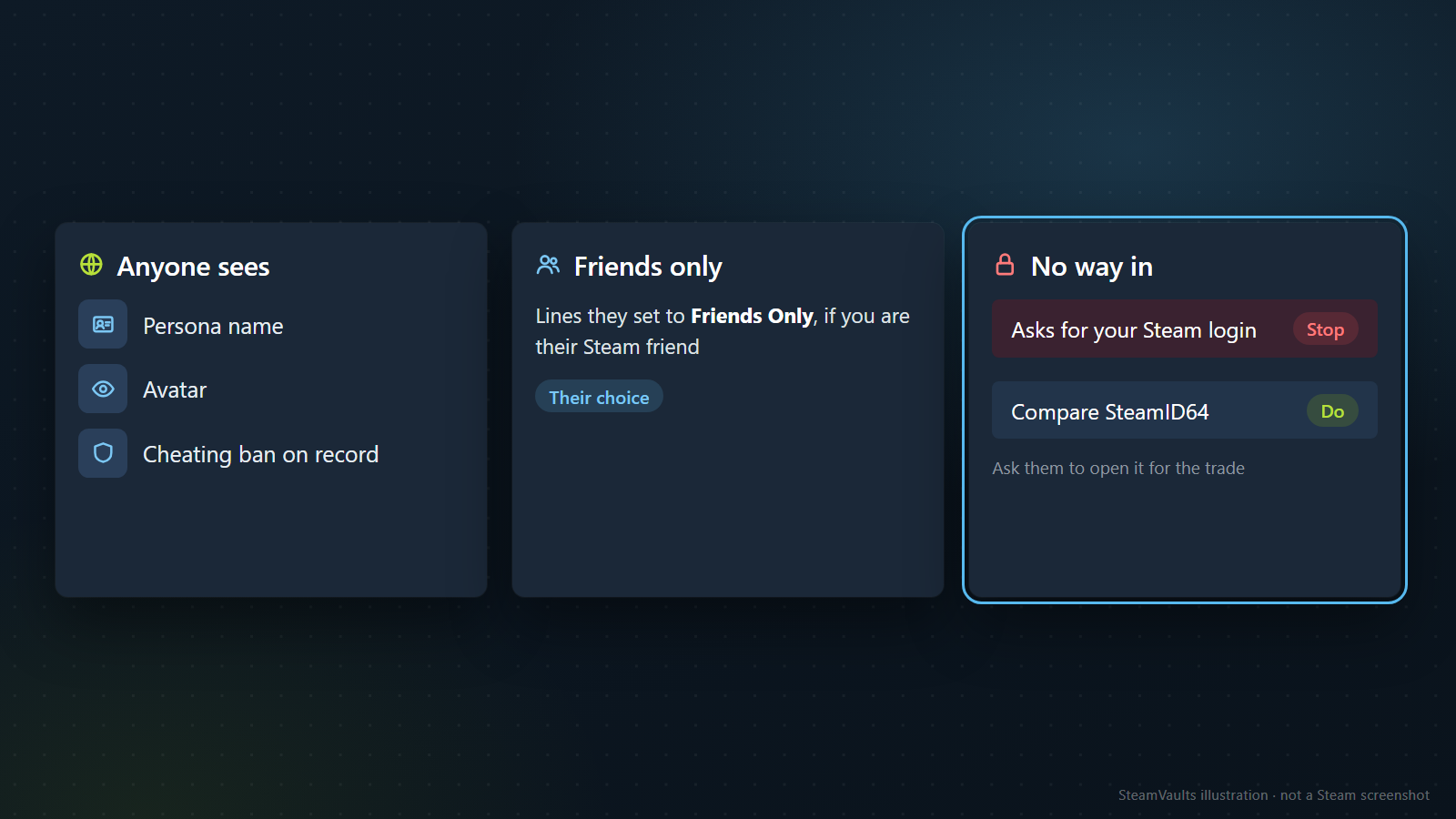
People also search for ways to see a private profile or hidden inventory. None of the Valve documents I read describe one. What the Privacy Policy says can be accessed automatically is data that is publicly available on the profile, and both SteamVaults tools read public data only.
So from someone else's private profile you get three layers. Anyone sees their persona name, avatar and whether they have a cheating ban on record. Lines they set to Friends Only open only if you are their Steam friend, which is their choice. Everything else stays shut unless they open it or show you; if you need to see an inventory before a trade, ask them to open it for the trade.
If a site offering to reveal private accounts asks for your Steam login, stop there. Steam API Key Scam and What to Check Before Confirming a Steam Trade describe the fake-login and API-key tricks. Never entering your Steam login on a link someone sent is also on the trust check's own "Always check" list. A private profile on its own is no reason for suspicion. The same tool says to compare the SteamID64 the person gave you with the one you looked up, because impersonators copy names and avatars, and that comparison works on a closed profile too.
Which line to change for which worry
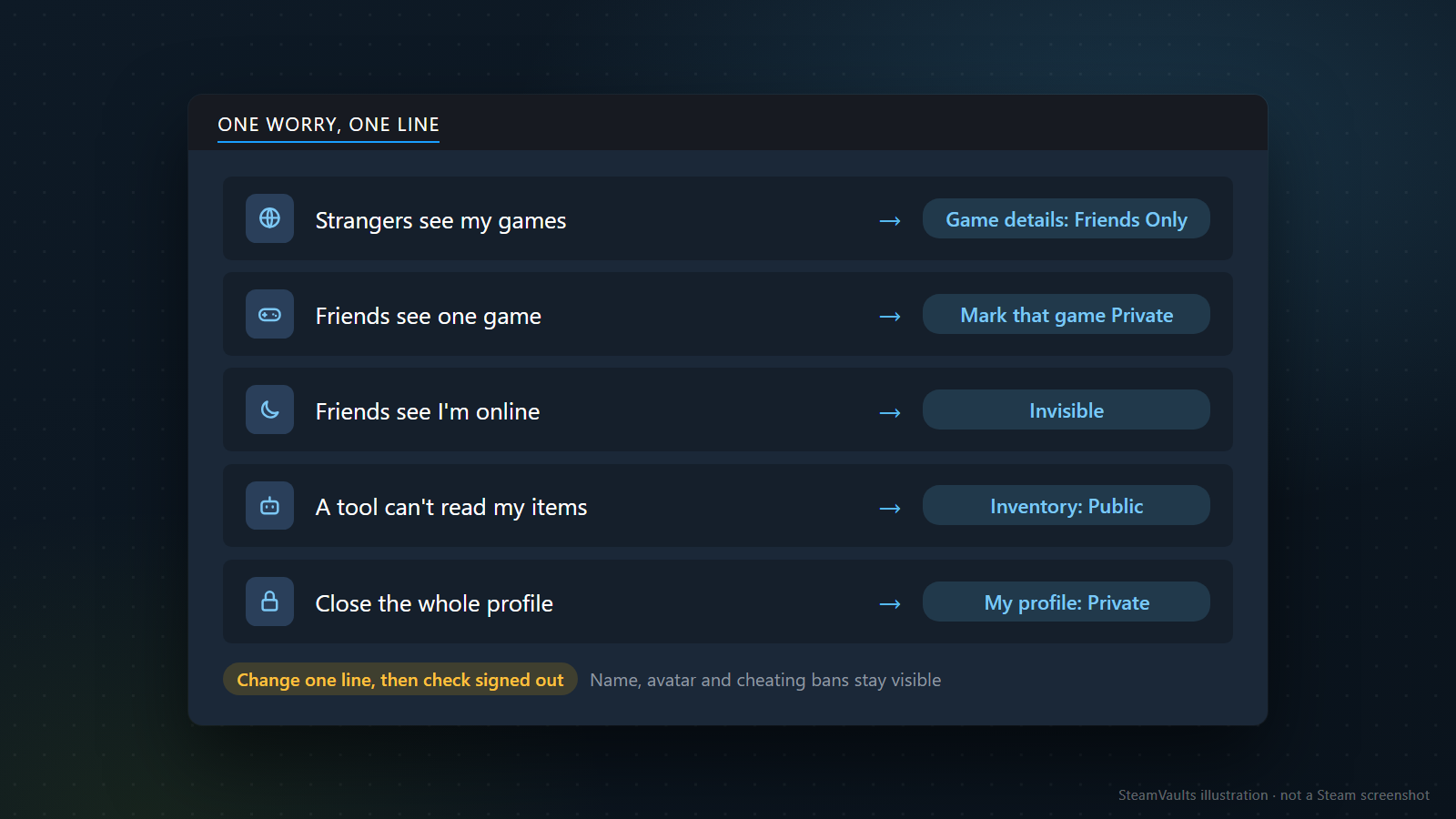
- Strangers seeing your games and hours: set game details to Friends Only. Add the playtime option if friends should not see hours either.
- Friends seeing one particular game: mark that game Private. It earns no trading cards while it stays private.
- Friends seeing that you are online: set Invisible in Friends & Chat.
- A trading tool that cannot read your items: set the inventory to Public, and choose again once you are done.
- Wanting the whole profile closed: set My profile to Private. Your name, avatar and any cheating ban stay visible regardless.
If you trade often, think about how your profile looks in a lookup tool. According to the trust check's own notes, Steam hides the creation date, game list and friend list on private profiles, so they come up as hidden or "Unknown", and the tool says plainly that Unknown means Steam did not return it, not that it is bad. Still, a trading partner who checks you first will have less to go on. Closing your profile is your call; just make it knowing that it removes signals the other side might look for.
Change one line at a time and check signed out after each change. Change several at once and you cannot tell which one produced the result. Valve reworked this page once, in 2018, and could again, so repeat the check when you connect a new trading site or tidy up your profile after a long break.
What this rests on: the pages listed at the top, the 2018 ComputerBase report, and the tool text in the SteamVaults repository. Because the signed-in settings page was out of reach, the My profile ceiling and the playtime option's wording come from 2018 material. Comment settings, gift-related details and how long a change takes to reach outside lookups are not covered by these sources, so this article leaves them out.