
Cần kiểm tra gì trước khi xác nhận trao đổi Steam?
Đối chiếu đúng tài khoản, vật phẩm và xác nhận di động trước khi trao đổi Steam. Phân biệt lời hứa thanh toán ngoài với nội dung đề nghị và giới hạn khôi phục.
Ngôn ngữ bài viết
Trong bài viết này
Kiểm tra ngay:Kiểm tra giữ giao dịch và hạn chế Steam
Ngay cả khi đã thống nhất xong về giá, bạn vẫn phải đọc riêng cửa sổ trao đổi. Trước khi bấm xác nhận, hãy kiểm tra vật phẩm đã hứa có thực sự nằm trong đề nghị và tài khoản đang gửi đề nghị có đúng là đối tác của mình không.
Tôi thà chậm lại một chút. Biết rõ giá thị trường không có nghĩa những điều kiện khác cũng đúng. Bài này không chấm điểm độ an toàn của đối tác; nó chỉ hướng dẫn đối chiếu đề nghị đang đến với thỏa thuận ban đầu. Các hướng dẫn của Valve được kiểm tra vào ngày 05/09/2026; ví dụ về thẻ và hình minh họa được dựng để giải thích, không dựa trên một giao dịch hay thiệt hại thực tế.
Hai bên đã thống nhất sẽ gửi và nhận gì?
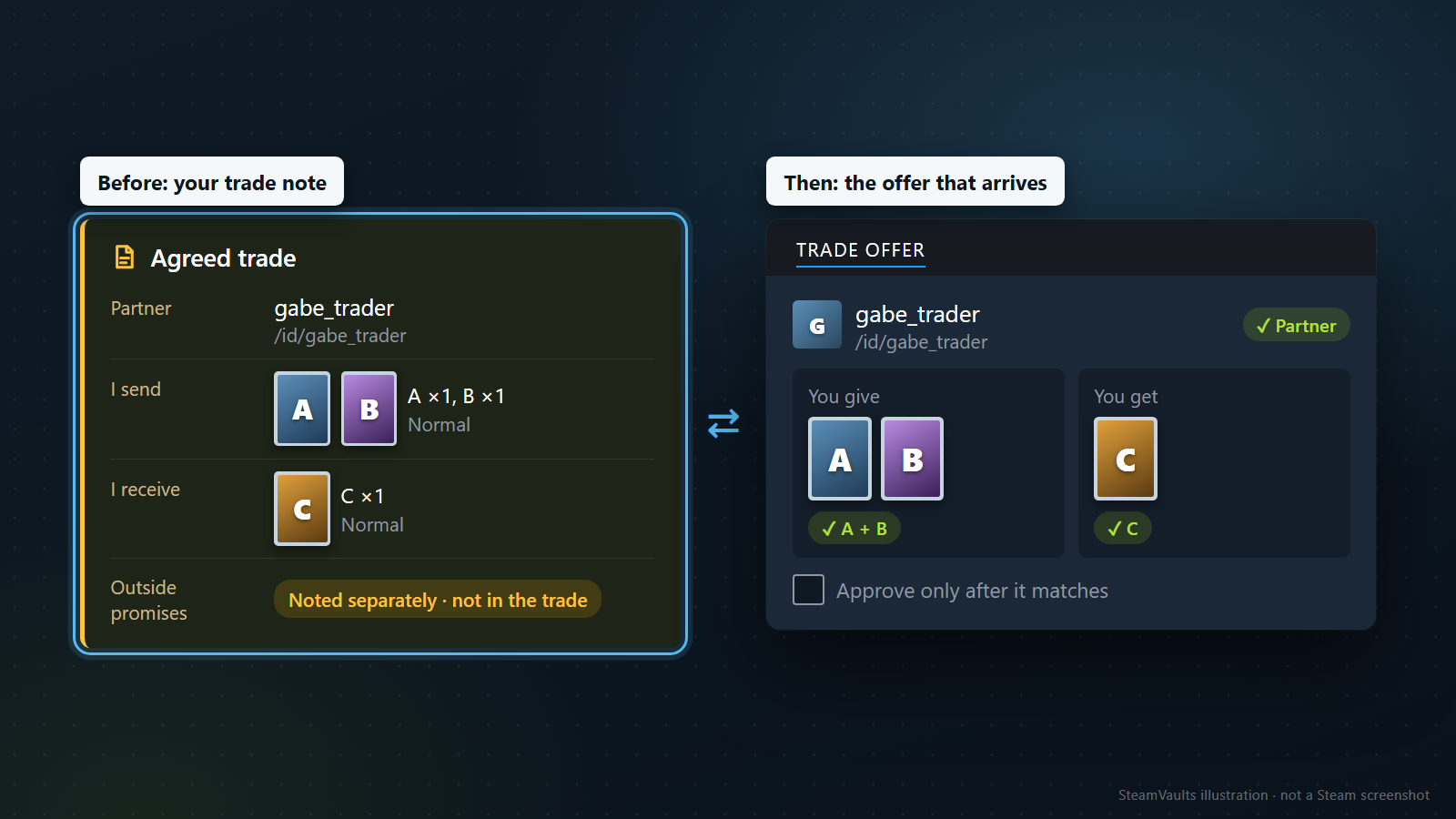
Hãy ghi ngắn gọn tài khoản đối tác, vật phẩm và số lượng của cả hai phía. Chẳng hạn: gửi mỗi thẻ thường A và B một chiếc, nhận một chiếc C. Nếu đã thỏa thuận về thẻ foil thì ghi luôn điều kiện đó. Khi thỏa thuận thay đổi, sửa lại ghi chú để vẫn còn một mốc so sánh rõ ràng.
Ảnh chụp cho thấy đối tác có thẻ C trong kho không phải là đề nghị họ sẽ gửi thẻ C. Hãy lấy đơn hàng hoặc nội dung trao đổi đã thống nhất làm mốc rồi đối chiếu với ô nhận trong đề nghị hiện tại. Không cần bấm vào một liên kết đăng nhập mới mà đối tác gửi với lý do “để xác minh”.
Đừng bỏ qua tài khoản đối tác chỉ vì đã quen nickname
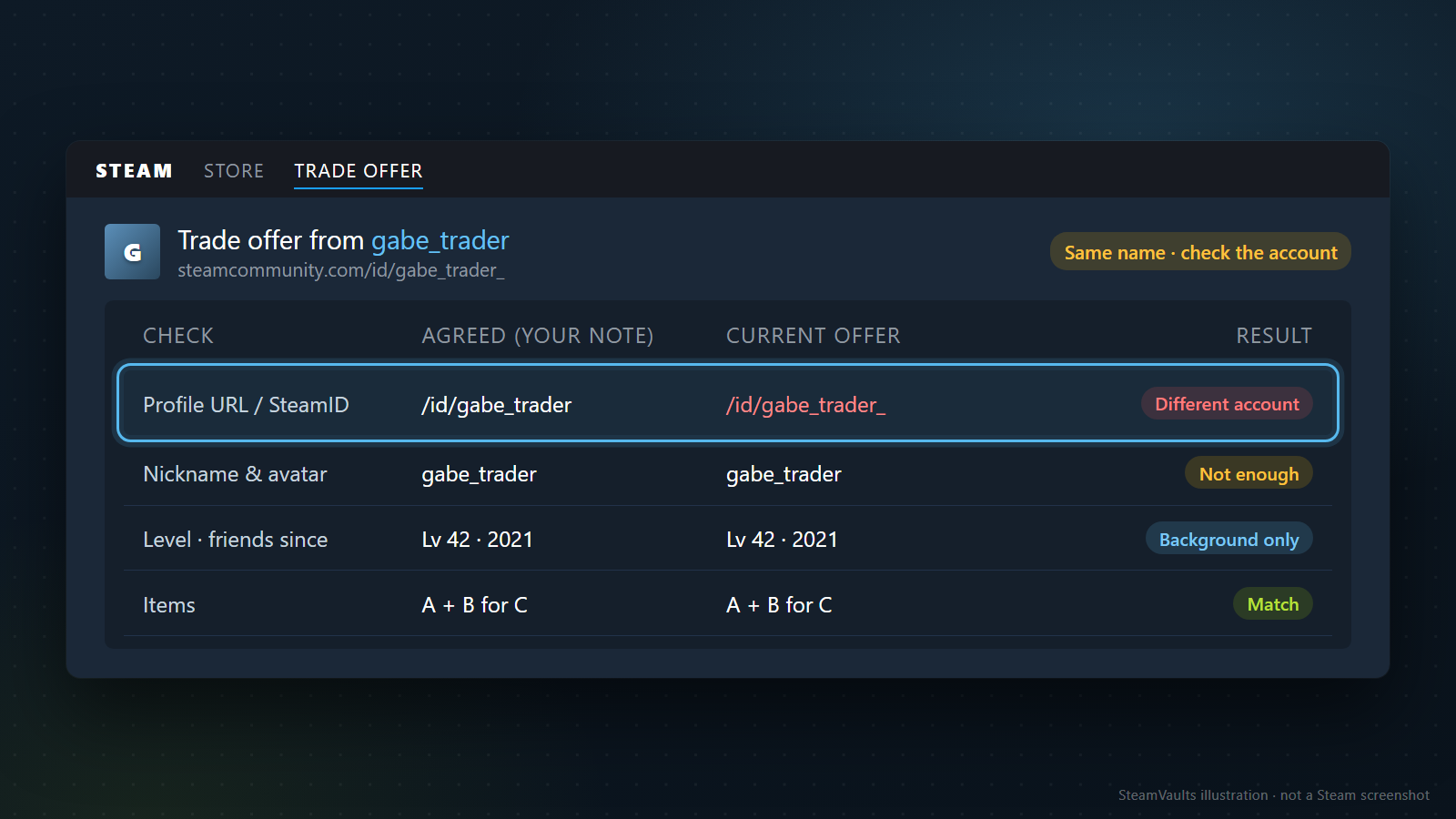
Khuyến nghị giao dịch an toàn của Valve cảnh báo rằng kẻ xấu có thể mạo danh bạn bè hoặc người giao dịch. Nếu đã có URL hồ sơ hoặc SteamID được kiểm tra từ trước, hãy đối chiếu chúng với tài khoản gắn với đề nghị hiện tại. Đừng chỉ dựa vào nickname và ảnh đại diện.
Tài khoản cũ hoặc cấp độ cao không phải là một mức điểm để tự động thông qua. Hướng dẫn giao dịch Steam cũng nói rằng bình luận danh tiếng có thể bị làm giả. Thời gian kết bạn và bình luận chỉ là thông tin tham khảo; chúng không xác nhận người đứng sau đề nghị vừa đến.
Nếu ai đó nói “bot đã đổi” rồi xuất hiện một tài khoản khác, hãy kiểm tra trong đường dẫn chính thức của dịch vụ mà bạn đang dùng xem đơn hàng có gắn với tài khoản mới hay không. Nếu đơn hàng ghi A còn đề nghị ghi B mà bạn không biết lý do, cứ để trạng thái đó là chưa giải quyết. Không cần kết luận ngay là lừa đảo, nhưng cũng không có lý do để đoán đó là tài khoản của cùng một người vận hành. Khi một người bạn đưa ra yêu cầu khác thường, hãy xác nhận với họ qua cách liên lạc đã biết từ trước.
Nếu khó phân biệt địa chỉ, hãy xem hướng dẫn về Steam Trade URL. Một địa chỉ Steam đúng không đồng nghĩa người gửi đề nghị cũng là đúng đối tác.
Hãy nhìn tên và thuộc tính, không chỉ nhìn tổng số món
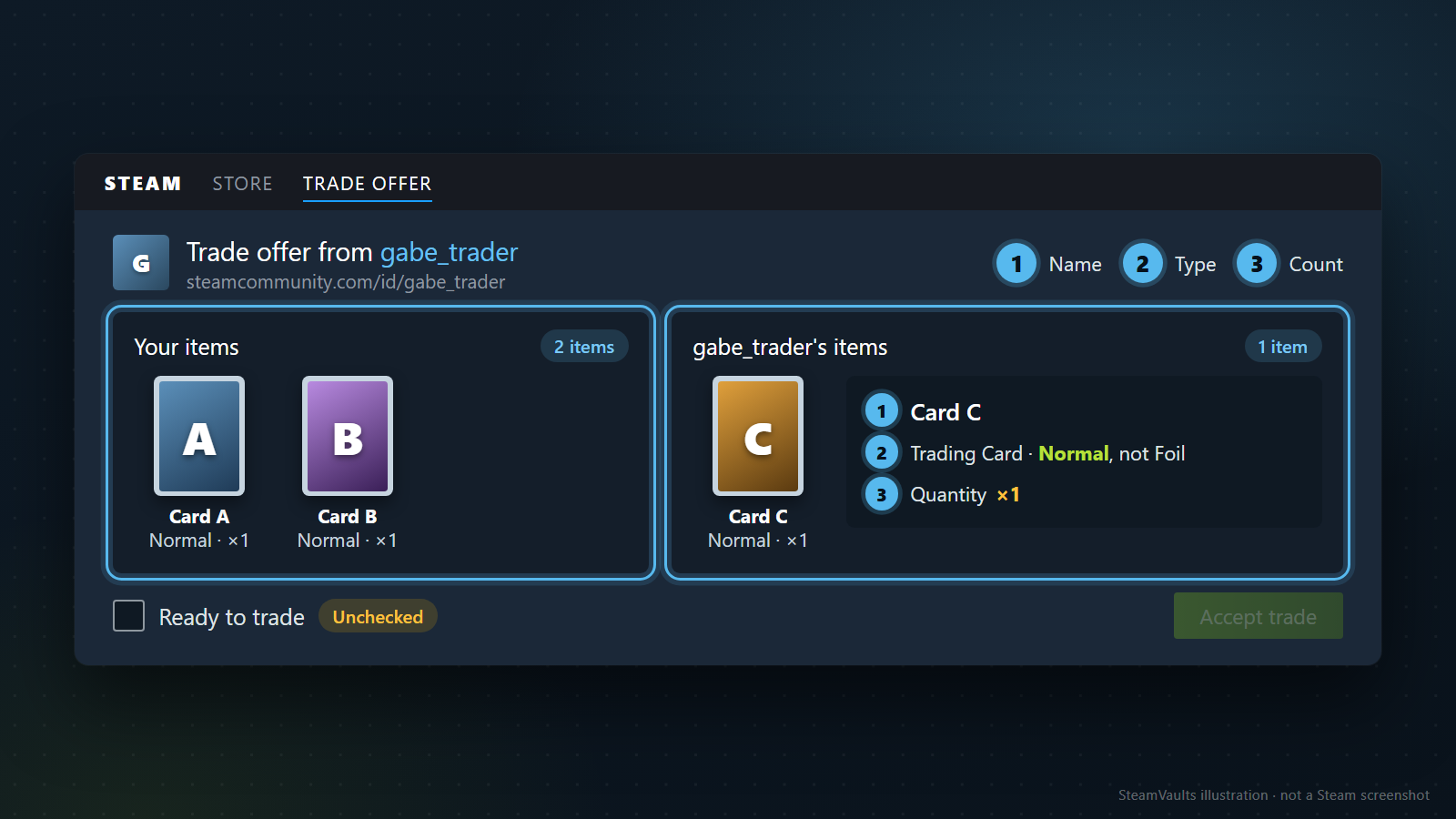
Steam khuyên kiểm tra tên, chất lượng, mô tả và hiệu ứng của vật phẩm. Hình ảnh quen mắt không đủ để kết luận đó là cùng một món. Trước hết, hãy tìm đúng tên và số lượng đã thỏa thuận trong danh sách nhận, sau đó đối chiếu các thuộc tính có thể ảnh hưởng đến giá trị hoặc cách sử dụng.
> Các ví dụ dưới đây chỉ để kiểm tra thành phần, không phải giá thị trường hay giao dịch thật.
| Thỏa thuận | Cần kiểm tra trong đề nghị |
|---|---|
| Nhận một A và một B | Kiểm tra tên từng món, xem có bị đổi thành hai A hay không |
| Nhận một loại cụ thể cùng tên | Xem phần mô tả chi tiết có đúng loại và thuộc tính đã thống nhất không |
| Gửi nhiều món cùng lúc | Đọc đến cuối danh sách để chắc rằng vật phẩm định giữ lại không bị trộn vào phía gửi |
Tổng số món có thể giống nhau nhưng thành phần lại khác. Hãy xem cả các mục bên dưới phần đang hiển thị. Nếu chưa hiểu một thuộc tính, tìm hiểu vật phẩm trước rồi mới tính giá; lấy giá của loại khác áp vào sẽ khiến một phép tính rất kỹ vẫn vô nghĩa.
Nếu vấn đề là ngày có thể giao dịch hoặc dấu hiệu không thể giao dịch, hãy xem hướng dẫn giới hạn giao dịch và bán vật phẩm Steam. Cài đặt hiển thị kho đồ cũng là chuyện riêng. Công khai kho không trao quyền lấy vật phẩm và cũng không buộc bạn phải chấp nhận đề nghị đã nhận.
Khi ô nhận đang để trống
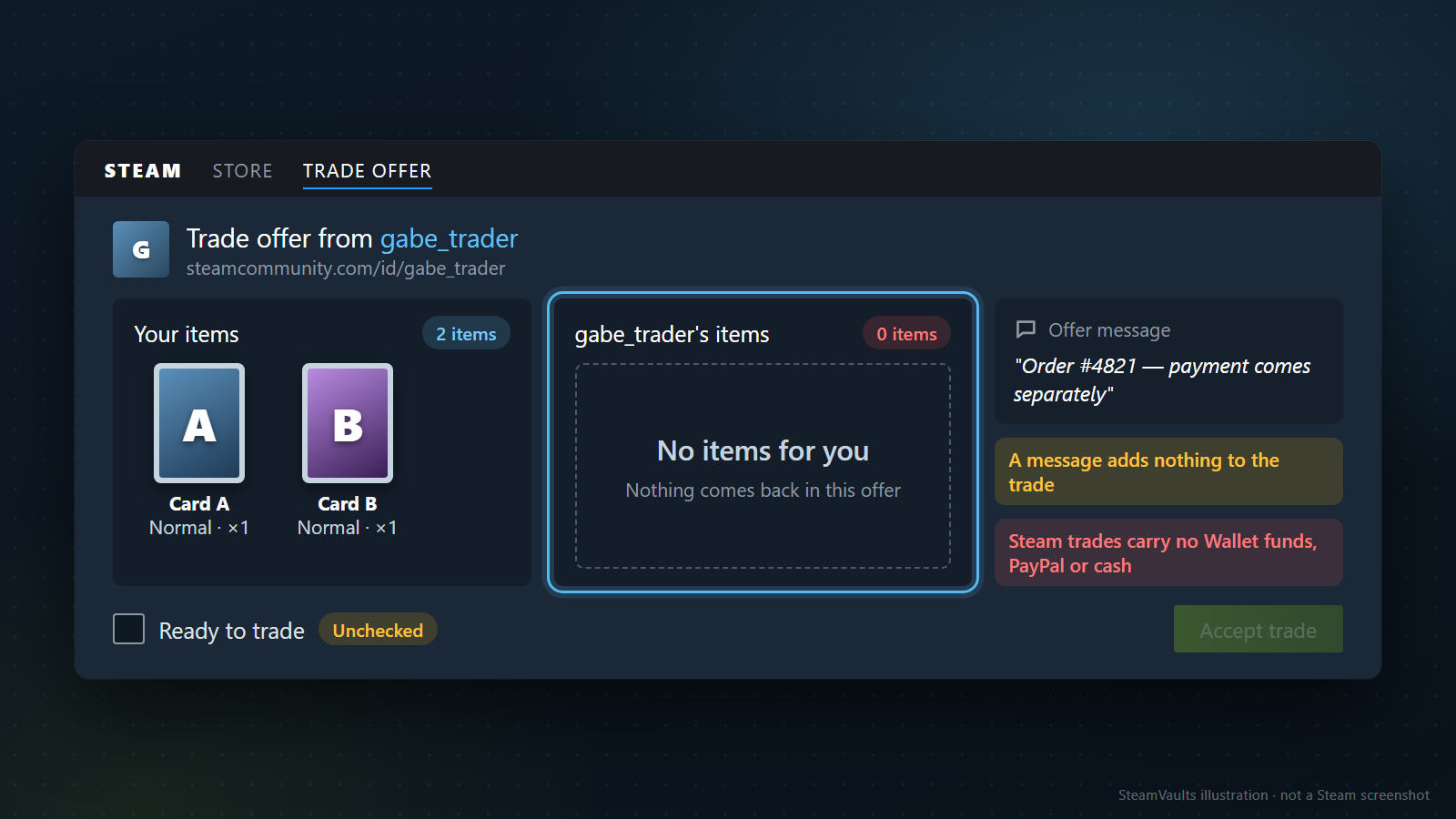
Ô trống có nghĩa là đề nghị Steam hiện tại không có vật phẩm nào để bạn nhận. Nếu ngay từ đầu đây là món quà không kèm điều kiện, ô trống tự nó chưa đủ để kết luận là lừa đảo. Nhưng nếu đã hứa nhận tiền hoặc vật phẩm khác, hãy tách riêng câu hỏi: khoản đối giá đó đang nằm ở đâu?
Theo hướng dẫn của Valve, giao dịch Steam không chuyển số dư Wallet, PayPal, gift card hay tiền. Valve cũng khuyên tránh kiểu gửi vật phẩm trước rồi nhận đối giá ở một giao dịch khác, cũng như tránh dùng người trung gian. Viết mã đơn hàng hoặc số tiền vào tin nhắn của đề nghị không biến tiền đó thành một hạng mục trao đổi.
Nếu giao dịch có dịch vụ bên ngoài thanh toán, việc vật phẩm di chuyển trên Steam và việc dịch vụ đó thanh toán là hai trạng thái riêng. Đừng chỉ nhìn ảnh chụp khoản tiền đối tác gửi; hãy kiểm tra trạng thái trong phương thức thanh toán mà bạn vốn sử dụng. Điều kiện chốt giao dịch, tranh chấp và hủy do dịch vụ đó quy định. SteamVaults cũng là một đơn vị vận hành độc lập với Valve. Việc vật phẩm di chuyển bình thường trên Steam không khiến Steam bảo đảm lời hứa thanh toán của dịch vụ bên ngoài.
Lời hứa cho mượn rồi trả lại cũng không có chức năng tự động hoàn trả. Nếu điều kiện thanh toán hoặc cam kết trả lại vẫn chưa rõ, bạn có thể không xác nhận.
Trên điện thoại, đừng chỉ bấm nút xác nhận
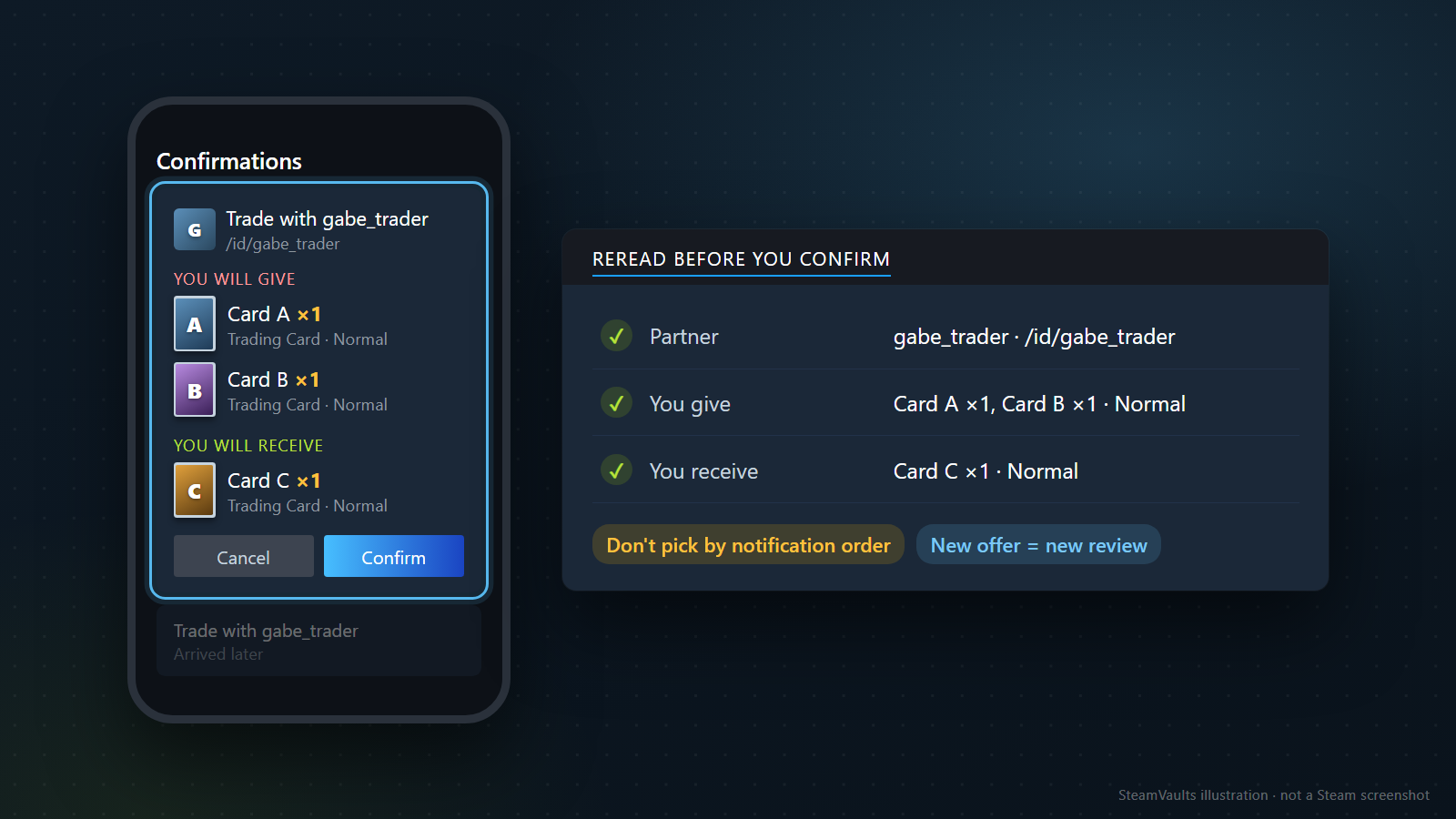
Hướng dẫn chuyển hướng giao dịch của Valve giải thích rằng khi tài khoản bị xâm phạm, đề nghị ban đầu có thể bị hủy và một đề nghị mới được tạo tới tài khoản mạo danh. Vì vậy, ngay cả trong bước xác nhận trên Steam Mobile, hãy đọc lại đối tác cùng tên, loại và số lượng vật phẩm ở cả hai phía. Thứ tự hoặc thời điểm thông báo không đủ để chọn đúng đề nghị.
Đề nghị quay lại sau khi bị hủy phải được xem như một đề nghị mới. Dù có người nói “chỉ sửa số lượng”, hãy kiểm tra những mục còn lại. Nếu lỗi vừa xảy ra, trước hết hãy xem trạng thái đề nghị trước đó. Đừng liên tiếp xác nhận một yêu cầu mới khi chưa biết yêu cầu cũ đã hoàn tất hay vẫn còn. Nếu mọi thứ đã xác nhận nhưng việc chuyển vật phẩm bị giữ lại, hãy xem riêng sự khác nhau giữa trade hold và market hold.
Không xác minh được thì dừng lại cũng được
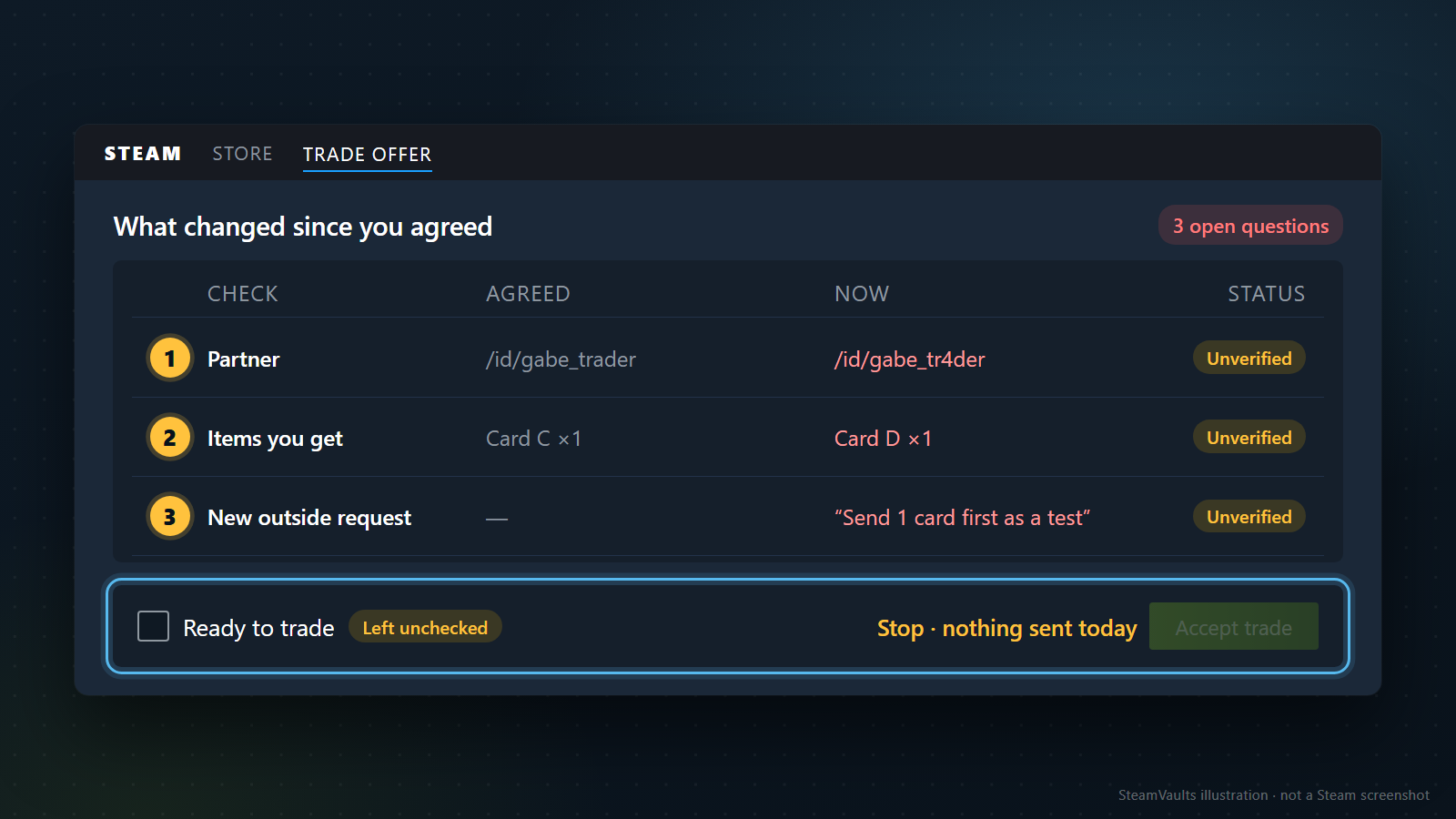
Nếu đối tác thay đổi mà bạn không biết lý do, vật phẩm không đọc được hoặc điều kiện thanh toán vẫn chưa hiểu, hãy trì hoãn xác nhận. Thời gian đã bỏ ra hay việc đối phương thúc giục không buộc bạn phải đoán phần còn thiếu. Tôi chỉ ghi lại mình chưa xác minh được điều gì và hôm đó sẽ không gửi. Cũng không giao vật phẩm cho người nhận kiểm tra hộ, và không gửi thử một phần.
Nếu tài khoản của bạn gửi một đề nghị lạ
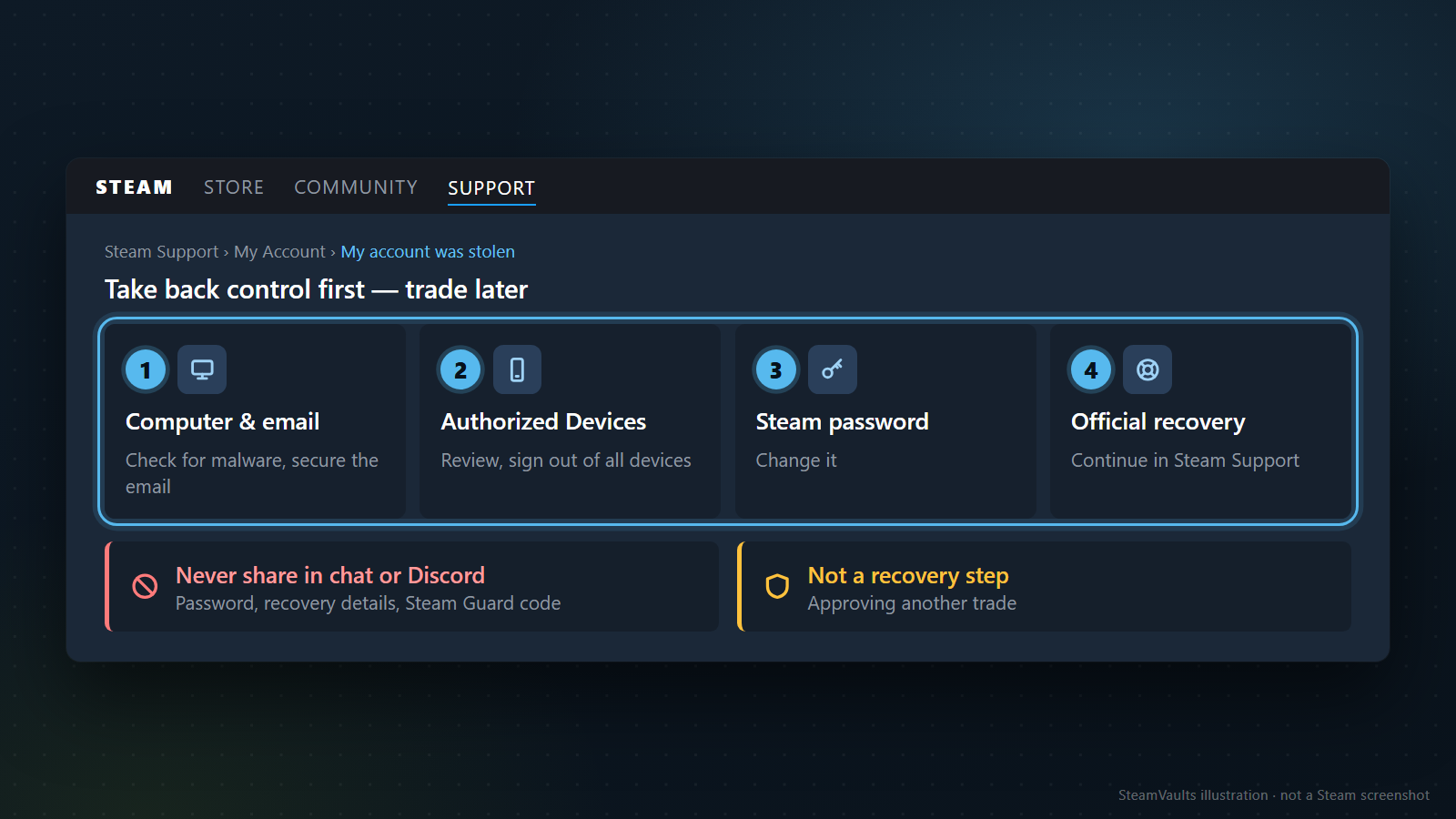
Nếu trong mục đề nghị đã gửi có một đề nghị được gửi từ chính tài khoản nhưng bạn không tạo, hãy kiểm tra quyền kiểm soát tài khoản trước khi tiếp tục giao dịch. Chỉ nhận được một đề nghị lạ từ người khác chưa đủ để chứng minh tài khoản đã bị xâm phạm.
Hãy dùng hướng dẫn bảo mật tài khoản Steam và đường dẫn khôi phục tài khoản bị đánh cắp. Kiểm tra máy tính có phần mềm độc hại hay không và bảo vệ email liên kết trước; xem các thiết bị được ủy quyền và nếu cần thì đăng xuất khỏi mọi thiết bị. Đổi mật khẩu Steam và thực hiện khôi phục qua đường dẫn chính thức. Đây không phải quy trình để đưa mật khẩu, tài liệu khôi phục hay mã Steam Guard cho người tự nhận là nhân viên hỗ trợ trong chat hoặc Discord.
Nếu cần báo cáo đối tác, hãy theo hướng dẫn báo cáo hồ sơ, chọn báo cáo người chơi trong menu hồ sơ và ghi lại tương tác thực tế. Không đăng công khai tài liệu dùng để khôi phục. Báo cáo, khôi phục tài khoản và hoàn trả vật phẩm là ba việc khác nhau. Sau khi lấy lại quyền kiểm soát, vẫn phải đối chiếu lại những đề nghị còn lại.
Hoàn tác có phạm vi và cái giá riêng
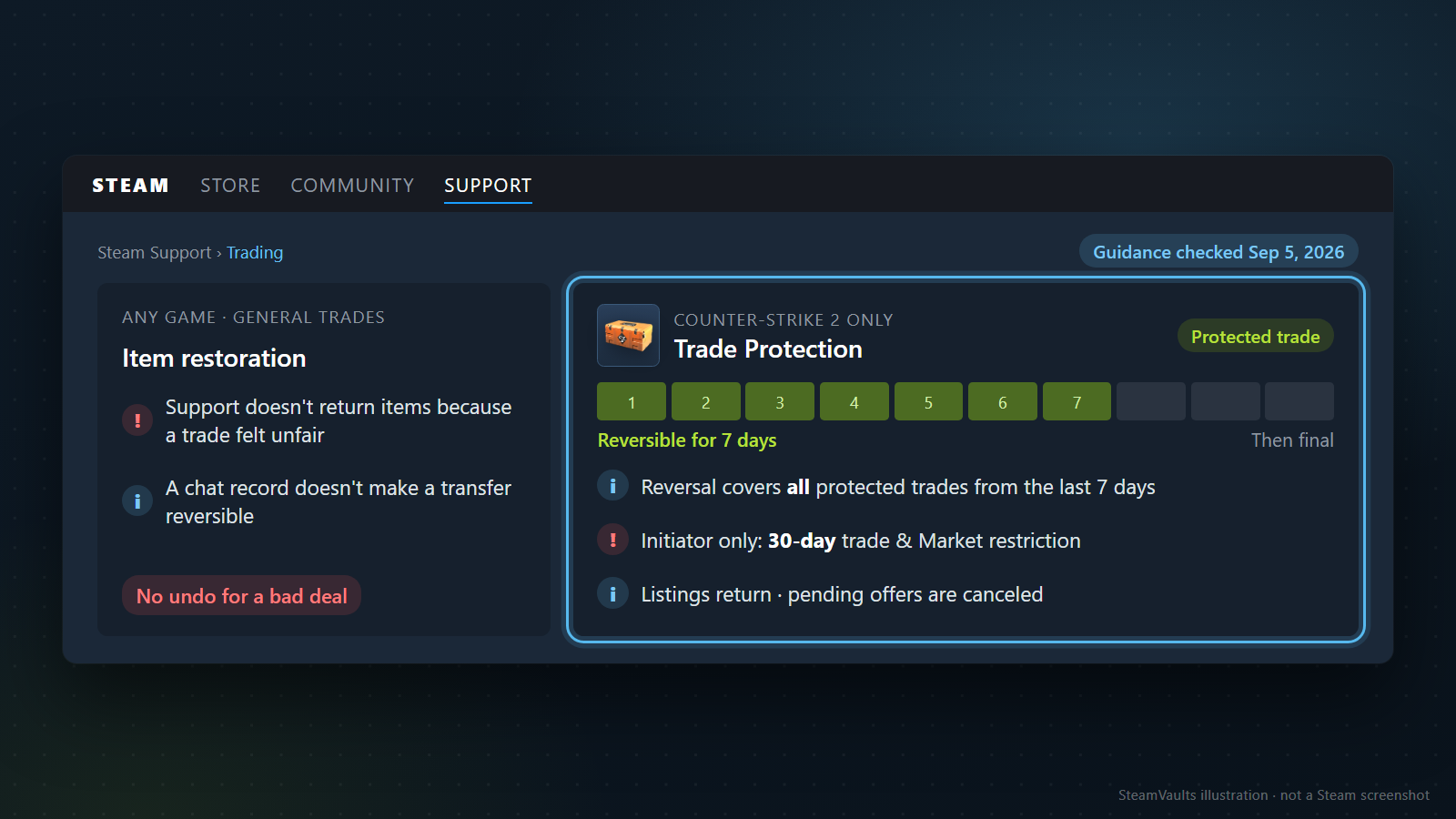
Hướng dẫn giao dịch Steam nói rằng Support không trả lại các vật phẩm hoặc món quà mà người dùng cho là đã được trao đổi không công bằng. Có lưu lịch sử trò chuyện không có nghĩa mọi lần chuyển vật phẩm đều được hoàn tác.
Trade Protection là một tính năng riêng. Trong hướng dẫn chính thức được kiểm tra ngày 05/09/2026, game được nêu trong phạm vi hỗ trợ là Counter-Strike 2. Giao dịch được bảo vệ có thể được hoàn tác trong 7 ngày; sau thời gian đó thì không. Trước tiên phải lấy lại quyền kiểm soát tài khoản, rồi kiểm tra trong lịch sử giao dịch xem giao dịch đó có đủ điều kiện hay không.
Khi bắt đầu hoàn tác, không chỉ một giao dịch được chọn mà toàn bộ giao dịch được bảo vệ trong 7 ngày gần nhất sẽ bị hoàn tác. Chỉ tài khoản khởi xướng mới chịu hạn chế giao dịch và chợ 30 ngày; tài khoản đối tác không chịu thời gian chờ đó. Các vật phẩm đang được đăng bán trên chợ của tài khoản khởi xướng sẽ quay về tài khoản ấy, và các đề nghị trao đổi đang chờ cũng bị hủy.
Không được áp dụng các điều kiện này cho game khác hoặc mọi lần chuyển vật phẩm trên Steam. Hãy xem dấu hiệu bảo vệ và lựa chọn trong lịch sử giao dịch thực tế. Không có bảo đảm rằng tiền do một dịch vụ bên ngoài thanh toán cũng được hoàn tác bằng cùng tính năng.
Sẵn sàng bán Sack of Gems được hỗ trợ?
USDT được ghi có vào số dư trên trang sau khi bot xác nhận đã nhận Sack of Gems; yêu cầu rút qua Polygon được thực hiện riêng.