


If a game is already installed on your desktop, it is natural to wonder whether a laptop in the same home really needs to download it from the internet again. Steam’s Local Network Game Transfers can use eligible files from another local device; missing files can come from Steam servers. Guide describes the conditions.
The choice depends on how much of the current installation remains and how much internet use matters to you. When a large game needs to be installed on several devices, it is worth checking whether another PC can supply some of the files. Which route is faster depends on the internet connection, the local link, and the state of both devices; this article does not measure that.
If the download is almost finished
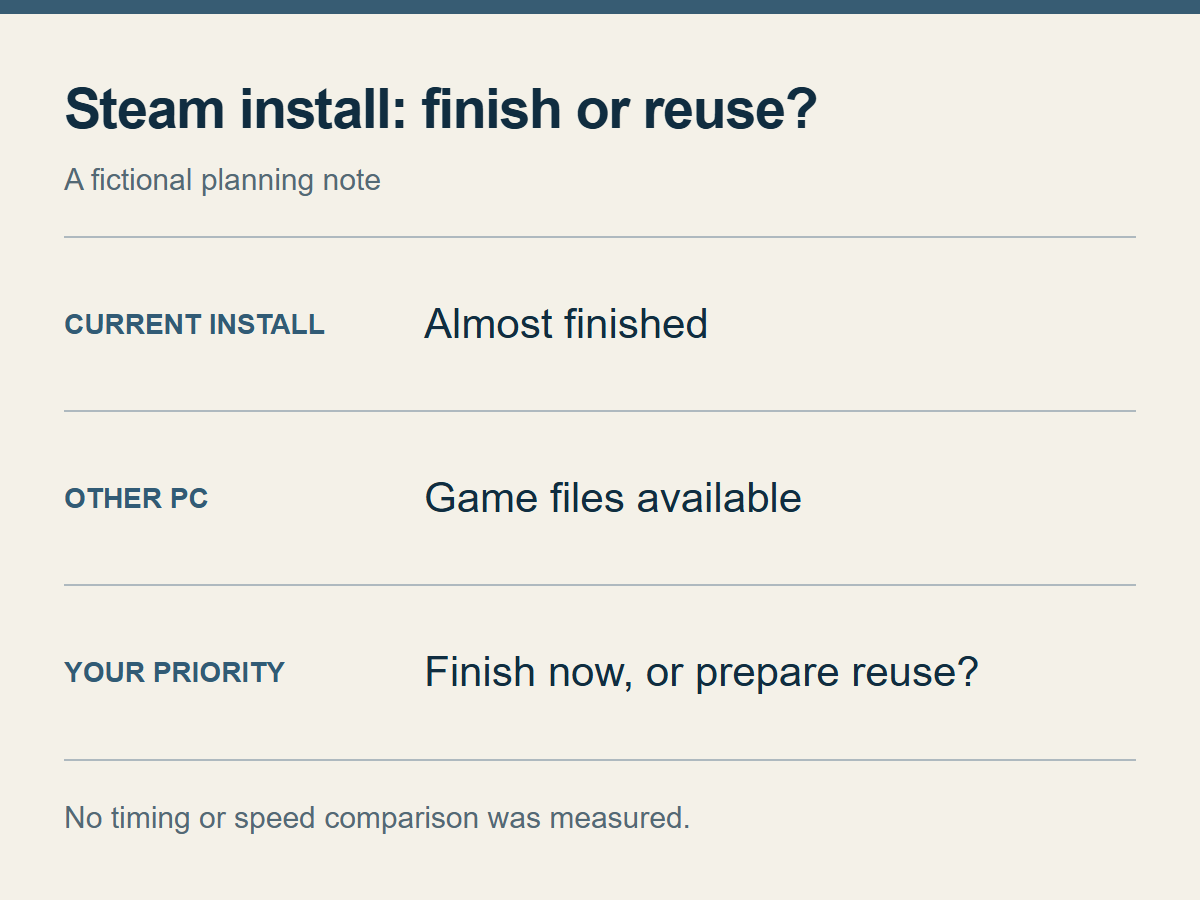
An example of the decision to make, not a measured comparison of time or speed.
When an installation is nearly complete, finishing the work already in progress is often the simpler choice. If you have not started a large download yet, you can check whether a local transfer is possible. Before deleting an existing installation or restarting a download, decide whether your priority is to finish the current task or reduce internet use.
Also consider what will happen to the sending PC. Check when that PC will be available while the receiver installs; the receiver’s installation time alone does not describe the benefit. If you need to play on the desktop or cannot leave it available, using a path that does not depend on that computer may be easier. No transfer time or saved-data amount was measured for this article.
If you are undecided, do not discard completed work first. Watching the new device’s ordinary installation screen can show what it is downloading or processing before you make a bigger change.
Check the sending device before the receiving one
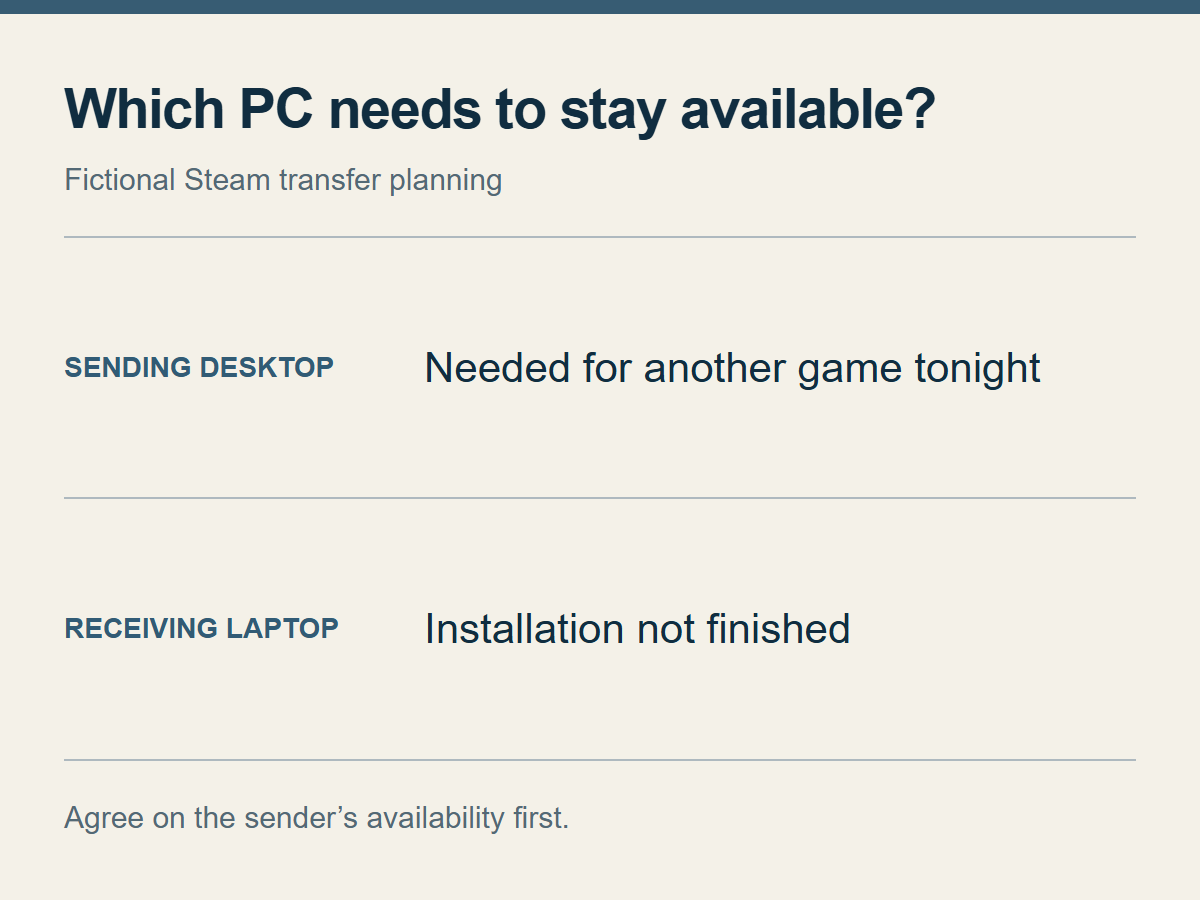
Decide how long the sender can remain available, not only what the receiver needs.
Both clients must be online, mutually reachable on the same LAN, and allow transfers; offline mode does not qualify. The sender must be idle, with no game or download running, and have an up-to-date, released game playable by both users; preloads are excluded. See Requirements.
By default, transfers use same-account devices; the sharing setting applies to both sender and receiver. Decide first which PC is meant to send and which one needs the installation: your desktop to your laptop, or another person’s PC to yours. A shared home does not establish account permission or reachability. If a game is locked because of a family-library question, check the existing article about a locked family-library copy instead of repeatedly changing local-transfer settings.
You do not need to exchange a password to receive files. If someone else is turning on a PC for a short time, agree on which game should be sent and when. A transfer that has not started is different from a sender that is no longer available because its owner started another game or shut the PC down.
Steam Deck can send files too
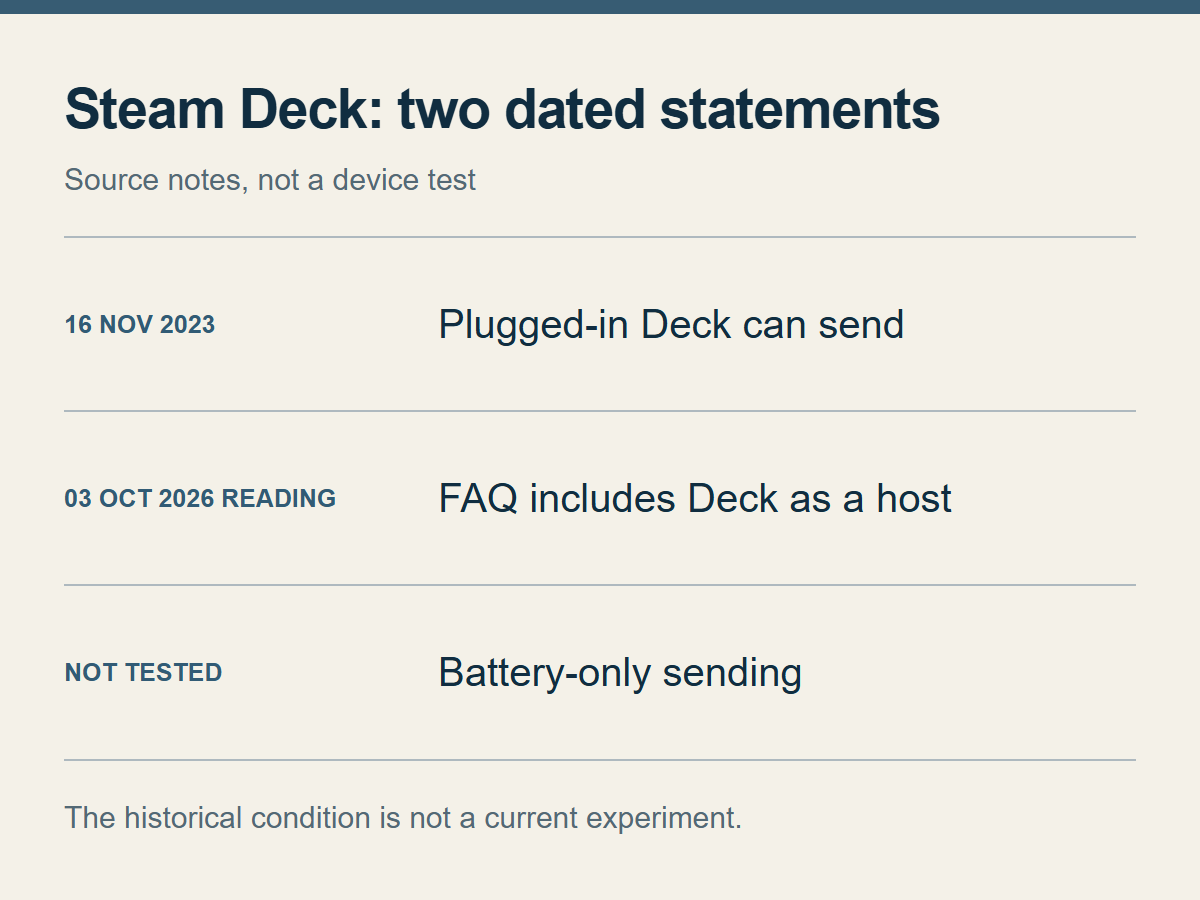
The 2023 power condition is not being presented as a result from a current battery test.
The help text read on 3 October 2026 lists Steam Deck and PCs running Steam in desktop mode as hosts; Big Picture and custom launchers are excluded. Hosts
In a 16 November 2023 Stable update, Valve announced that a Steam Deck connected to power could send game files to another Steam client on the same local network. Steam Deck’s official update is a dated release record, not a current device test.
That means an older statement that “Decks can only receive” may not match the current host description. The historical announcement specifies external power, while the help text read on 3 October 2026 does not state a charging requirement. Connecting a Deck to power is a conservative setup to prepare, but battery-only sending was not verified here.
The same game may not mean the same files
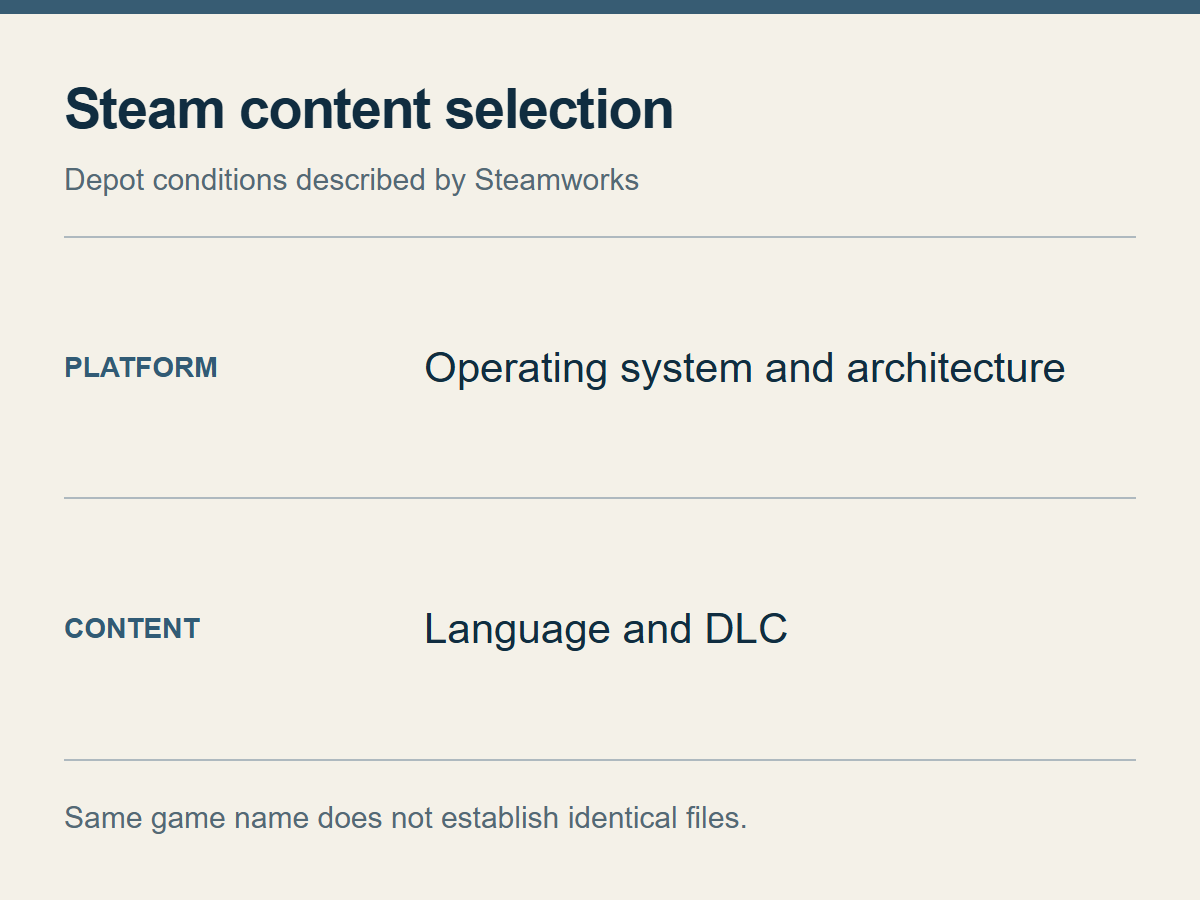
This explains why requested content can differ; it does not calculate a transfer ratio for a particular game.
If a new device continues downloading from the internet even though the game is installed on a desktop, that alone does not prove that local transfer failed. Steamworks describes a distribution unit called a “depot”. Developers can split the required content by operating system, language, architecture, and DLC. Steamworks’ depot documentation explains that structure.
The same game name therefore does not establish that both devices need identical files. A different language or extra content can change what the receiving device requests. That still does not justify saying that different languages prevent all local transfers, or that a Windows-to-Deck installation always has a fixed reusable percentage. The actual game’s content configuration would be needed for that judgment.
Installation can also continue doing disk work after the download becomes small. Valve’s SteamPipe documentation explains that updates can reuse existing file content, while rebuilding pack files may still require substantial storage work. SteamPipe’s update-processing explanation is architectural context, not a measurement of the bottleneck on your PC or proof of a particular local-transfer implementation.
Read only what the progress display shows
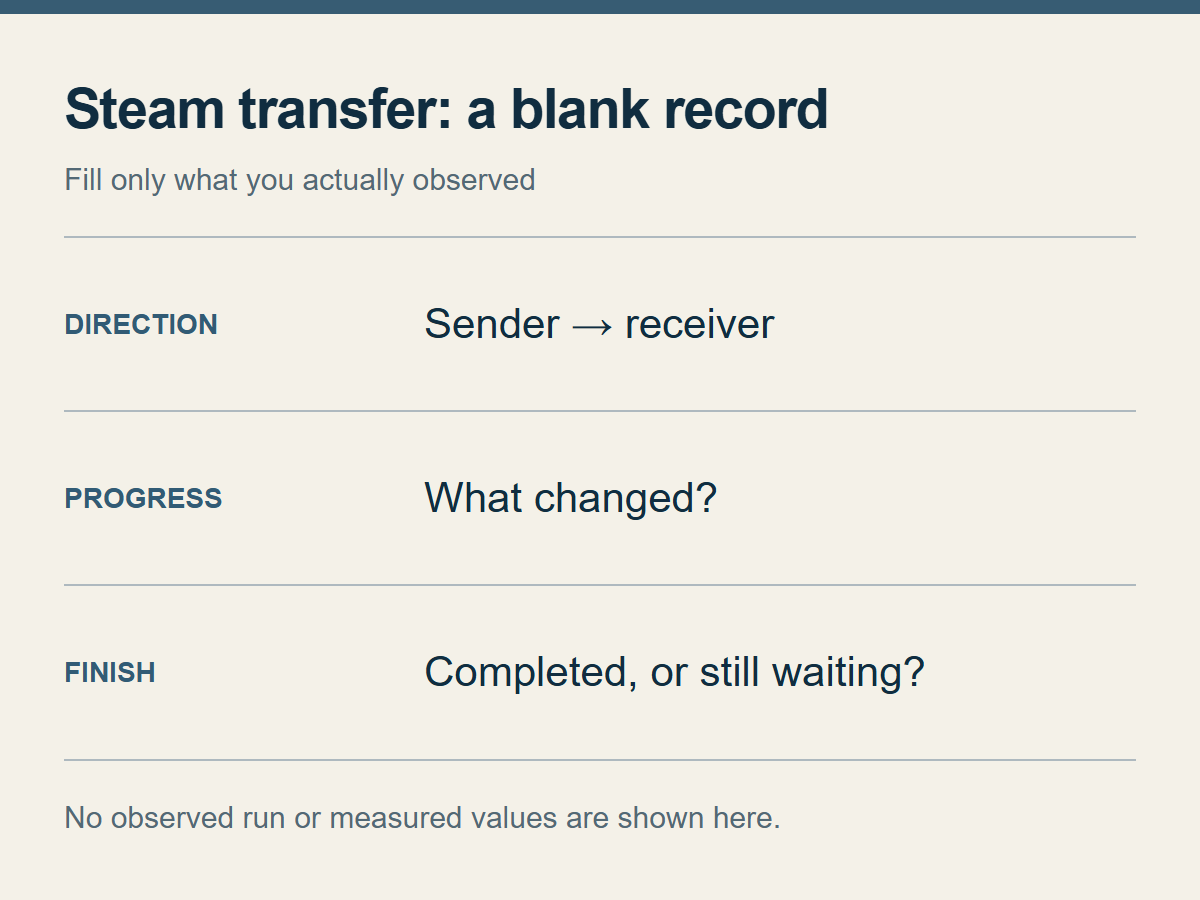
A blank record to fill in yourself; it shows no actual transfer result or speed value.
Only original game content transfers; saves, configuration, Workshop, Cloud, and shader files do not. Scope is the reference for that boundary.
Receiving installation files, being ready to launch the game, and having the play history you want are separate questions. If saved data is the issue, see the existing article about Steam Cloud conflicts and save files. Trying local transfer again will not, by itself, resolve a save-file problem.
If you try the transfer and want a useful record, note four things:
- which device was meant to send to which device;
- whether the sender showed a transfer indicator and the receiver showed progress;
- whether the process changed to a server download or another processing stage; and
- whether installation finished, or which screen is still waiting.
Those notes help distinguish a discovered device from an established transfer, a partial local transfer followed by a server download, a transfer that never began, and installation or disk processing after the transfer. One brief peak speed cannot establish the total time or the effect of a setting. Different starting content or device conditions also make a comparison unequal.
The material checked for this article is official documentation and dated update records. No two-device installation run was performed, so there is no measured transfer speed, internet saving, completion time, or success rate to report.
If a transfer does not start, check before widening access
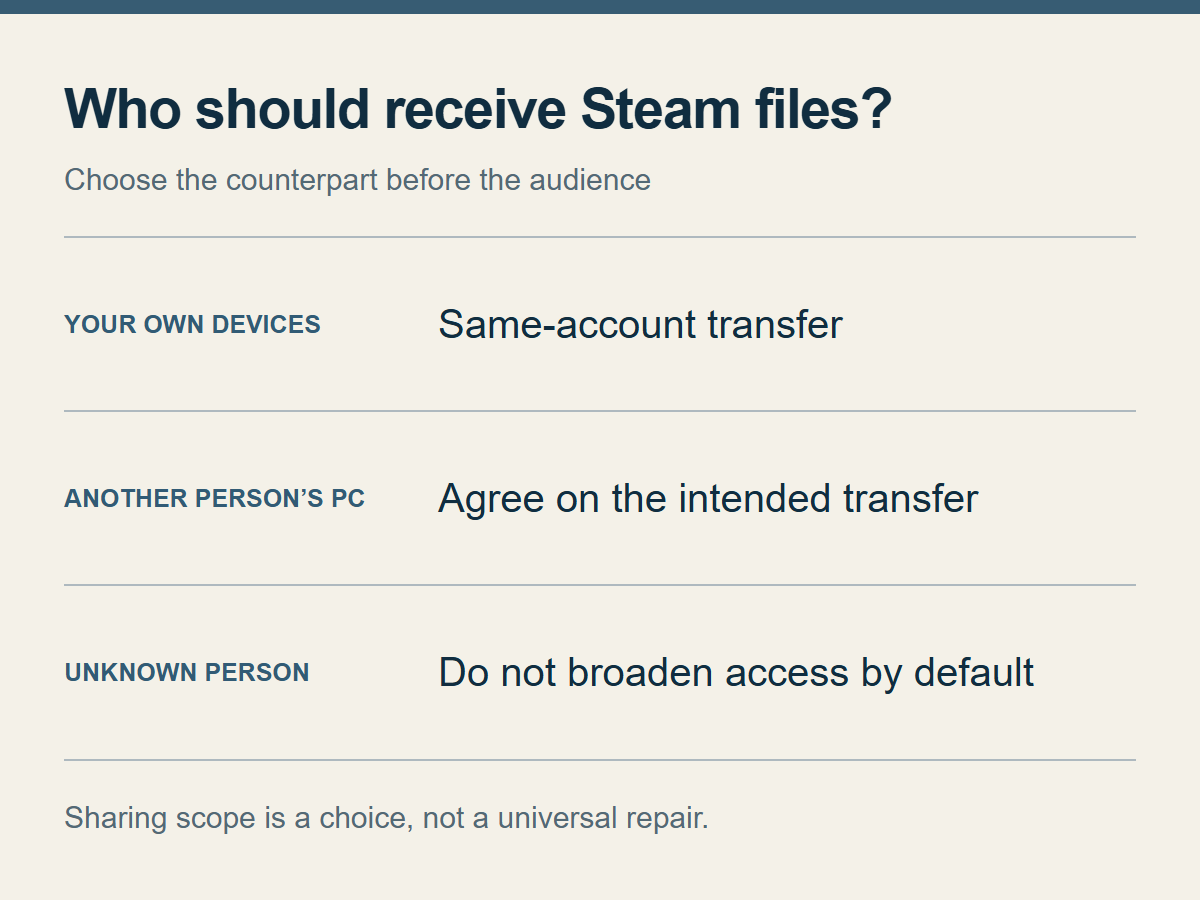
Choose the intended counterpart first. The broadest sharing audience is not a universal repair.
If the basic conditions appear to be met but the transfer does not start, checking for a client update is a reasonable first step. Valve’s 27 July 2026 Stable release documented a fix for local game transfers that had stopped working, and the 3 August 2026 Stable release documented further cases that prevented local network transfers from starting. The 27 July official note and the 3 August official note are historical fixes. They do not identify the cause of a particular current failure or promise a permanent fix for every transfer.
Being connected to the same Wi-Fi name does not prove that the devices can reach each other. TP-Link describes AP Isolation as a feature that separates clients on the same wireless network for specified products. Its AP Isolation explanation supports checking reachability separately from the network name; it does not show that your router has the feature, uses the same menu, or should have its protection disabled.
On a company, school, or hotel network, ask the network administrator. Do not disable the whole firewall, open WAN ports, remove public- or managed-network protections, or share credentials just to make a transfer appear. At home, check the router and security software’s official documentation before changing a setting you do not understand.
A wider audience can expose installed-game information to eligible local users. Use Privacy before widening access. On an unfamiliar shared network, do not select the broadest option by default.
If an ordinary internet download is progressing and you need to play soon, finishing it may be the least complicated path. If local transfer is essential, add both client versions and the connection type to the record above before asking for help. A password or authentication code is not required.