
How to Make Your Steam Inventory Public
Change Steam inventory privacy, check the view without signing in, and work out why a site still cannot read it. Choose what to share and when to make it private again.
Article languages
On this page
Check it now:Inventory checker
To make your Steam inventory public, open your profile → Edit Profile → Privacy Settings, then change Inventory to Public. Steam says privacy changes save automatically. If you can't find a separate Save button, you don't need to keep changing the same setting. Steam Profile Privacy
If the menu path was all you needed, you can stop there.
If a website still calls your inventory private, or a friend can see your cards while someone else can't, there is more to check. When you're signed into your own account, you're looking at the owner's view. Seeing your own items doesn't establish what anyone else can see.
Before using a website's Connect button, look through the inventory you're about to share. A few old cards may not concern you; other items might. Public means strangers can view it too, not just the website you chose.
Change the Inventory setting
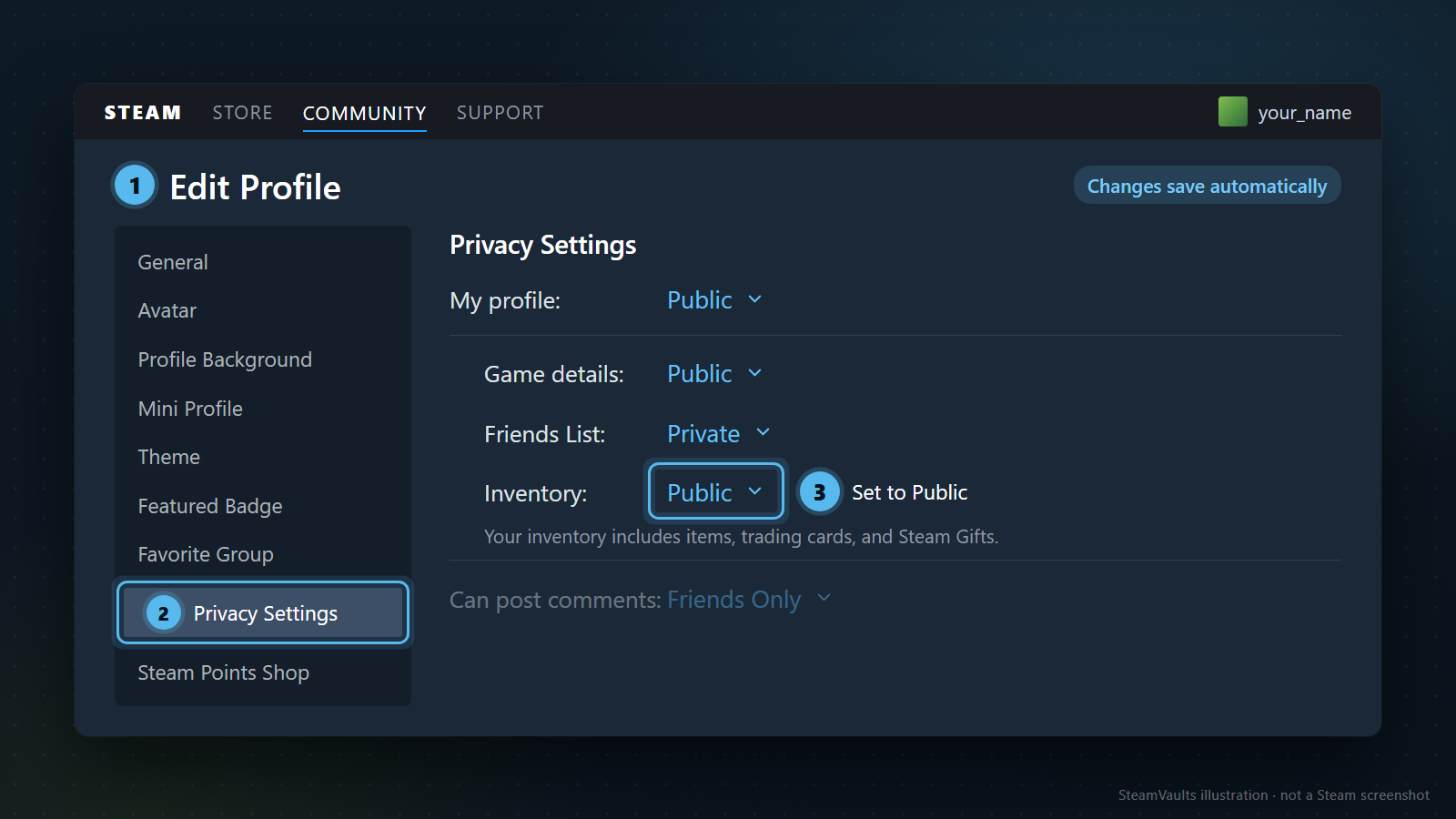
Open your profile in the Steam client or on the official website and find Edit Profile. Under Privacy Settings, look for the inventory visibility setting. The Steam Trading FAQ also says you can control who sees your items through your inventory or general profile settings. If a menu has moved, this documented route is a better starting point than arrows on an old search-result screenshot.
Read the current value first: Public, Friends Only, or Private. Keep it in mind when choosing the audience to return to after the task. If it is already public, leave it there and move on to the outside-view check below.
Select Public for Inventory, then reopen Privacy Settings to check the selection. You're checking the category and account, not saving a second time. If you use more than one Steam account, compare the profile address with the one connected to the service; names and avatars are easy to confuse.
Read the overall profile visibility as well. Don't infer that your inventory is public just because a profile picture or introduction is visible. Equally, if the overall profile audience is restricted, don't treat the Inventory label alone as proof of what a public visitor can reach. Check the combinations the current Steam interface allows, then verify the result in another window. There is no reason to make every category public as a blanket troubleshooting measure.
On a phone, you're looking for the same Inventory setting, though the app and mobile website may arrange their menus differently. If you can't find it in the app, open the official Steam website yourself. You don't need a login link from another person or a screen-sharing session to find the setting.
Your games library has separate privacy controls. Inventory contains items such as cards; it isn't the list of games you own or the time you've spent playing them. To hide ownership or activity, see the difference between hidden and private games. You can leave those unrelated settings alone for this task.
When Public is useful, and when Friends Only is enough
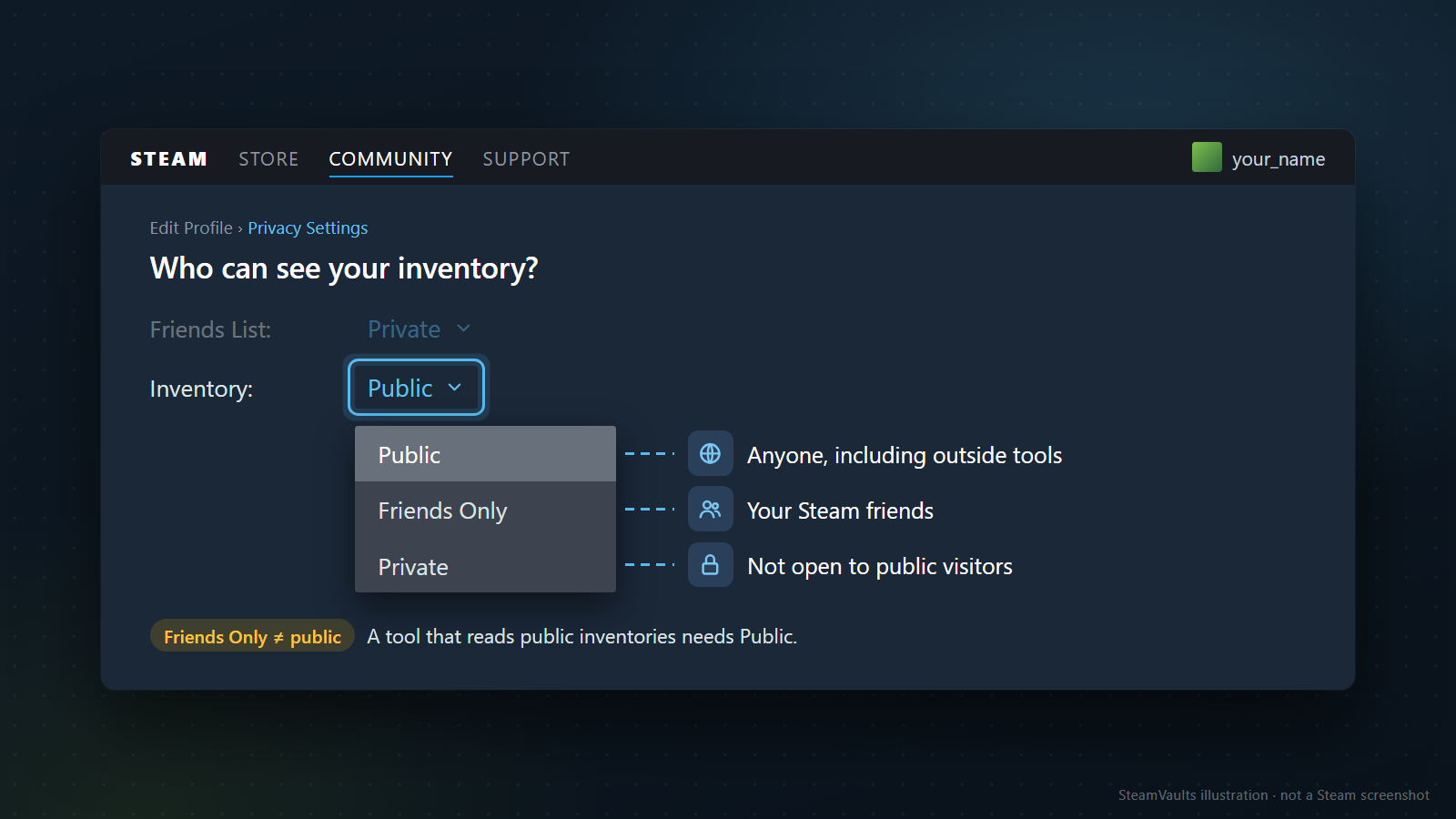
“I want to show a friend my cards” and “I want an outside tool to read my items without signing in” are different requirements. The first can rely on a Steam friendship. The second cannot. A friend confirming that they can see your inventory doesn't replace the check needed by a site that requires public access.
Public opens the inventory to people you don't know. Friends Only narrows its audience to Steam friends; Private prevents public visitors from inspecting it. Those are the three inventory audiences Valve documents. When asking for help, saying “Inventory is set to Friends Only” is more useful than “My account is public.” It identifies both the setting and its value, so the other person knows what to check.
Suppose you want to show the cards you currently own to a friend while discussing an exchange. It's worth asking whether you need to expose the inventory to everyone. If Friends Only meets the need, you can leave it there. If the tool you want to use explicitly says it reads only public inventories, however, Friends Only doesn't meet that requirement. You can accept the broader audience and use the tool, or keep the inventory closed and leave that feature unused.
You can also decide the tool isn't worth the disclosure. Browsing estimated values out of curiosity and arranging a trade you've already chosen are different reasons to share. Neither an error message nor a Connect button obliges you to open the inventory.
Don't read Friends Only as permission for just one particular friend. The audience is your Steam friends, so consider whether it is also acceptable for the others to see the inventory. Showing someone one card is a different need again. The setting covered here controls inventory visibility; it isn't a list that selectively grants an external website access to whichever individual card you choose.
You could instead tell someone an item's name or share a screenshot with sensitive details removed. A screenshot records what was visible at that moment, though. It isn't equivalent to the other person checking the current inventory in Steam. Quantities may have changed, and another game tab or an unseen part of the page may be omitted. A way to disclose less information during a conversation and the checks needed immediately before a trade serve different purposes.
Decide what the public setting is for—perhaps letting a particular tool check the items it supports. You'll then have a reason to revisit it when that task ends.
Check from outside your own account
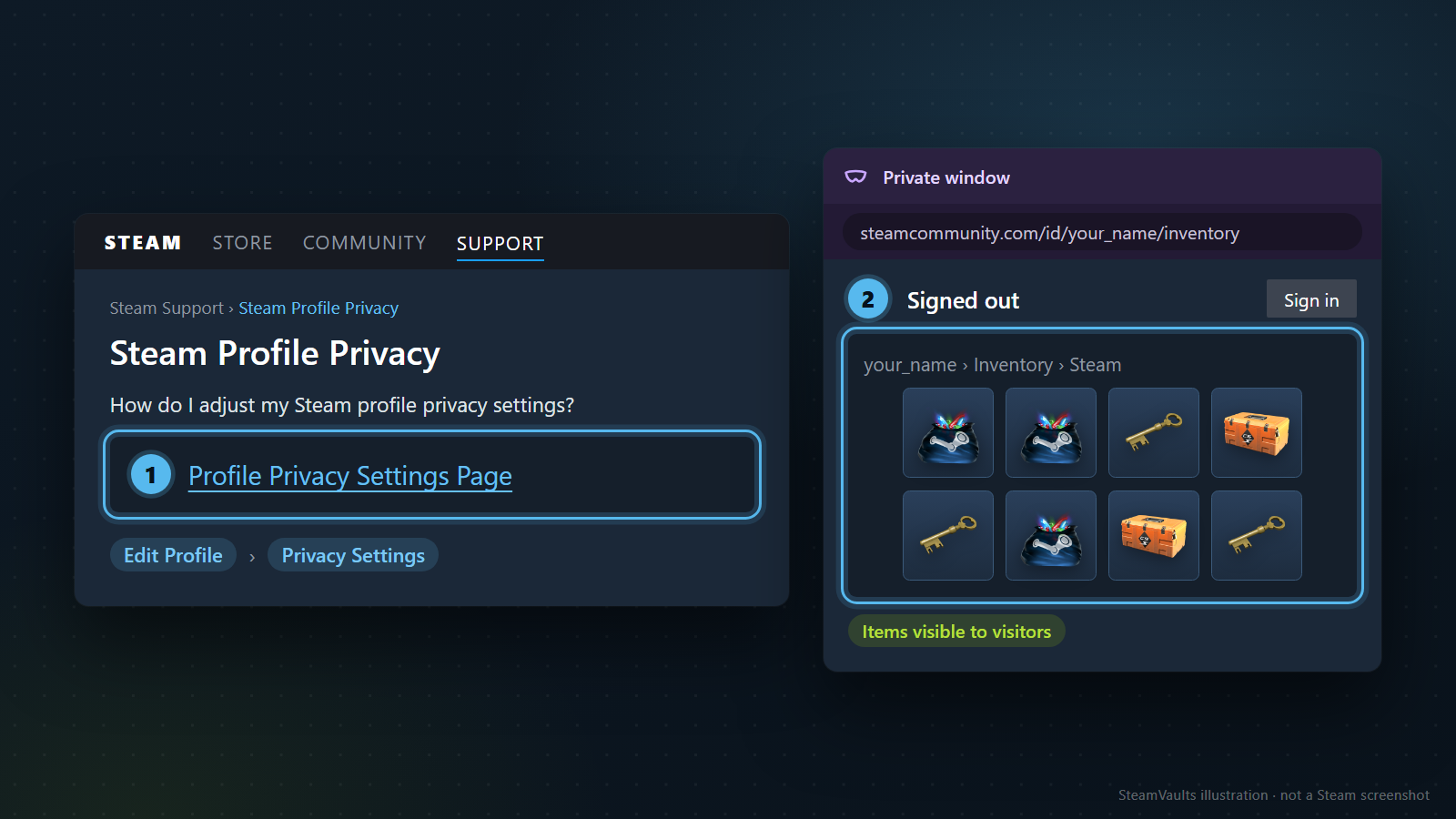
Open your inventory address in a separate browser window where you aren't signed into Steam. An incognito or private-browsing window works for this check provided you haven't signed into Steam there. A new window alone doesn't change whose access you're using.
This tests what the page shows without your access as the owner. Private browsing doesn't make you anonymous to Steam, and a successful view doesn't guarantee that every outside service can retrieve the inventory. It does give you a useful result to compare with the service's error.
Copy the address after opening Inventory from your own Steam profile. Using a link someone sent you, or an old address in your notes, risks checking a different account and mistakenly concluding that yours is public. In both windows, make sure you are opening the same profile and inventory. Compare the address as well as the display name. Checking a public profile address doesn't require sharing your login account name or password with anyone.
Next, open the inventory tab for the game you actually want to check. Does only the page heading load? Is the item list visible? Can you read the description of the particular item you were looking for? A visible profile header and a displayed inventory item are different results. If there is a search term or filter in use, read that condition too. An empty list filtered to one name isn't evidence that the entire inventory is private.
You don't need an elaborate record. If you want to note the result, these details are enough:
| Check condition | What to record |
|---|---|
| When you checked | The date and approximate time |
| Whose view you used | A signed-out window or a friend's account |
| Which screen you checked | The same profile address and the relevant game tab |
| What actually appeared | The item list, an individual description, or the exact error text |
Keep the record as a comparison for a later failure. If a signed-out window shows a card's description while a site says the inventory is private, the two views are reporting different results. You can put that difference in a support request before changing privacy again.
Ask a friend a specific question: “Can you see the card list in this game's tab at this address?” Otherwise, a yes might mean they saw the profile header or another item with the same name. You only need the result for the intended item and any error text, not a screenshot of the entire page.
If the signed-out window shows an error or a blank page, leave the result unresolved. It doesn't by itself prove your items disappeared or that the privacy setting must be wrong. First distinguish a page that hasn't finished loading, a problem with the selected game tab, and an incorrect address. Keep the current message so you can compare it later under the same conditions. Changing account security doesn't belong in this visibility test.
We did not sign into a reader's account or change its privacy settings to test this article. The procedure above is for checking the outcome on your own account. The explanatory images likewise do not present a verified account result or anyone's actual item holdings.
Public information isn't reserved for your chosen site
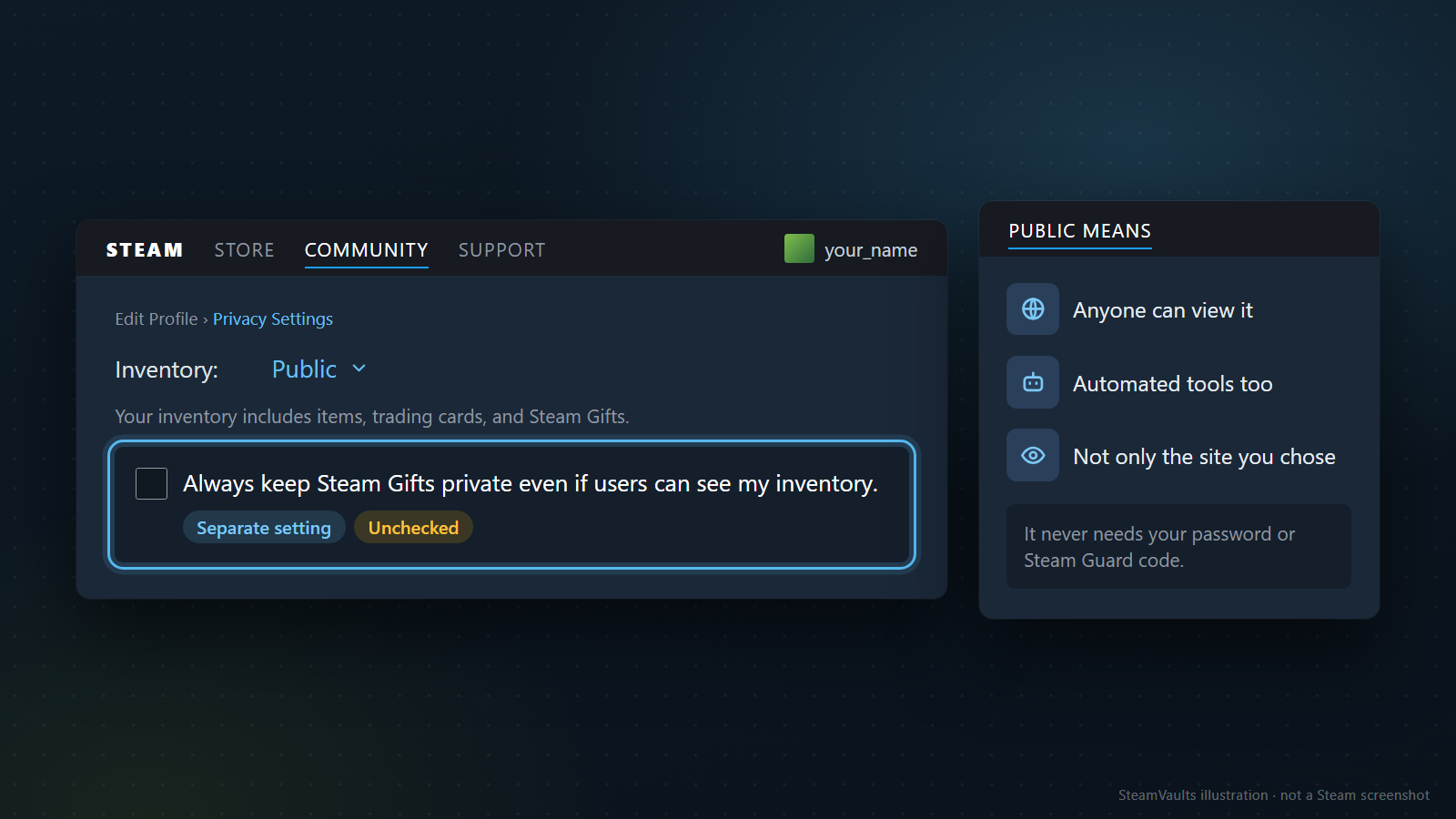
Making an inventory public lets other people read the item information Steam provides on that screen. Check the particular game and item to see whether that includes only a name or also quantities and detailed properties. Don't assume the description fields you saw in one game apply to every Steam item. An outside tool's summary also reflects what that tool chooses to read and display.
Section 5.4 of Valve's Privacy Policy says publicly available profile data can be accessed automatically through the Steamworks API. So consider automated access as well as people browsing the page. The policy doesn't specify how every inventory site retrieves data or guarantee every field is accessible. For your privacy decision, assume the audience extends beyond your chosen tool.
If an item in your inventory is known to be valuable, the price isn't the only thing to consider. When a stranger contacts you and names the item precisely, don't treat that knowledge as evidence that they have private information about you. They may have read it on the public page. Being able to describe an item well and being a trustworthy trade partner are separate matters.
An inventory doesn't reliably describe someone's gaming habits or finances: items arrive through different routes, and the list doesn't say what its owner played or paid. Strangers may draw those conclusions anyway. You can take that possible impression into account without accepting it as accurate.
Giving someone a password, Steam Guard code, recovery code or payment method is not part of making an inventory public. Selecting Public doesn't grant them sign-in authority. If a request to share a login code appears under the explanation that it is needed to “read the items correctly,” the task has changed. It is no longer just about letting someone see an item list. Don't casually approve a separate login because the conversation began as help with inventory settings.
Making the inventory private afterward can't erase a screenshot someone already saved. If an outside website holds your information, ask that site how it handles deletion. This isn't a finding that any particular site stored your inventory; changing future visibility and deleting an existing copy are separate actions.
You can keep the public period short, but the setting doesn't tell you who read the inventory. There is no documented “safe” number of minutes in the evidence here during which you can assume nobody will see it.
When Steam shows the items but a website doesn't
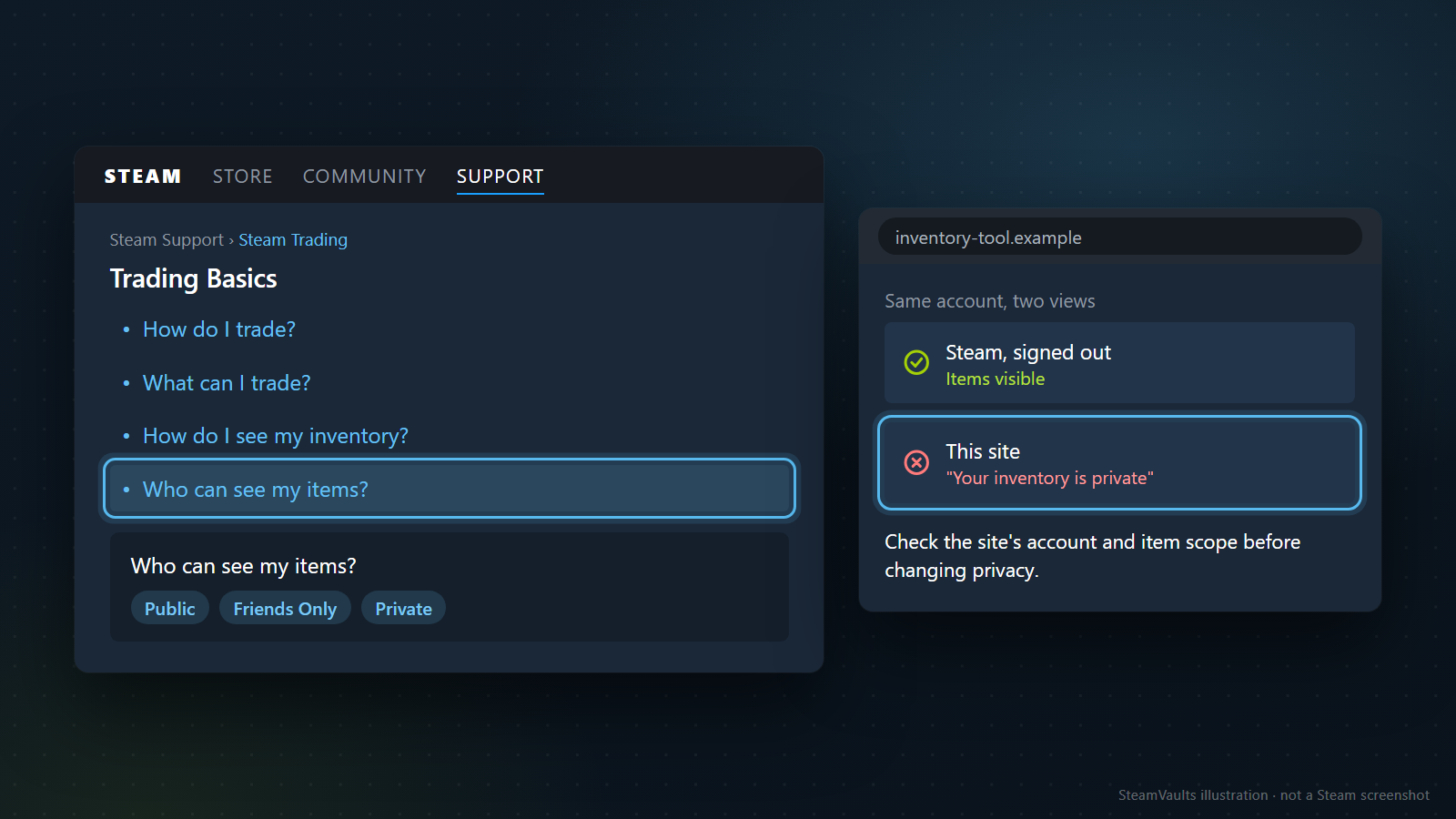
If Steam shows the items to a signed-out visitor but one website cannot retrieve them, investigate the website's result next. Its “private” message doesn't prove your Steam setting changed: the message may not tell you which request failed or when the site last checked. If Steam itself won't load the inventory, resolve that different starting point first.
Check the profile address entered into or connected to the site, including the Steam account shown after sign-in. It must match the account you inspected. If it doesn't, use the service's account-change instructions or support process. Don't delete an account just to try to fix a wrong connection.
Next, check item scope. You can't assume the items visible in Steam are the same items a site supports. Find out which games and item types it handles and whether it merely displays them or accepts them for transactions. Reading “We can read your inventory” as “We buy everything in it” can make a working privacy setting feel like a continuing failure. An empty list on a site may also mean something other than an account with no items at all.
The time represented by each view is worth comparing. If you just traded or disposed of an item, check whether a freshly opened Steam inventory and the site's last retrieval represent the same state. Use a last-updated time or refresh instructions if the site provides them. Without that information, don't invent a deadline after which the change must appear. The Steam documents used for this article do not provide one inventory-refresh completion time that applies to every outside service.
If retrieval still fails, change one condition at a time. Change overall profile visibility, inventory visibility and the connected account together, and even a successful result won't tell you which was responsible. If the privacy value is already what you want and a signed-out window shows the relevant item, leave that state alone and use the site's documented retry or support process.
For a support request, separate the results like this. This is a suggested format, not a report of an actual test; fill it with what you observed.
> Inventory is currently set to Public. I checked at [date and time]. In a signed-out window, the [game tab] on the same profile shows [the item list / the exact error message]. This site shows [error message]. The Steam account displayed by the site and the profile I checked [match / do not match / have not been compared].
Support may ask for an additional screenshot. Even so, don't start by attaching login codes or a view of the entire account. Show only the relevant area. Confirming an inventory setting, a game tab and error text doesn't require payment history or the contents of your email. If you don't want to send even a public profile address, you can first ask what assistance is possible without it.
The same limits apply to SteamVaults, which is independent of Steam. Check the games, items and current conditions listed in the flow you intend to use. Setting an inventory to Public doesn't make an unsupported item supported or guarantee a successful retrieval; a service cannot simply read it while it remains private, either.
Seeing an item doesn't mean it can be sent
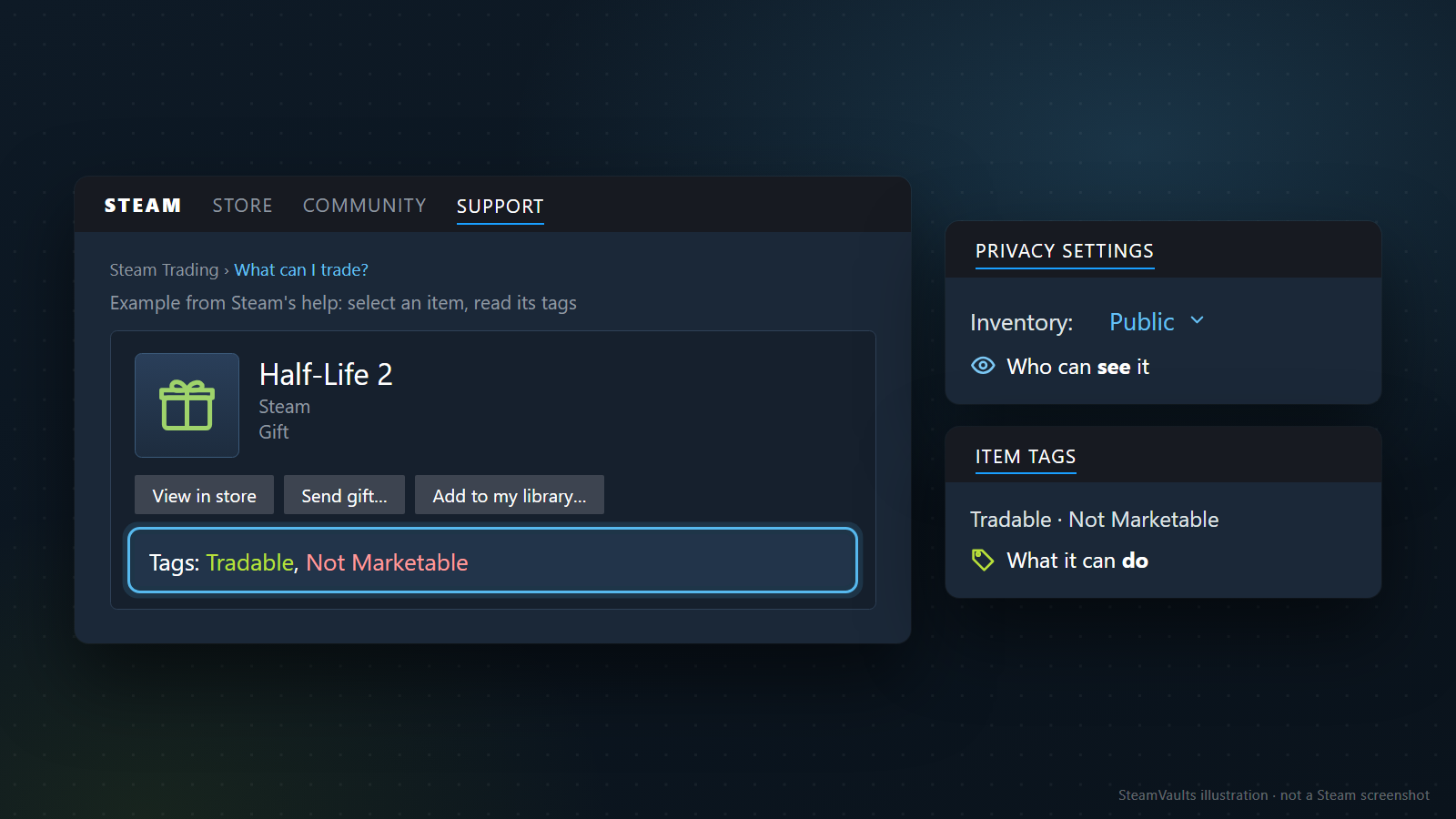
This image reconstructs the item example in the official help article. It is not a check of an item in a current account or its trade eligibility.
Check trade eligibility in the item's description and Steam's trading interface, not in Privacy Settings. The Trading FAQ directs you to select an item and read the tags in its details. Public only describes who can view the inventory.
Toggling visibility won't remove a future tradable date or an account restriction. Market eligibility and user-to-user trade eligibility also differ. If either is blocking you, use the guide to items marked not tradable or not marketable to interpret the item's actual state.
A Trade URL has a separate purpose too. Inventory privacy controls the audience for item information; a Trade URL is used in receiving trade offers. Sharing the link doesn't let its recipient take items at will, and making an inventory public doesn't automatically approve a trade offer. For the link's purpose and sharing boundaries, see whether it is safe to share a Steam Trade URL.
If an actual offer arrives, it is time to leave the privacy-setting check behind. Read the other account, the items going in each direction, quantities and the final confirmation. Valve's Recommended Trading Practices advises checking the person and items yourself and resisting pressure. Relief that the inventory is finally visible shouldn't turn the following approval into a routine continuation of the same job.
If someone asks you to send an item to test whether your inventory is visible, question why a viewing test would require a transfer. There is no need to complete a trade to establish whether an outside viewer can see items. Don't let a request for a simple visibility check drift into agreement to hand them over. The pre-approval item-trading checklist covers the checks relevant to the offer itself.
Revisit privacy when the task is finished
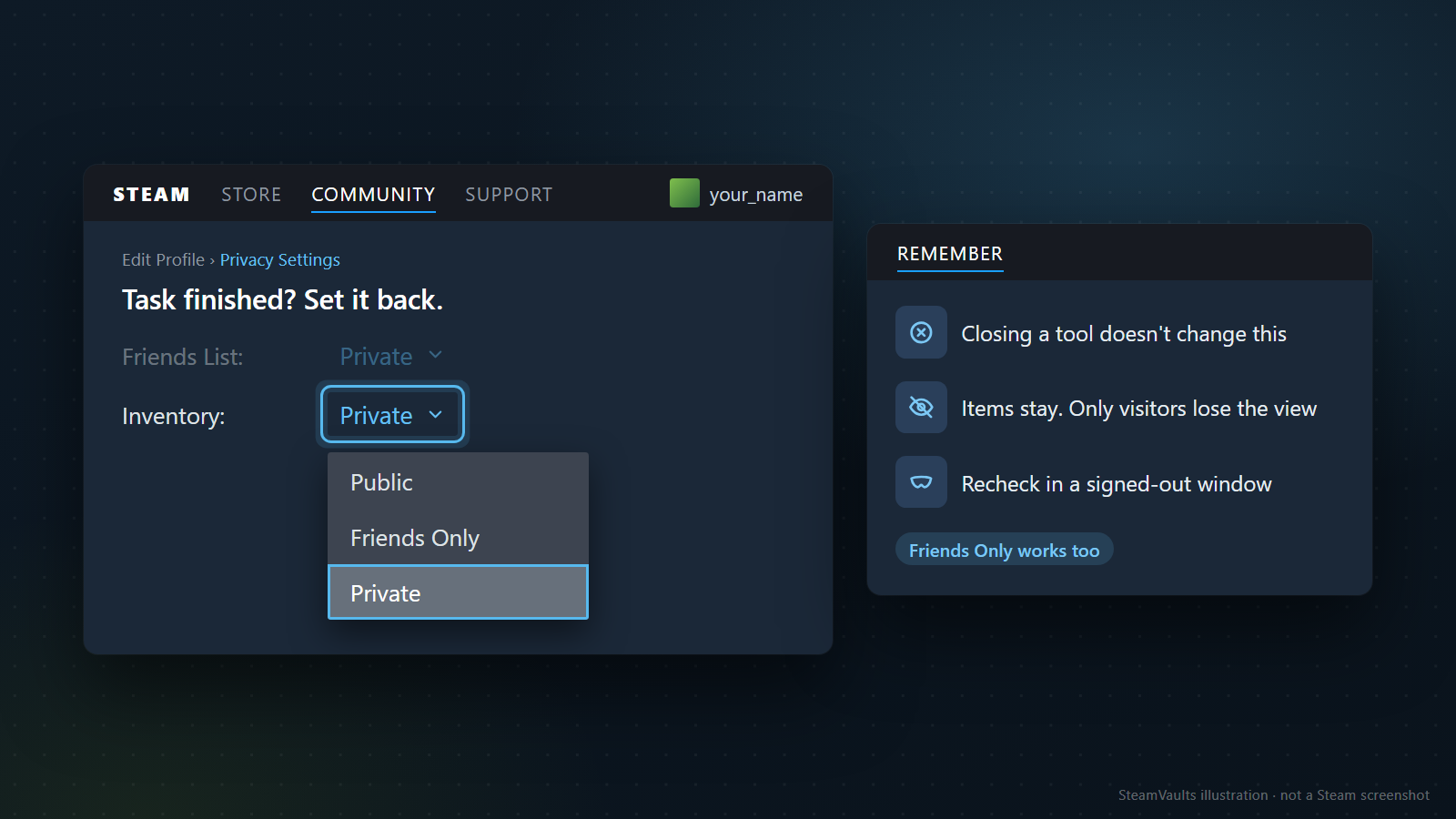
Closing an inventory tool doesn't change the privacy setting back. When you no longer need public access, return to Privacy Settings and choose the audience you want. That needn't be the original value: after seeing what was exposed, you might prefer Friends Only.
Be specific about what you're ending. Adjusting inventory visibility changes what can be viewed through Steam going forward. It doesn't replace cancelling an offer already sent, disconnecting an account from an outside service, or requesting deletion of information held there. If you want those actions too, check their own screens and procedures. Assuming one privacy change cancelled everything else can leave tasks unfinished.
If you were continuing to use a feature that relies on public data, narrowing the audience may prevent its next retrieval. Read the conditions it needs while that feature is in use. That is why there is no universal point such as “immediately after signing in” or “as soon as you press the trade button” when every service can safely be assumed to have finished reading. If a task is still in progress, check its current state and the service's instructions. That doesn't justify accepting a request to weaken account security.
Finally, reopen the page in a signed-out window and see whether the result fits the audience you now selected. After changing it to Private, you will still see items in your own signed-in view. You changed who can see them; you didn't delete them.
I wouldn't leave an inventory public just to feel I was using all of Steam's features. Public access can make trading conversations and list sharing easier. If you don't use those conveniences, keeping it closed is a reasonable choice too. Set the audience for what you actually do with the inventory.
Scope checked: this article uses the Steam Profile Privacy FAQ, Steam Trading FAQ, Valve Privacy Policy and Recommended Trading Practices consulted on September 5, 2026. We did not measure changes on a reader's account, any particular service's retrieval success rate, or refresh delays. The comparisons and support template are methods for checking your own result, not observations from a specific account.
Ready to sell supported Sacks of Gems?
After the bot confirms receipt, USDT is credited to your site balance. Polygon withdrawal is a separate request.