
Moving Your Steam Authenticator to a New Phone: Keep the Trade Lock at 2 Days, Not 15
Moving the Steam authenticator means a 2-day trade restriction, removing it 15 days. Pick your route, save the recovery code, and plan the first trade.
Article languages
On this page
Switching phones puts your Steam Guard Mobile Authenticator in the way of your trades for a while, and the length of that while depends on one choice. Move the authenticator with Steam's own transfer option and trading and the Community Market are restricted for 2 days. Remove it from the old phone and set it up fresh on the new one, and you are looking at 15 days. Below: which route your situation allows, what to copy off the old phone first, the order for move day, and when to plan the first trade. The general reasons behind 15-day holds are in Why Steam Trades Are Held for Up to 15 Days and What to Check, so they are not repeated here.
Everything below comes from Valve's Steam Support pages, which I read on October 27, 2026 and re-opened on October 31 to check that nothing had changed. I have not moved an authenticator on a real account, and button names are as the help pages give them, so a different app version may word them differently. The pictures are mockups I built to explain the steps; the real app will not look exactly like them.
Moving costs 2 days, removing costs 15
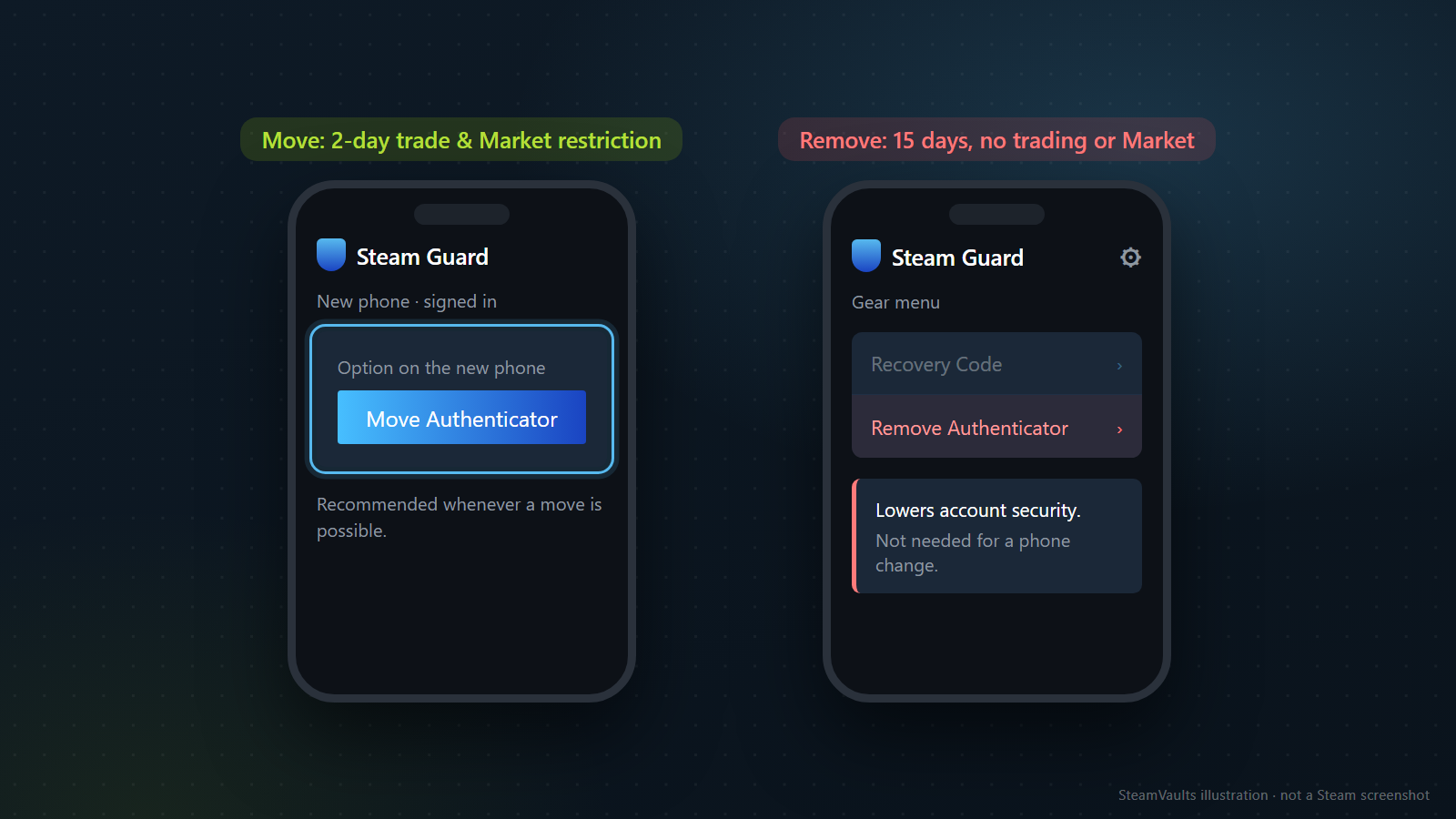
The two options sit in different places. Move Authenticator is something you pick on the new phone once you are signed in to the Steam Mobile app there. Remove Authenticator lives in the gear menu of the Steam Guard page, the same menu that holds Recovery Code, and it is the one to leave alone.
Valve's Steam Guard Mobile Authenticator FAQ gives both numbers. After you transfer the authenticator, a 2-day trade and market restriction is placed on the account to protect your items. If you remove it, you cannot trade or use the Community Market for 15 days, and the FAQ recommends transferring instead whenever possible.
Only the 15 shows up on the Trading and Market Restrictions page. That page says removing the authenticator reduces account security and that the 15 days give you time to recover the account if it was compromised. Its list of restriction types has entries for Mobile Authenticator Added and Mobile Authenticator Removed, and nothing for a moved one. So if you read our hold article, which puts the move at 2 days in its table of security-change restrictions, and then go looking for that 2 on the restrictions page, you won't find it. The figure is right, and its source is the FAQ. Steam Trade Hold vs Market Hold gives the same 2 and 15 and cites the FAQ.
| Choice | What the pages say |
|---|---|
| Move the authenticator | 2-day trade and Market restriction after the move |
| Remove it | 15 days without trading or the Community Market |
| Remove, then add it again on the new phone | 15 days, and trades created in the first 7 days after adding can be held up to 15 days |
Nobody says whether the 15 days and the 7 days in that last row overlap or run back to back. The most the pages support is "at least 15 days blocked, possibly a hold after that."
Removal comes up in Valve's pages in two situations only: someone who is about to lose their old phone number, and someone with neither phone nor recovery code who asks Support for help. Both are cases where moving is blocked. I found no reason anywhere for a person who can move to remove instead, which is why the mockup labels Remove Authenticator "not needed for a phone change." That label is my view, not Valve's wording.
The 2 and the 15 are restrictions, meaning you cannot start the trade or listing at all. A hold is different: the trade goes through and the items are delivered late. The restrictions page says an item hold won't prevent the account from trading or using the Community Market.
Three questions tell you which route is open
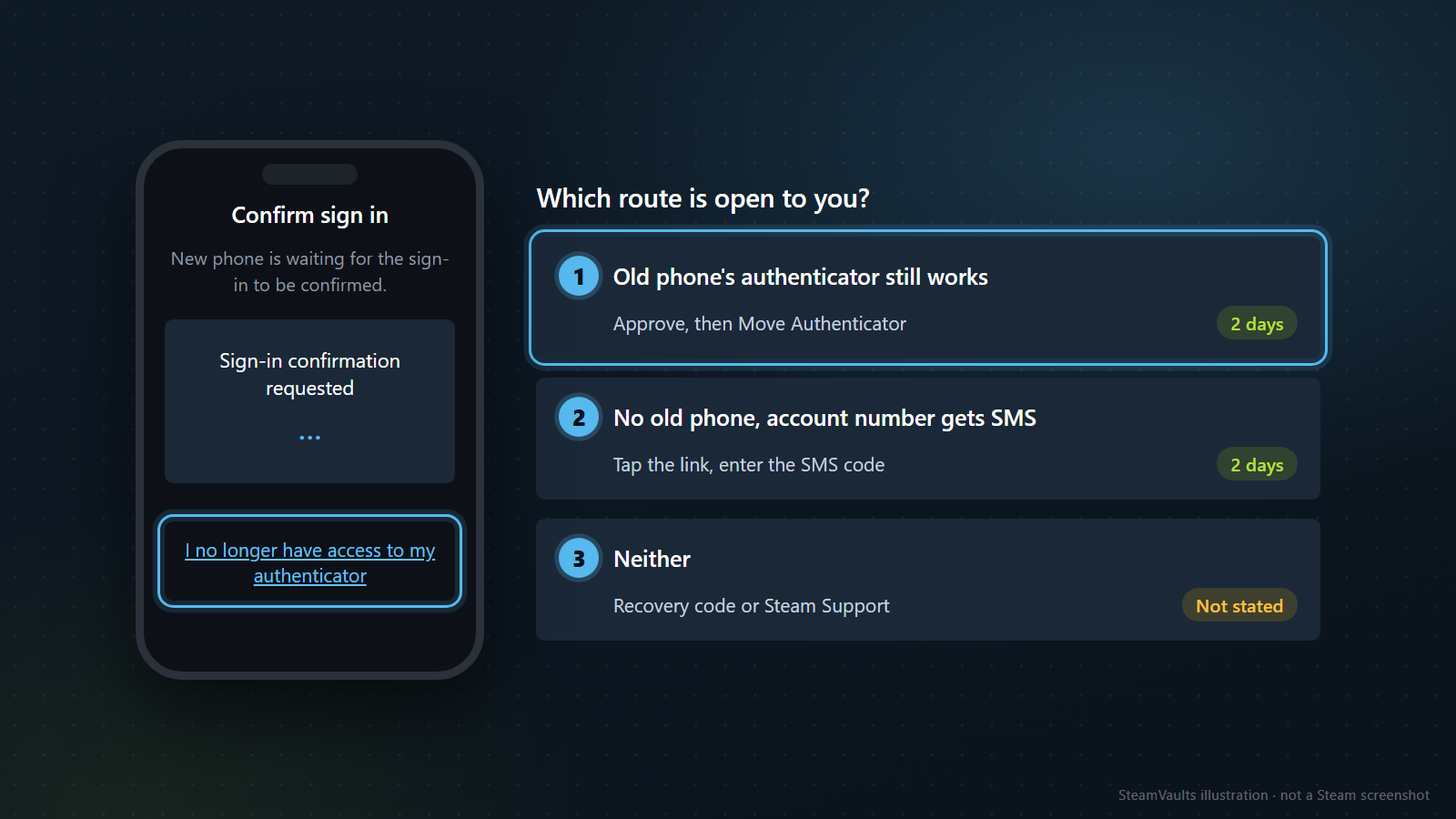
The FAQ describes two ways to transfer: with the current authenticator, or with an SMS code sent to the phone number on your account. Either way, you start by installing the Steam Mobile app on the new phone and signing in. The moment that decides your route comes right after, when the new phone sits on a "Confirm sign in" screen waiting for the sign-in to be confirmed. That is the screen on the left of the mockup.
Does the old phone's authenticator still work? Then you are on route 1. Approve the sign-in, then choose Move Authenticator in Steam Guard on the new phone. I am assuming the approval comes from the old phone. The FAQ lists app notifications and code entry as ways to confirm a sign-in, which is where that assumption comes from, but it does not walk through the screens after this point.
Is the old phone gone? Route 2 needs the account's phone number to receive texts. On the confirmation screen, tap "I no longer have access to my authenticator" and follow the app's steps with the SMS code it sends. The code only goes to the number registered on the account, so check that number before you count on it. Under Account Details, in the Contact Info section, you will see "Manage your phone number" if a number is registered and "Add a phone number" if not. An account can have only one number at a time. Accounts without a number do exist, since the setup walkthrough has an "I don't have access to a phone number" link, and for them route 2 doesn't exist. If the phone was lost or sold, the FAQ suggests getting a replacement phone with the same number from your carrier, because Steam can then text that replacement.
Neither one? Route 3 is the recovery code or Steam Support. The mockup marks its restriction "not stated" because no page I read gives a figure for it. More on this route in the troubleshooting section below.
| What you still have | Route | Restriction the pages give |
|---|---|---|
| Old phone, authenticator working | Approve the sign-in, then Move Authenticator | 2 days after the move |
| No old phone, but the account number receives SMS | Tap the link, enter the SMS code | 2 days after the move |
| Neither | Recovery code or Steam Support | Not stated |
Changing your number is the awkward case. If you keep the same number, the FAQ says you don't need to do anything in advance: get the new phone and transfer. If you have two-factor enabled and will lose access to the old number, the same answer tells you to disable the authenticator, notes that this blocks trading and the Market for 15 days, and then recommends transferring instead whenever possible. It doesn't say how those two instructions fit together.
Here is what I would do, and it is my own judgment, untested. While the old phone still works, try Move Authenticator first, even if the number is about to go. The move with the existing authenticator is described without any SMS step, and that is the whole basis for the suggestion; whether it works when the old number is unreachable isn't documented. If it fails, you fall back to the FAQ's removal route and have lost only the time it took to try. Change the account's phone number after the move, not before. Until the move succeeds, the SMS route is your fallback, and removing the number first closes it. The pages explain how to add and remove a number but not how to swap one for another.
To make the three routes concrete, here are three invented people. Someone keeping their number and only replacing the handset is route 1: get the new phone, keep the old one next to it, move. Someone whose phone was stolen but whose carrier issued a replacement with the same number is route 2, once the replacement can receive texts. Someone moving abroad and cancelling their old number is the changing-number case: I think the safest order is to finish the move before cancelling, while old phone and old number both still work. After the number is cancelled, the SMS route is gone even if the old phone is still in a drawer.
Copy the recovery code before you touch the old phone
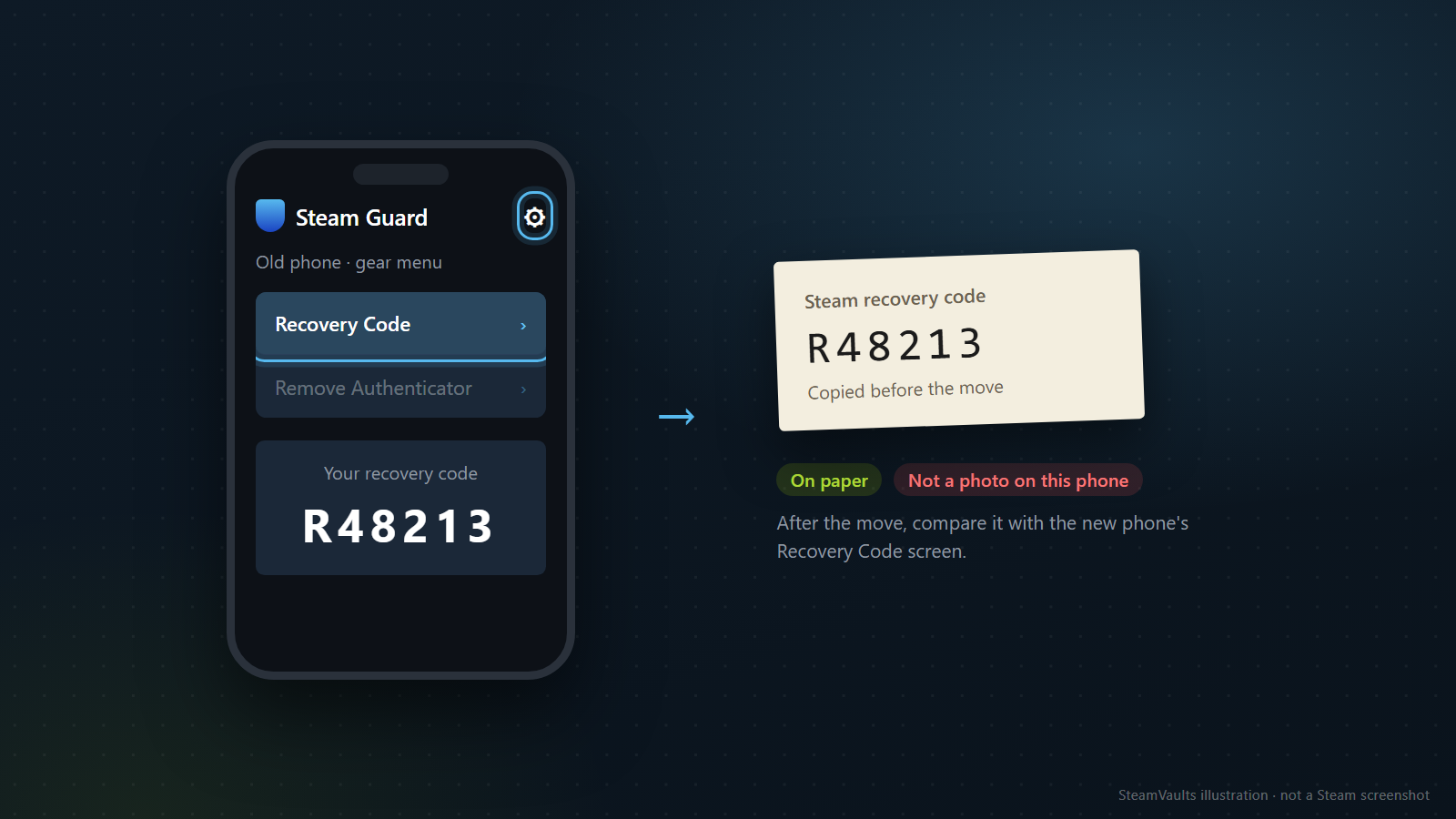
The setup walkthrough shows a recovery code at the last step of adding an authenticator and says to write it down and keep it somewhere safe, because it lets you recover the account yourself if you lose the phone or the authenticator. It also says not to skip that step.
If that was you, the FAQ has the fix: in the Steam Mobile app, open the Steam Guard page, tap the gear icon, then tap Recovery Code. That screen is on the old phone, though, which means it disappears the moment you reset the phone or delete the app. Open it first and copy the code onto paper. In the mockup the example code is R48213, an invented one, and the paper note says "Copied before the move."
Why paper? A photo or a note saved on the old phone leaves with the old phone. And keep the paper away from the phone; tucked inside the phone case, it gets lost on the same day the phone does. If the old phone has already been wiped and you never wrote the code down, I know of no other place in Valve's pages where you can see it again. What's left at that point is the SMS route and Support.
Backup codes are a different thing with a similar name. You create them on the website: Account Details, Manage Steam Guard, Get Backup Codes. Getting them requires an SMS code sent to your account's number. You then see a set of codes you can type in place of the one your phone generates, and Steam emails you every time new codes are generated and every time one is used. The FAQ says to print them rather than save them on your computer, and not to take a screen shot of them.
Valve's warning about codes says never to share your authenticator codes, that Steam Support will never ask for any of your codes, and never to give an SMS recovery or removal code to anyone, since those codes are only used to add or remove authenticator devices. The recovery code and backup codes aren't named in that warning. I would treat them the same way, because each of them can get someone back into the account.
What happens to these codes during a move isn't documented. I couldn't find whether the recovery code stays the same afterwards, or whether a backup sheet printed earlier keeps working. So once the move is done, open Recovery Code on the new phone and compare it with your paper, as the note under the mockup says. If the two differ, write down the new one. And don't let an old printed sheet be your only emergency plan.
On move day, the old phone stays untouched until the new one has proved itself
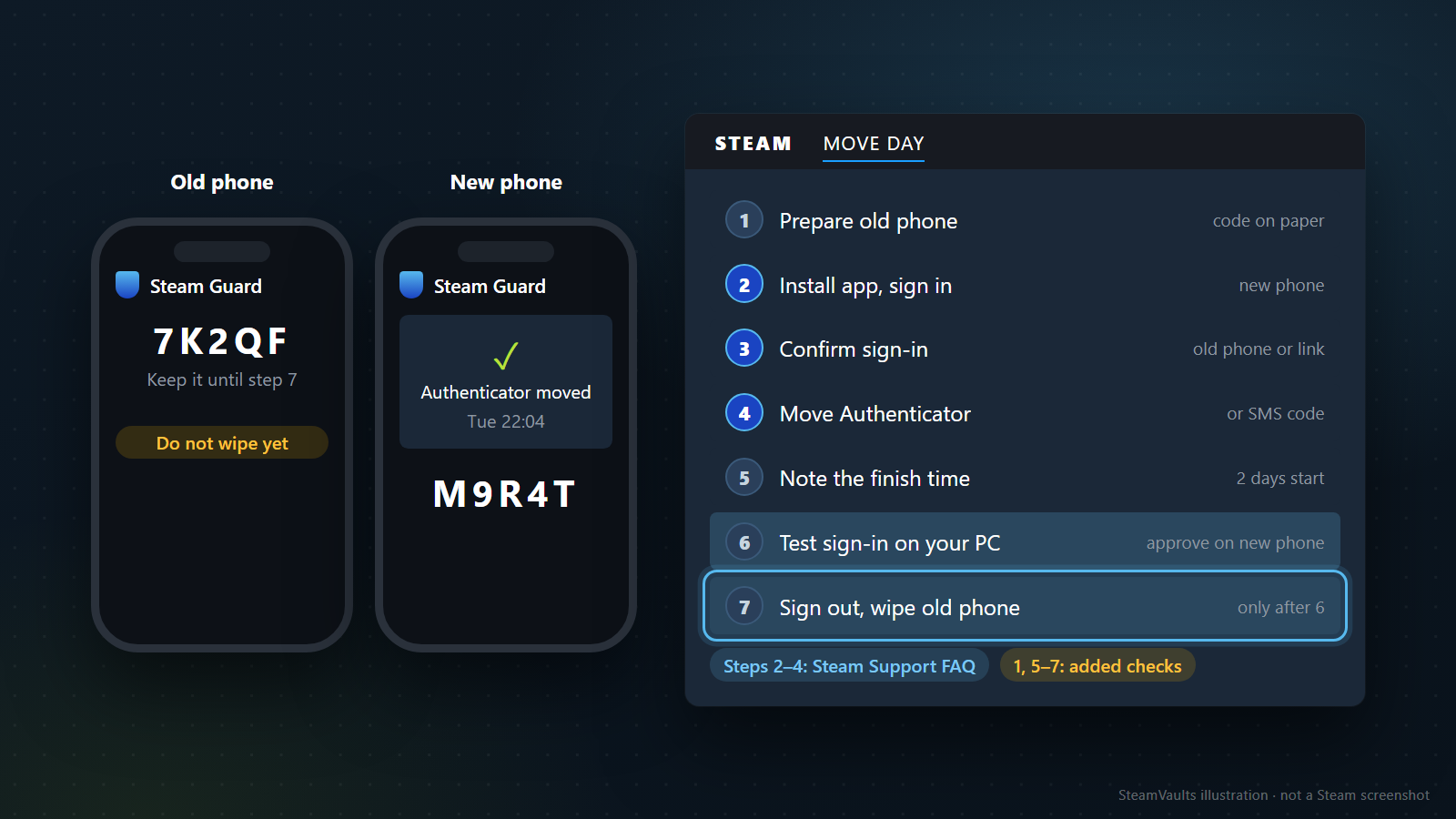
Valve's instructions for the move itself are short: install the app on the new phone, sign in, then Move Authenticator or the SMS code. Those are steps 2 to 4 below, labelled in the mockup as the Steam Support FAQ part. Steps 1 and 5 to 7 are checks I added around them, and the order, especially leaving the old phone alone until the very end, is my judgment.
Have these ready before you start: the old phone, charged; the new phone; whichever phone receives texts for the account's number; paper and a pen; and the computer you normally sign in to Steam on. Also pick a date with no trades or sales planned for the next two days.
1. Prepare the old phone. Open Recovery Code in the app and copy it onto paper. Check under Account Details that the registered number can still receive texts. If the app's confirmation list has a trade or a Market listing waiting, deal with it or cancel it now. No page says what happens to a pending confirmation when the authenticator moves, so I'd rather start with an empty list. Before moving on, compare the paper with the screen character by character. 2. Install the app on the new phone and sign in. The FAQ says the authenticator works on iOS 13.0 or later and Android 5.0 or later, and the setup walkthrough says the Android and iOS apps are the same. Nothing I read discusses moving from iPhone to Android or the other way round. If the "new" phone is an old one out of a drawer, check the version first. Before moving on: a sign-in confirmation request should appear. 3. Confirm the sign-in. With the old phone available, approve it there. Without it, tap "I no longer have access to my authenticator." 4. Move. On route 1, choose Move Authenticator in the new phone's Steam Guard section. On route 2, follow the app and enter the code from the text message. Type that code into the new phone's app and nowhere else. If someone offers to help on move day and asks for a code, say no without listening to the reason. Before moving on, look for the app telling you the move finished (the pages don't describe that screen). If nothing like it appears, stop and go to the troubleshooting section. 5. Note the finish time. I treat this as the moment the 2 days start. The new phone in the mockup shows "Authenticator moved" with an invented time of Tue 22:04. Check that the new phone's Steam Guard screen shows codes and that its Recovery Code matches your paper; if it doesn't, write the new one down. 6. Test a sign-in on your PC. On a computer you already use, sign out of Steam, sign back in, and approve on the new phone. Use that computer as it is, without a new browser or cleared cookies. The restrictions page says a device Steam Guard hasn't authorized before can't trade or use the Market for 7 days, unless a Mobile Authenticator has been on the account for at least 7 days. Whether a move affects that 7-day count is unknown, so there's no point creating a new device for yourself. The same page lists clearing cookies, using a new browser, reinstalling Steam and reformatting the computer as things that make a device look new. Don't combine the phone switch with a PC clean-up in the same week. Before moving on: the sign-in should go through with the new phone's approval alone. 7. Only after step 6, sign out of the old phone and wipe it. The FAQ says to tap your avatar at the top right of the app and choose Sign out, and recommends a factory reset and removing personal information before you sell or give the phone away. Don't press Remove Authenticator at any point. Nothing in this process needs it, and it is the route that costs 15 days.
On route 2 a few steps change. In step 1 you can't open the old phone's Recovery Code screen, so dig out the paper copy if you ever made one. In step 3 you tap the link instead of approving, and in step 4 the code arrives at the account's number, so the replacement phone has to be able to receive texts before you begin. Steps 5 and 6 are the same. In step 7 there is no old phone to wipe, but if it was stolen rather than lost, also read the stolen-account part of the next section.
Skipping step 6 and going straight to step 7 is the expensive mistake, which is why the old phone in the mockup says "Do not wipe yet" and "Keep it until step 7." An account can be on only one authenticator at a time. If the move quietly failed, the old phone is still that authenticator, and wiping it removes the route that uses the existing authenticator. You are left with SMS, the recovery code and Support.
If one app holds several accounts, you may have to do this per account. The FAQ explains the move for a single account and doesn't say whether multiple accounts move together, so note a finish time for each one and count the 2 days separately.
As for the date, move after any sale or trade appointment you already have this week, because the 2 days block both trading and the Market. You don't need to move on the day the new phone arrives; the authenticator keeps working on the old phone until you move it. The FAQ also says the phone doesn't need an Internet connection to generate a code, only the correct time. I read that as the old phone still showing codes after the SIM goes into the new one. The FAQ doesn't say whether approving a sign-in notification needs a connection, though, so keep the old phone on Wi-Fi until the move is done.
When something goes wrong, check these first
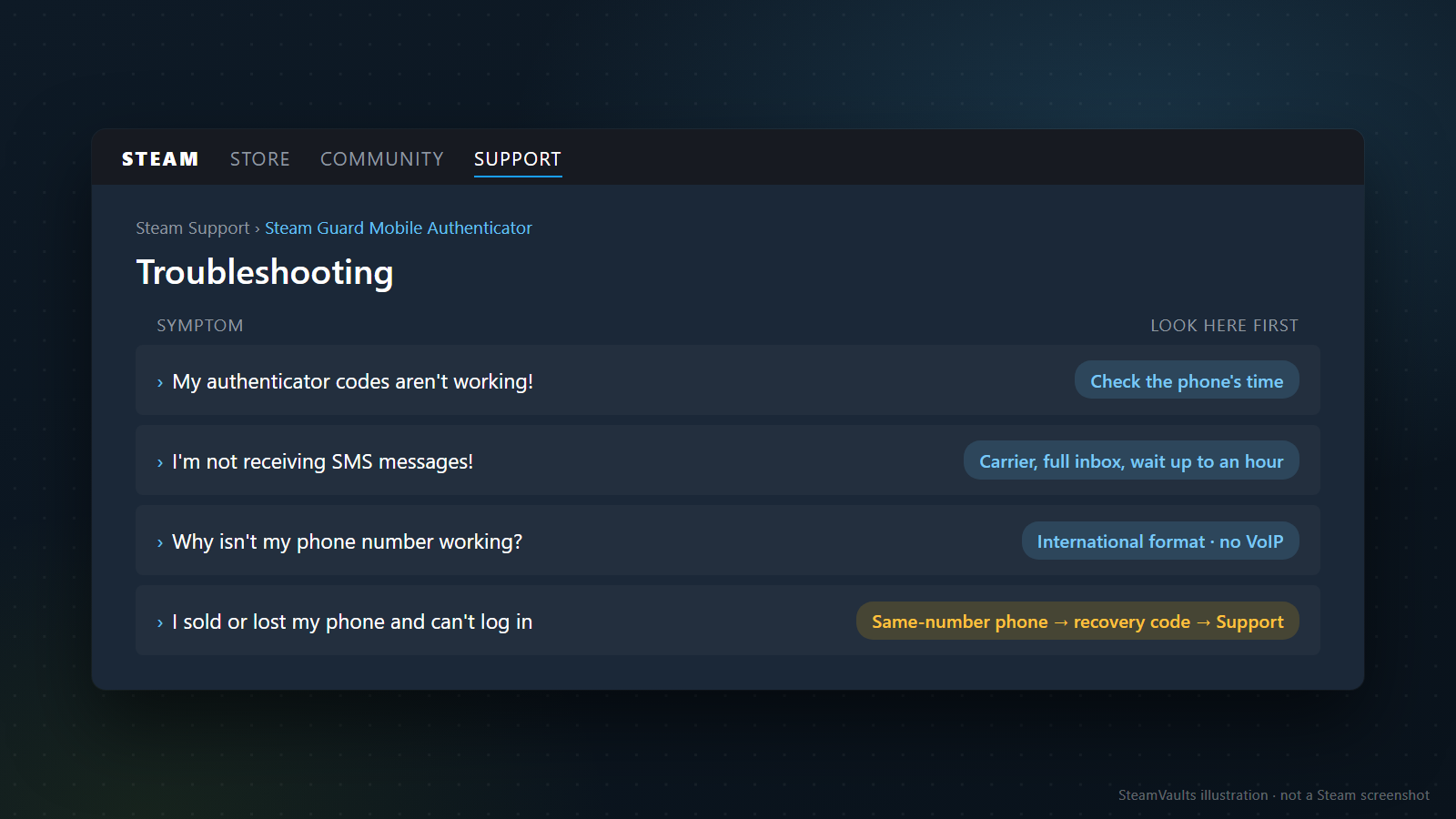
The four rows in the mockup follow question headings from the Mobile Authenticator FAQ. The right-hand column is my summary of where each answer tells you to look first.
"My authenticator codes aren't working!" Check the phone's time. Codes are generated from the phone's clock, so a wrong time gives wrong codes. If the app holds more than one account, make sure the code is for the account you are signing in to.
Old phone at hand but no sign-in notification arriving on it? For signing in to the Steam Client or website, the FAQ lists three methods: scanning a QR code, approving an app notification, or entering the code from Show Steam Guard code on the Steam Guard page. Whether code entry is offered when signing in to the app on a new phone isn't stated. If you see that option, the old phone's code is what you'd type.
"I'm not receiving SMS messages!" The FAQ points at your carrier, which has to allow your account to receive the messages; Steam's texts can come from a 6-digit number, so the carrier must support that. It also says to check that the phone's inbox isn't full, and that Steam stops sending if too many messages went to you, in which case waiting a few minutes to an hour may let them through again. If an hour of waiting changes nothing, move on to a same-number replacement phone, the recovery code, or Support.
"Why isn't my phone number working?" Enter the number in international format, with "+" and the country code first. Valve doesn't allow certain numbers, such as VoIP numbers and numbers that can't receive text messages. If you think the rejection is a mistake, the FAQ sends you to Support through the "Help me with my issue" button.
"I sold or lost my phone and can't log in." In this order: a replacement phone with the same number from your carrier, which reopens the SMS route; your recovery code; then Support. Without the phone and without the recovery code, the FAQ says to use "Help me with my issue" to get help removing the authenticator, and to include proof of account ownership in the ticket if you can't reach the account's email. Whether a removal done through Support also brings the 15-day restriction isn't documented, so go by what Support tells you. What counts as proof of ownership, and how to prepare it for the payment method you used, is in Steam Account Hacked? How to Recover It and Keep the Hijacker Out.
Where the recovery code actually gets entered is something I couldn't find. Steam's "Help, I can't sign in" menu has an entry for a deleted or lost Steam Guard Mobile Authenticator. Its first screen asks for an email address or phone number to find the account, and I didn't go past it.
If you end up with Support, Valve's stolen-account recovery page says Support can recover an account even after the email address, password and phone number have all been changed. It asks you to have possible login names, email addresses and proof of ownership ready, and to search with your own email address rather than the account's current one. That page is written for stolen accounts; applying it to a phone change gone wrong is my reading.
Recovery that ends in a password reset adds its own restriction. A forgotten password reset through the help site or by Support means 5 days without trading or the Market, or 30 days if the account had no activity for more than two months. Changing a password you still know in the Steam Client settings doesn't count. The restrictions page also says Steam Support cannot modify trading or Community Market restrictions, regardless of the circumstances. So if someone contacts you offering to shorten a restriction, I would assume it isn't Support.
The app showing no code when you didn't move anything is a separate warning sign. Since an account can be on only one authenticator, one possible explanation is that someone else moved it; that's my inference, not something Valve says. The starting point is Steam Support's stolen-account page, which asks you to scan your computer and change your email password before resetting the Steam password. The rest of the response is in Steam API Key Scam: What to Do When a Trade Goes to the Wrong Account. If you are locked out, the full recovery order, including what to clean up once you are back in, is in the hacked-account guide. Valve's account security page says Steam informs you of security changes by email, so check that mailbox too. It doesn't say a move of the authenticator sends one, so a missing email proves nothing either way.
Your first trade: count the 2 days, then check the reason and the hold
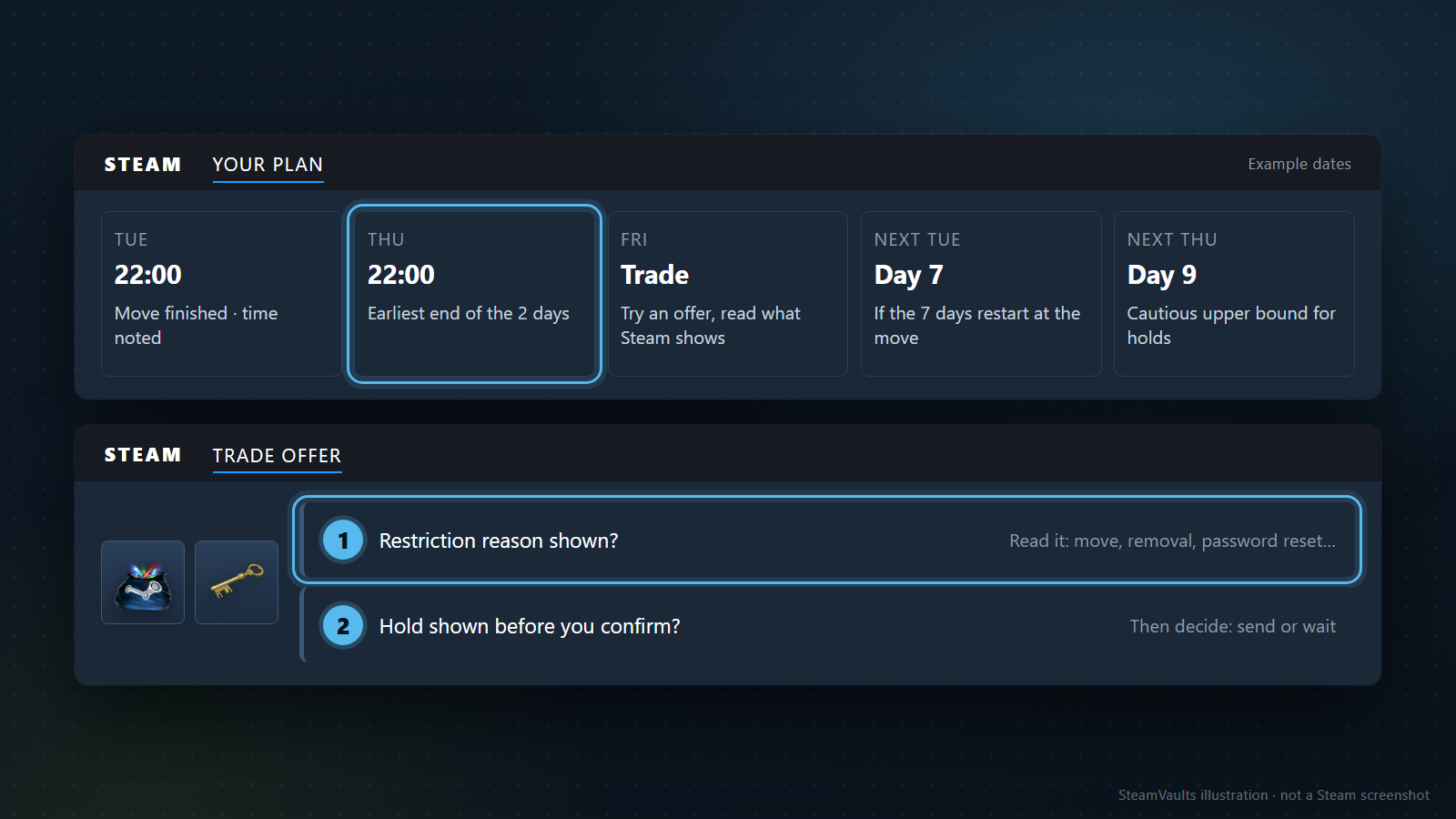
Nothing I read says Steam shows a countdown. The restrictions page says only that the reason is typically shown when you try to start a trade or do something on the Community Market. It doesn't mention a date or remaining time next to that reason, and it doesn't say whether the notice appears when you open the trade window or when you press send. The FAQ words the restriction as applying "after transferring" without defining where the 2 days begin or end. So you count the days yourself and then try.
My counting rule, which is a judgment and not a Steam rule: take the finish time from step 5, add 48 hours, and call that the earliest point. Then leave one more day before anything that matters. With an invented example, a move that finished on Tuesday at 22:00 gives Thursday at 22:00 as the earliest end of the 2 days, and the trade appointment goes on Friday. If my 48-hour reading is off by a few hours, the spare day covers it.
To find out whether you're free, try it. Start a trade offer or open the Market's sell screen and see whether a notice appears. Testing is safe. Valve's trade and Market confirmations page says that sending an offer, accepting a trade or creating a listing has to be confirmed (in the app, if you have a Mobile Authenticator) before it is sent or posted, and an unconfirmed trade isn't made. Read the account and items on the confirmation screen, cancel, and nothing leaves.
If a notice still appears, read the reason, which is check 1 in the trade-offer half of the mockup. It may not be the move at all. Three restrictions from the restrictions page are easy to pick up during a phone change:
| Reason on the restrictions page | Length | Ask yourself |
|---|---|---|
| Mobile Authenticator Removed | 15 days | Did I press Remove Authenticator somewhere along the way? |
| Recent Password Reset | 5 days, or 30 if the account was inactive for more than two months | A change in the client settings doesn't count |
| Recently Cancelled An Accepted Trade | 7 days | Did I cancel one of my own held trades? |
Other limits, such as new devices, Market purchase requirements or dates attached to the items, are covered in Why Your Steam Item Is Not Tradable or Marketable.
Check 2 is the hold, and it is separate from the restriction. Being able to create a trade doesn't mean the items arrive straight away. Valve's Trade and Market Holds page says items leaving an account that hasn't been protected by a Mobile Authenticator for at least the last 7 days are held for up to 15 days, and that items are no longer held once the authenticator has been enabled for 7 days. Does a move restart those 7 days? No page I read answers that. The holds and restrictions pages talk about adding and removing; the FAQ talks about transferring. Our hold article says the 7-day rule starts over when you add an authenticator again after removing it, which is about remove-then-add and doesn't conflict with anything here, but it says nothing about a move either.
So look for a hold on your first trade before you confirm, and then decide whether to send or wait. Sent with a hold, the items are tied up for that period and the other person waits too. If the trade isn't urgent, waiting until the hold no longer applies is an option. Make that call before sending, because cancelling an accepted trade that's on hold brings a 7-day trade restriction, and the holds page says Support can't lift it. Market listings work the same way: the FAQ says trades or listings created before an authenticator is added, or in the first 7 days after, are held for 15 days, and those created more than 7 days after adding are not. A first listing that doesn't appear on the Market right away may be sitting in that hold. Telling a trade hold from a Market hold on screen is covered in Steam Trade Hold vs Market Hold, which also advises following the status Steam actually shows during your own device change.
When the date of a trade matters, plan for the worst case. If the 7 days restart at the move, holds end 7 days after it; if they restart when the 2-day restriction ends, 9 days after it. The 9 days is my cautious upper bound, not a Steam rule. Carrying on with the invented Tuesday:
| When (example) | What happens |
|---|---|
| Tuesday 22:00 | Move finished, time noted |
| Thursday 22:00 | Earliest end of the 2 days if you read them as 48 hours; no appointments yet |
| Friday | Try a trade offer and read what Steam shows: restriction reason, hold |
| Next Tuesday 22:00 | Day 7: holds would end here if the 7 days restart at the move |
| Next Thursday 22:00 | Day 9: cautious upper bound; put date-sensitive trades after this |
A trade that was already on hold before the move is best left alone. Cancelling it costs 7 days of trading.
Five checks before you put the phone down
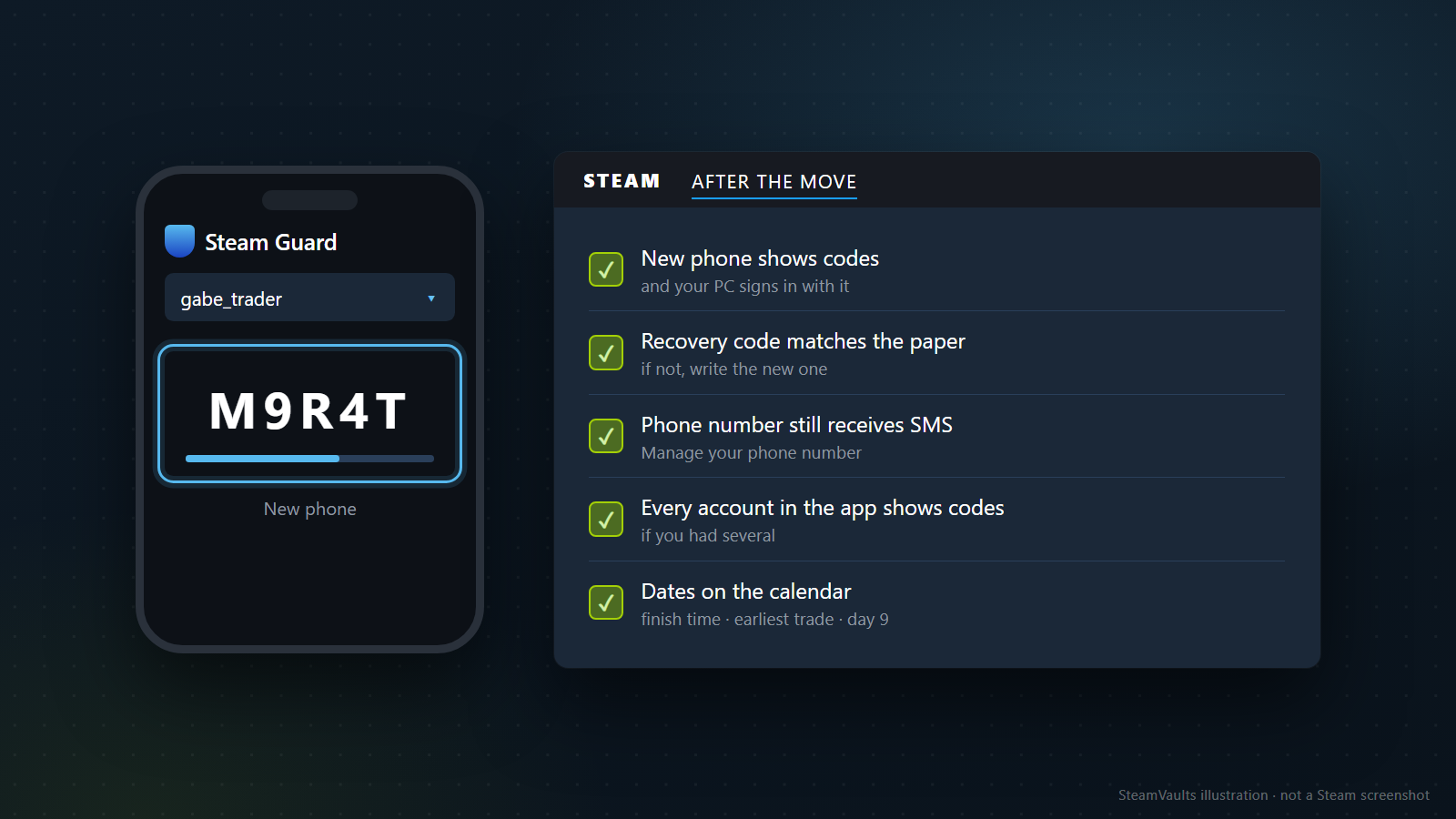
1. The new phone shows codes, and your PC signs in with its approval. 2. The recovery code on the new phone matches the paper. If not, write down the new one. 3. Account Details still shows "Manage your phone number", and that number will keep receiving texts. If you were planning to change it, now is the time. 4. If you had several accounts in the app, every one of them shows codes on the new phone. 5. The calendar has the finish time, the earliest trade date and day 9.
That leaves three open questions: whether a move restarts the 7-day hold count, exactly when the 2 days end, and whether a backup sheet printed earlier still works. The day-9 bound, the spare day and the paper comparison above are how this plan handles them. For the last look before confirming that first trade, use What to Check Before Confirming a Steam Trade.