
Back up Steam screenshots: local files and uploaded copies
Find and preserve Steam screenshot files before changing PCs. Separate local images from uploaded copies, copy them, and check the destination.
Article languages
On this page
Before replacing a PC, don't stop at checking whether your screenshots appear on your Steam Community profile. First obtain the pictures you want as actual image files, copy them to another storage device, and open them there. The list inside Steam, the files on this PC, and pictures uploaded online are separate things to check.
This guide covers finding and moving pictures you've already taken. It doesn't troubleshoot F12 or explain screenshot visibility settings. Feature descriptions come from Valve documentation and official updates checked on October 23, 2026. The backup procedure is our editorial recommendation. We haven't measured file paths or image quality on your PC.
Separate the picture list from the files you have saved
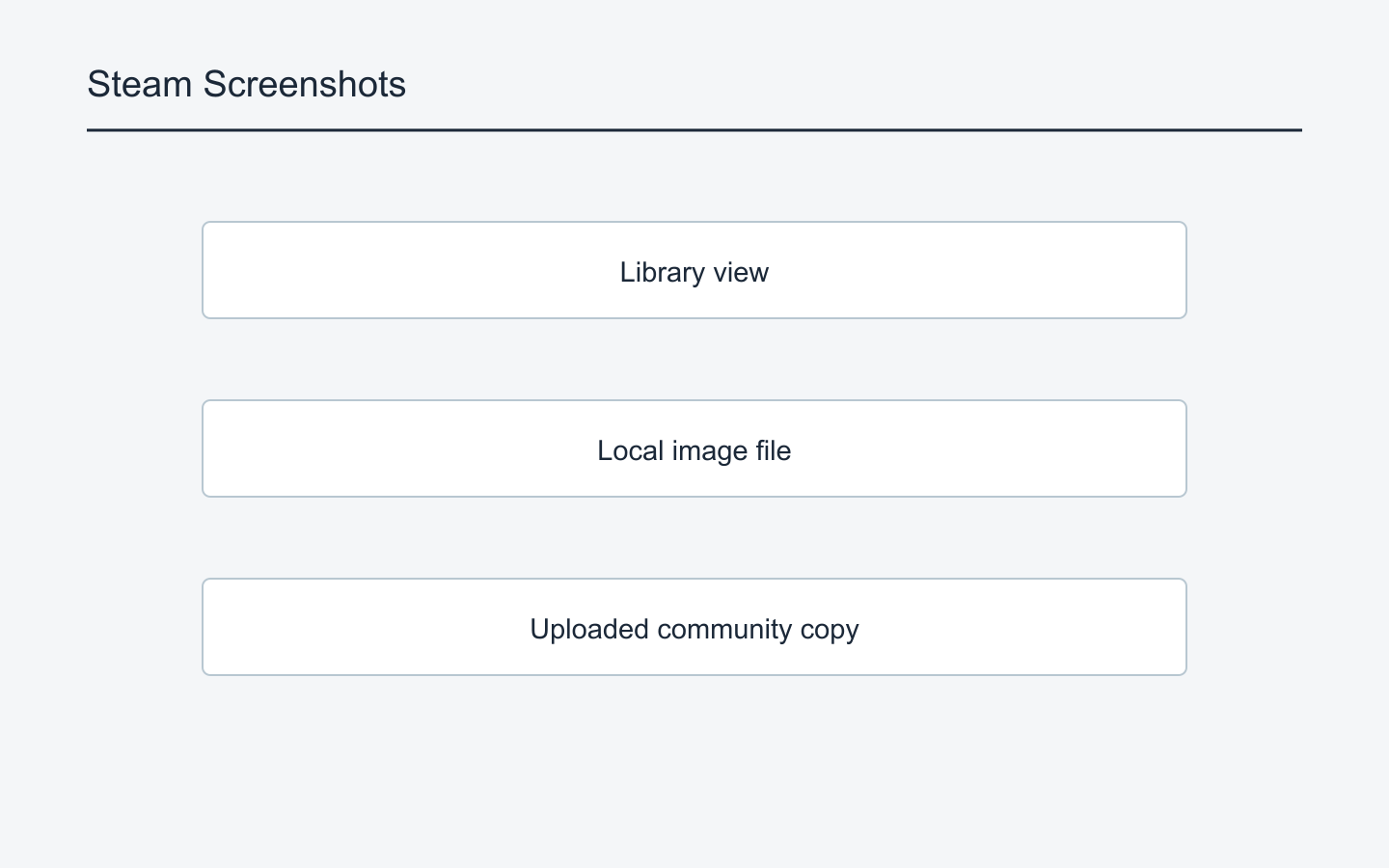
Valve's Steam Screenshots documentation describes adding screenshots to a user's local screenshot library separately from uploading them. Taking a picture doesn't establish that it was published online. Seeing a picture online doesn't establish that the same file exists on the PC you're using now.
Start with three categories: pictures you can select in the Steam client, image files you can open through a file manager, and uploaded copies visible on Community pages. One scene can appear in several places, so adding those counts together can count it twice. Connecting each discovered picture to the file you obtained makes omissions easier to spot.
For example, if a picture appears on Community but you haven't found a file on this PC, mark it as not yet included in this backup. That doesn't immediately mean data loss or a Steam fault. First check whether you took it on another PC and whether the file you found is actually that picture. Treating the online view and your disk contents as a single thing makes it harder to track what you've verified.
Define “original,” too. Here, an archive original means an existing image file obtained from the old PC without editing it. That doesn't mean it's an uncompressed file retaining every color detail from the game. Check its format separately. Keep images saved again from the web and images resaved by an editor identifiable by their different origins.
Restoring the Steam library display is another goal. Copying pictures is not a guaranteed way to restore how Steam groups them by game. This guide aims to preserve files you can open and use on another PC. Don't assume the old ordering, tags, or publication information will automatically follow.
Find the media viewer and obtain an image file
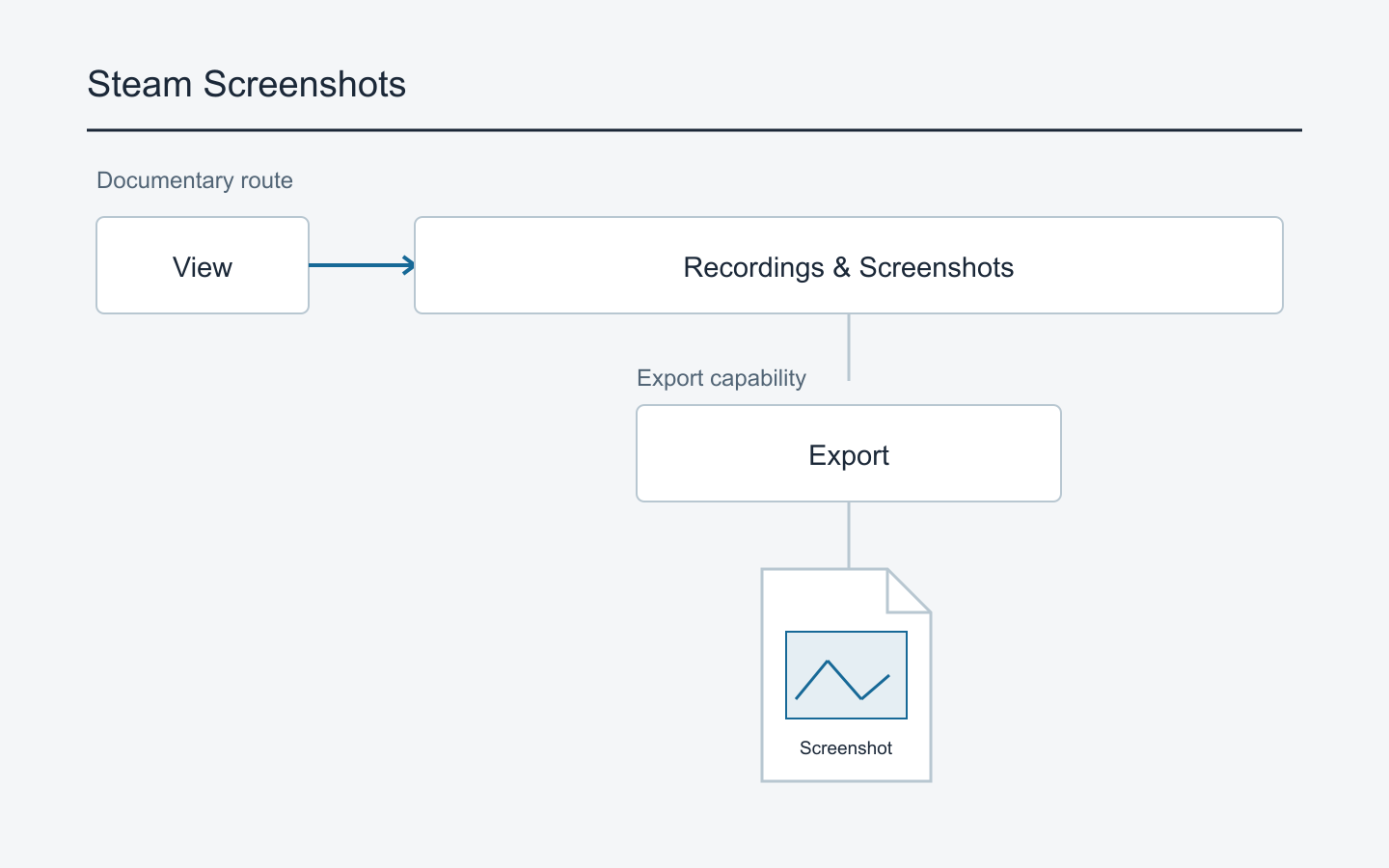
The official Steam Game Recording help page gives the desktop viewer route as View > Recordings & Screenshots. On Steam Deck, it points to the Media tab in the Steam menu. Use these English labels to identify the corresponding item in your client language. Don't substitute the recording-storage path described in that help page for a screenshot-storage path.
The Steamworks screenshot document still shows the older uploader and says View > Screenshots. Rather than concluding that a button has disappeared because these documents differ, find the media screen that displays pictures in your client. We aren't presenting button positions in an old screenshot as verified positions in today's interface.
Once you've found a picture, check its game and scene. If you remember a game and approximate date more readily than a filename, narrow the list by game before selecting pictures. The September 11, 2024 client update documents app-filter search, multiple selection, and exporting screenshots as new files on the computer. That announcement supports those features; it isn't a direct inspection of today's menu layout on every operating system.
If you find file export in your interface, start by exporting one picture into an empty temporary folder. Note the location shown in the save dialog. Afterwards, open that folder in your file manager and check that the file opens, shows the intended scene, and isn't another image. The resulting file matters more than whether the export dialog has closed.
If your interface offers an item that opens the picture's actual folder, you can record that location and copy the file. This guide hasn't verified where Show on Disk appears or a fixed Windows or Deck path. Instead of guessing account numbers in a path copied from the internet, work from a file located through the client or an actual export. A missing folder-opening option isn't a reason to delete hidden folders or modify configuration files.
Even if clips and pictures share a screen, select still images for this job. If you reach video-export instructions, check the selected item again. Changing recording settings or clearing video storage isn't a prerequisite for finding screenshots.
Decide what to move and identify missing games
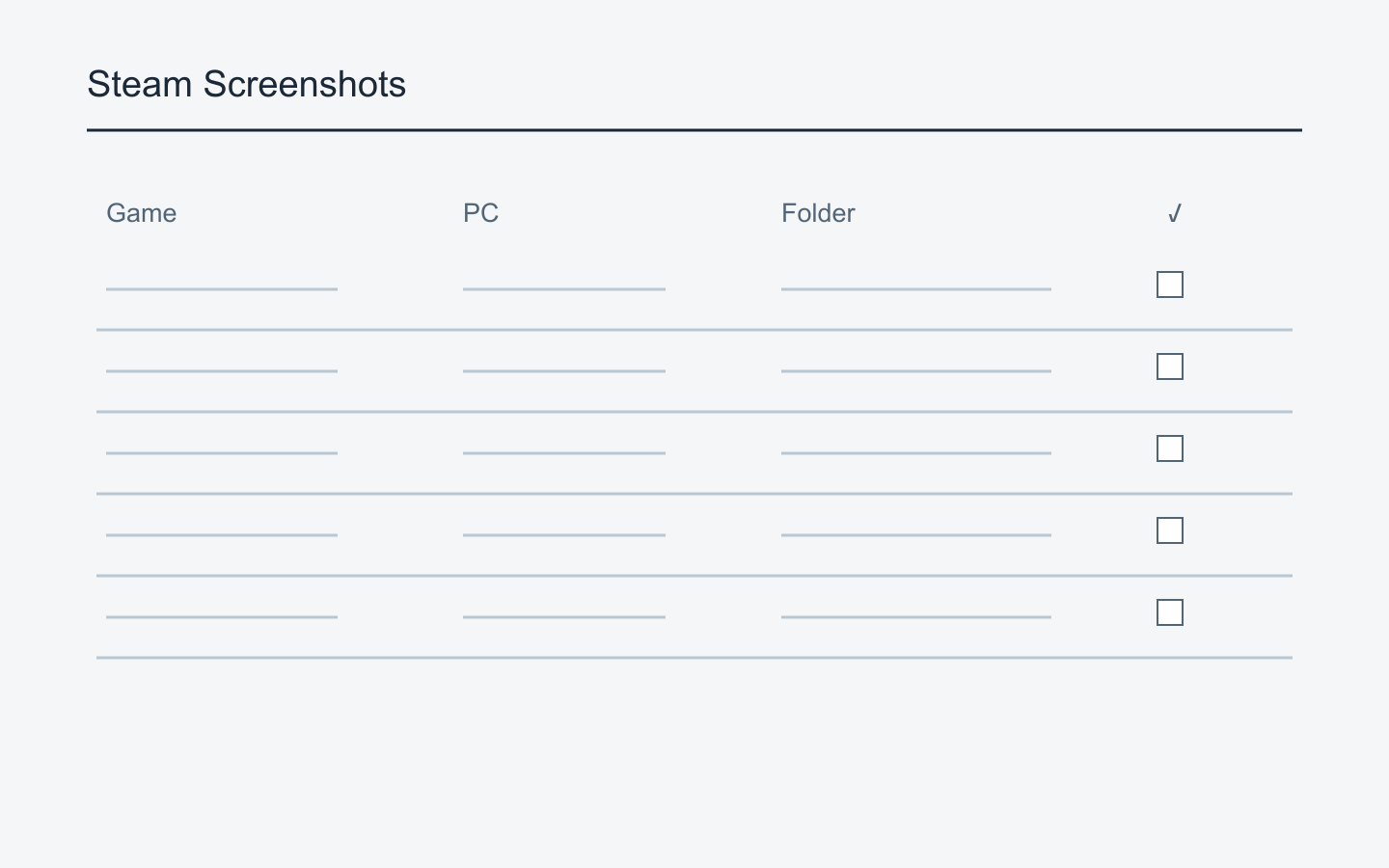
For a small collection, select the scenes you want. For years of pictures, write down the scope first: game, device where you found the pictures, destination folder, and whether checking is complete. Steam doesn't require this format. It's a working note to help you remember which games you've processed.
Look at older scenes as well as recent ones. Compare the current filter and selection with the full collection you intend to keep. Moving pictures from this PC is a different task from collecting pictures left on an old laptop as well. Leave devices you haven't checked marked as unchecked. Signing into a new PC doesn't mean you've examined files on the previous one.
When collecting one game's pictures from several PCs, start with a separate folder for each source. Choose names you recognize. Immediately combining an old-PC folder and a laptop export raises filename conflicts. Habitually choosing overwrite or skip can obscure which pictures survived. Keeping sources separate gives you time to compare them before merging.
Pictures taken with other tools may be mixed in. Don't assume Steam manages every file created by a game's photo mode or an operating-system capture tool. If you remember the tool, inspect its configured storage location separately. If you don't, record where the file was actually found and its format; you don't need to rename it as a Steam capture.
On a PC used with several accounts, don't base the scope solely on the account currently signed in. Identify which of your accounts the pictures relate to, and separate folders to avoid mixing someone else's images or personal information into your archive. You don't have to put account names in public posts or shared-folder names. A recognizable device name or private nickname can serve the inventory's purpose.
You don't need to organize everything before copying it. If the PC change is imminent, preserve obtained files by source first and handle duplicates or renaming on the new PC. Separating archive copies from working copies lets you make selections without editing the original files. An unclassified folder is easier to revisit than pictures deleted before they were copied merely because organization wasn't finished.
Compare image dimensions, file size, and origin
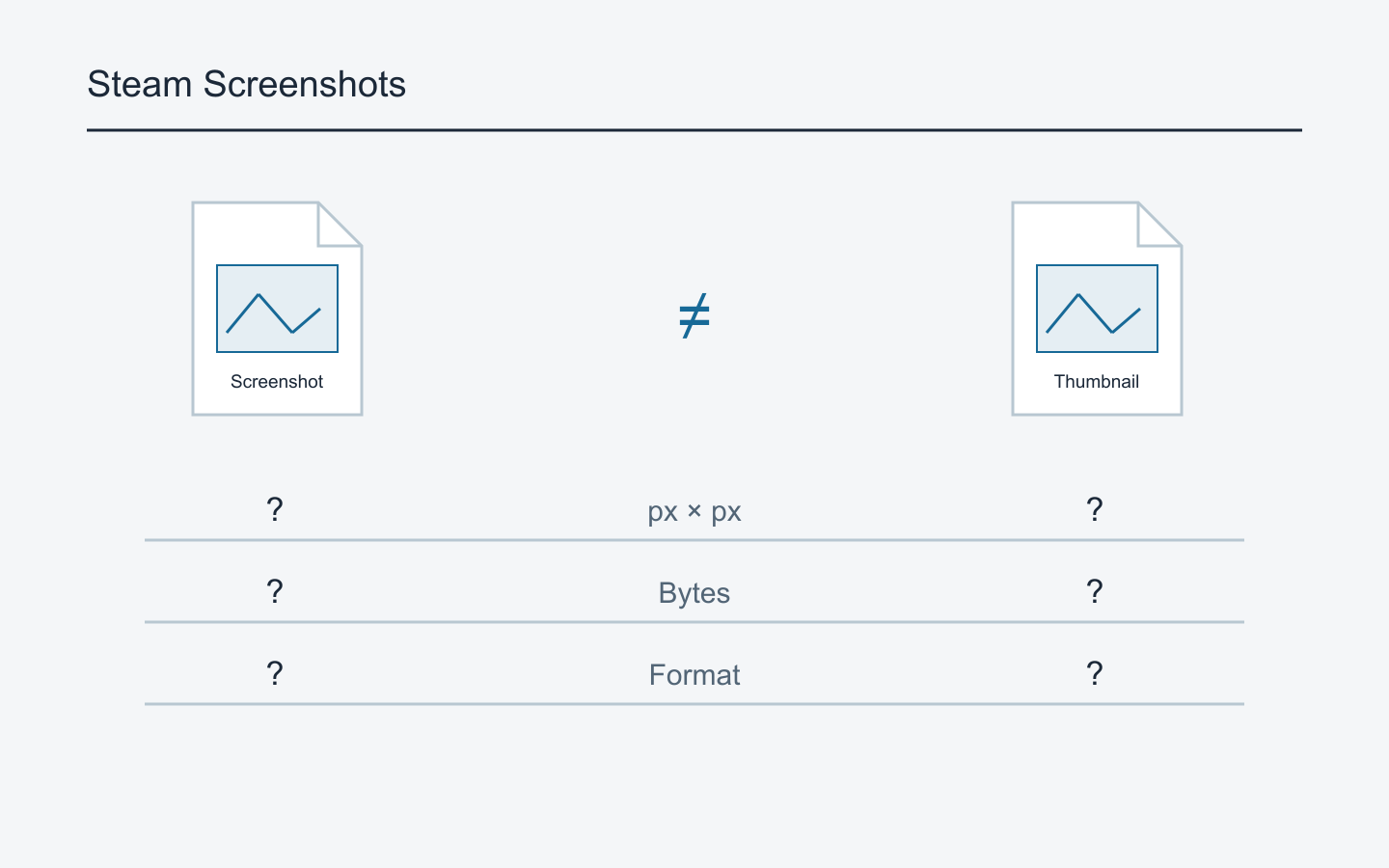
The same scene doesn't necessarily mean the same file. Compare names, formats, pixel dimensions, and file sizes separately when examining an archived file and an online download. Matching names can conceal different files; different names can refer to identical contents. We haven't measured local-versus-uploaded copies, so this guide gives no compression percentage or universal resolution claim.
Image dimensions describe how many pixels span the width and height. File size describes the amount of stored data. Microsoft's documentation likewise defines horizontal image size in pixels and file size in bytes. These are different measures, so we recommend not using either one alone to establish file identity. Don't automatically choose the larger file as the higher-quality original; consider its origin. Keeping the old-PC file unchanged and other sources separately avoids discarding one prematurely.
Check that you haven't saved only a small preview. The Steamworks screenshot API distinguishes screenshot files from thumbnails. That doesn't describe every reader's folder structure, but it does establish a reason not to equate a preview with the image you want to archive. Open the file and inspect the text and details you need, rather than merely recognizing the scene in a list.
Copying doesn't require opening pictures in an editor and saving them again. File-manager copying avoids introducing an editing or conversion step. If you want to adjust brightness, crop, or hide text, make a separate working copy. Converting every image during backup removes a useful comparison with the previous files.
If a file won't open on the new PC, don't immediately call it corrupt. Check its format and try an image application that supports it. See whether the old PC can still open the same file and whether the copied size matches. As Microsoft's extension guidance explains, renaming an extension doesn't convert the underlying format. Randomly changing the end of the filename isn't the recommended fix.
If an online download is all that remains, it may be the material you can currently obtain. Keep it if useful, but don't label it an identical original from the old PC. Recording its source and download date in a separate folder tells you what to compare if you later find the earlier file. Missing originals aren't a reason to discard accessible copies.
Copy to another device and open the destination files
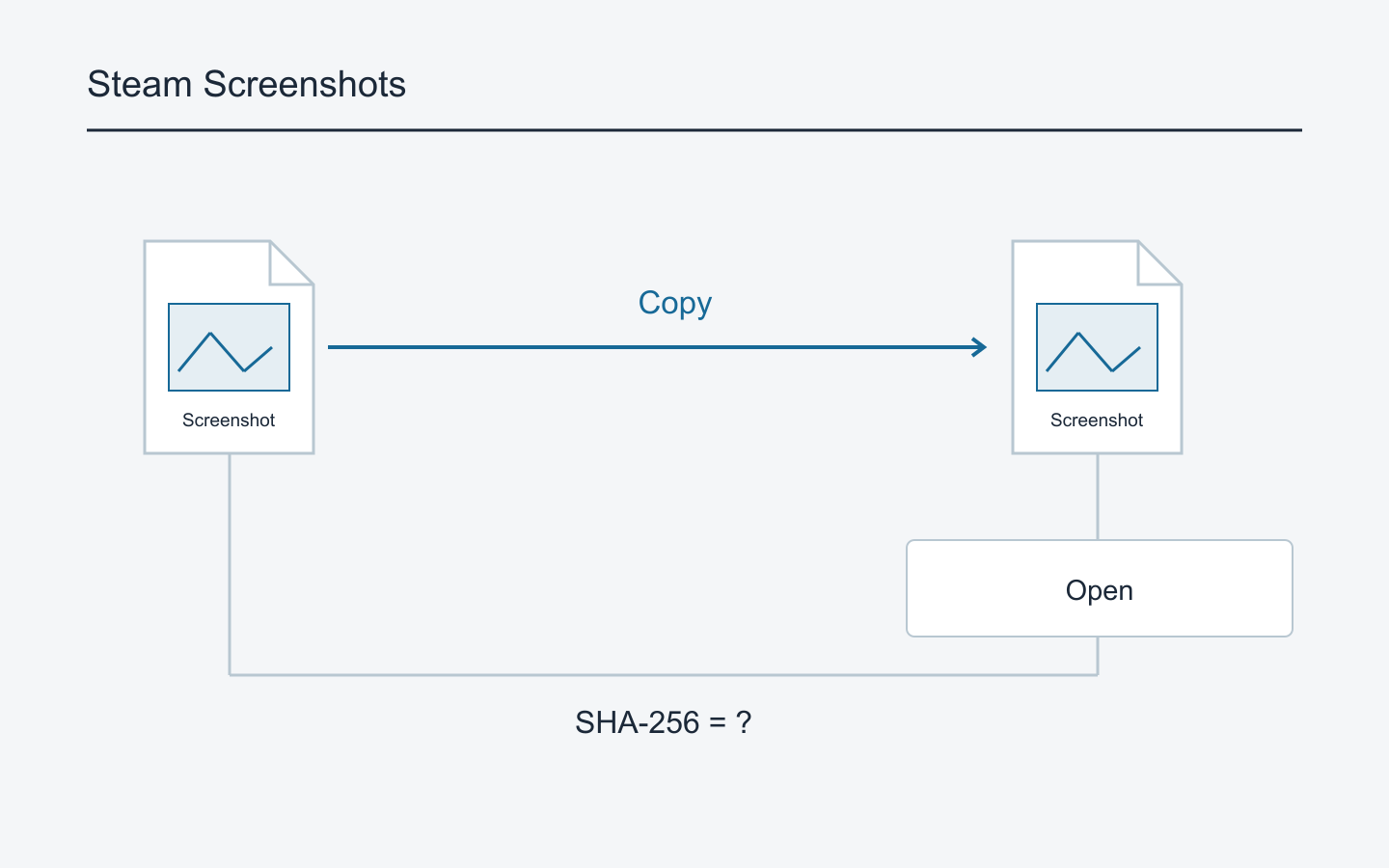
Once you've obtained the images, copy them to another storage device while retaining the old-PC files. Copying and moving differ: a copy leaves the source in place, whereas a move can remove it from its earlier location. For an initial backup, copy rather than cut so you can compare results. Don't disconnect the device or start resetting the PC before the copy dialog finishes.
Choose a destination you can find again. A new desktop folder isn't storage outside the PC. Another folder on the same computer can help with organization, but may be lost along with it when you format or hand it over. When using external storage or another managed location, establish where the data actually resides.
Check that you didn't copy only shortcuts. Windows shortcuts point to other locations. Opening one successfully on the old PC doesn't show that the image data was transferred. Opening the destination file on the new PC without access to the old device helps reveal that difference. A file containing an internet address is also distinct from an archived image.
Open the source and destination folders separately before copying so you can tell them apart. Accidentally checking the source again can feel like verifying the backup. Afterwards, open a file directly at the destination and check its name or location. An item in an image app's recent list doesn't establish that you opened the copy on the new storage device.
Verification has several layers. Look for failed or skipped-copy messages, compare file counts and total size, then open destination images. Equal counts alone aren't proof: one picture could be duplicated while another is missing. If there are only a few important images, opening each one gives you a clear account of what was checked.
If you only opened a sample of a large collection, don't record every file as verified. Choosing older and newer pictures and different formats from each game broadens the sample, but it doesn't guarantee every file. Retaining the copy tool's error record and a file inventory can make later omissions easier to investigate.
If you're comfortable with technical tools, compare file hashes as well. A hash is calculated from file contents and helps compare data before and after copying. Using a cryptographic hash such as SHA-256 consistently, as described in Microsoft's file-hash documentation, supports high-confidence content comparison. It doesn't tell you whether you selected the intended scene. A damaged image can also be copied identically. Content comparison and actually viewing the image answer different questions.
After checking with the storage device connected, you can safely disconnect and reconnect it, then see whether the destination and images are still accessible. That doesn't guarantee the device's lifetime or every file's integrity. It checks whether the archive remains accessible after the copy operation.
Separate image preservation from restoring Steam on a new PC
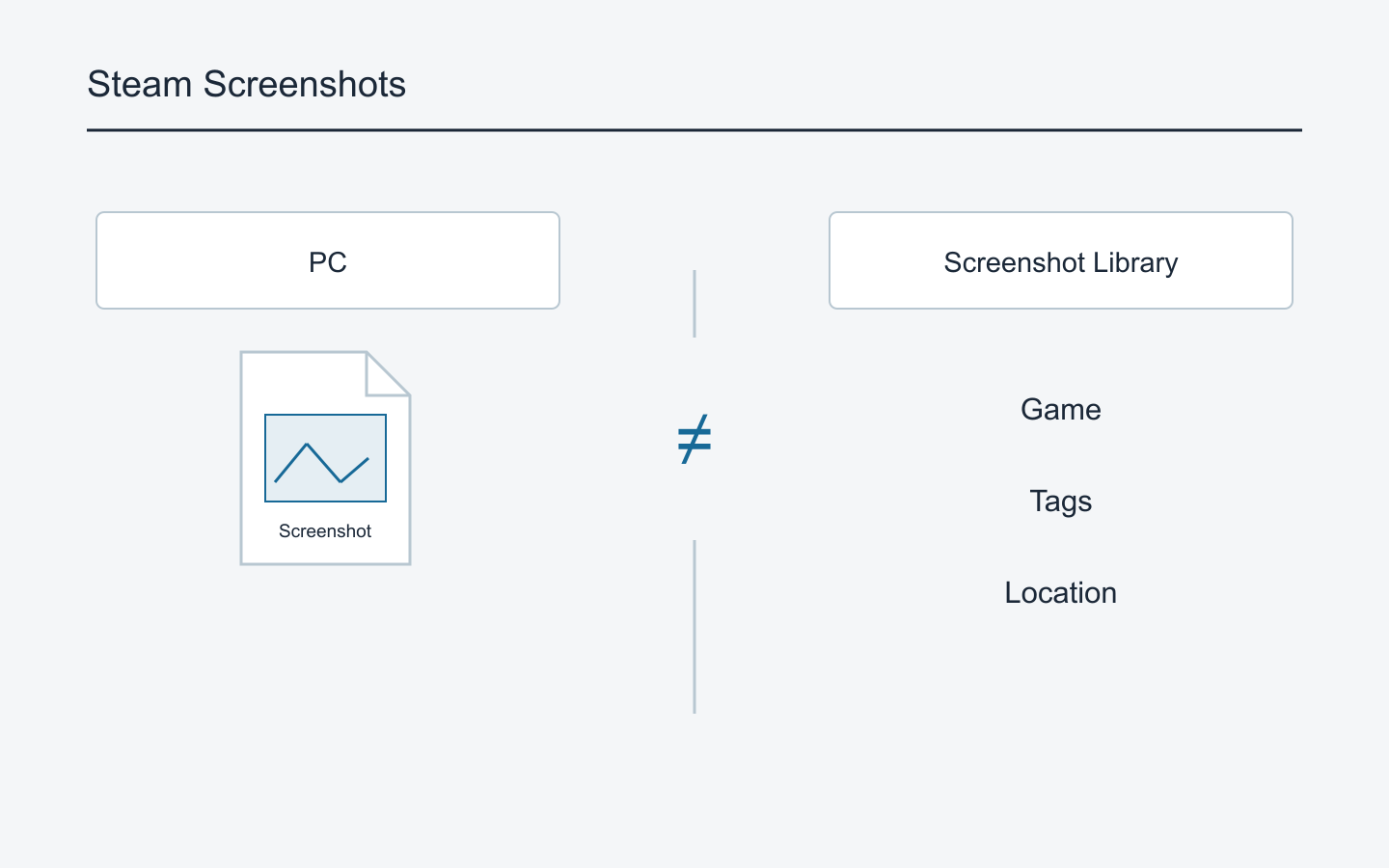
On the new PC, first open the backup folder through the file manager. Checking it separately from signing into Steam and installing games makes the result clearer. If a picture opens in an image application, you've preserved that image file. If it doesn't appear in Steam's previous game-specific list, restoring that list remains a different issue.
Valve's screenshot API describes a developer function for adding a disk file to the library. That doesn't establish that users can restore an old library by dropping files into a particular folder. A developer interface isn't a documented user import procedure. This guide doesn't recommend editing internal management files or overwriting entire account folders.
Keep Community post information separate from image files, too. Copying a picture to external storage doesn't guarantee its post title, comments, or tags are embedded in the file. If the game and scene matter, preserve a separate note. If you aren't sure of a date or game, recording it as unknown is more useful than guessing.
If you can retain the old PC, we recommend keeping the original files until checking on the new PC is complete. You can revisit a missed game or an export showing the wrong scene. This isn't a Valve rule specifying a number of retention days. It's a suggested order of work that avoids erasing old storage before you've established what you preserved.
Giving the PC to family or selling it may also require handling accounts and personal data. This screenshot-backup procedure doesn't complete whole-PC privacy cleanup. For the images, first distinguish those verified on the new device from those still present only on the old PC. Check whether pictures showing nicknames or chat were placed in a shared folder others can access.
Using the same Steam account on both devices isn't a reason to skip verification. When a picture appears on the new device, determine whether the screen shows an online post or an actual image file there. If you intend to use it offline, access to a web page isn't the condition you need; you need to be able to read the image at its archive location.
Handle incomplete copies and online-only pictures
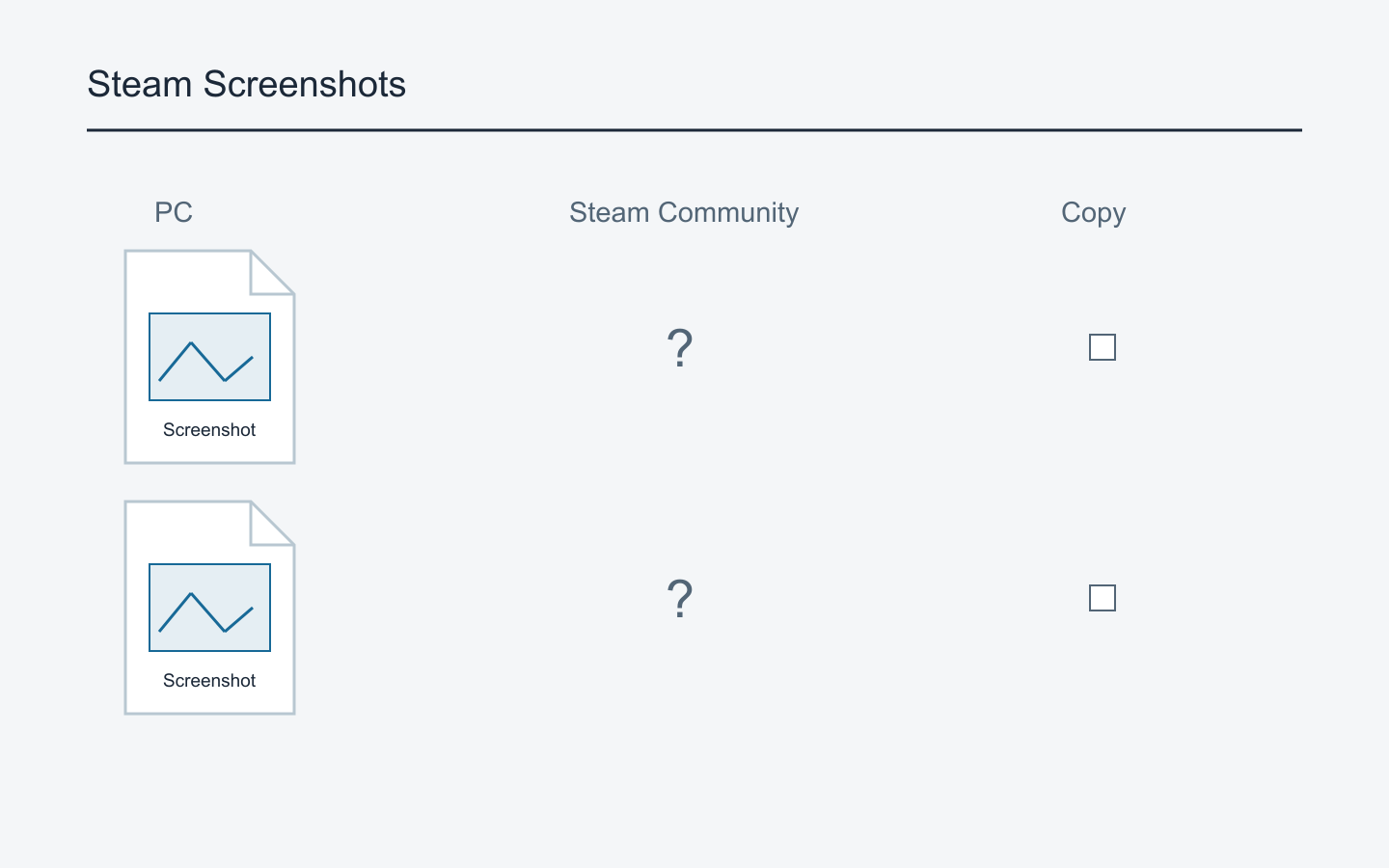
If copying reports insufficient space or an access error, record which folders completed. Closing the message doesn't finish the backup. With source files retained, you can free space or choose another device and recopy unfinished items. Recording failed filenames helps you understand what changed between attempts.
If names conflict, check both files' origins before overwriting. Separate folders are a simple answer for files from different devices or games. Until you know which file is an unwanted duplicate, don't delete it based on size alone. Near-identical consecutive screenshots can differ in their frame or text; open them individually when that matters.
A picture visible in the media list but not obtained as a file remains unfinished. Check whether you can export it and record failures. Not finding a path isn't a reason to begin by reinstalling the client or deleting the Steam directory. For preservation, first investigate ways to obtain the file while keeping your existing access intact.
If only an uploaded copy is accessible, see whether you can save your picture as a file. Don't confuse a small listing preview with the opened image. Check the resulting dimensions and scene and record that it came from an online copy. Capturing the displayed page again creates a new screenshot; it isn't equivalent to downloading the original file.
This guide makes no promise about how long online copies remain available or which deletion actions affect local files. The official sources checked here don't establish every deletion combination. You don't need to delete a published picture as a backup test. Complete the checks available through copying and reading first. Deletion is a separate operation whose scope needs to be understood beforehand.
If the old PC has already been reset and no online copy remains, this copying procedure cannot restore missing data. Look for an earlier backup on another storage device or a separately exported folder. There is no basis here to guarantee recovery or say signing into Steam will bring everything back. Preserving available files and recovering files that are already gone are different tasks.
Decide whether you're ready to clean up
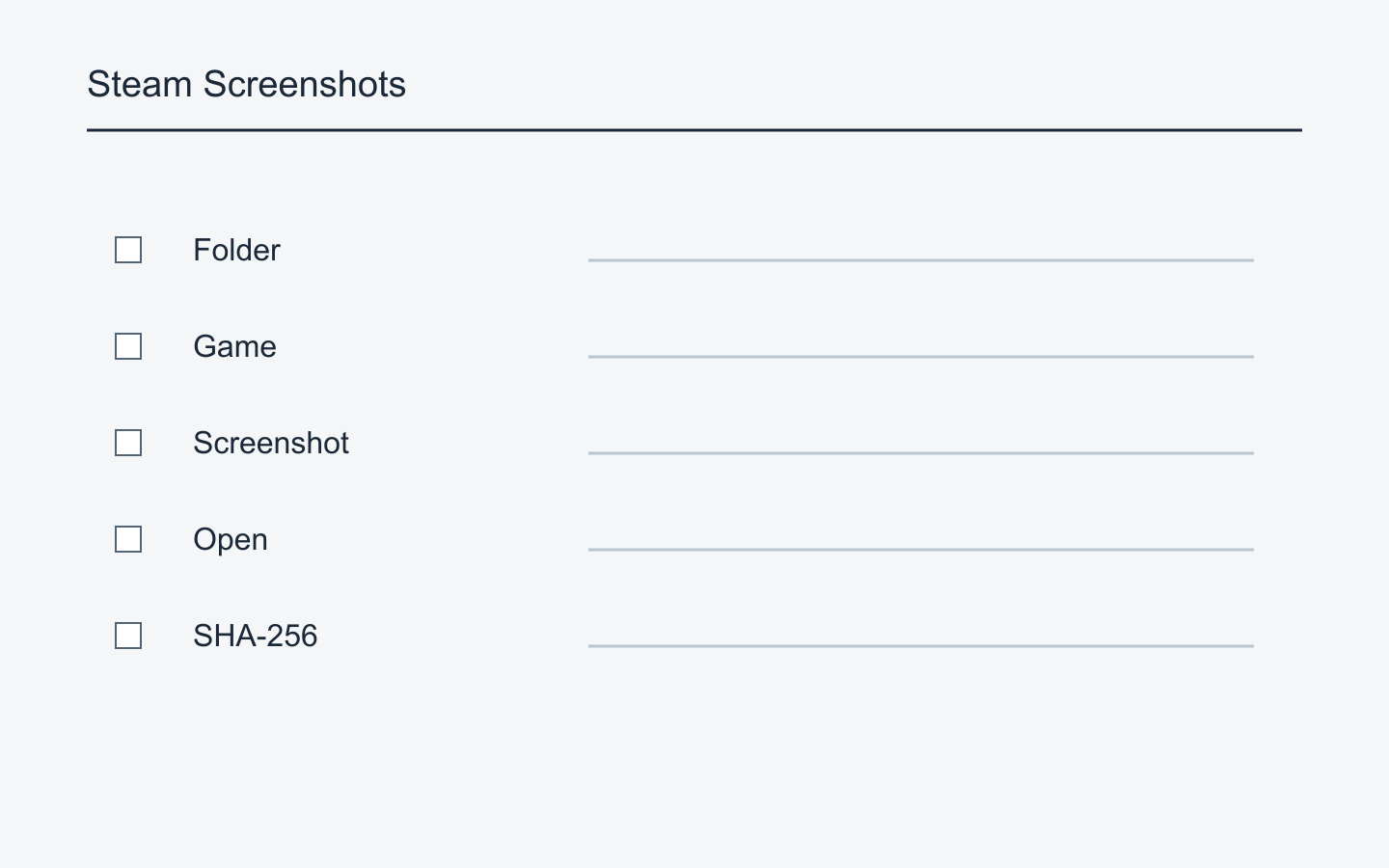
Set completion criteria around your actual goal. For a few selected pictures, verify all those files. For the entire screenshot collection on a PC, revisit the inventory for unchecked games or folders. Mark online-only copies accordingly rather than giving them the same status as files obtained from the original PC.
Leave a final note with the backup date, original device, destination, and scope of checking. State whether you opened every file or a sample, whether copying produced errors, and whether anything remains. A fancy format matters less than knowing which folder to open later. Record actual locations you verified.
Keep cropping and color adjustments in separate working copies after archiving. You can make appropriately sized copies for a blog or chat when needed. Adding markings or overwriting archive files at a smaller size makes the earlier state harder to reuse. Review nicknames, chat, and other personal details separately in copies intended for publication.
For long-term pictures, checking that files open when you next use the storage device is a helpful habit. Valve doesn't prescribe a checking interval here. Losing track of the device or no longer understanding folder names also affects practical preservation, so recognizable names and a short record are our recommendation.
Before cleaning up old files, check once more that the required pictures open from the new location. Knowing where the files are, recording what you moved, and leaving unobtained pictures marked unfinished lets you judge the result. Keep distinguishing between being able to see a picture in Steam and having its image file stored outside the old PC.