
Xung đột Steam Cloud: nên giữ bản lưu nào?
Đối chiếu bản lưu Local và Cloud trước khi chọn: thời gian, tiến độ, thư mục sao lưu, dữ liệu 3 game và giới hạn khôi phục khi đổi PC hoặc Steam Deck.
Ngôn ngữ bài viết
Trong bài viết này
Bạn mở game và Steam yêu cầu chọn giữa bản lưu trên máy với bản trên đám mây. Nếu chưa biết phần mình chơi hôm qua nằm ở đâu, lúc này đừng chọn vội. Hãy tìm thiết bị đã chơi gần nhất, sao chép riêng những tệp lưu còn lấy được rồi mới đối chiếu. Chỉ dựa vào chữ “Cloud” hay ngày mới hơn là quá ít căn cứ, nhất là khi chọn nhầm có thể khó sửa lại.
Giữ lại những tệp còn có trước khi chọn
Đọc xem cảnh báo đang yêu cầu gì. Xung đột buộc bạn chọn một trong hai phiên bản khác nhau không giống cảnh báo hiện chưa đồng bộ được.
Trường hợp đầu cần xác định bản lưu muốn chơi tiếp; trường hợp sau cảnh báo để bạn cân nhắc có nên bắt đầu chơi khi chưa đồng bộ hay không. Chỉ thấy thông báo không đồng bộ được thì chưa thể kết luận hai bản lưu đã xung đột.
Hướng dẫn Steam Cloud của Valve cảnh báo rằng tiếp tục chơi khi đồng bộ thất bại có thể gây xung đột hoặc mất tiến độ. Game vẫn mở được không có nghĩa nó sẽ mở đúng bản lưu bạn muốn. Nếu lần chơi cuối ở máy khác, đáng để kiểm tra máy đó trước, ngay cả khi cửa sổ cảnh báo không chặn bạn khởi chạy.
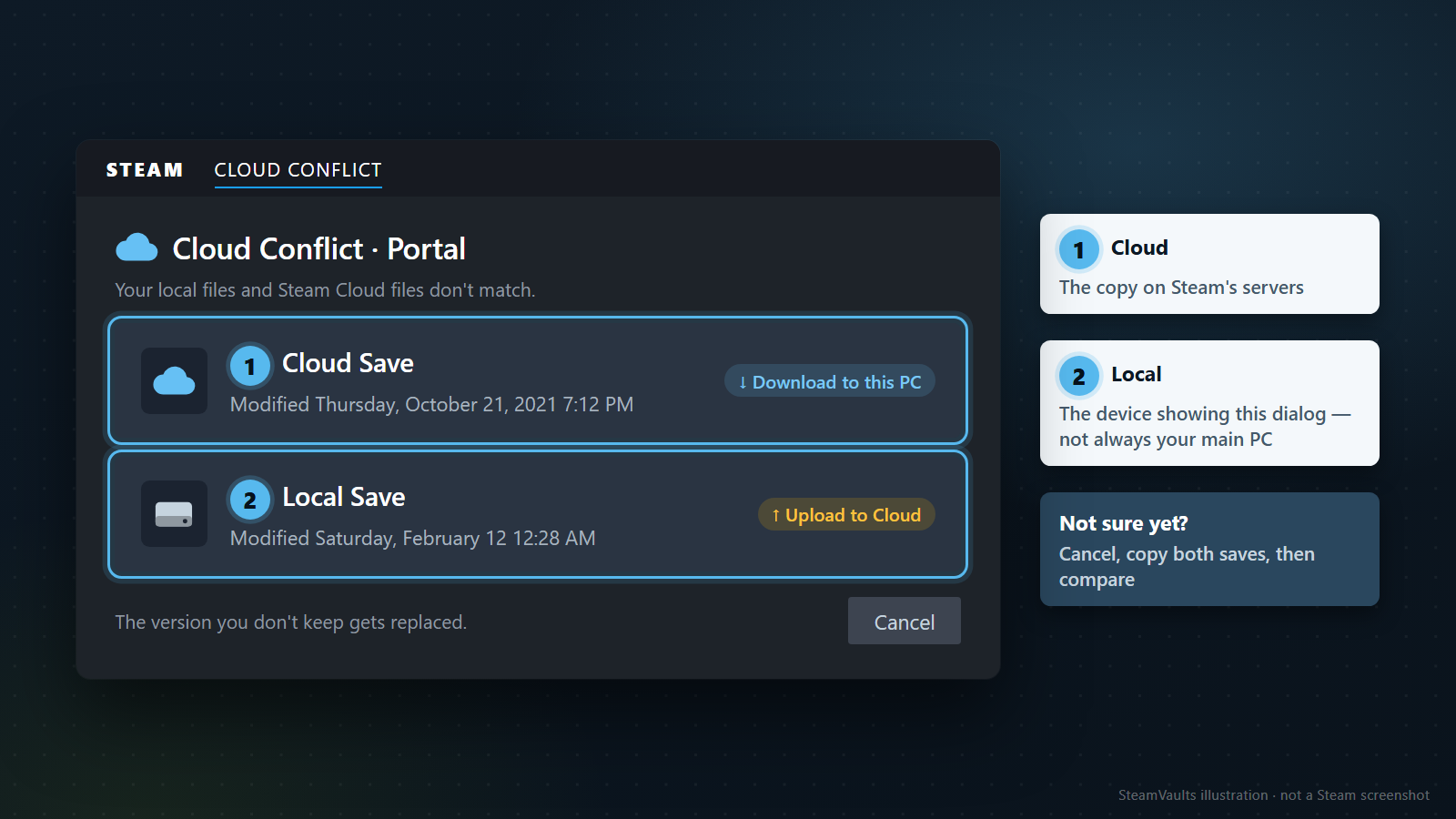
Các hình trong bài là giao diện dựng lại và bảng giải thích, không phải ảnh xung đột từ một tài khoản thật hay bằng chứng khôi phục thành công. Hình đầu dựng lại ví dụ xung đột cũ của Portal trong FAQ chính thức. Tên nút và cách bố trí khi thao tác phải theo màn hình Steam bạn đang dùng.
Ghi lại ngày của hai bản, tên game và chiều tải lên hoặc tải xuống mà cửa sổ đang đề nghị. “Local” là bản nằm trên thiết bị đang hiển thị cửa sổ ấy; “Cloud” là bản trên máy chủ Steam. Dù thường chơi trên máy bàn, bạn cũng không thể mặc định bản của máy bàn luôn là Local. Hôm nay mở cảnh báo trên laptop thì phải đọc từ phía laptop.
Tiếp theo, kiểm tra thiết bị đã chơi gần nhất và tài khoản hiện đăng nhập. Tên hồ sơ trông quen chưa đủ; cần biết đã chạy game bằng tài khoản nào. Với PC dùng chung, kiểm tra cả người dùng của hệ điều hành. Đổi tài khoản có thể khiến vị trí cần tìm bản lưu cũng khác. Phần dưới có ví dụ về thư mục lưu của từng game.
Tôi sẽ giữ riêng những bản lưu còn có để so sánh trước khi tìm cách tắt cảnh báo. Sao chép thư mục lưu mà bạn xác định được ra ngoài phạm vi game đồng bộ sẽ giữ lại một bản trước khi sửa. Ở đây là tạo bản sao, không phải di chuyển hay đổi tên thư mục gốc. Điều này không có nghĩa bạn tải được mọi phiên bản trên Cloud. Thông tin thấy trên màn hình khác với một bản sao tệp đã thực sự cất riêng.
Nếu game đang chạy, đừng tạo game mới hoặc lưu vào slot khác chỉ để xem chuyện gì đã xảy ra. Có game ghi dữ liệu khi thoát, nên cũng cần biết cách game đó lưu trước khi xử lý một phiên đang mở. Nếu còn ở cảnh báo trước lúc khởi chạy, không cần vào game chỉ để tìm tệp. Tránh sao chép trong khi game vẫn đang sửa chúng; chưa rõ lúc nào game ghi và thoát thì đọc hướng dẫn của nhà phát triển trước.
Tôi không khuyên chụp hai ngày trên màn hình, chọn đại rồi tính chuyện nhờ hỗ trợ nếu sai. Ảnh chụp giữ được thông báo, không giữ được nội dung bản lưu. Chưa kiểm tra được máy kia hoặc không nhớ trạng thái cần giữ thì có thể hoãn lựa chọn.
Ngày mới hơn chưa chắc đã chơi xa hơn
Ngày giờ có ích khi bạn ghép được nó với việc đã làm. Hãy ghi lại máy dùng để đánh bại trùm cuối, lần lưu sau khi sang khu vực mới, hoặc tên nhân vật vẫn chơi lâu nay. Nhớ lúc mở game khác với biết mình đã lưu xong lúc nào.
Bảng sau là tình huống giả định để giải thích cách đối chiếu. Đây không phải sự cố của một người chơi thật hay mô tả cách tự lưu của một game cụ thể. Tất cả thời điểm cùng dùng giờ Hàn Quốc, KST; chương 5 và chương 7 cũng chỉ là ví dụ.
| Thời điểm giả định | Thiết bị và thao tác | Bản lưu còn lại trong ví dụ |
|---|---|---|
| Ngày 1 tháng 9, 21:00 | Lưu tới chương 5 trên máy bàn, đồng bộ hoàn tất | Bản chương 5 có thể tải sang máy khác |
| Ngày 2 tháng 9, 20:00 | Laptop tiếp tục từ đó tới chương 7 rồi lưu khi ngoại tuyến | Laptop có chương 7, chưa tải lên Cloud |
| Ngày 2 tháng 9, 22:00 | Chơi thêm một lúc từ bản chương 5 trên máy bàn, lưu rồi tải lên | Bản Cloud có giờ mới hơn nhưng không chứa tiến độ chương 7 |
| Ngày 3 tháng 9 | Giả sử cửa sổ xung đột xuất hiện khi laptop nối mạng | Cần so sánh bản trên laptop với bản Cloud |
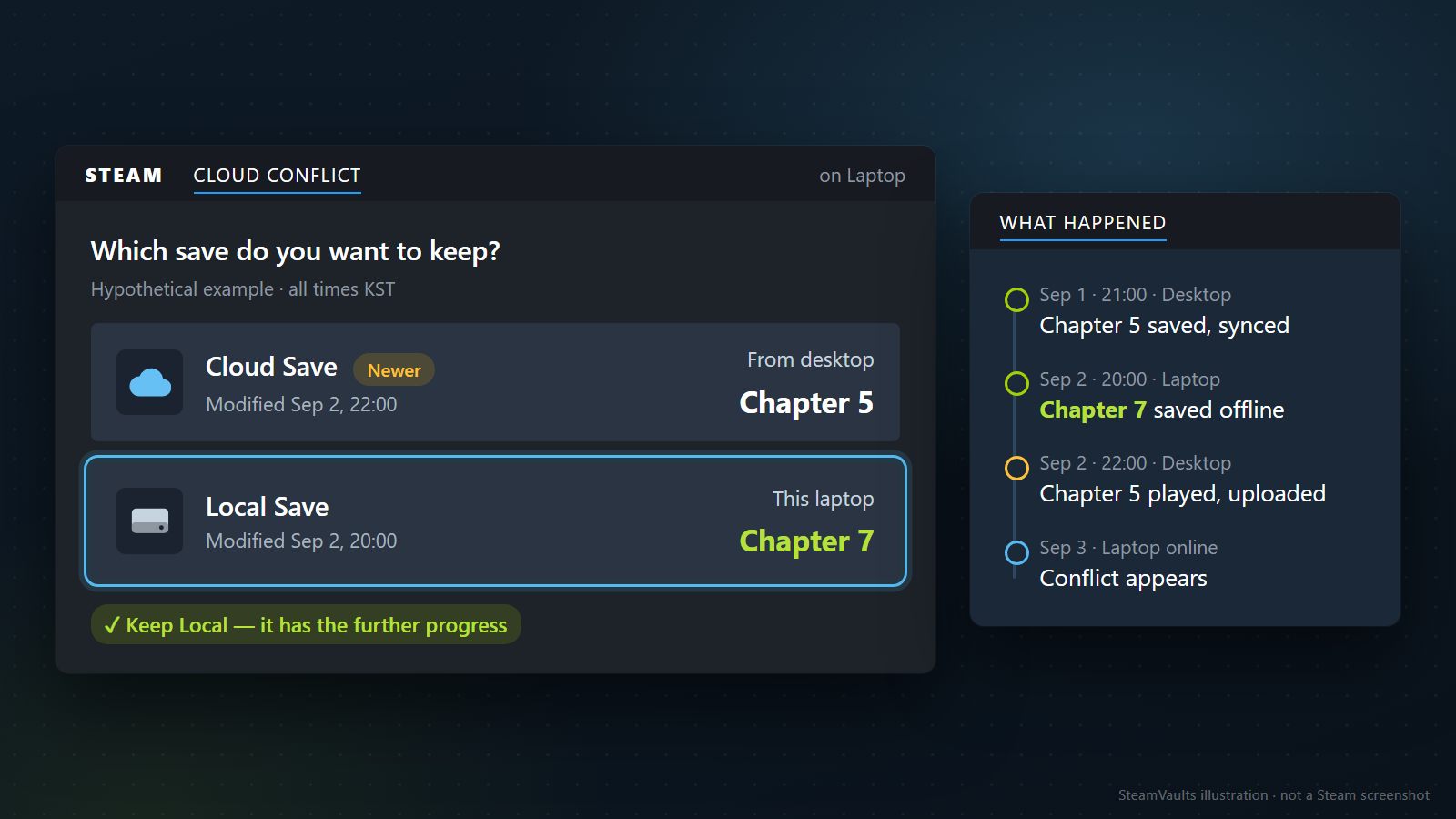
Với đúng các điều kiện ấy, muốn tiếp tục chương 7 thì bản cần giữ là bản trên laptop. Cảnh báo cũng đang mở ở laptop nên đó là Local.
Cloud mang giờ 22:00 muộn hơn, nhưng lần tải lên được giả định trong bảng là phần chơi tiếp từ chương 5. Chọn tải bản Cloud xuống chỉ vì giờ mới hơn sẽ không giữ được phần tiến độ bạn đang cần.
Khi áp dụng cho mình, chỉ điền những gì đã biết. Nhớ đã lưu trên laptop nhưng chưa kiểm tra tải lên thì ghi riêng hai việc đó. “Thoát game rồi, chắc đã đồng bộ” vẫn là suy đoán. Nếu viết nó thành đồng bộ hoàn tất, những so sánh sau sẽ dựa vào một điều chưa xác nhận. Chơi tiếp trên máy kia trước khi xem tệp còn lại cũng có thể khiến lịch sử khó lần hơn.
Cũng có lúc đủ căn cứ để chọn Cloud. Chẳng hạn, bạn xác định được máy khác là nơi lưu tới đúng đoạn muốn chơi và tệp nó đã tải lên chính là bản Cloud hiện tại. Khi đó lấy bản ấy về phù hợp với mục đích. Máy đang dùng vừa được cài lại, hay là laptop đã lâu không mở, đều là thông tin có ích để đối chiếu. Nhưng đừng xóa tệp trên thiết bị cũ chỉ vì cho rằng lâu rồi không dùng: có thể còn một nhân vật khác mà bạn đã quên. Chưa biết cần giữ gì thì vẫn nên để lại bản gốc.
Nếu đã chơi theo hai hướng khác nhau, sẽ khó nói bản nào là phần tiếp nối đầy đủ của bản kia. Một bên đi tiếp cốt truyện, bên kia lo thu thập vật phẩm chẳng hạn. Đừng chờ cửa sổ xung đột ghép các phần tốt của cả hai. Game có hỗ trợ nhập hoặc gộp dữ liệu hay không phải xem theo cách của chính game đó. Bỏ hai bộ tệp chung một thư mục cũng không tự ghép hai lần chơi.
Dung lượng chỉ là thông tin phụ. Các tài liệu đã kiểm tra không đưa ra quy tắc rằng tệp lớn hơn chứa nhiều nhiệm vụ hay giờ chơi hơn. Hai tệp khác kích thước là lý do để xem chúng khác gì, không phải lý do chọn ngay tệp lớn. Kích thước bằng nhau cũng chưa xác nhận nội dung.
Ngày giờ không khớp ký ức thì chưa cần ép mình kết luận. Kiểm tra hai màn hình có dùng cùng cách ghi ngày và múi giờ không; con số là giờ sửa tệp hay thời gian chơi trong game. Qua nửa đêm, câu “lưu hôm qua” dễ trở nên mơ hồ. Giữ nguyên thông tin hiển thị, ghi thêm ngày thực tế và thiết bị sẽ giúp giải thích sự việc rõ hơn. Bài này không đề xuất sửa thời gian của tệp để làm các mốc khớp nhau.
Trước khi bấm, thử nói rõ mục đích và lựa chọn: “Tôi dùng bản Local hiện tại để giữ chương 7 đã chơi trên laptop.” Nếu chỉ có lý do “nút nằm trên cùng” hoặc “mọi người đều bảo chọn Cloud”, bạn còn thiếu thông tin. Đọc chiều tải lên, tải xuống trên cửa sổ thật và xác định bản nào sẽ được dùng để cập nhật bên còn lại.
Steam Cloud trên cửa hàng cho biết điều gì?
Trên cửa hàng đang liệt kê những mục hỗ trợ nào? Chúng tôi đã truy vấn dữ liệu công khai của Portal 2, Stardew Valley và Hades để xem mục Steam Cloud cùng thông tin hệ điều hành.
Ngày 5 tháng 9 năm 2026, trong khoảng 07:57:01–07:57:03 UTC, tương ứng 16:57:01–16:57:03 KST, chúng tôi nhận một phản hồi cho mỗi game Portal 2, Stardew Valley và Hades. Cả ba yêu cầu đều dùng khu vực Mỹ, ngôn ngữ tiếng Anh và đều thành công. Bảng giữ riêng mục tính năng Steam Cloud với các giá trị platforms trong phản hồi.
| Game được truy vấn | Mục Steam Cloud | Windows | macOS | Linux |
|---|---|---|---|---|
| Portal 2 | Có | true | false | true |
| Stardew Valley | Có | true | true | true |
| Hades | Có | true | true | false |
true và false là các giá trị về hệ điều hành trong phản hồi cửa hàng tại thời điểm đó, không phải kết quả cài rồi chạy thử. Không được suy từ Linux false của Hades thành “không chạy được trên Steam Deck hoặc Proton”. Giá trị macOS của Portal 2 cũng chỉ là giá trị nhận được trong phản hồi này, không phải kết luận về lịch sử hỗ trợ của mọi bản game.
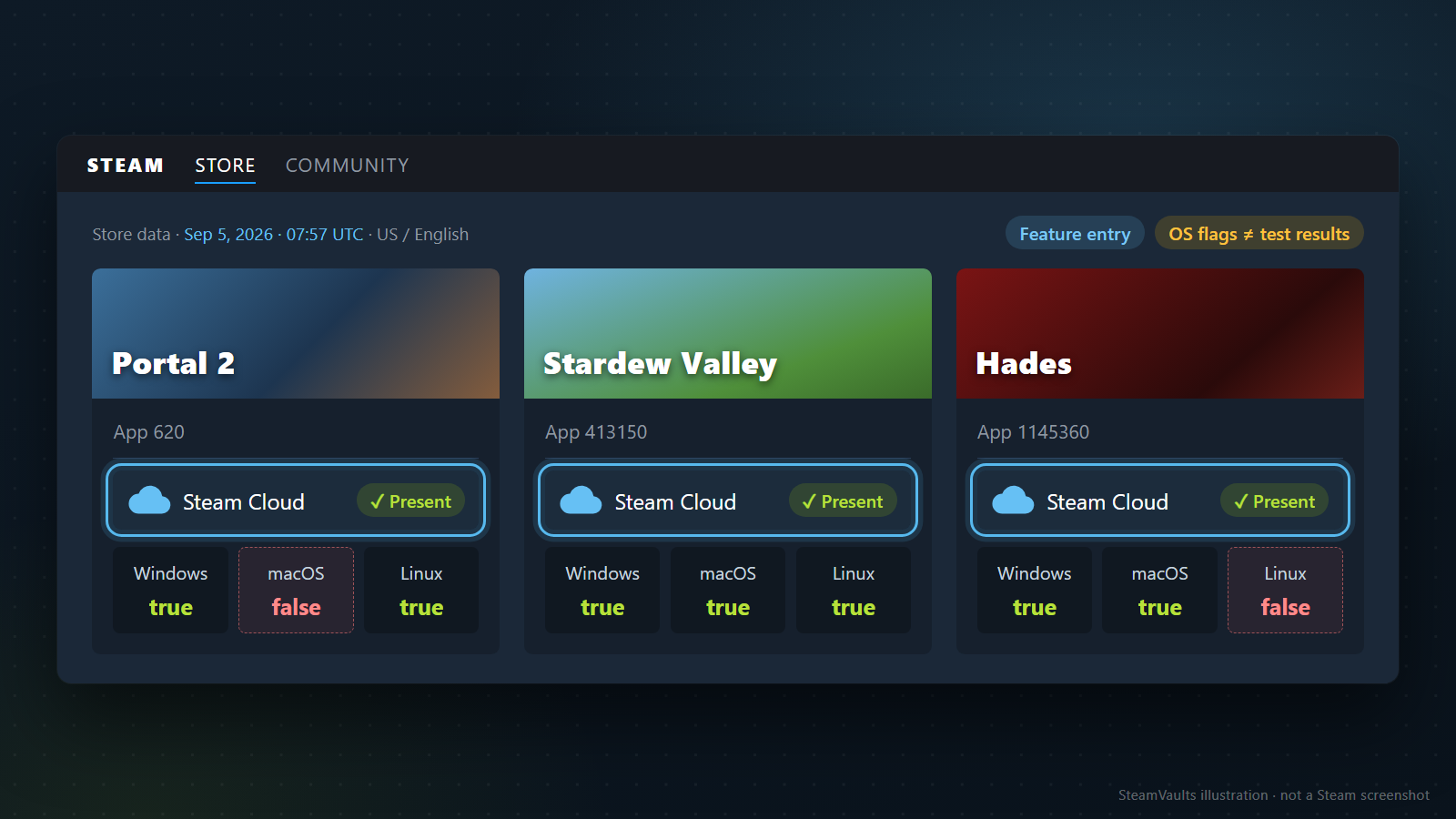
Ba game được chọn để minh họa, không đại diện cho toàn bộ Steam. Chúng tôi không đo tỷ lệ lỗi Cloud hay tỷ lệ khôi phục thành công. Phản hồi công khai có thể được lưu đệm, vì vậy giờ nhận dữ liệu không phải giờ từng thông tin được cập nhật tại nguồn. Điều xác nhận được là cửa hàng có liệt kê Steam Cloud cho cả ba game. Bạn vẫn phải xem tài khoản có bật đồng bộ không, game đồng bộ những tệp nào và bản vừa lưu đã tải lên thành công chưa. Chúng tôi không đăng nhập tài khoản hay chạy game trong lần truy vấn này, nên không thể dựa vào bảng để hứa khôi phục mọi thiết lập lẫn mod.
Tài liệu Steamworks về Cloud giải thích rằng nhà phát triển đặt các nhóm tệp và đường dẫn cần đồng bộ. Chia sẻ Auto-Cloud giữa các hệ điều hành cũng phụ thuộc vào cấu hình đường dẫn và đường dẫn thay thế cho từng hệ điều hành. Với người chơi, có hai câu hỏi cần tìm riêng: game chơi được trên hệ điều hành khác không, và có tiếp tục được từ cùng bản lưu không. Chỉ mục Steam Cloud trên cửa hàng không trả lời hết cả hai.
Trong hướng dẫn của nhà phát triển, tìm vị trí lưu, những phiên bản có thể chia sẻ dữ liệu và tệp nào bị loại khỏi đồng bộ. Nếu một slot hay thiết lập không theo sang máy mới, trước hết hãy hỏi nó có thuộc phạm vi đồng bộ không. Thấy thiết lập khác đã sang rồi đoán bản lưu cũng sang, hoặc thấy một thiết lập trở về mặc định rồi cho rằng mất hết tiến độ, đều dễ khiến bạn kiểm tra nhầm vấn đề.
Tính năng trên cửa hàng cũng khác thiết lập của máy. Trong Library, mở Properties của game rồi xem mục Steam Cloud ở General. Nếu vào để kiểm tra, hãy ghi lại trạng thái hiện tại trước. Bỏ chọn rồi bật lại không giúp xác định bản lưu cần giữ. Trong lúc còn phải bảo toàn tiến độ trên máy khác, chưa thay đổi thêm các thiết lập sẽ dễ đối chiếu hơn.
Mỗi game có thể lưu ở một thư mục khác
Sao chép thư mục cài Steam không đồng nghĩa đã giữ được bản lưu của mọi game. Bạn cần tìm nơi chính game đó ghi dữ liệu. Dù đã mở được thư mục cài đặt từ Library, đó chưa chắc là thư mục lưu. Trước khi dùng đường dẫn tìm thấy trên mạng, xem hướng dẫn của nhà phát triển có đúng game, hệ điều hành và phiên bản đang dùng không.
Stardew Valley là ví dụ dễ thấy về vai trò khác nhau của các tệp. Hướng dẫn xử lý bản lưu của nhà phát triển chỉ tới %appdata%/StardewValley/Saves trên Windows. Bên trong, tìm thư mục mang tên nhân vật, theo sau là dấu gạch dưới và dãy số. Các tệp được phân biệt như sau:
| Tệp trong thư mục nhân vật Stardew Valley | Vai trò theo hướng dẫn của nhà phát triển |
|---|---|
| Tệp trùng tên thư mục nhân vật | Dữ liệu lưu thực sự cần để tải nhân vật |
SaveGameInfo | Thông tin nhân vật hiển thị trong menu tải game |
Tên tệp lưu gốc có thêm _old | Nếu có, đây là bản lưu trước do game tạo |
SaveGameInfo_old | Nếu có, đây là bản thông tin menu trước đó |
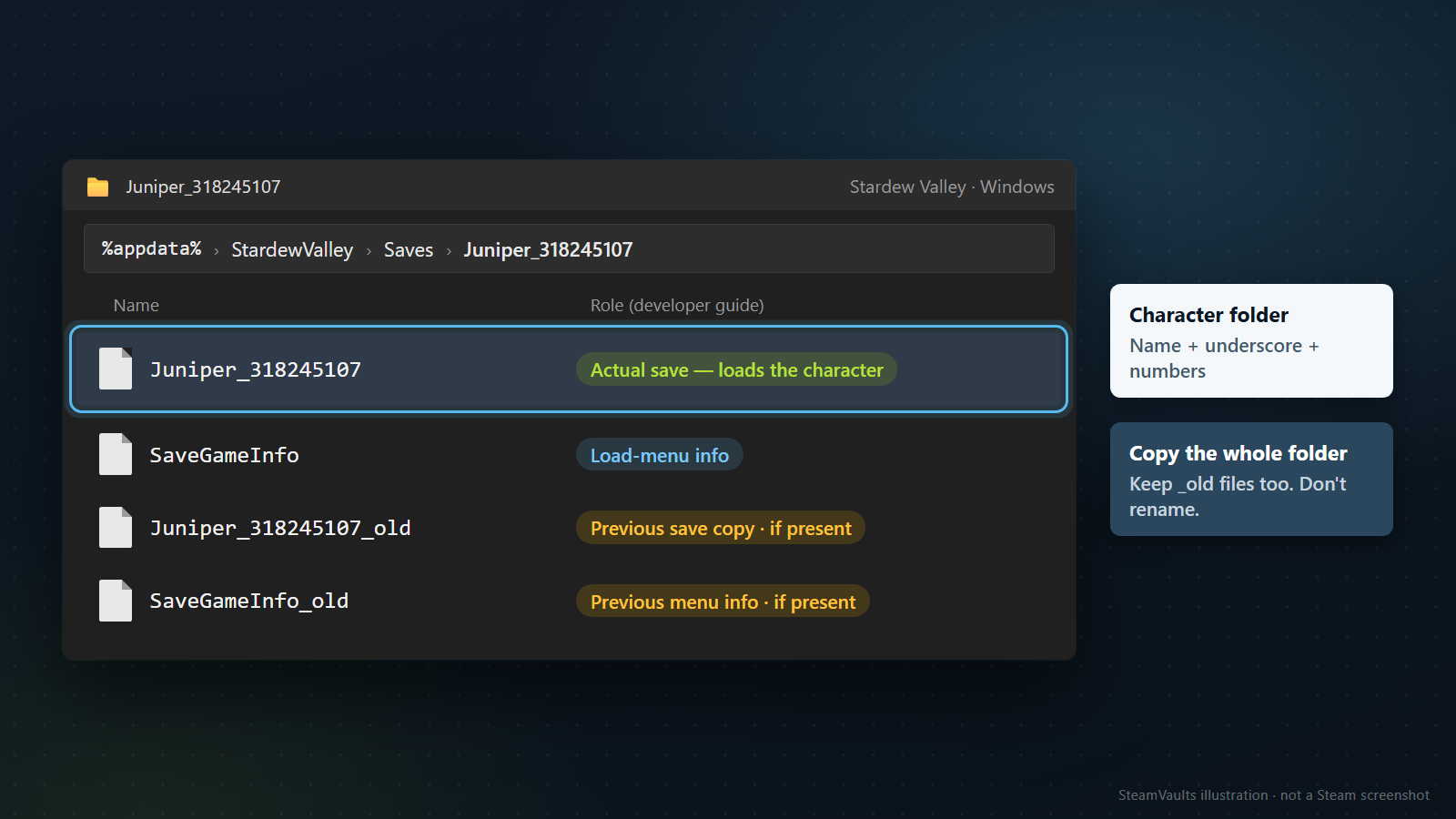
Nhà phát triển giải thích rằng khi SaveGameInfo thiếu hoặc hỏng, nhân vật có thể không hiện trong menu dù dữ liệu lưu chính còn đó. Bởi vậy, không thấy nhân vật trong menu chưa chứng minh Cloud đã xóa cả nông trại. Chiều ngược lại cũng cần thận trọng: nhìn thấy một tệp chưa đủ để biết có tải được nó bình thường hay không.
Ở bước này, giữ một bản sao toàn bộ thư mục nhân vật. Đừng bỏ tệp nhỏ chỉ vì trông không quan trọng; có _old thì giữ cùng. Bản _old trong hướng dẫn chỉ tiến độ của một ngày trước trong game, không phải lịch sử Cloud được tạo mỗi 24 giờ ngoài đời. Cũng không có nghĩa game nào cũng có những tệp đó. Trước khi chọn lấy riêng một tệp, hãy hiểu bộ tệp của một nhân vật gồm những gì.
Không tìm thấy thư mục thì kiểm tra người dùng Windows đã dùng ở lần chơi cuối. Nhà phát triển cũng yêu cầu kiểm tra có đang dùng cùng tài khoản Windows không. Tìm nhầm thư mục người dùng và không thấy dữ liệu tại đúng vị trí là hai tình huống cần xử lý khác nhau. Tạo một thư mục mới cùng tên ở đường dẫn trống không khôi phục tiến độ đã mất.
Tài liệu kỹ thuật chính thức của Hades nêu vị trí mặc định trên Windows là C:\Users\[USERNAME]\Documents\Saved Games\Hades\, còn trên macOS là ~/Library/Application Support/Supergiant Games/Hades. [USERNAME] là tên người dùng thực tế. Đây là hướng dẫn cho Hades, không phải Hades II hay mọi game trên Steam. Nếu đã chuyển thư mục Documents sang chỗ khác hoặc thiết lập vị trí lưu riêng, cần kiểm tra nơi thực tế đang dùng. Tài liệu cũng phân biệt Profile1.sav, tệp lưu tiến độ của slot 1, với Profile1.sjson, tệp thiết lập. Tên gần giống vẫn có thể có công dụng khác. Trước khi áp dụng lời khuyên “đặt lại tệp thiết lập” cho xung đột bản lưu, cần biết lời khuyên ấy thực sự thay đổi dữ liệu nào. Việc phân biệt hai tệp ở đây không phải đề nghị xóa hay thay thế chúng.
Khi cất bản sao, chọn cách dễ phân biệt nó với bản gốc. Có thể đặt tên thư mục chứa bản sao theo thiết bị và ngày sao chép, rồi giữ nguyên cả thư mục lưu bên trong. Đừng đổi tên tệp ở nơi game đang đọc hay chép đè dữ liệu từ máy khác vào đó. Hai bộ lấy từ hai thiết bị nên nằm trong hai thư mục riêng. Nếu gộp chúng vì trùng tên trong lúc sao chép, bạn sẽ khó phân biệt chính hai trạng thái cần so sánh.
Cũng phải xem nơi giữ bản sao. Một bản nằm ngay trong đường dẫn game đồng bộ chưa chắc đã được giữ riêng. Tôi khuyên để nó bên ngoài đường dẫn game đọc và đồng bộ. Nếu thư mục ấy đang được một dịch vụ đồng bộ tệp khác quản lý, kiểm tra dịch vụ đó có thể thay đổi gì; tránh cách thiết lập khiến bản sao cũng tự bị thay thế cùng thư mục game gốc.
Sau thông báo sao chép xong, mở thư mục đích xem thư mục nhân vật và các tệp có thực sự ở đó không, hay chỉ có thư mục rỗng. Không cần chạy game hoặc lưu lại bằng công cụ chỉnh sửa save để kiểm tra việc này. Bạn chỉ đang đối chiếu tên và số lượng tệp để biết đã có bản sao.
Sao chép xong chưa phải khôi phục thành công; tệp vốn hỏng thì bản sao cũng có thể hỏng như vậy.
Hướng dẫn chính thức có cả những bước sửa nâng cao, nhưng ghép một phần dữ liệu của nhân vật khác hoặc đổi tên tệp đòi hỏi hiểu điều kiện riêng của game. Bài này dừng ở giữ nguyên bản gốc và xác định vai trò tệp. Nếu không biết lệnh xóa tìm trên mạng nhắm tới đường dẫn nào, đừng chạy. Không cần biến việc tìm một bản lưu thành việc dọn cả thư mục Steam.
Khi chuyển giữa PC và Steam Deck
Nếu thường đổi thiết bị, kiểm tra lúc chuyển máy sẽ đỡ mất công hơn tìm lại nguồn gốc từng bản lưu sau một xung đột. Trong lần chơi bình thường, hãy lưu theo cách của game, thoát đúng cách trên máy cũ rồi xem Steam đã đồng bộ xong chưa trước khi sang máy mới. Ở máy mới cũng kiểm tra trạng thái đồng bộ; có cảnh báo thất bại thì đừng vội mở game. Đây không phải lời đề nghị mở lại game để thử quy trình khi bạn đang xử lý xung đột.
Tài liệu dành cho nhà phát triển của Valve mô tả đồng bộ thông thường trước khi mở và sau khi thoát game. Bấm lưu trong game chưa xác nhận dữ liệu đã tới máy khác. Vì vậy mới cần xem Steam đã xử lý xong trước khi tắt máy cũ hoặc ngắt kết nối. Bài này không đưa ra số giây hay số phút đủ cho mọi trường hợp: chúng tôi không đo khoảng chờ đó và cũng không xác nhận được một ngưỡng dùng chung cho mọi game.
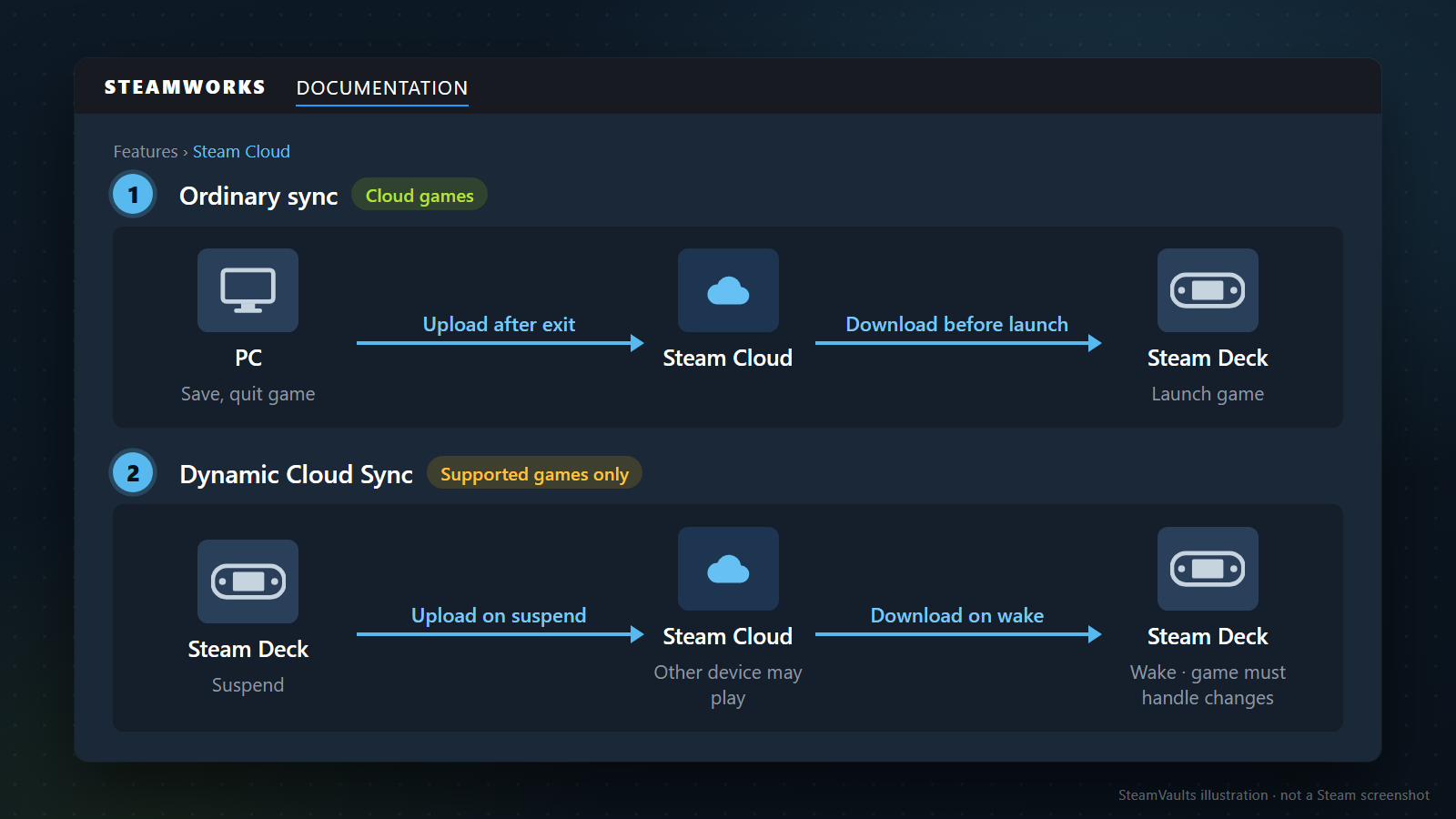
Hãy nhớ riêng lần chơi ngoại tuyến. Tiến độ tạo khi không có mạng chưa thể tới thiết bị khác trước lúc kết nối lại. Về nhà mở máy bàn trước không khiến nó có sẵn phần vừa chơi trên đường. Cần xem tệp nào còn trên máy đã chơi ngoại tuyến và sau đó có chơi thêm ở máy khác không. Nếu hai bên đã đi theo hai hướng, trở lại bước so sánh thay vì tự động lặp quy trình chuyển máy bình thường.
Đưa Steam Deck vào chế độ ngủ cũng không nên mặc định là đã thoát game. Valve có Dynamic Cloud Sync: game được cấu hình hỗ trợ tính năng này có thể tải tệp lên khi tạm ngưng và nhận thay đổi từ máy khác khi Deck thức lại. Bản thân game cũng phải xử lý các tệp đã đổi. Không thể dựa vào tính năng có điều kiện ấy để nói game nào cũng nối tiếp giống nhau chỉ bằng cách cho thiết bị ngủ.
Chưa biết game đang chơi hỗ trợ ra sao thì khi chuyển máy thường ngày, hãy lưu, thoát rồi kiểm tra trạng thái đồng bộ. Tôi không khuyên nhập lệnh thử nghiệm dành cho nhà phát triển để ép bật hỗ trợ. Bật được tính năng chưa đủ; game đang chạy cũng phải xử lý đúng bản lưu đã thay đổi.
Hades, game có cờ Linux false trong bảng trước, cho thấy vì sao cần tách các thông tin này. Supergiant hướng dẫn rằng dữ liệu giữa bản Steam trên PC hoặc Mac và Steam Deck phải tự đồng bộ khi bật lưu Cloud và đăng nhập cùng tài khoản Steam trên hai thiết bị. Đó là hướng dẫn nhà phát triển viết riêng cho Hades, không phải điều chúng tôi suy ra từ dấu Steam Cloud hay đã kiểm chứng bằng thiết bị thật trong bài. Game khác hoặc bản phát hành ở cửa hàng khác cần xem hướng dẫn của đúng phiên bản.
Có lúc cần phân biệt tài khoản và cách chạy game trước cả tên thiết bị. Việc game xuất hiện trong thư viện gia đình thuộc điều kiện dùng game của Steam Families. Còn Remote Play Together không phải chuyển bản lưu sang máy được mời để người đó tự chơi tiếp độc lập. Nếu chưa rõ game thực sự chạy ở đâu, bạn cũng có thể tìm nhầm thiết bị chứa tệp Local.
Trước chuyến đi, có thể ghi lại vị trí lưu và trang hỗ trợ chính thức của game thường chơi. Không cần lần nào cũng lục mọi thư mục. Với game định chuyển sang thiết bị khác, chỉ cần biết đang dùng cùng tài khoản không, lần lưu cuối ở đâu và Cloud đang ở trạng thái nào. Đặc biệt khi mở lại game cũ trên laptop lâu không dùng, hãy nhớ xem lần gần nhất đã chơi nó ở máy nào.
Nếu đã mở nhầm bản lưu
Nhận ra đây không phải tiến độ muốn giữ thì đừng tiếp tục chơi hoặc mở thử những slot khác rồi lưu. Nếu chưa biết game đã ghi gì sau khi mở, cũng ghi rõ điều đó. Thời điểm tự lưu khác nhau tùy game, nên không thể khẳng định ép thoát luôn an toàn. Ghi lại màn hình hiện tại và bên đã chọn, rồi tìm cách giữ các tệp còn lại theo cơ chế lưu của game.
Nếu máy khác có thể còn bản cũ, đừng kiểm tra bằng cách lập tức cho máy ấy lên mạng rồi mở game. Lần đồng bộ hay lưu mới có thể tác động tới chính tệp cần đối chiếu. Trước hết, liệt kê những bản sao đang lấy được, bản dự phòng do game tạo và thư mục đã cất riêng. Chỉ cần phân biệt bản thực sự tồn tại với bản mà bạn đoán có thể còn.
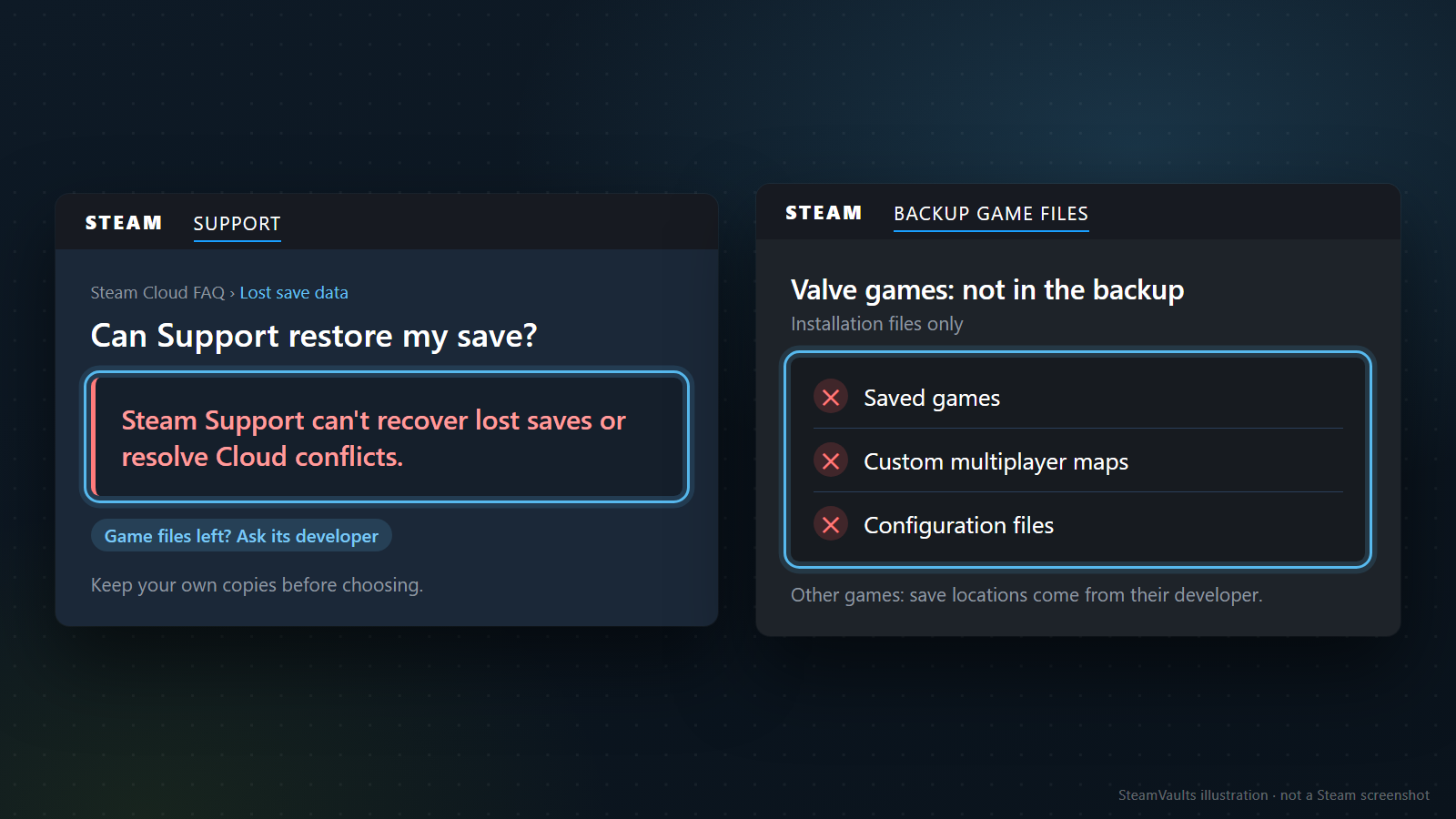
Cần biết hỗ trợ có thể giúp tới đâu. Phần mở đầu FAQ Steam Cloud cảnh báo khả năng khôi phục dữ liệu mất là thấp. Mục về mất dữ liệu trong cùng tài liệu nói rõ hơn: Steam Support không thể khôi phục bản lưu đã mất hay giúp giải quyết xung đột Cloud. Đừng trông chờ Steam tìm và chọn hộ tệp chứa lần chơi cuối của mình. Giới hạn khôi phục trong hướng dẫn Valve
Điều đó không phủ nhận mọi khả năng từ những tệp còn lại. Nhà phát triển có thể hướng dẫn được gì còn tùy game có tạo bản riêng không, dữ liệu còn bao nhiêu và tệp thuộc phiên bản nào. Cặp _old và thông tin menu của Stardew Valley là ví dụ về điều không thể biết chỉ bằng trạng thái đồng bộ Steam. Hãy dựa vào tài liệu chính thức của game khi hỏi. Trong mục mất tiến độ, nhà phát triển Hades cũng có đường liên hệ nếu quy trình họ đưa ra chưa giải quyết được. Đó không phải lời bảo đảm thành công.
Khi viết yêu cầu hỗ trợ, chia thông tin thành game và thiết bị, thứ tự xảy ra sự việc, rồi cảnh báo và lựa chọn của bạn.
- Ghi tên game và AppID, hệ điều hành, máy đã chơi và máy vừa mở.
- Nêu đoạn tiến độ cuối còn nhớ, ngày giờ kèm múi giờ khi cảnh báo xuất hiện.
- Giữ nguyên thông báo và ghi đã chọn bên nào. Chưa chọn thì ghi chưa chọn; chưa kiểm tra tải lên thì ghi chưa xác nhận.
AppID giúp phân biệt các bản khác nhau hoặc phần tiếp theo có tên gần giống. Ba game đã truy vấn trong bài lần lượt là Portal 2 — 620, Stardew Valley — 413150, Hades — 1145360. Đây là mã game thấy được trong địa chỉ cửa hàng, không phải số tài khoản cá nhân. Đừng dùng các số ấy khi hỏi về game khác; kiểm tra địa chỉ cửa hàng và phiên bản game thực tế của bạn.
cloud_log.txt của Steam là nhật ký tham khảo về ghi và lấy tệp Cloud, không phải bản sao chứa tiến độ chơi. Nếu hỗ trợ yêu cầu nhật ký hoặc tệp, chỉ gửi phần cần thiết qua kênh riêng chính thức. Chúng có thể chứa tên người dùng, đường dẫn thư mục và thông tin nhận dạng tài khoản; không đăng cả thư mục tài khoản vào bình luận công khai. Cũng không cần cung cấp mật khẩu hay mã xác thực.
Có bản sao cài đặt game rồi vẫn phải kiểm tra riêng nó có chứa bản lưu không. Hướng dẫn sao lưu game của Valve nói rằng bản sao cài đặt game do Valve làm không bao gồm bản lưu, bản đồ nhiều người chơi tùy chỉnh và tệp cấu hình; vị trí lưu của game do bên khác phát triển phải xem từ nhà phát triển ấy. Chuẩn bị để cài lại game khác với chuẩn bị để quay lại đúng đoạn đã chơi. Đừng chỉ dựa vào thông báo hoàn tất của công cụ sao lưu; mở thư mục chứa bản sao xem thực sự đang có gì.
Không thể áp dụng việc gỡ game rồi nhưng vật phẩm vẫn ở trong kho Steam cho tệp lưu. Vật phẩm trong kho và dữ liệu tiến độ được lưu theo những cách khác nhau. Dọn game cũ mà vẫn cần bản lưu thì kiểm tra riêng vị trí và bản sao của nó. Không dễ hiểu mọi chức năng Steam cùng lúc, nhưng có thể bắt đầu bằng việc xác định mình đang muốn giữ thứ gì.
Tài liệu và dữ liệu cửa hàng trong bài được kiểm tra ngày 5 tháng 9 năm 2026. Chúng tôi không thực hiện khôi phục hay thử đồng bộ trên tài khoản thật. Nếu màn hình vẫn có hai ngày và bạn chưa biết bên nào chứa tiến độ muốn giữ, việc hôm nay có thể dừng ở lấy được bản sao từ thiết bị đã chơi cuối. Chưa cần bấm nút chọn.
Sẵn sàng bán Sack of Gems được hỗ trợ?
USDT được ghi có vào số dư trên trang sau khi bot xác nhận đã nhận Sack of Gems; yêu cầu rút qua Polygon được thực hiện riêng.