


Your C drive is running out of room, so you'd like to move a game to D. Reinstalling would work, but the download could take a while, and you may be concerned about losing your progress. Before cutting the installation folder out of its current location, check Steam's move feature.
Moving a game can involve two different tasks: changing where its large installation files live and preserving your saved progress. Those files may share a drive, but don't assume they always do. This guide covers changing a game's installation location on the same PC. It doesn't cover transferring games to another PC or moving the entire Steam client.
Check the destination drive first
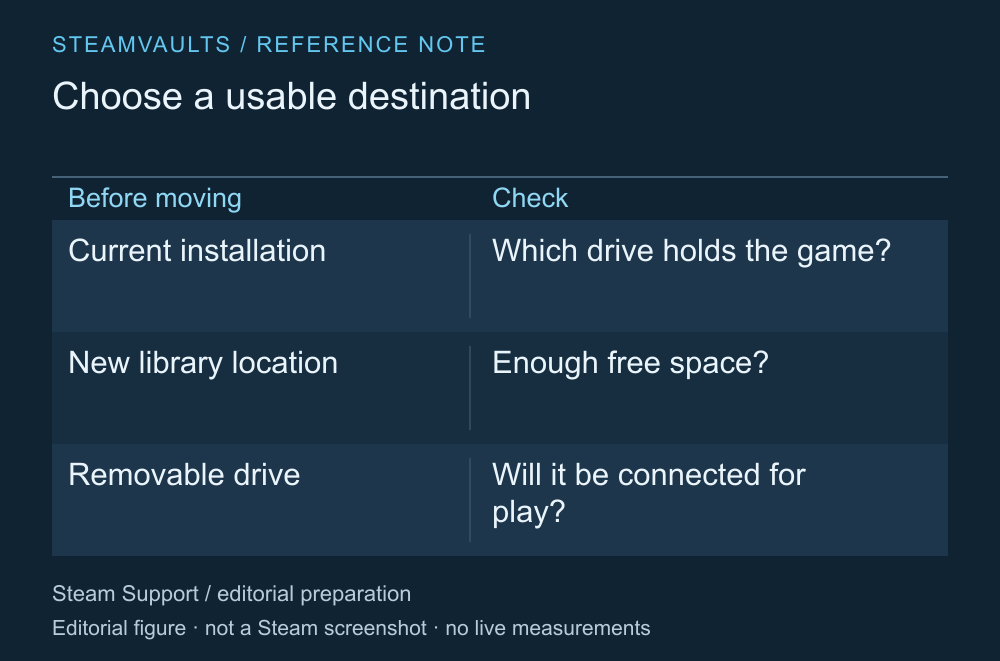
A checklist for before the move, not a screen reading actual drive usage.
Check that the destination has room for the game. Compare the installed size shown in Steam with the drive's free space; I'd avoid a plan that leaves only enough room for an exact fit. Updates and other file operations may need space too, but there's no basis for applying the same multiplier to every game.
If it's an external drive, consider whether you'll be able to keep it connected when you play. Finishing today's move is only part of the plan. Whether you normally unplug it from your laptop or use it for other work may matter more during everyday use.
This guide hasn't measured SSD or HDD loading times, and moving an installation doesn't promise better game performance. Decide whether you're trying to free up capacity or use a different storage device. That helps determine what to check after the move.
Treat installation files and saves separately
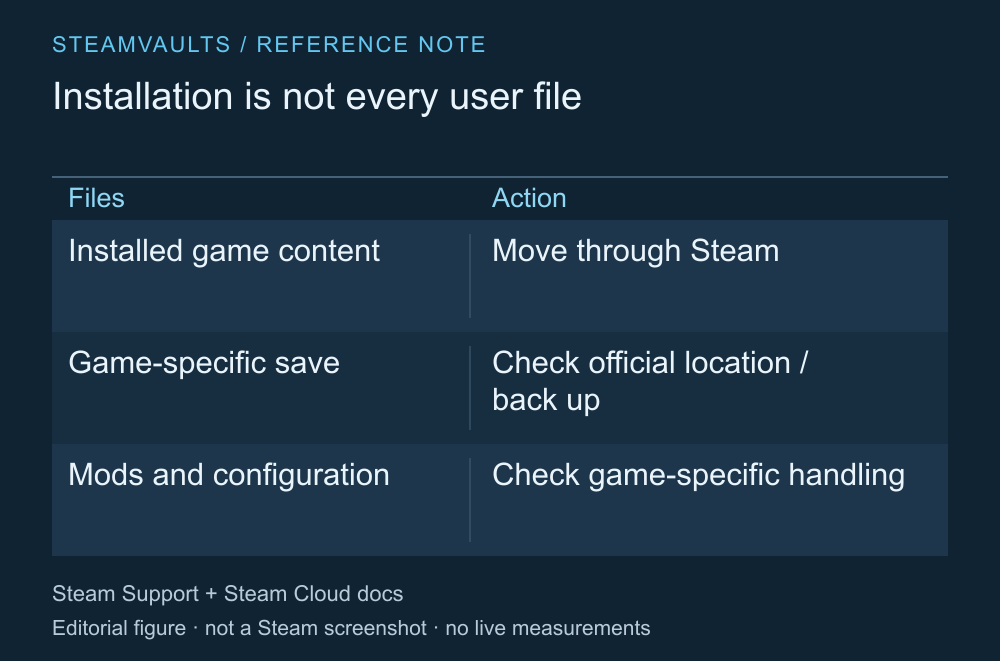
Check the game's official guidance for its save location.
Valve's moving guidance explains that games can store saves elsewhere. Moving a Steam library folder doesn't mean you've backed up all your progress. Steam Support's installation moving guide
If you want to keep an existing playthrough, check that game's save location and backup instructions. Keep a separate copy rather than moving the only original, and follow the official guidance about working with the game closed. This guide doesn't offer one save path for every game.
Steam Cloud shouldn't be treated as a backup of an entire folder either. The developer configures which files it stores, and support differs by game. Valve's Steam Cloud documentation If a cloud conflict is already showing, don't use a drive move as its solution; read how to check a save conflict separately.
Mods and custom settings are another reason to check where files live. Changing the installation location doesn't establish that every external tool's path or game-specific mod setting has been updated correctly.
Move the game from Steam's Storage settings
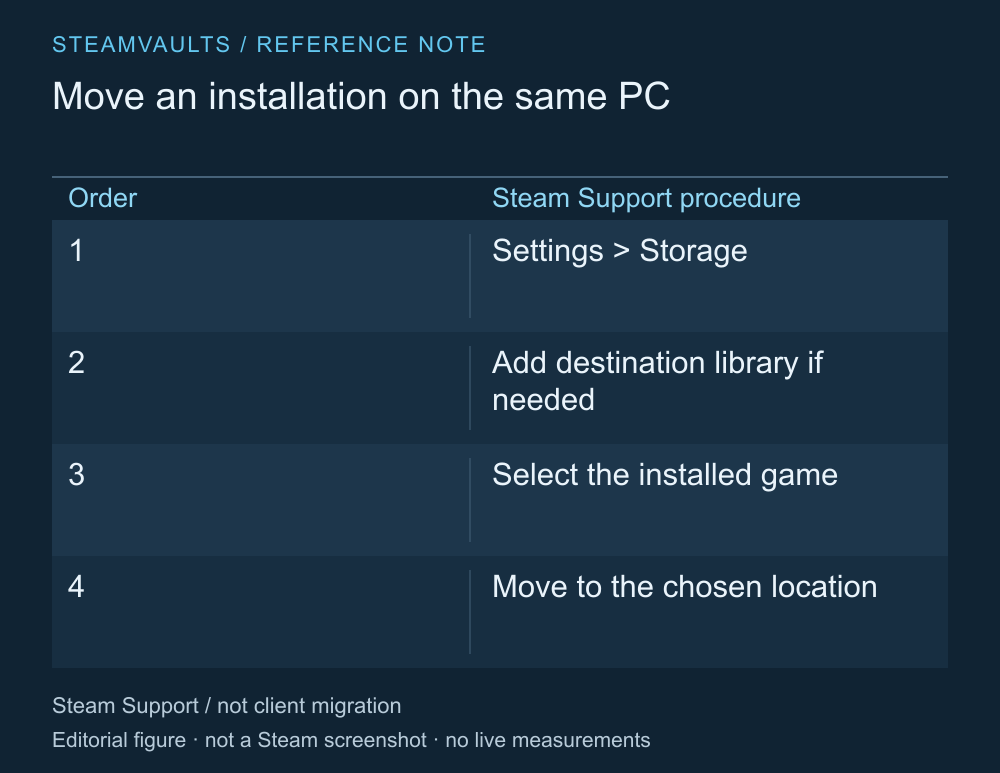
A summary of the official help instructions, not a capture of the current client.
The official help page read on October 5, 2026 directs you to Steam's Settings, then Storage. If the destination library doesn't exist yet, add a location on the other drive. Select the game on its current drive and use Move to choose the destination. Official moving procedure
If menu translations or the client layout have changed, check the current route in that help page. You're changing the location of an installed game rather than uninstalling and downloading it again. You don't need to sign in on another PC or give anyone your account password.
Keep the storage device connected during the move, and don't manually tidy the installation folder while Steam is working on it. Doing one task at a time makes the completion status easier to interpret. If you selected several games, check which ones have finished.
Record a stopped move before deleting folders
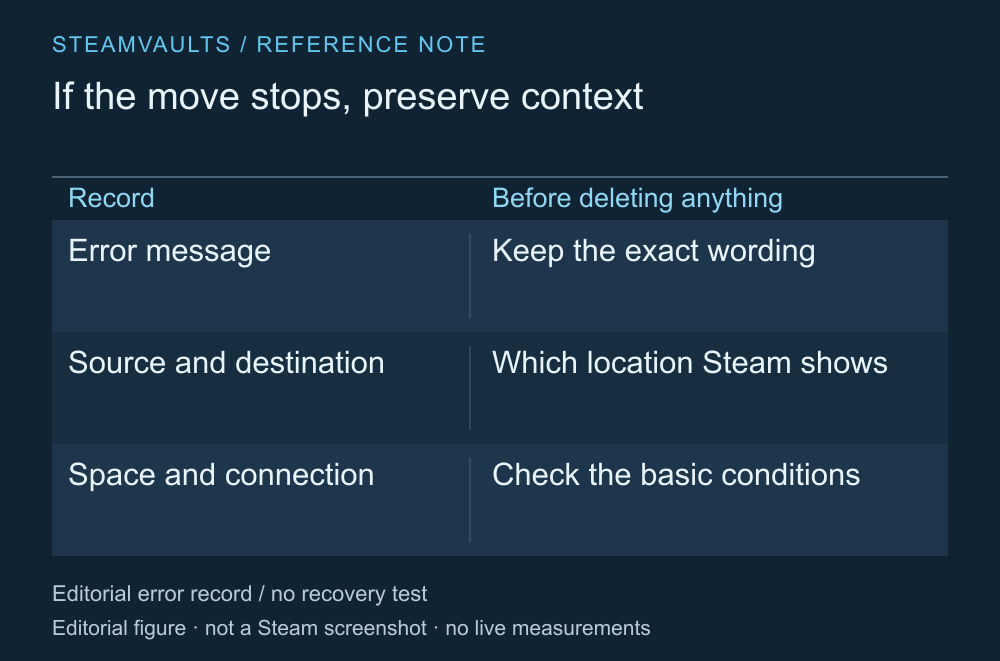
This guide did not reproduce an error or test file recovery.
If the move stops, record the exact error, the original location and the destination you selected. Check which drive Steam currently shows for the installation. Finding two folders isn't enough to decide that one is leftover rubbish. Deleting one can make it harder to establish which files are still needed.
Check basics such as whether the drive is connected and has free space, then look for official guidance for that error. If the state remains unclear, I'd preserve it for a support request rather than repeatedly uninstalling and reinstalling. Disabling an entire security program or deleting broad Steam folders isn't a default remedy in this guide.
After completion, open the game you moved
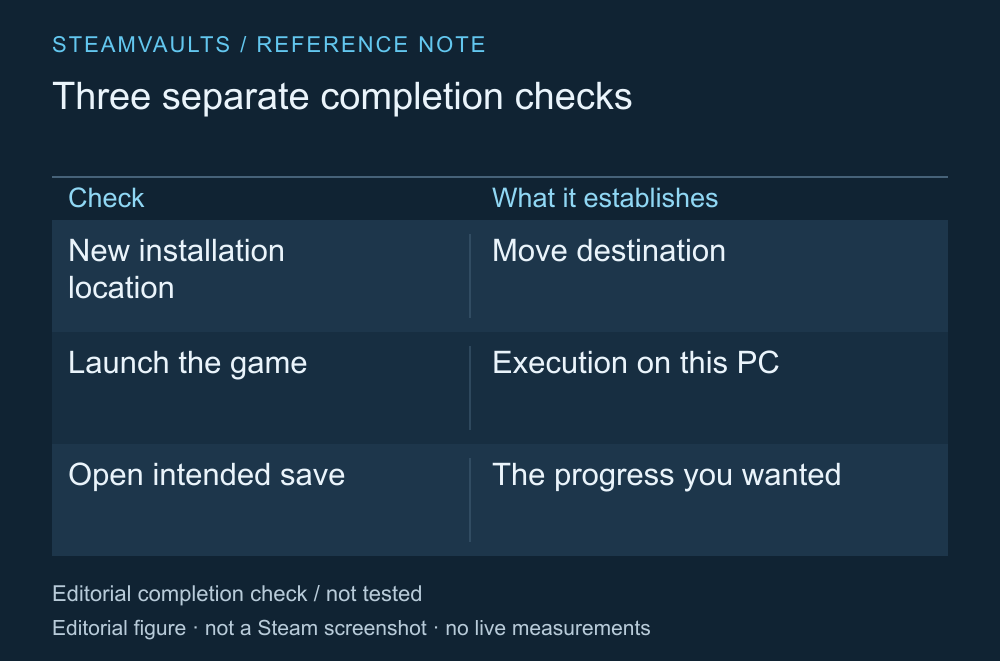
A completed move, a working launch and available saved progress are separate checks.
When Steam shows that the move has finished, confirm the new library location and launch the game. Check whether your existing progress is available. If the game relies on mods or an external launch tool, check those paths too. There's no need to clear away the backup before you've checked the save.
If the game reports an installation-file error, verifying file integrity may be a next step. Verification doesn't establish save validity or mod compatibility.
The move doesn't need to begin with deletion. I'd let Steam handle the installation files and concentrate on the progress I want to preserve and the new location. No drive move, launch or save restoration was performed for this guide, so it cannot confirm that your own move has succeeded.