
Why Won't a Mac Game Run on My Mac?
Separate Steam, macOS, 32-bit, Intel, Apple silicon and Rosetta requirements. Factorio, Cyberpunk 2077 and GRID Legends show what to check next.
Article languages
On this page
You installed a game described as Mac-compatible, but it won't start. One search result tells you to install Rosetta; another says an M-series Mac is all you need. Either answer might have been relevant to its author's setup. To apply it to yours, you need more detail: whether your operating system can run the current Steam client, whether the game targets your chip, and whether the product from your chosen store actually includes a Mac executable.
“Mac” covers several generations of computers and software. Which Mac and which game product does the support statement actually concern? This guide separates the conditions so you can identify what to check next. It doesn't cover tools for running Windows games or rolling back to an older operating system.
The article draws on official documents read on October 19, 2026, with the product and hardware tables below compared again from retained October 20 responses. No macOS, Steam, Rosetta or game was installed or launched, and no performance was measured. Dated tables illustrate how to compare conditions; check the publisher's applicable version before using them for your own installation.
Check Steam's requirements and the game's requirements together
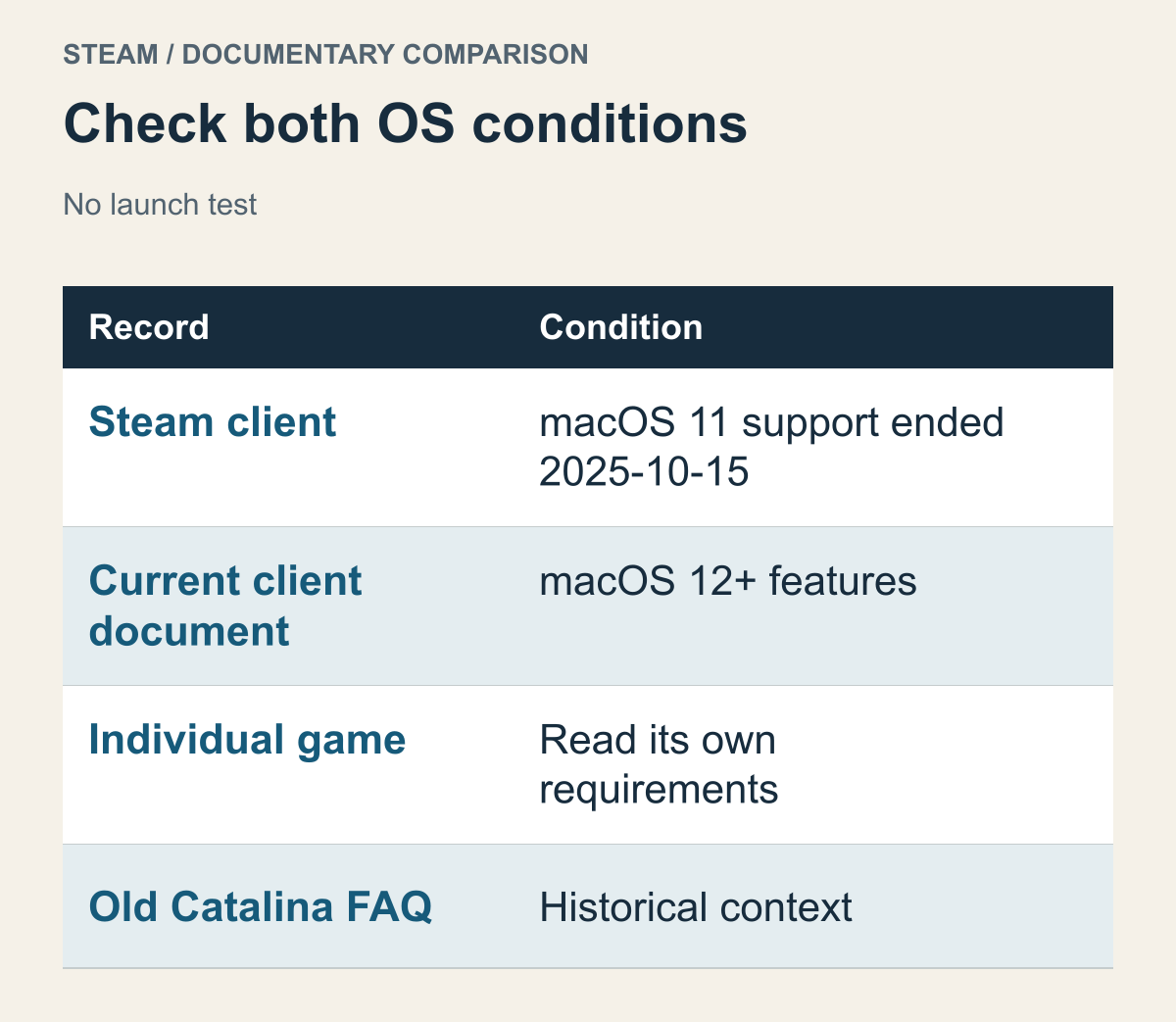
A decision table based on Valve's end-of-support documentation, not a client or game launch test on a Mac.
Start with the conditions for opening Steam itself. Valve ended support for macOS 11 Big Sur on October 15, 2025, and says the client no longer runs on that version afterward. The same document explains that later Steam features and security updates depend on features present in macOS 12 and above. Steam's macOS 11 end-of-support notice That is not a promise that every game will run as soon as a Mac meets macOS 12.
A game has its own minimum operating system. An older game may list a version below Steam's current support range; a newer game may need a higher version than Steam does. You don't choose whichever requirement is easier. Your computer needs to meet both the current client's requirements and the game's. A lower number in one document doesn't override the other program's requirements.
For a hypothetical comparison, suppose a game says macOS 10.14 or later and the computer uses macOS 11. The computer is above the number in the game's description, but conflicts with the current Steam end-of-support notice. Downloading the game files again won't answer that client OS problem. The reverse can happen too: a Mac may run Steam, while a game still requires macOS 15.5 or later. The Cyberpunk 2077 example below shows that separate requirement in practice.
Which operating systems your particular Mac can install also matters. Don't assume the latest macOS is available on every Mac. If the comparison points toward a system upgrade, checking Apple's support for that model is a separate decision. The change might also affect work applications or other essential software. Establish what the game needs before deciding whether to change the whole computer; the number in a minimum-requirements table isn't an instruction to upgrade immediately.
Older documents need to be read in context. Valve's historical Catalina FAQ discusses the move between 32-bit games and a 64-bit Steam client, including the option of retaining an older macOS. That historical explanation isn't a recommendation for a currently supported Steam setup. Valve's Catalina transition FAQ This guide does not adopt its older-OS, additional-installation or Boot Camp procedures. Current client policy and the compatibility history of older games answer different questions.
Nor can you resolve every apparent conflict by keeping only the newest document. If two pages describe support for the same program, check whether the newer policy supersedes the older one. If one describes Steam and the other describes the game, the later page doesn't remove the earlier program's requirements. A new client announcement, for example, doesn't mean an old game's 32-bit executable has been updated. Identify the program being discussed as well as the document's date.
Identify the chip and macOS, not just the Mac's name
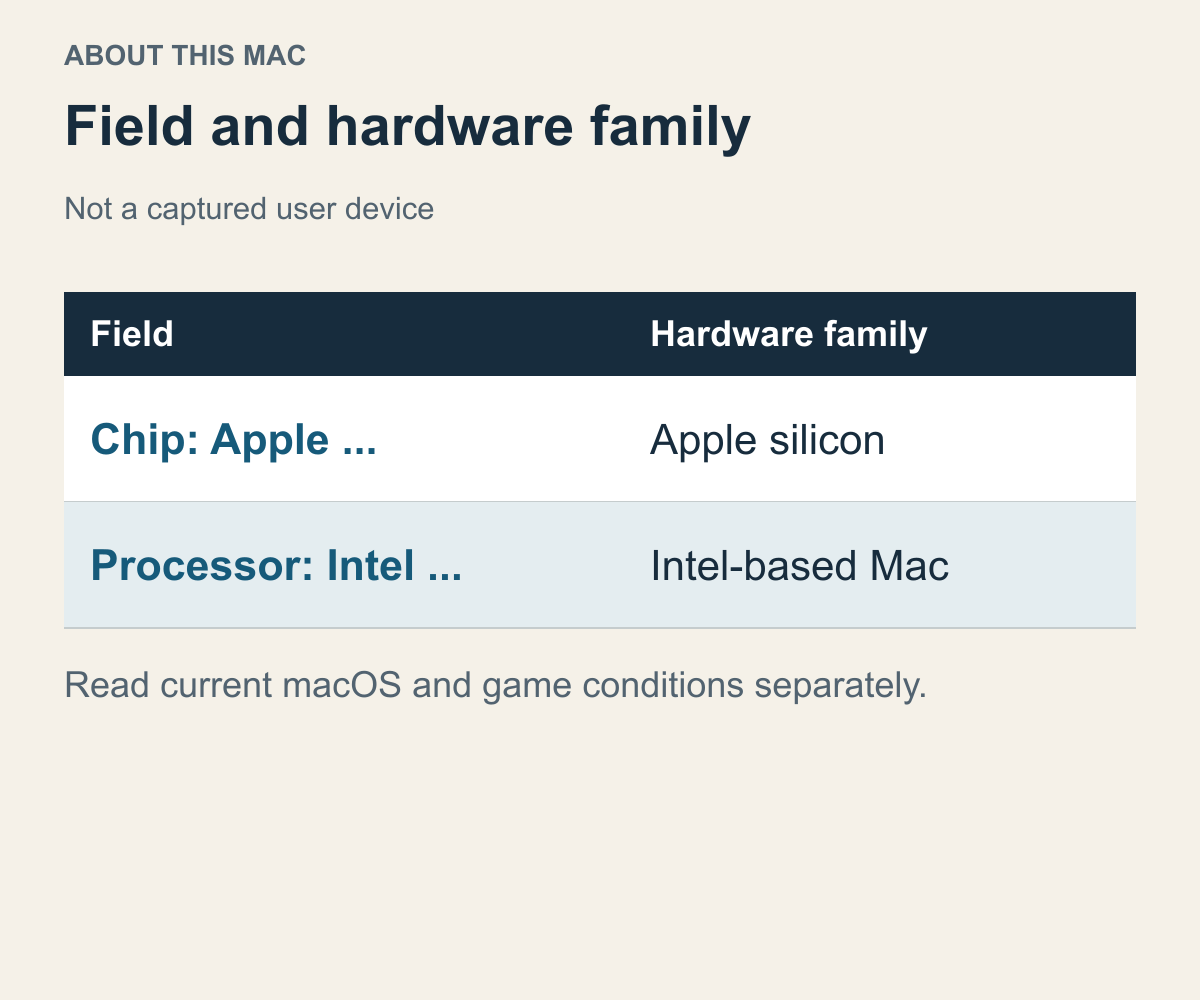
Uses the fields in Apple's hardware-identification guidance. It is not a capture or assessment of a reader's device.
“I have a MacBook Pro” isn't enough to compare game requirements. That product family includes Intel and Apple silicon models, and memory configurations can differ. In About This Mac under the Apple menu, the Chip field identifies Apple silicon, while an Intel name in the Processor field identifies an Intel-based Mac. Apple's chip-identification guide Use what the computer currently displays rather than your memory of its purchase year.
The chip and macOS are separate fields. Having Apple silicon doesn't automatically give the computer the OS version a game requires. A relatively recent macOS on an Intel Mac doesn't make an Apple silicon app suitable for it either. Put the chip, installed macOS and memory capacity beside the game's stated requirements. You don't need to collect every hardware detail at the outset—start with the fields the game actually specifies.
Consider two hypothetical computers. A is Intel-based and falls within the game's OS range. B has an Apple M1 but uses an older macOS than the game requires. If the game is Apple silicon-only, A has a chip mismatch and B has an OS mismatch. Calling both cases “it doesn't work because it's a Mac” sends two different problems toward the same supposed repair.
Document example captured on 20 October 2026; not a guarantee for a later release. If the installed OS is too old, check how far that model can officially be upgraded. Apple's macOS Tahoe 26 compatibility list names specific models, not just product families. Its MacBook Pro identification guide shows a useful distinction within the 2020 13-inch range: the model with two Thunderbolt 3 ports has macOS Sequoia as its newest compatible OS, while the four-port model has macOS Tahoe 26. You can find the model name in About This Mac under the Apple menu. Matching purchase years and screen sizes doesn't establish the same upgrade range.
Suppose, hypothetically, that a game requires macOS 26 or later. On the two-port model, an older installed OS doesn't mean the owner has merely postponed an available upgrade. The next question is whether the publisher offers a game build supported within that model's official OS range. The four-port model gets a different answer to the question of eligibility for this OS. Conversely, don't reject a computer against a game's OS requirement merely because it is absent from a list for a newer OS than the game needs. Compare the supported models for the required version. Connecting the game's OS requirement, that version's installation list and your exact model separates an OS change you can assess from one outside the model's official range.
Computer information and application information tell you different things. The chip name tells you what hardware will run the program. The game's description or app information tells you what the software was built to run on. Neither side alone tells you whether they match. Buying a new Mac doesn't rewrite an old game's code, and releasing a new game executable doesn't change the chip in a computer you already own. Comparing both sides helps distinguish a hardware requirement from a reason to look for an updated game build.
Separate a 32-bit problem from an Intel-code problem
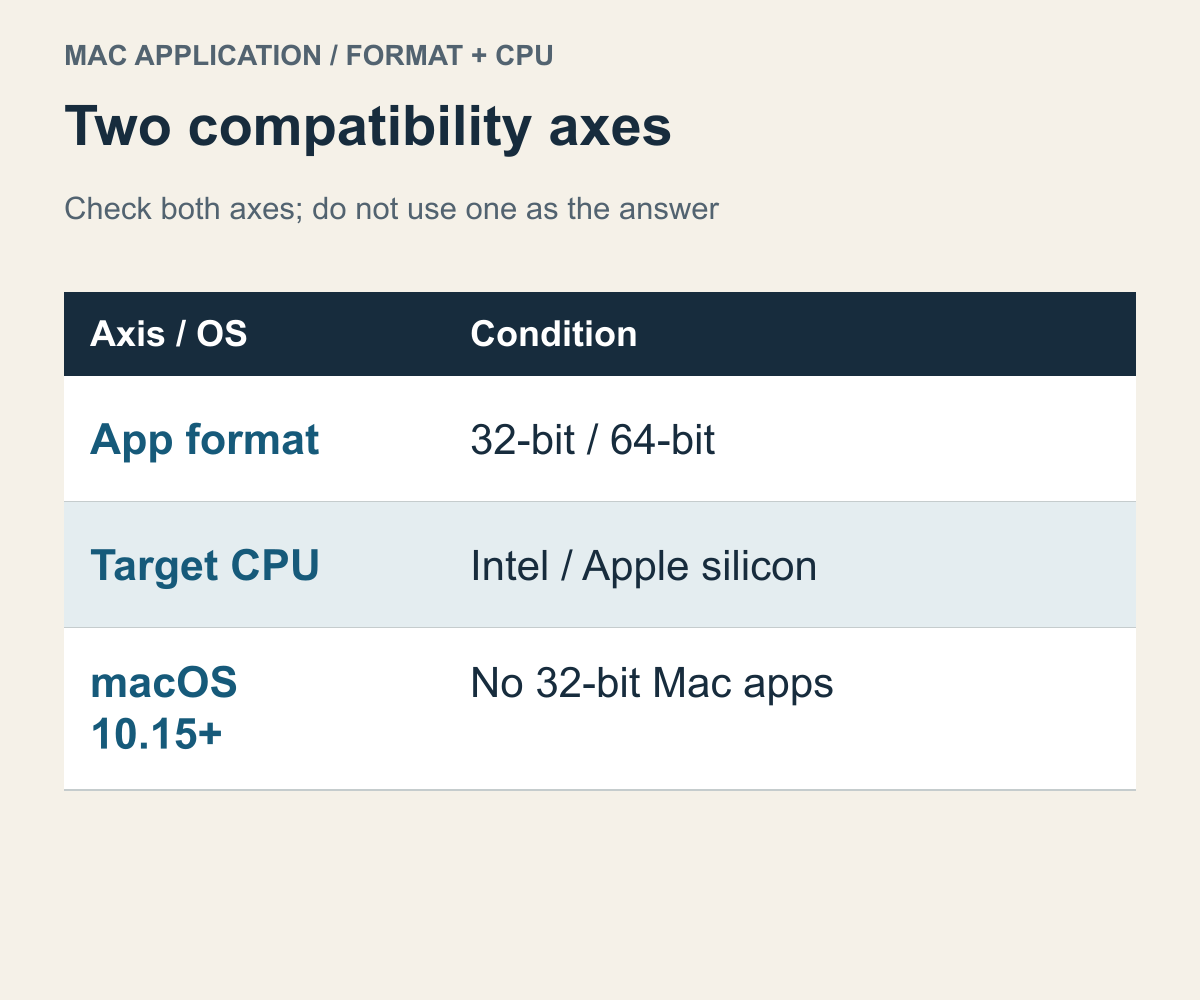
A conceptual comparison separating Apple's 32-bit transition guidance from app-type information. It is not a game test or performance rating.
Apple says 32-bit apps are no longer compatible starting with macOS 10.15 Catalina. Apple's 32-bit app guidance That condition is different from asking whether a chip is newer or faster. A 64-bit program can still leave the question of Intel versus Apple silicon code unresolved, and calling a program “Intel” doesn't tell you whether it is 32-bit or 64-bit. Using those numbers and chip names interchangeably can lead to the wrong remedy.
Bitness isn't a hardware performance score. A 32-bit game failing on a modern Mac is not a shortage you can necessarily solve by giving it more memory. First ask whether the operating system supports that app format. Finding Rosetta doesn't establish that a 32-bit Mac game's conditions are satisfied; the operating system's end of 32-bit support still applies.
It helps to keep three terms apart. For this comparison, 64-bit describes the program's format, Intel or Apple silicon identifies the target CPU family, and native means running code built for that CPU. “64-bit” and “native” are not substitutes for each other. This classification is still about Mac software: don't put a 64-bit Windows file into it as though it were a Mac app. The term you've actually checked determines which questions remain.
In Finder, select an app, open Get Info, and read its Kind. Apple distinguishes Application (Intel), Application (Universal) and Application (Apple silicon). Universal covers Intel and Apple silicon, while the Apple silicon label identifies that chip family. Apple's app-type identification guidance This information concerns the particular app you selected. It doesn't identify every other executable installed alongside it.
For example, opening the Steam app's information window doesn't tell you that the game is the same kind of app. If a separate launcher opens before the game, the launcher and main game are also distinct things to identify. That doesn't mean every game necessarily mixes app types. It means you should connect the app name you checked with the information you found. Separating the installer or client from the software it launches can prevent repeated client changes that never address the main game.
If you actually receive a 32-bit warning, the next branch is to check whether the publisher provides a compatible update. A warning about future support for an Intel app or component instead raises the Rosetta and update questions in the next section. If all you know is that the game didn't start, don't invent a warning category. Similar-looking launch failures can point to different support documents. Naming the problem accurately helps avoid unnecessary reinstalls.
Read Rosetta's scope alongside its macOS version limits
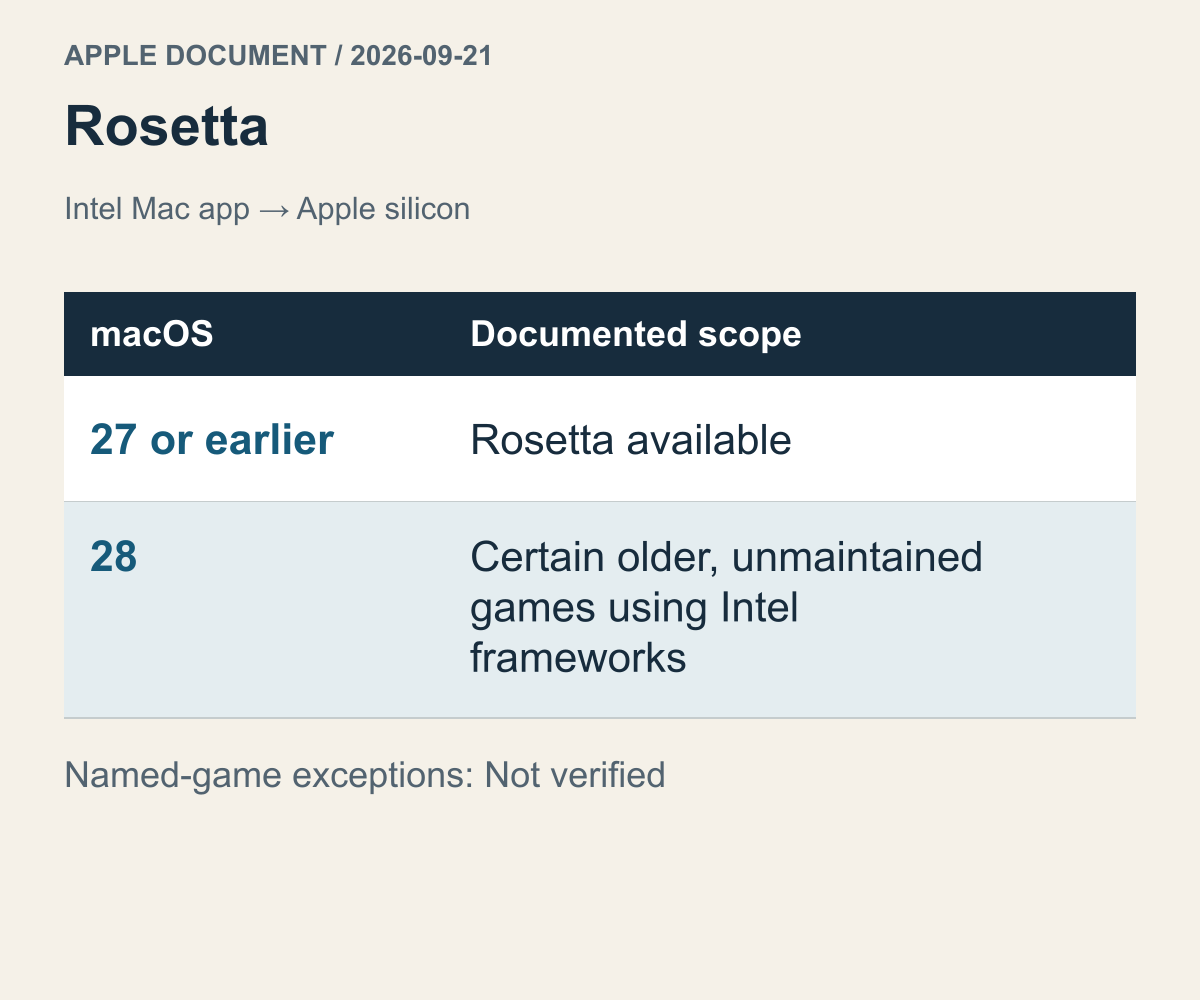
Uses the scope of Apple's September 21, 2026 support document. It does not predict continued support for every Intel game.
Rosetta translates Intel-based Mac apps in the background so they can be used on Apple silicon. Apple recommends a Universal or Apple silicon update when one is available, and explains that components such as plug-ins, extensions and updaters may need separate updates. Apple's current Intel-app and Rosetta guidance This description of Mac apps doesn't establish support for Windows executables in general.
The time period is part of the policy. Apple's September 21, 2026 document says Rosetta is available through macOS 27, with functionality limited from macOS 28 to certain older, unmaintained games that rely on Intel-based frameworks. This article hasn't verified which individual Steam games qualify for that exception. Being old is not enough to establish that a particular game qualifies, and the exception is not a promise that all Intel games will continue to work.
You can narrow the check to three questions: is a Mac program actually provided, is the affected app the launcher or the main game, and what support applies on the current OS? If you don't know whether a game qualifies for the next macOS exception, look for its publisher's announcement. Keep that uncertainty separate from the question of whether today's combination is supported.
A notice about reduced future support can sound as though everything has already stopped. Separate the dates it addresses. Checking the supported environment on the current OS and planning for the next OS are different decisions. Someone choosing a product for immediate use needs the conditions for the current combination. Someone planning to keep the game or computer longer also needs the publisher's updates and support announcements. A future policy doesn't supply an individual game's answer where none has been established; uncertainty about that future doesn't erase the conditions documented for the present either.
Check Metal separately from the operating system's name
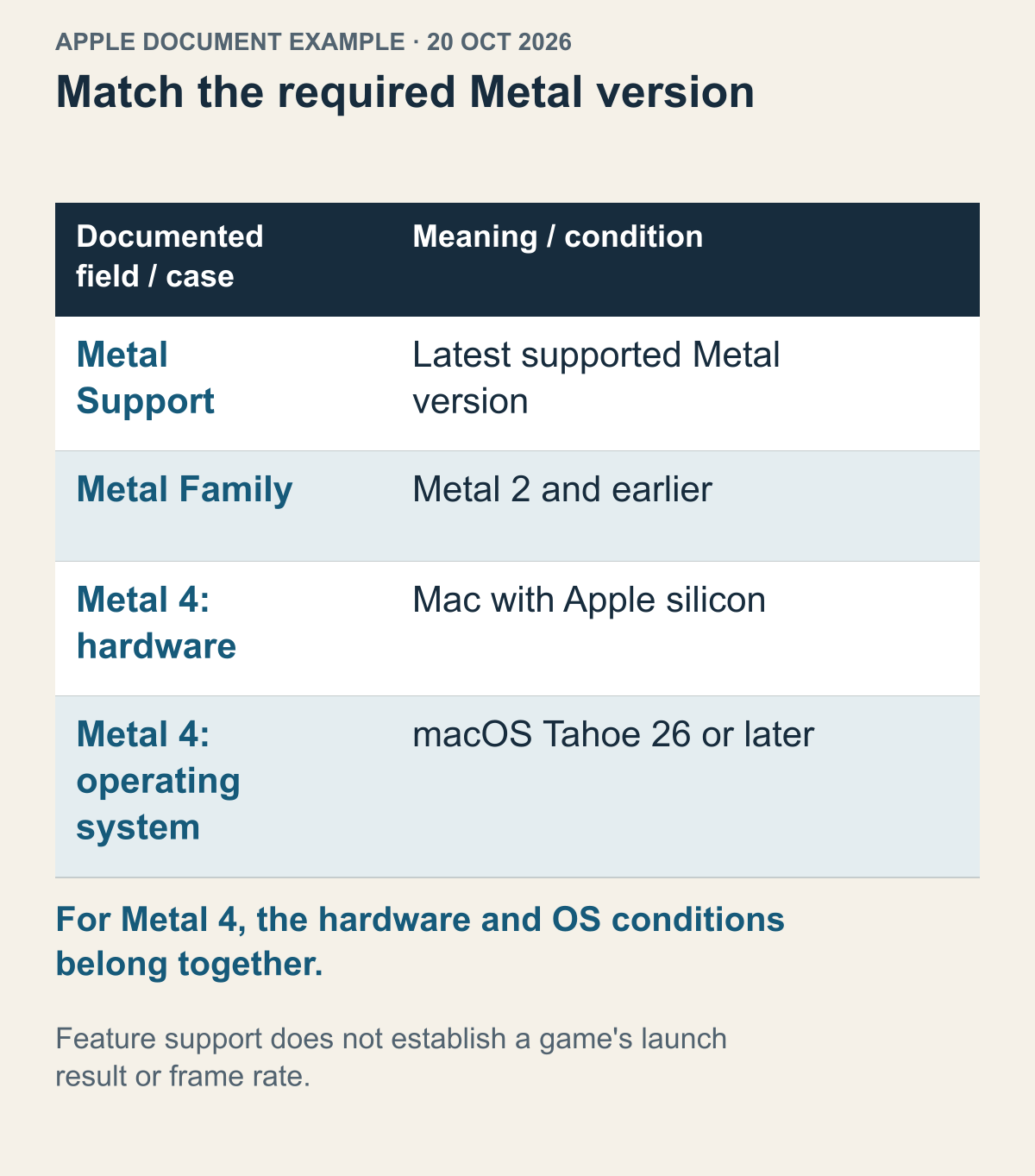
Document example captured on 20 October 2026; not a guarantee for a later release. Dated feature-support example only; no GPU inspection or game-launch result.
When a graphics requirement names Metal, treat it as a condition separate from memory capacity or chip generation. Apple describes Metal as hardware-accelerated graphics technology for its platforms and distinguishes support by device and operating system. Its guidance points to Metal Support or Metal Family under Graphics/Displays in System Information. Apple's Metal-support guide That information helps identify supported graphics features; it isn't evidence that a particular game has launched successfully.
If a game requires Metal 3, finding only the word “Metal” on the computer doesn't finish the comparison. Match the precise supported version or the meaning of the Family field against the official guidance. Conversely, if the publisher only says “Metal,” don't silently raise the requirement to the newest version. Match the required technology to the actual support information at the same level of detail. A similar-looking graphics model name is not a basis for inventing its supported version.
CPU code and graphics features don't replace each other. A game may provide code that runs on the computer's CPU and still have a separate graphics requirement. Conversely, a GPU supporting the required Metal feature doesn't establish that the game's app format matches the computer. That's why the graphics fields still matter after you've identified the executable. The aim is to catch separate requirements, not to work through a performance-tuning list. It explains how games under the same Mac-support label can still require different environments.
In Apple's Metal table captured on 20 October 2026, the Mac entry for Metal 4 pairs Apple silicon with macOS Tahoe 26 or later. This is a dated example of a device-and-OS intersection, not this article's certification of later support. A game's own graphics requirement remains a separate input; neither the table nor an OS update is a universal promise that the game will launch.
Consider a hypothetical game whose official note for build A names one renderer, while a guide for build B names another. Before treating the instructions as contradictory, match the game build, OS scope and renderer each document addresses. If the relevant version's requirement is missing, record it as unknown. The presence of a graphics API on the Mac cannot fill that gap: it describes the device's capability, not the publisher's chosen path for an unverified game build.
That comparison also gives you a stopping point. A screenshot's missing menu does not establish that a renderer was removed, nor that a command found elsewhere should be forced into the game. Ask the publisher which graphics path applies to that exact build and OS. This guide supplies no renderer-forcing launch option, third-party graphics-tool procedure or security workaround. The next useful result is a version-specific answer, not a changed setting whose purpose is still unclear.
Matching the relevant conditions is more useful than collecting more numbers. Read the game's minimum graphics condition, any devices the publisher excludes, and your computer's actual support information. If the device's place in the support table is unclear, you can raise a specific model-and-OS question. A performance ranking of Windows graphics cards answers a different question from Metal support. Expected frame rate and the presence of a graphics feature are separate fields.
Factorio connects the game version with its actual code
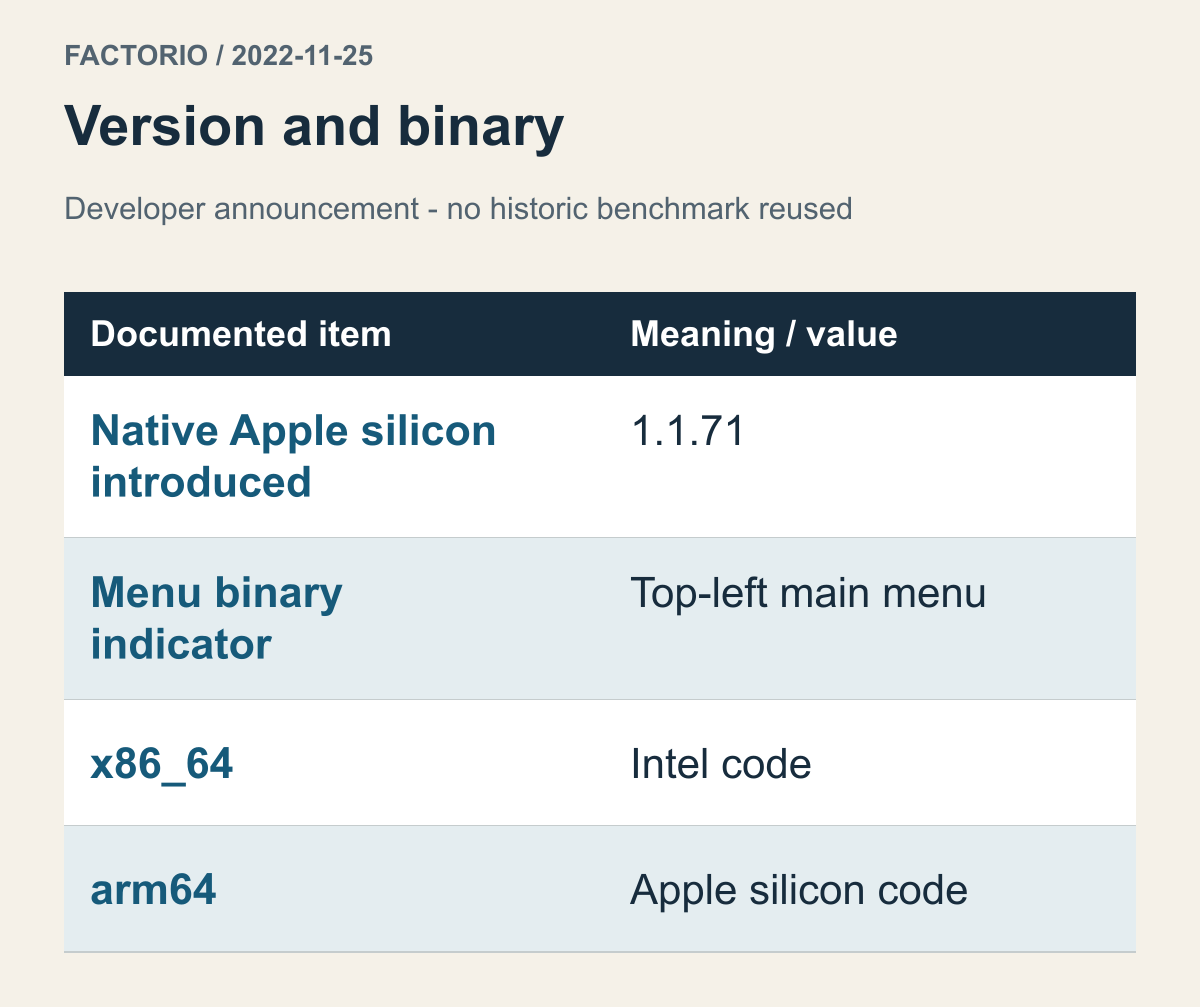
Uses the version and indicator descriptions in the developer's November 25, 2022 announcement. Historical benchmarks are not presented as current performance or the author's tests.
Wube announced native Apple silicon execution for Factorio starting with version 1.1.71. The same post explains that the top-left corner of the main menu identifies the binary, distinguishing x86_64 for Intel from arm64 for Apple silicon. Factorio's Apple silicon announcement Here, the broad Mac-support category has a more specific clue: the game's version and the code it reports.
A versioned announcement lets you distinguish an earlier installation from one that includes the change. Suppose a hypothetical reader found an old description of Factorio's Mac support and still uses an older version. General Mac support doesn't establish that this installation contains native code introduced later. The announcement supplies a separate piece of information—when that support was added. Relate an article about a newer build to the version you actually intend to use.
The same indicator also has a different implication on different hardware. Seeing Intel code on an Intel Mac isn't, by itself, evidence of a bad installation. For someone asking whether a game is running natively on Apple silicon, the arm64 indicator addresses the question more directly. It is an example of game-provided code information being more specific than “Mac version” or the fact that Steam opened. The menu was not opened or checked for this article.
The development account also describes building a Universal macOS binary containing Intel and ARM code. It is a concrete example of a single Mac distribution being prepared for both kinds of Mac. That doesn't mean the game runs both kinds of code at once or produces the same result on every computer. The relevant question is whether the executable provides code for your chip. Before treating the absence of a separately named Apple silicon download as proof of no native support, check whether the game is supplied as Universal.
If you use a particular game version for another reason, “native” alone isn't a reason to change it. Compare the reason for that version choice with the publisher's documented changes. This isn't a full walkthrough for replacing game versions or managing mod compatibility. It identifies a question: can you preserve the version you need and meet your native-code goal at the same time? Support guidance needs the actual conditions of whichever choice you make.
Apple silicon alone doesn't meet Cyberpunk 2077's requirements
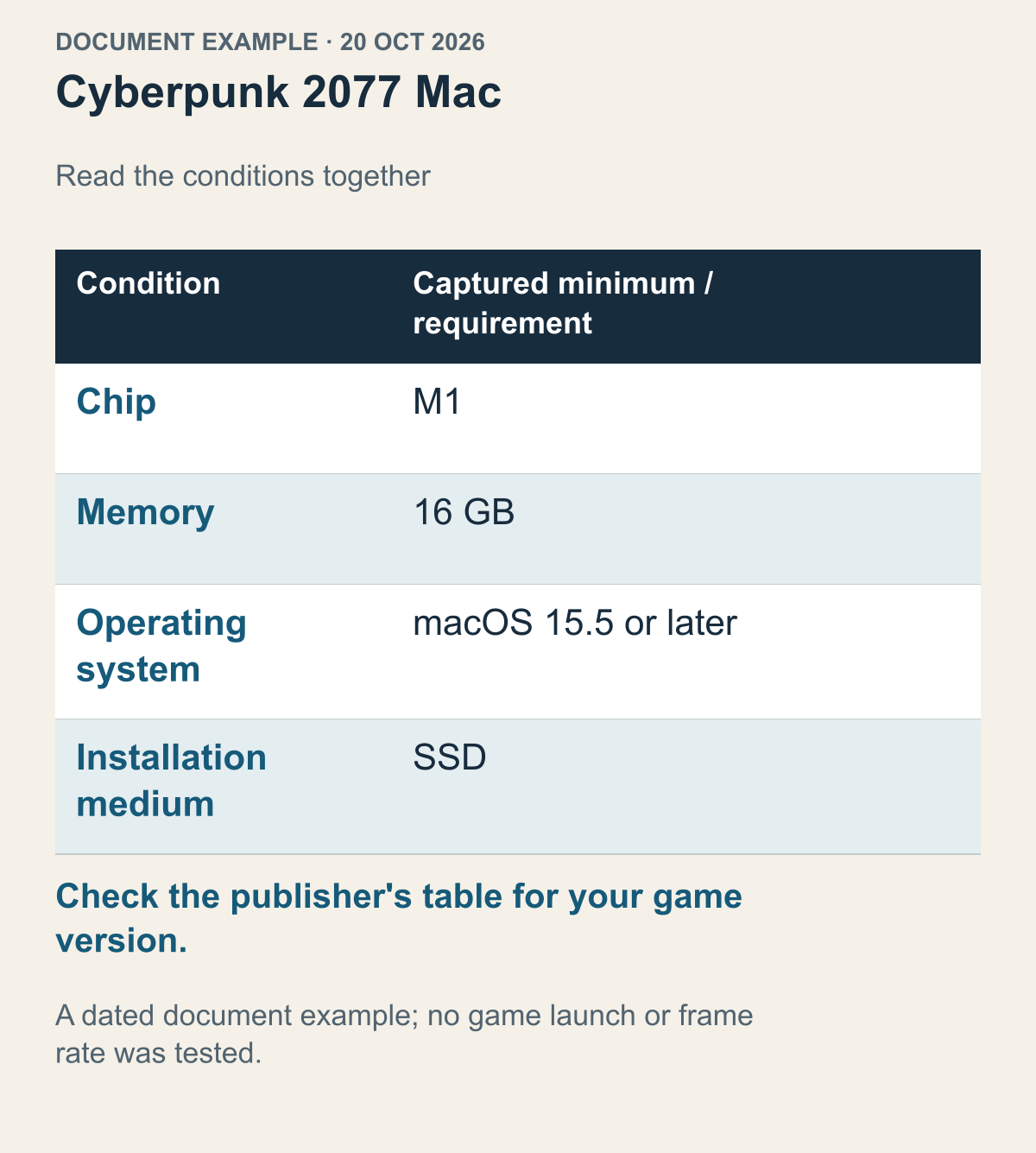
Document example captured on 20 October 2026; not a guarantee for a later release. The selected minimum conditions from CD PROJEKT RED's Mac requirements. No frame-rate figure or assessment of a reader's hardware is shown.
The CD PROJEKT RED requirements response captured on 20 October 2026 lists M1, 16 GB of memory, macOS 15.5 or later and SSD installation for the Mac version of Cyberpunk 2077. Cyberpunk 2077's Mac requirements The following hypothetical comparisons use that dated set of fields, not an assurance that every later version has unchanged requirements. Before an actual installation, read the requirements for the version and store you intend to use.
Compare a hypothetical M1 Mac with 8 GB of memory against one with 16 GB. Their chip names match, but the first doesn't meet this table's memory condition. The second hasn't met the full set either if its OS and SSD are still unverified. Installing Rosetta doesn't compensate for insufficient memory, and a video of someone else's M1 computer doesn't establish support for your 8 GB configuration. Compare each field separately.
Now suppose an Intel Mac meets the memory and storage conditions. It still doesn't match the publisher's M1-or-later chip condition. This guide doesn't convert “recent Intel Mac” or “powerful graphics” into an invented equivalent. Nor can Rosetta be described as a reverse translator that makes Apple silicon code run on Intel. Keeping supported chip type separate from a judgment about sufficient performance makes the mismatch clear.
The OS requirement remains separate from Steam's as well. This game's 15.5 condition is above the client support range discussed earlier. Steam opening is no longer a sufficient reason to expect this game to start. If a system change appears necessary, consider the upgrades supported by the device and the effect on your existing work environment. Having the installation files on disk or owning the game in an account doesn't satisfy the OS condition.
The separate system-requirements guide covers reading minimum and recommended specifications alongside frame-rate expectations. This comparison is for identifying a different condition among the Mac's chip, OS, memory and storage.
A Mac release may be a different store's product
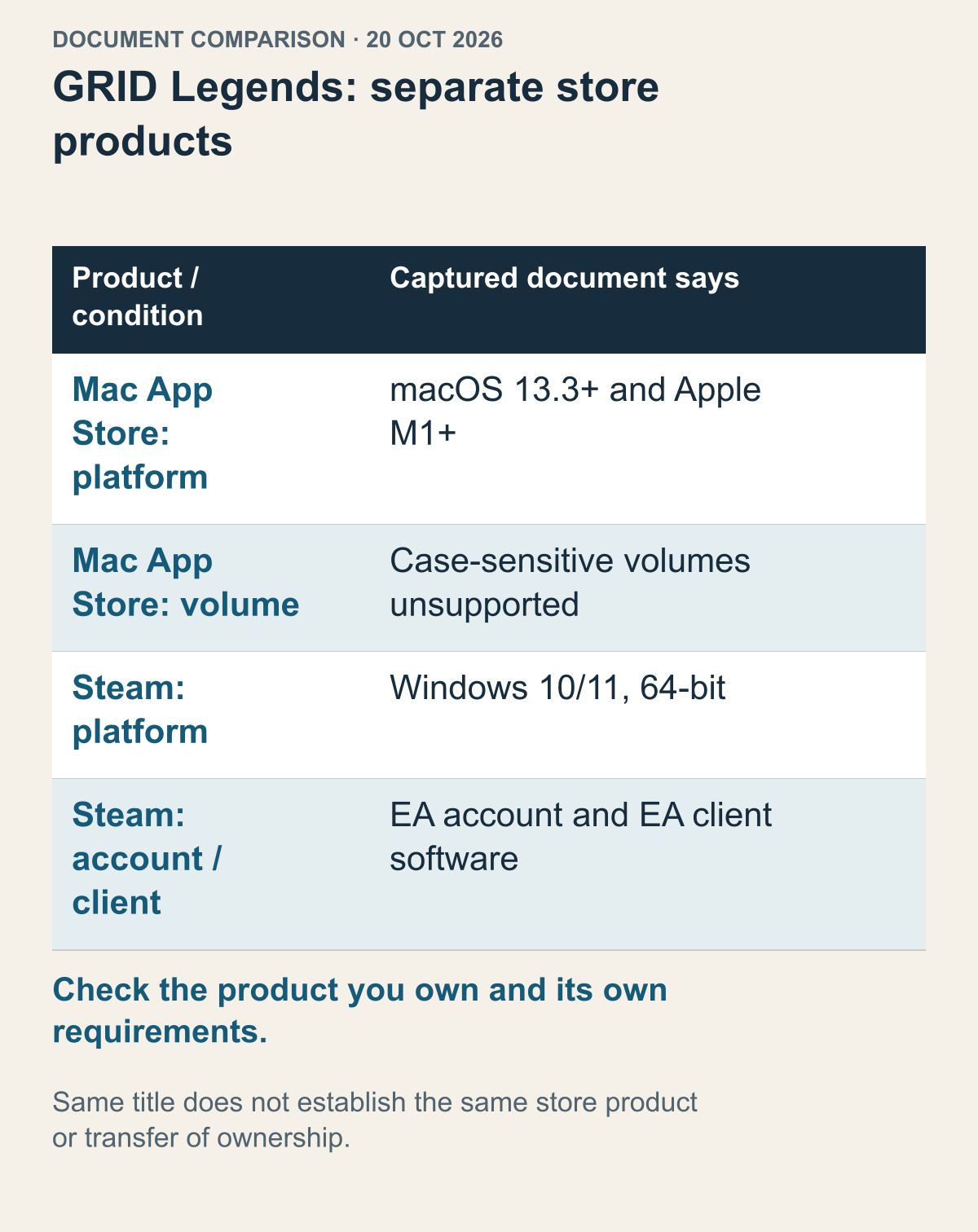
Document example captured on 20 October 2026; not a guarantee for a later release. The two store pages and Feral's Mac announcement were checked separately. This does not establish prices, ownership transfer or identical features between the products.
GRID Legends illustrates why a Mac-release headline is not enough to identify a store product. Feral's announcement is dated December 12, 2023 and describes the Mac Deluxe Edition as exclusive to the Mac App Store. Separately, the App Store response captured on 20 October 2026 lists macOS 13.3 or later and Apple M1 or later. Feral's announcement, the Mac App Store product
The Steam product response captured on the same October 20 date instead lists 64-bit Windows 10/11 and separate EA account/client-software conditions. The GRID Legends Steam product These are two dated documentary records, not a certification of either store's later catalog. A Mac-release announcement alone does not establish what installation the product you own includes; verify its applicable platform conditions before acting.
Resolve this before searching for Rosetta. Suppose a hypothetical reader owns the Steam version, has an Apple silicon Mac and finds the Mac-release article. First match the article's store to the product they own. Treating a Steam product presented for Windows as an Intel Mac app changes the subject before translation support is even considered. A separate Mac product and a Mac installation included with the owned product are different propositions. Distinguishing them can prevent unnecessary client repairs.
This comparison hasn't established whether ownership carries between the stores or whether another purchase is necessary. It isn't a price comparison or a recommendation to buy again. Discovering a store difference gives you a specific next question for the official product and account guidance: what can you use with the product you own? This guide doesn't present moving an installation folder or renaming an executable as a remedy for that difference. It doesn't ask you to unlink or transfer accounts either.
Keep the store attached when borrowing requirements too. Using the Mac App Store's M1 condition as evidence of Mac support for the Steam product changes which product the table describes. So does applying Steam's additional-client condition to the Mac App Store edition. You can compare the products side by side; you can't fill an undocumented field for one with a sentence about the other. Check which product the first requirements table in your search results actually covers. Different distributions of the same title remain separate things to verify.
In that same captured App Store record, the Mac App Store page also says case-sensitive volumes are unsupported. This shows how a product-specific condition can remain after the chip and OS match. It isn't an instruction to format a device immediately. If you're unsure whether it applies, the installation target and error are specific points to raise with the publisher. No file-system conversion or disk reconfiguration was tested here. Discovering a support condition and deciding to change an entire device are separate decisions.
Against those October 20 document fields, apply the three game cases to one hypothetical computer: an M1 Mac with 8 GB of memory and macOS 14. It doesn't meet the cited Cyberpunk 2077 memory or OS minimums. It falls within the chip and OS conditions cited for the Mac App Store edition of GRID Legends, but the installation target and other conditions still need checking. That conclusion can't be transferred to the Steam product of the same name. Factorio's native-support announcement alone doesn't establish its current full minimum requirements, so those need to be checked for the relevant version.
There is no useful single “yes” or “no” to attach to every Mac game on this hypothetical computer. The unmatched condition, store product and missing information differ by game. The comparison narrows the next document to read without inventing a buying recommendation or an actual launch result.
Match the next check to where the launch stops
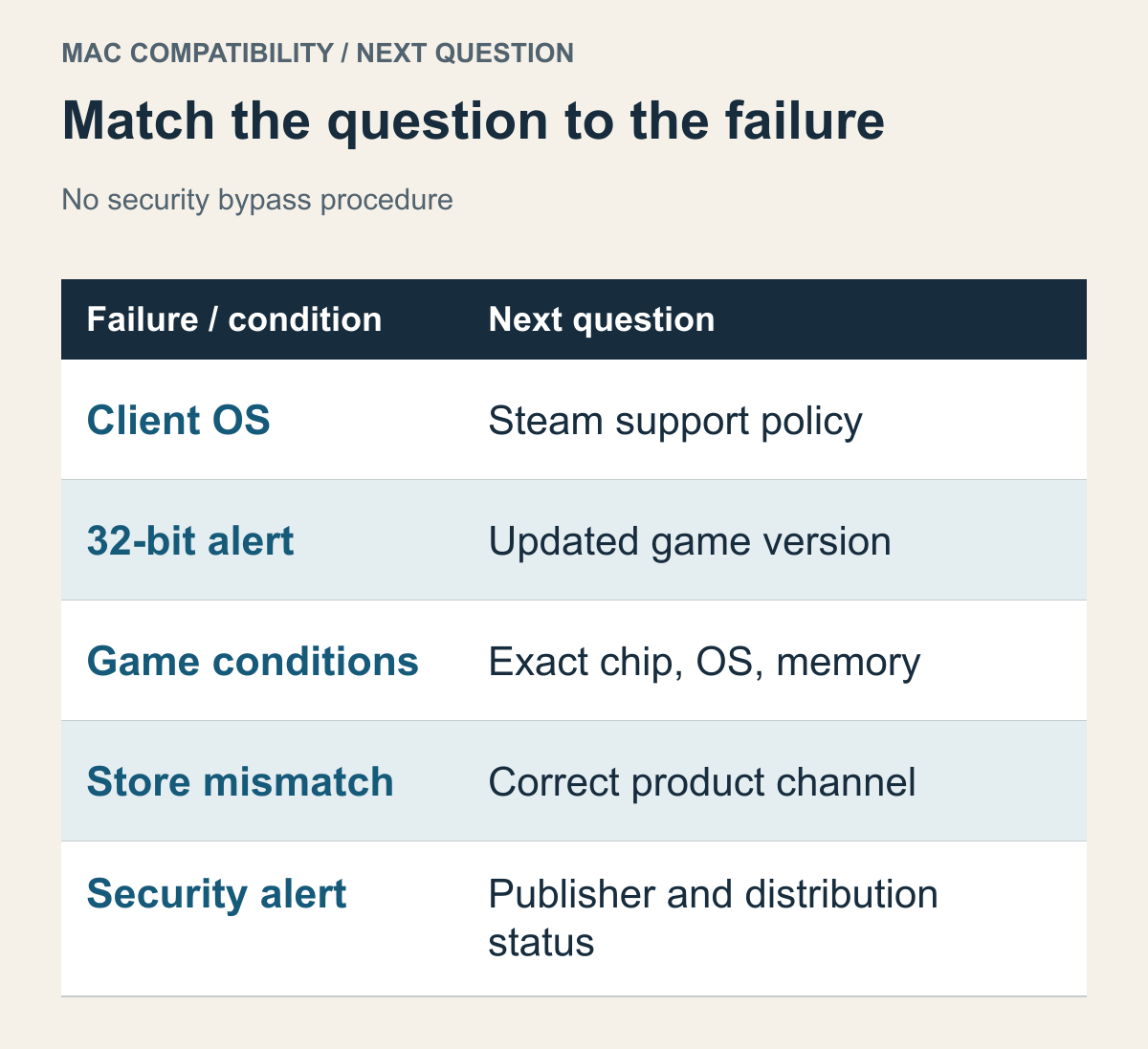
Brings the different documented conditions together. It is not an automatic diagnosis of a real device's error.
These distinctions let you avoid collecting an ever-longer repair list. If Steam itself is outside the current OS support range, start with client support. If macOS asks for a 32-bit app to be updated, look for a compatible publisher update. If an Apple silicon-only game's chip or memory condition doesn't match, examine that hardware requirement. If the Mac release is another store's product, identify the owned product and its distribution channel.
Finding the unmatched condition is already a concrete result. Before downloading the game again on the assumption that the files are bad, ask whether reinstalling can change the thing that differs. Repeating the same download won't change the computer's chip or add a platform the publisher doesn't provide. If the documented conditions match but a particular app still won't open, its name and warning give you a focused support question. You don't have to collapse every failure into “Mac compatibility.”
Security alerts on opening an app are another category, distinct from an architecture warning. Apple's guidance separately describes an unverifiable developer, an inability to check for malicious software, and warnings about damaged or tampered-with apps. Apple's guidance on macOS app-opening alerts Choosing another M1 game or installing Rosetta first doesn't answer what those messages are asking. This guide does not adopt disabling security checks or bypassing a warning as a repair procedure.
For example, if the warning names a separate program that opens before the main game, identify that program's provider and support status. Removing a warning wouldn't itself prove compatibility. First distinguish the exact message and target app, then check the current distribution's updates through official support. At this stage the problem may not yet concern graphics quality or memory usage at all. Knowing where launch is blocked narrows the next check.
If a condition remains unclear, take the exact game product, store and current version, the Mac's chip and macOS, and the displayed message to official support. Use evidence about today's requirements for today's choice, and the relevant policy dates when planning for future support.