


Your graphics card looks similar to the one in a game's recommended requirements. Is that enough to decide to buy? I'd want one more line of information: the resolution, settings and frame rate those requirements describe.
Treating “recommended” as a promise of smooth play with every setting turned up can leave you expecting something the developer never claimed. Reading “minimum” as merely enough to launch can overlook a game's specific guidance, too. Include the notes beneath the hardware list in your comparison.
This guide draws on official product descriptions and technical documents read on October 5, 2026. It doesn't report gameplay tests across PCs or measured benchmarks.
Decide what you want the game to look and feel like
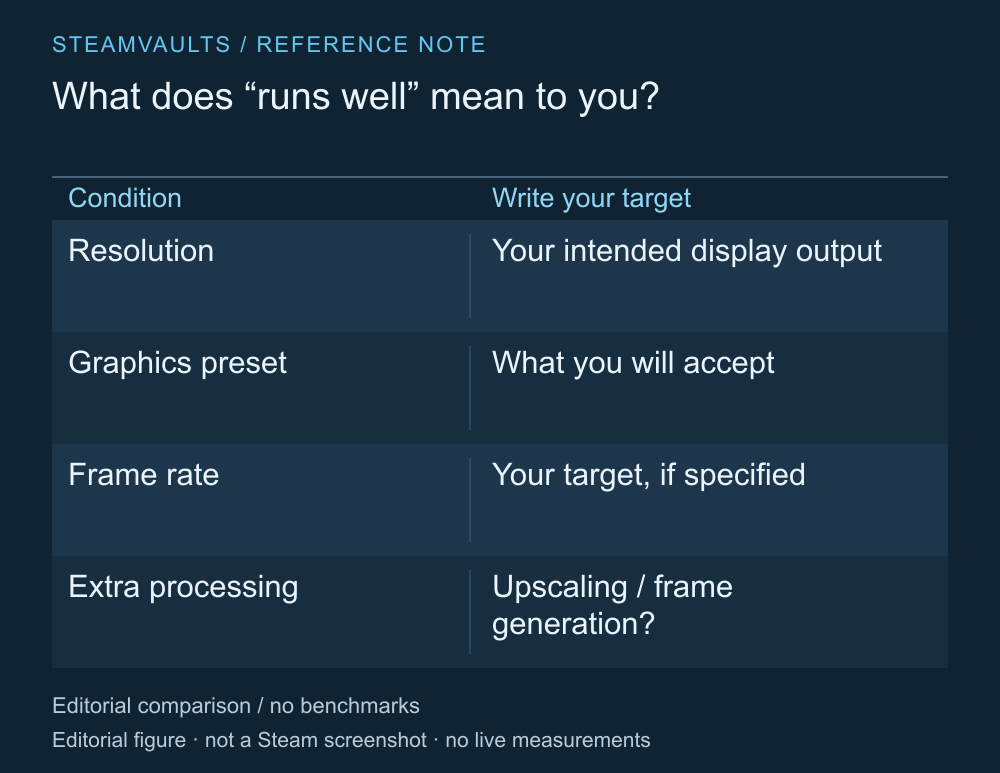
A table for setting your play expectations, not a computer performance score.
“Runs well” can mean different things. Someone content to follow the story at low settings may judge the same result differently from someone who wants high resolution and fast responses. Start by writing down your monitor resolution, the graphics settings you'll accept and the frame rate you want.
If the product description doesn't state a target frame rate, leave that field unanswered. There's no basis for turning the word recommended into 60fps or maximum settings. Read the internet connection, operating system and storage requirements as well. A matching graphics card doesn't establish that every other requirement is met.
I'd compare my chosen conditions with the conditions described in the table before asking whether my PC passes it. That narrows a broad question about whether the computer is good to the information needed for this purchase.
Wilds lists different conditions for 30fps and 60fps
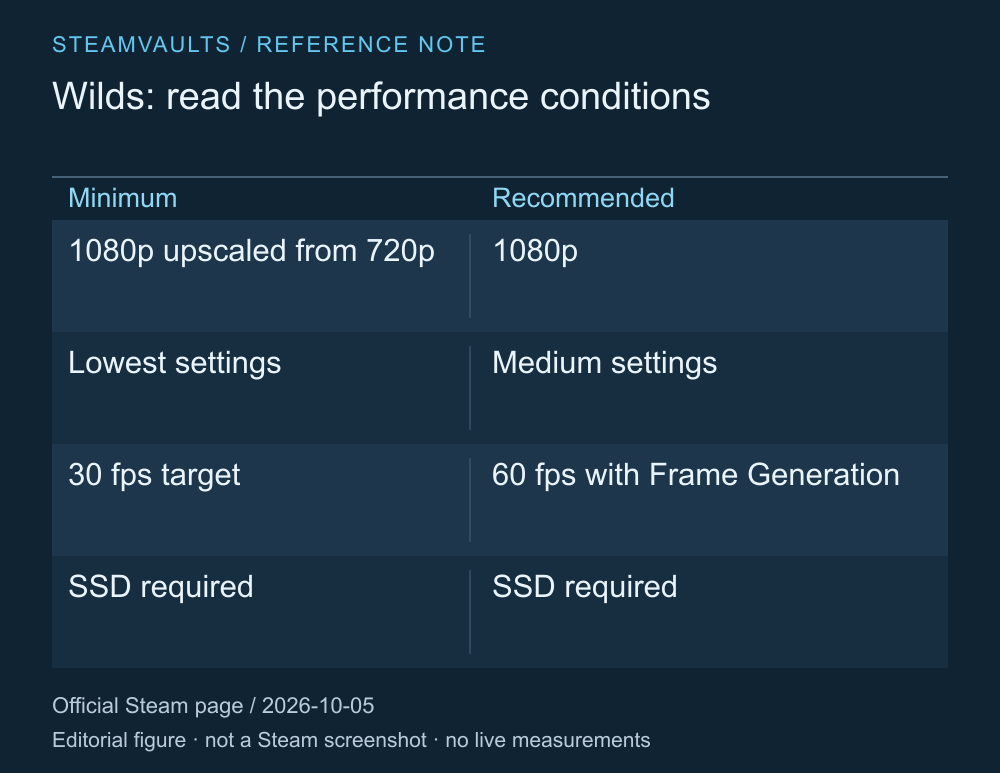
Targets from the product description read on October 5, 2026. These are not frame rates measured for this guide.
Monster Hunter Wilds' Steam page describes its minimum target as 30fps at the lowest graphics settings, displaying 1080p upscaled from 720p. The recommended target is 1080p at 60fps with medium settings, and explicitly requires frame generation to be enabled for that target. Both require an SSD. Official Monster Hunter Wilds requirements
Reading the recommended hardware as “native 1080p at 60fps, with maximum settings fine too” adds conditions absent from the description. If you want to play without frame generation or at higher settings, these figures alone don't establish that your goal will be met.
Don't transfer this example to another game's recommended requirements. Wilds isn't a universal standard; it illustrates why the small notes beside a resolution matter as much as the hardware names. Requirements can change, so check the game's page again when you buy.
Separate rendered frames from generated frames
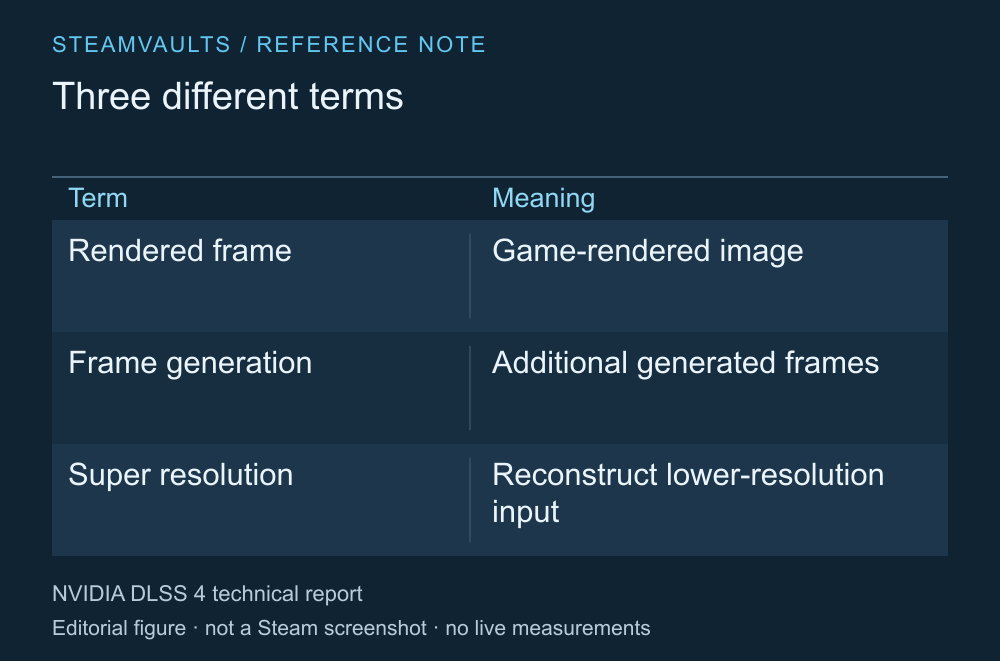
An illustration of the process, not a measured chart of performance gains or input latency.
NVIDIA's DLSS 4 technical report treats generating frames between rendered images and reconstructing lower-resolution images as distinct processes. A result obtained with upscaling enabled and one obtained with frame generation enabled therefore describe different conditions. NVIDIA's technical report
You don't need to memorize every technology name to make a purchase decision. It helps to know which features were enabled for a requirement or performance result. A displayed frame rate that includes generated frames doesn't by itself describe input response or stability in every scene. This guide hasn't tested feature support or latency on particular graphics cards.
Even results for the same game need matching settings before you can compare their numbers. If the resolution, graphics preset, generation features or game version aren't available, the result is difficult to use as the main evidence for a purchase.
Identify your PC's exact models and remaining questions
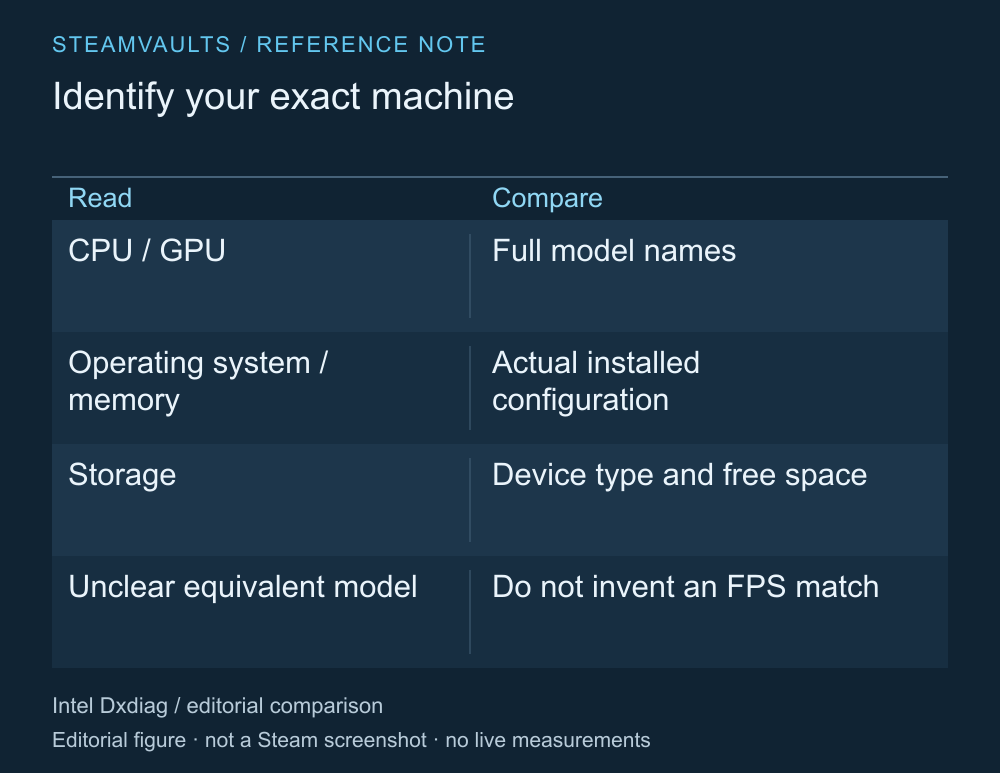
Check the listed items yourself. This table does not show a reading of your PC.
Remembering that you have “an i5” or “an RTX” isn't enough to compare it with a listed model. Find the full model name. On Windows, the DirectX Diagnostic Tool's report can help. Intel's official instructions explain how to open dxdiag from the Run window and save the information. Intel's Dxdiag instructions
If you share a report, choose only the details needed and check for personal information. The question is whether your PC meets a particular game's conditions; answering it doesn't require publishing everything about the computer. Separately check the storage type and free space on the drive where you plan to install.
If the models don't match exactly, don't conclude that a larger number means a faster part. Names are particularly difficult to compare across product families or laptop hardware. Look for measurements of the game under the same conditions, or ask its developer about the requirements. This guide doesn't provide an unverified list of equivalent models.
A demo only tells you about what you test
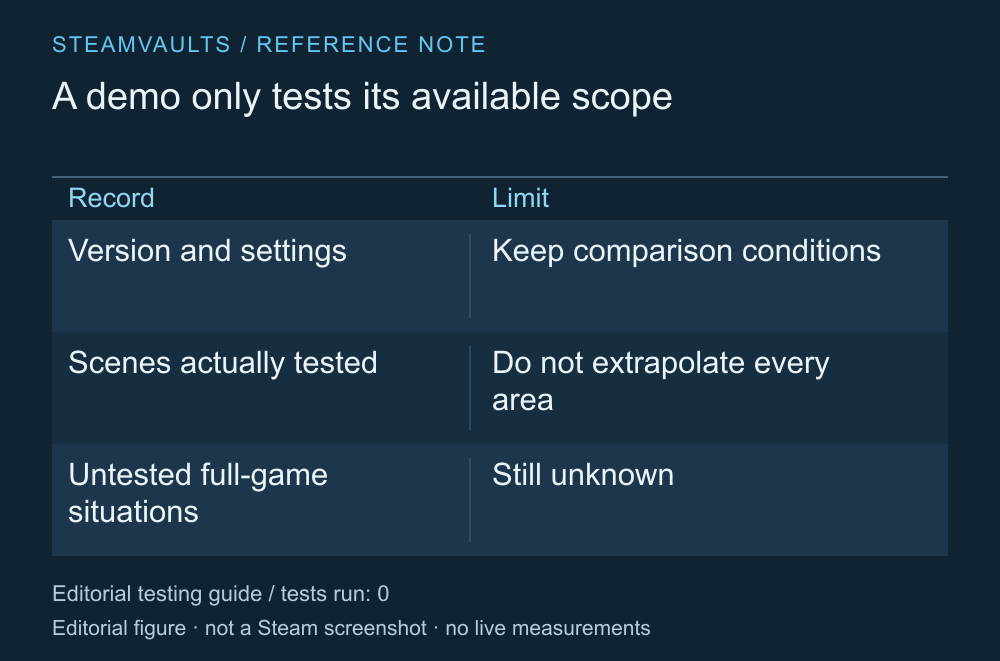
Questions to use for your own test. No game was run for this guide.
An official demo or a developer's benchmark can offer a chance to check your setup. A short demo section shouldn't be treated as representative of every area or online situation in the full game. If you test it, record the version, scene, settings and what you found. Even a note that the experience felt acceptable becomes more useful when you include those limits.
If there's nothing to test and the requirements don't specify your preferred conditions, you don't yet have enough evidence to be confident. Before buying, look for developer support material or results that state their settings. If you're already facing an installation error or crash, the next question is what information to include in a problem report.
Recommended requirements don't set your expectations for you. Putting the hardware names, target image and additional conditions side by side can help you replace a vague “it should work” with a comparison you can actually assess.