


Missing textures or an installation-file error can make a fresh reinstall feel like the obvious next step. File integrity verification gives you a smaller check to try first. Passing it doesn't mean every possible problem with the game has been ruled out.
Treating verification as a universal fix makes it harder to know what to investigate when it doesn't help. I'd define the question before starting: this check concerns distributed installation files, rather than the contents of a save or the state of an online server.
The check concerns installation files
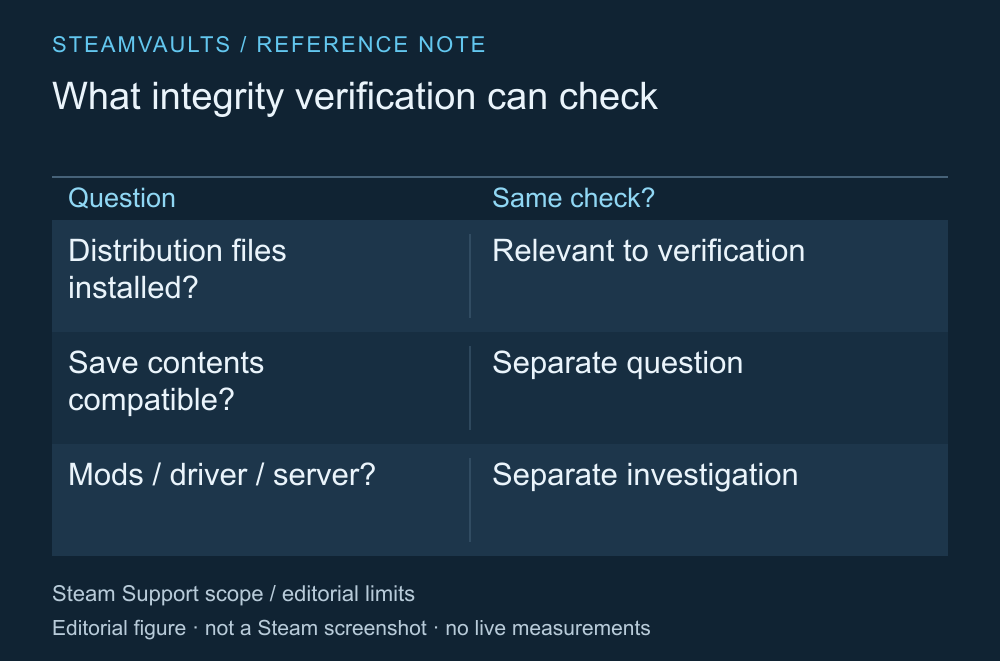
Questions verification addresses alongside questions that need separate checks.
Valve recommends integrity verification to check whether a game is correctly installed when content or textures are missing, or when a game crashes. Steam Support's file verification guide
If you have reason to suspect the installation files, this can be an early step. It cannot determine why saved progress has changed or whether a game server is reachable. If the symptom remains after verification, return to the original error and what it describes.
Record any mods before you start. Check whether the game is using files that differ from its original distribution and whether it provides a mod-removal procedure. Don't assume verification will either preserve every mod or remove them all.
Decide what to preserve before starting
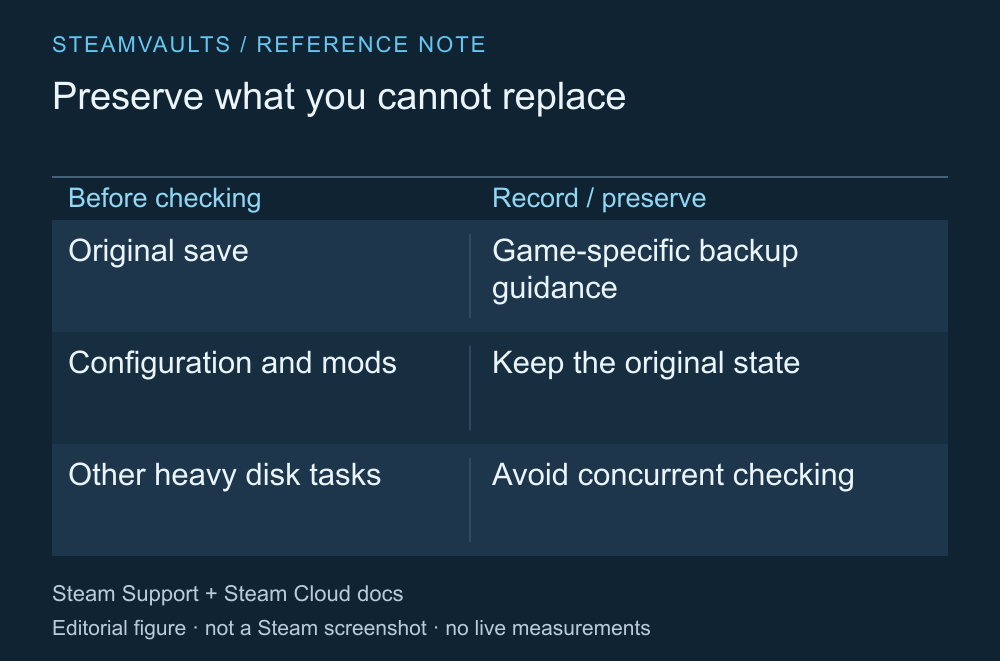
Use the game's official guidance to find the backup location. The checklist is not itself a backup.
If progress matters, check the game's official save location and backup method, and consider keeping a separate copy of the original. Don't assume all user files sit inside the Steam installation folder. Steam Cloud also covers the files the developer has configured. Steam Cloud file configuration
Verification doesn't require you to delete saves or overwrite a synchronization choice first. Removing unrelated files makes later results harder to compare. If the issue is a save conflict, check cloud conflicts and preserving the original separately.
Valve warns against verifying several games at once or running other intensive disk tasks during the check. Start with the game whose result you need. Being able to read which operation has finished matters more than launching several checks to try to save time.
Run the check from Installed Files
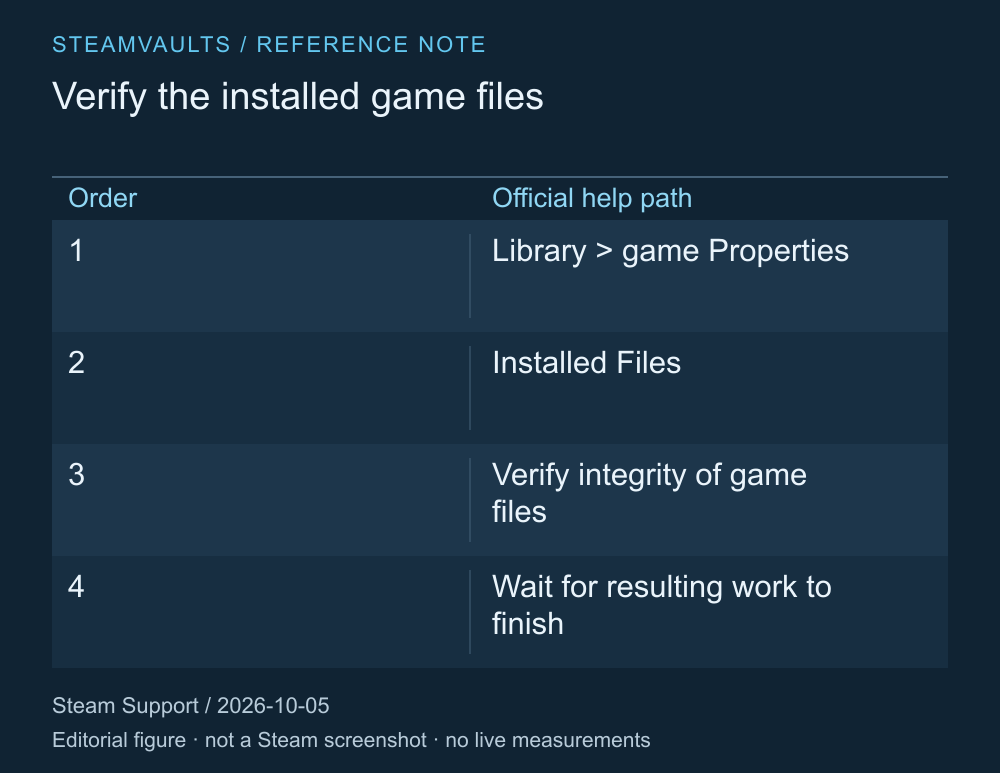
The help-page route read on October 5, 2026, not a screen showing a completed check.
The official route is to open the game's Properties from your Library, select Installed Files and choose Verify integrity of game files. Check the current help page if the labels differ. The operation can take time; this guide doesn't set a completion time for every game. Verification procedure
Write down the original error, then read the completion result. If a download or another operation follows, check that it has finished too. Starting verification and completing every necessary file operation are different states.
Afterward, retry the situation that originally showed the problem. Opening the start screen doesn't establish that a missing texture in a particular area or a recurring error has been resolved. Avoid changing several settings at once if you want to explain what the check established.
Read the specific result when files fail to verify
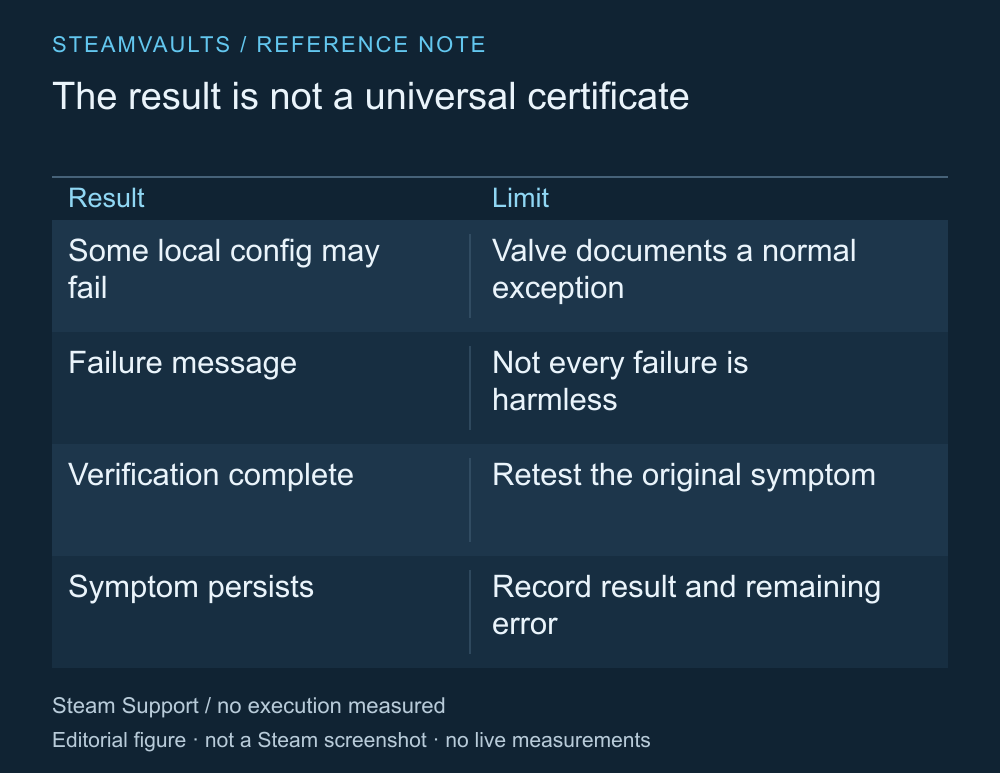
Passing verification is separate from confirming that the whole game works normally.
Valve explains that some local configuration files may fail verification and intentionally aren't replaced, so that result can be normal. Don't expand this guidance into a reason to ignore every failure message. Official explanation of local configuration files
If files are downloaded again and the problem remains, or the same error returns in the next check, record the result and the actual symptom together. When and how the check finished, and whether the original symptom remains, tell support more than “I tried verifying.” Explaining a game problem to support
A pass narrows one area of investigation. It isn't certification of drivers, user settings, mod compatibility or every possible game bug. Keep that limit in mind when deciding on a reinstall too. A problem unrelated to installation files may remain after deleting and downloading them again.
No files were verified and no error was reproduced for this guide. It cannot claim your game has been repaired. The official procedure helps distinguish what was checked from what still needs an answer.