
Steam Deck dock connected, but the TV says no signal
Separate a dark Deck screen from TV no signal. Compare the host, dock, cable and TV input, including documented resolution and refresh-rate pairs.
Article languages
On this page
Connecting a Steam Deck to a dock and watching its own screen go dark can make the device seem frozen. First separate what appears on each screen. The internal screen turning off and the TV receiving no external signal are different questions. TV input, dock connections and power, cable conditions and output mode then become separate parts of the investigation. Changing them all at once can produce a picture without establishing why the result changed.
This guide covers external displays with normally booting Steam Deck LCD and OLED devices, using Valve documentation read on October 19, 2026. It is not a report of a physically tested Deck or dock. Failure to boot, dock disassembly and unofficial firmware are outside its scope. Documented features are distinguished from current menus not directly observed here. The initial goal isn't maximum resolution: it is describing the conditions under which the external display does, or still doesn't, show a picture.
Read the Deck and TV screen states separately
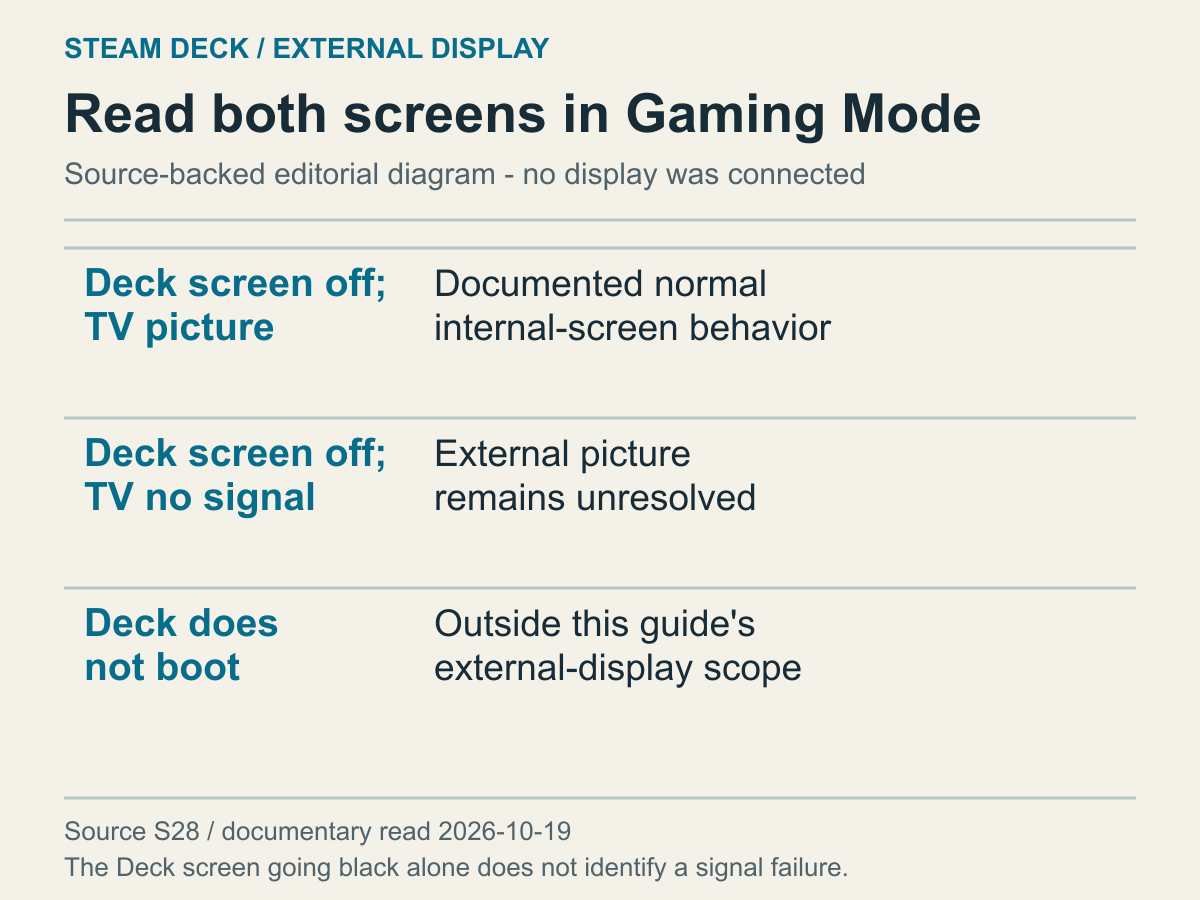
A state table separating the different screen combinations.
Immediately after docking, the screen in your hands naturally attracts attention. If it was lit a moment ago and turns black, a connection fault can seem likely. Valve's docking troubleshooting guide describes the internal display turning off when an external display is connected in Gaming Mode as normal behavior. Don't diagnose a device fault from that observation alone. Check what the television actually displays as a separate result.
If the Deck screen is off and the TV shows the Deck, that is not the no-signal condition discussed here. This article doesn't cover all desktop mirroring or multi-display settings. The useful distinction is that one display turning off does not mean every output failed. If the intended picture appears on the television, changing settings solely to correct the dark internal display may not be necessary.
If the internal screen is off while the TV reports no signal, an external-display question remains. It still doesn't establish that the whole Deck is powered off. The TV could be viewing a different input, or the connection could fail to carry the requested mode. Those possibilities haven't yet been separated. The immediate scope is the external video path, not a complete boot investigation. Describe which screen displays which message instead of combining everything under the phrase black screen.
You can separately record an internal screen that stays lit while only the TV reports no signal. Its difference from the preceding state is a useful clue, but this guide doesn't identify a failed component from that combination alone. Whether the external display was recognized may still need checking. Including whether the Deck screen stayed on makes a support description more precise without claiming a diagnosis that the available observation doesn't establish.
A completely black TV and a TV displaying its own no-signal message are also different observations. The latter gives a reason to examine the selected input. Without a message, TV power and selection remain questions. This manuscript doesn't diagnose a television panel or its internal electronics. It uses the information needed to identify whether the TV is viewing the Deck's actual connection. If its input indication or menu isn't clear, consult that model's manual.
Distinguish the Deck menu from an individual game's picture too. No menu at all and a visible menu followed by a game-specific display problem are different starting points. In the latter case, ask whether the entire external signal stopped or the game changed display conditions. Detailed game graphics and performance tuning are outside this guide. First establish whether the menu appears, without expanding one game's behavior into a claim about every connection between the Deck and TV.
Compare the TV input and connected socket
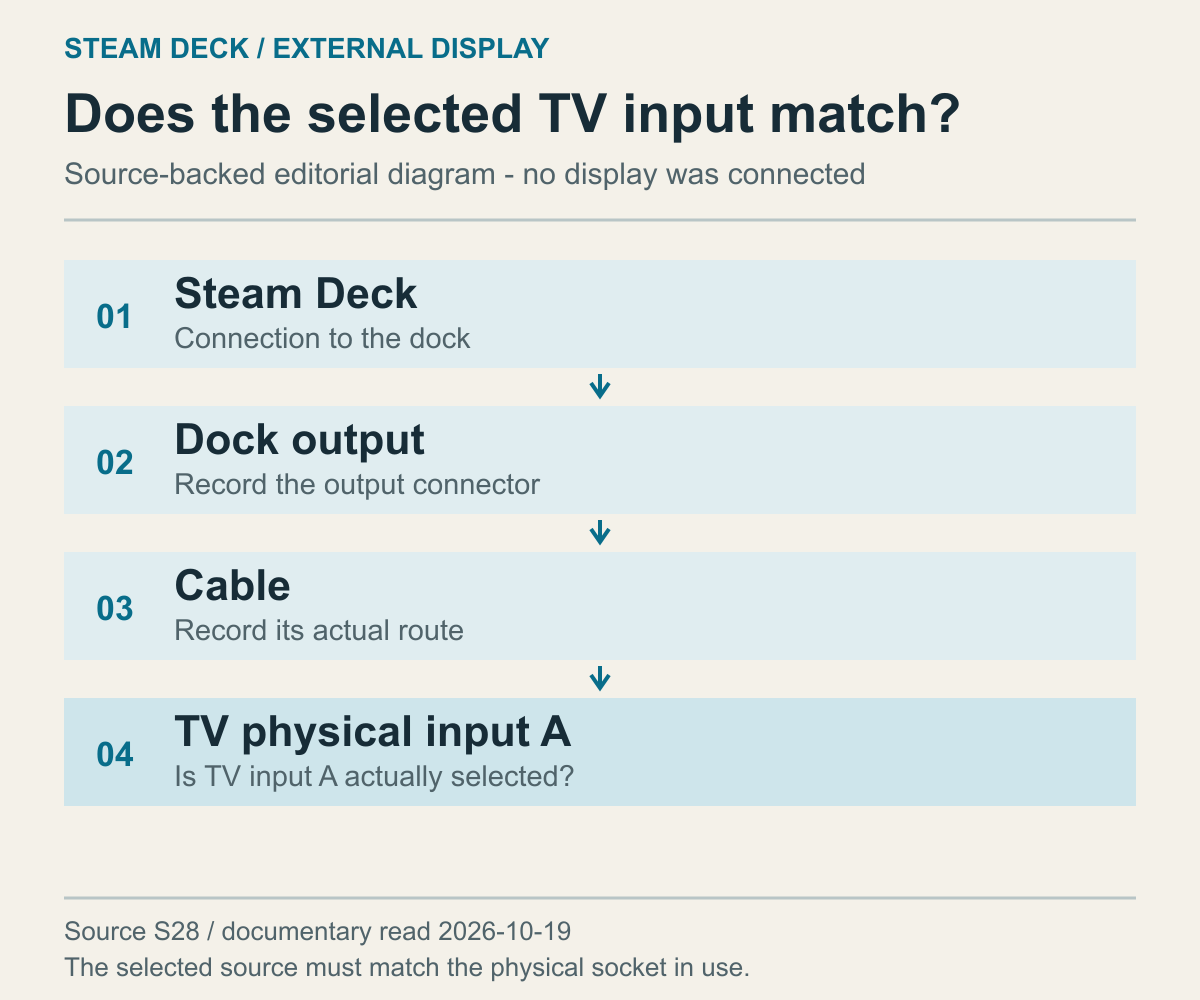
An editorial diagram for recording information along the current connection path.
Checking the TV input is familiar advice, but merely pressing other inputs doesn't leave a clear comparison. Find the physical TV socket holding the cable from the dock, then check that the remote or TV menu selects that same socket. The cable may have moved while the selection remained unchanged, or the TV may still show an earlier device among several connections. The relevant match is physical socket to selected source, not just two similar-looking menu names.
Call two fictional TV inputs A and B. These are example labels, not labels from a particular product. If the cable is in A while the TV watches B, changing Deck resolution doesn't fix the mismatch in the comparison. Select the corresponding input before evaluating the next part of the path. Conversely, a record that A was correctly selected and still showed no signal establishes that condition before the next question. A simple mapping can be worth resolving before a complex settings change.
Include intermediate devices in the path description. Is one cable connecting the dock directly to the TV, or is an adapter or other video device involved? This article hasn't verified those intermediate products' compatibility. Don't assume a complex route behaves exactly like a direct one. Describe the existing arrangement. Leaving out an intermediary removes part of the actual failing path from a support request; inventing another connection from guessed port roles isn't necessary.
If the TV has several sockets, its manual can identify whether their supported conditions differ. A picture appearing after switching sockets may reflect both selection and input capability changes. Two sockets on one TV shouldn't automatically be treated as interchangeable. The manufacturer's instructions for the exact model establish which input supports which conditions. This guide is not a substitute for an individual television's input specification table.
Changing several television picture options while no signal is available makes the original conditions harder to reconstruct. You may lose track of whether the input, output mode or image processing changed. At this stage the question is whether an external signal produces a picture. Cropping and text size can wait until a picture exists. Dividing the goals makes the next decision clearer; adjusting the quality of an unseen picture needn't be the first task.
Examine dock power and connection paths
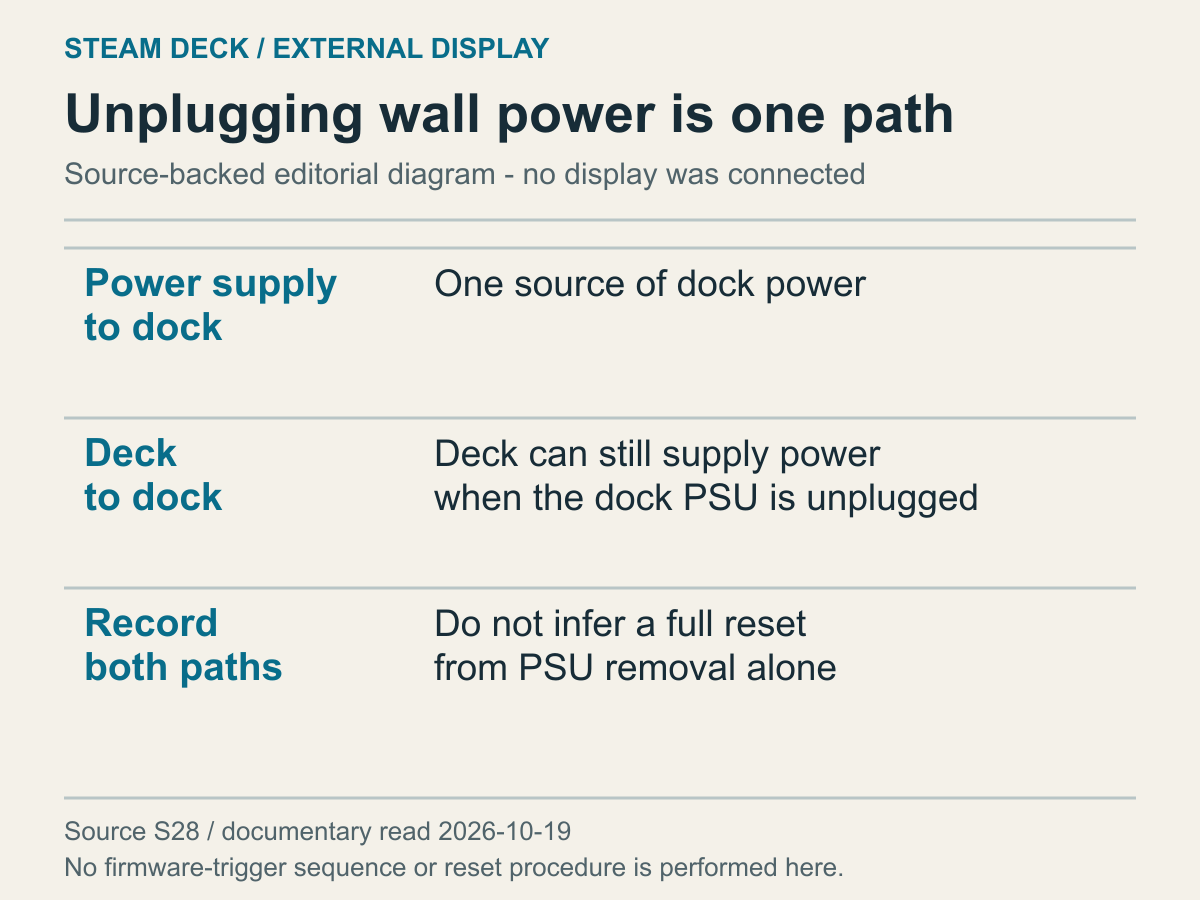
The dock's external power cable and Deck connection are drawn separately.
When a dock is in the path, its power state belongs in the description. Identify the power input, the Deck connection and the output used for the display. A charging indication doesn't establish that video works, and a video problem doesn't establish that all power is absent. Several functions share the dock. Keeping their observed results separate helps choose the question relevant to no signal rather than substituting one function's success for another's result.
Be precise about removing the dock's external supply. Valve explains that a dock without its own external power can still receive power from the Deck. Unplugging wall power therefore doesn't necessarily establish that the dock reached a completely unpowered initial state. This guide uses that fact only to understand the paths. It does not turn it into a firmware-update sequence or internal reset procedure. Distinguish the two connections when describing what state the dock was in.
If you've already reconnected the dock, describe what was actually disconnected: external power, the Deck connection, video cables or some combination. Saying everything was reconnected can hide a change to only one part. The purpose isn't blame; it's matching an actual action to the conditions of support guidance. A short list of disconnected paths is more precise than the word reset. An operation you didn't perform can simply remain unperformed.
List peripherals too if several were connected, such as storage, networking or input devices. You don't need to invent their consumption or immediately call one the cause of video failure. The combination wasn't physically tested here. The list reconstructs the environment rather than proving that a dock should be replaced. As the setup grows more complicated, separating observed facts from suspected causes becomes more useful, not less.
Read host and official Dock output specifications separately
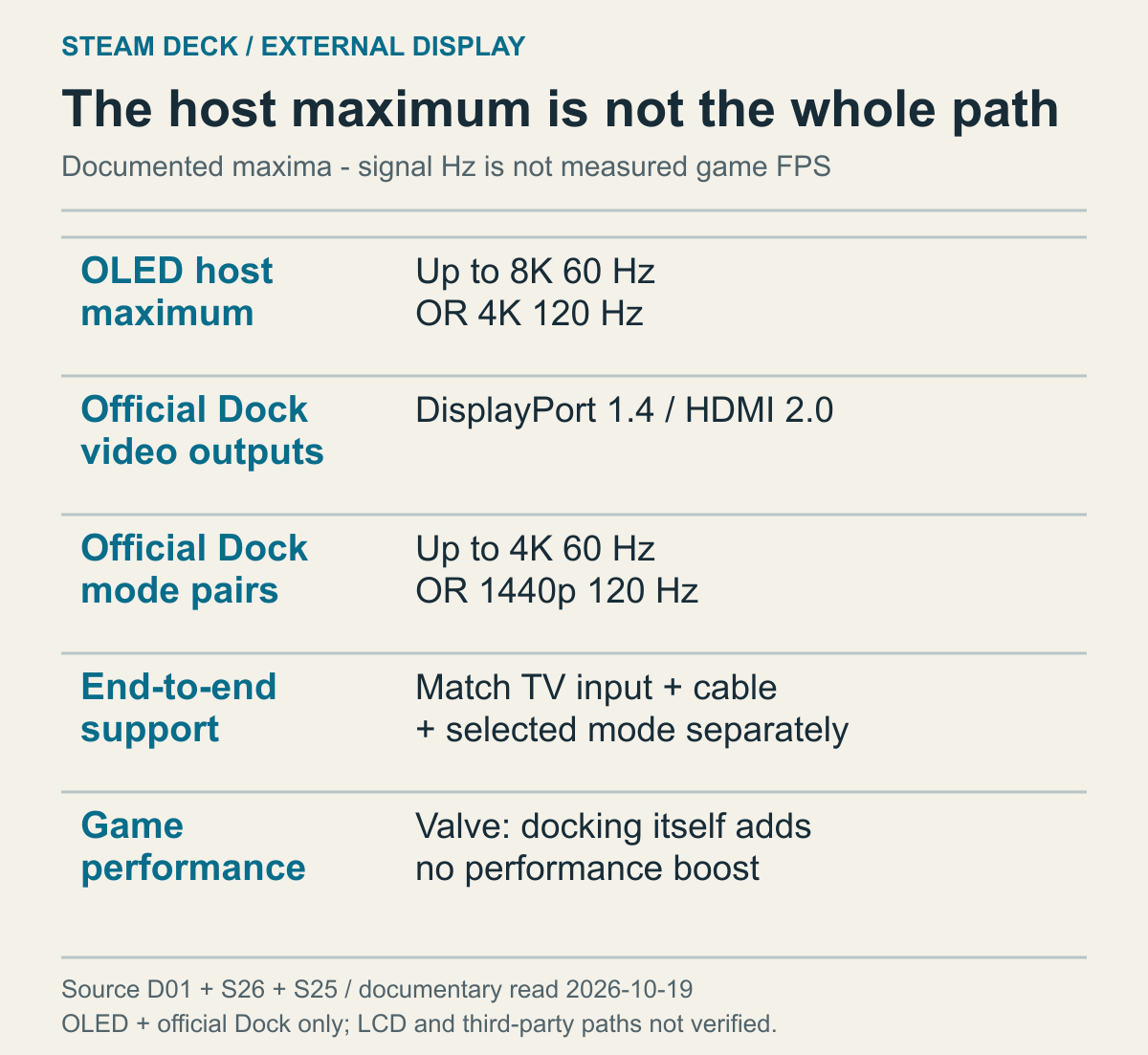
Valve OLED host and official Dock specifications compared, not measured TV compatibility or game frame rates.
A high number in the Deck's specifications isn't automatically a result available through your dock. Read the host port's documented capability separately from the intermediary's capability, then consider the cable and TV input. Looking only at the first and last devices can hide a dock limit in between. Before selecting a mode, establish which part of the path the specification you are reading actually describes.
The official Dock technical specifications list DisplayPort 1.4 and HDMI 2.0 video outputs, with up to 4K at 60Hz or 1440p at 120Hz. The power input and USB-C connection to the Deck are described separately from those video outputs. This applies to Valve's official Dock. A similar-looking third-party hub cannot inherit the same connectors or limits from its appearance. For another dock, consult that exact model's specification.
The OLED host specification previously read lists higher external-output figures: up to 8K at 60Hz or 4K at 120Hz. The host side of this comparison is limited to that OLED documentation, not a separate verification of every LCD output figure. The two official pages describe different devices. A host specification of 4K at 120Hz doesn't establish that the current path through the official Dock provides 4K at 120Hz. This is the practical reason to read the intermediary's specification.
Imagine planning to select 4K at 120Hz on a TV using only the OLED's maximum figure. With the official Dock in the path, first compare the documented 4K-at-60Hz and 1440p-at-120Hz conditions. The TV input and cable must also suit the selected condition, so neither pair is a universal success guarantee. Nevertheless, it changes the next task: examine the actual intermediary rather than repeatedly expecting the host's maximum. That can alter the useful comparison before any product replacement is considered.
These specifications pair resolution and refresh rate. Listing 4K at 60Hz and 1440p at 120Hz doesn't permit taking the higher resolution from one and higher refresh rate from the other to invent 4K at 120Hz support. Read each pair as documented. Resolution concerns the picture's pixel arrangement while Hz concerns refresh frequency. Even if you prefer one visual result, first establish whether the entire desired pair is within the documented path's conditions.
The panel resolution doesn't replace the TV's input-mode table either. A 4K panel alone doesn't establish that one particular socket accepts 1440p at 120Hz. Having found a dock output pair, look for the same input, resolution and refresh combination in the television's manual. You're matching an output table to an input table, not combining the panel's largest resolution with the dock's largest refresh number as independent choices.
Video output mode is also different from a game's rendered frame rate. The Steam Deck FAQ says docking doesn't itself improve performance. A 120Hz dock specification consequently doesn't promise every game runs at 120 frames per second. If the Deck menu is visible but a game's motion is slower than expected, that differs from receiving no signal. Preserve the picture-producing connection while examining game settings and performance as a separate question.
Working USB devices don't prove the video function works
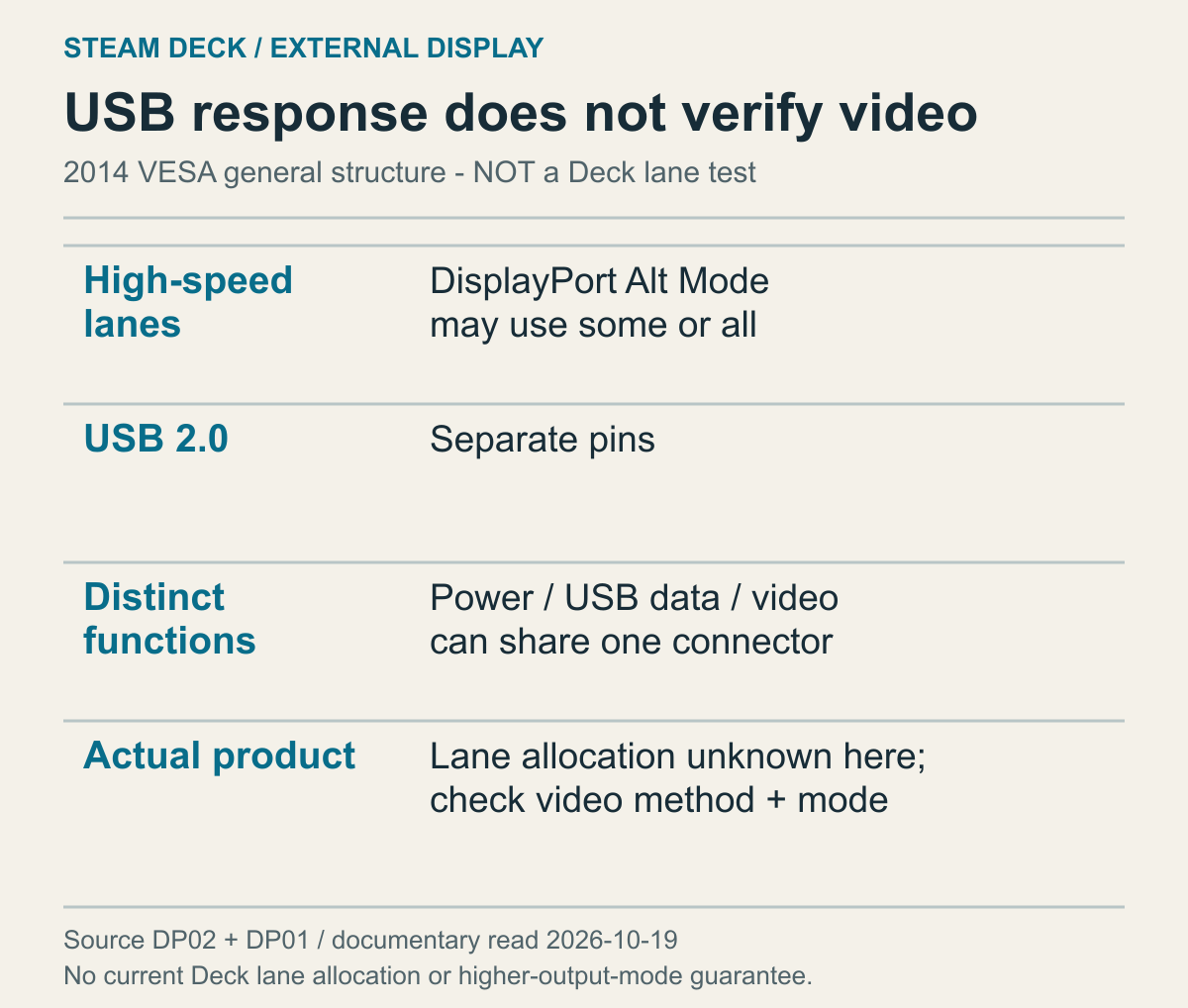
Based on VESA's Alt Mode structure explanation, not an observation of actual Deck or dock lane allocation.
A USB accessory can work through a dock while the TV remains blank. Sharing a cable makes that result seem puzzling, but USB-C names the connector, not every implemented function. VESA's DisplayPort FAQ explains that video, USB data and power can be provided together or as individual functions. Charging or a responding USB device therefore doesn't establish successful video transmission. Keep each function's result attached to the function it actually demonstrates.
The path structure helps explain the distinction. VESA's Alt Mode announcement describes using some or all of USB-C's high-speed lanes for DisplayPort. A lane is a path for carrying data. The material discusses a configuration sharing lanes with high-speed USB and another using four lanes for video. This is general structure from a 2014 specification announcement, not a specification claiming that all current docks make the same allocation.
The material also describes separate pins for USB 2.0 data. A responding USB device therefore differs from a connection with no functioning capability, but doesn't verify video lanes and mode. That prevents a working accessory from becoming proof that the dock is wholly suitable for video. Conversely, absent video doesn't require labeling charging and data as failures too. The distinction is useful precisely because the functions can rely on different conditions within the shared connection.
For a Deck setup, reconnect the general structure to the product documentation. The dock's actual video method and output-mode support are determined by its implementation and official specifications. This guide doesn't assume a user menu for changing lane counts. Nor does removing a USB accessory guarantee more video lanes or a higher resolution. First match the host, dock and TV conditions described above, rather than treating a general topology explanation as a device-specific adjustment procedure.
If a USB input device responds but the TV shows no picture, your next question can concern video method and output rather than rebuilding every USB function. Does the dock use DisplayPort Alt Mode? Is the socket connected to the TV an actual video output? Is the requested mode within both dock output and TV input conditions? The purpose is not internal modification. It is avoiding the mistake of using charging or accessory success to skip the video-capability check.
A cable working elsewhere doesn't prove this output mode
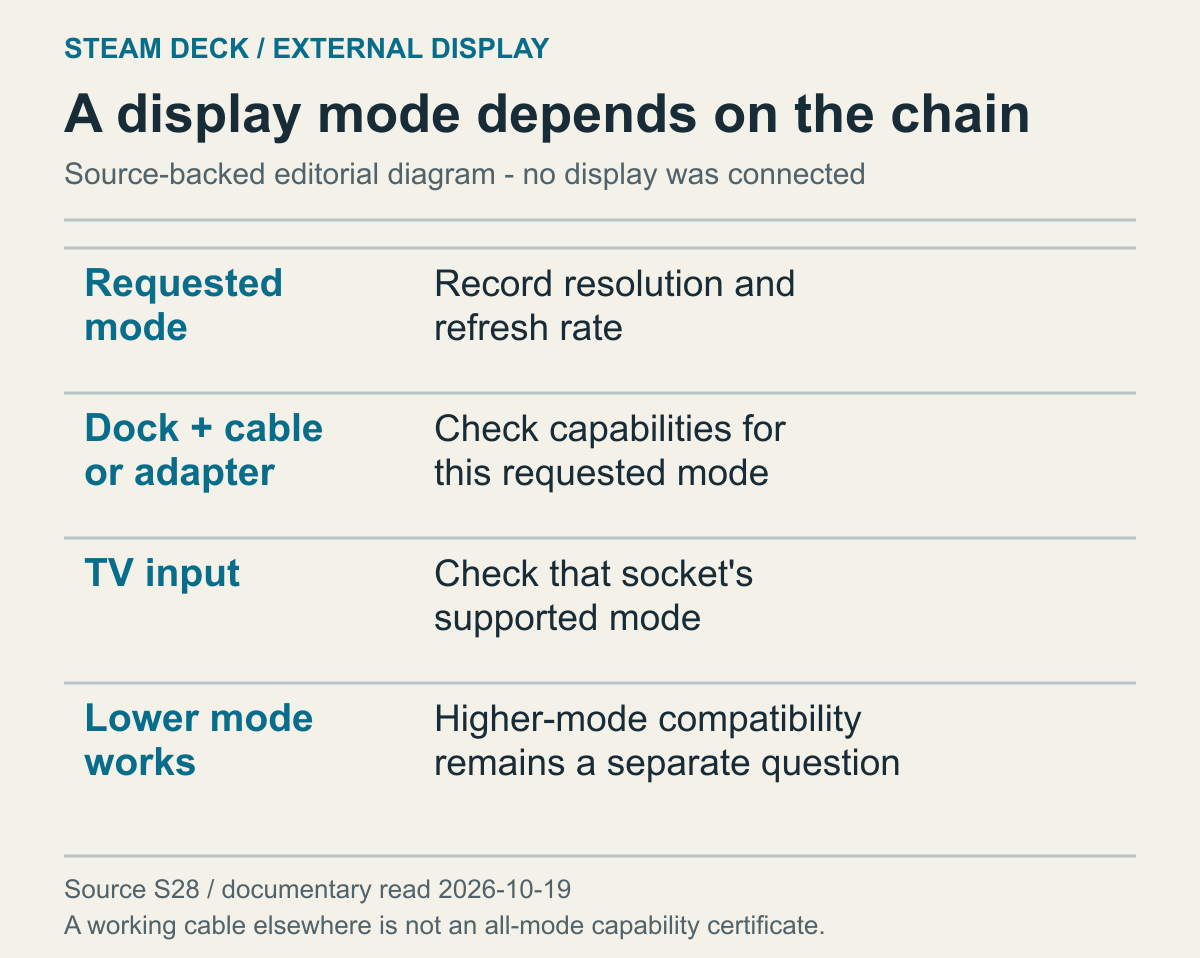
An editorial table for comparing a requested mode along the connection path, not a bandwidth measurement.
A cable working with another device is useful history, but the conditions are missing. What resolution and refresh rate were used, through which input, and with any adapters? A previous picture doesn't establish the currently requested mode. Distinguish whether a cable has an obvious continuity-related problem from whether the entire present path can carry the selected mode. Those questions need different evidence; success at an unspecified mode doesn't answer both.
A simple fictional calculation shows why resolution and refresh remain separate. A 1920×1080 picture contains 2,073,600 pixel positions. At 60 refreshes per second, the product is 124,416,000. A 3840×2160 picture contains 8,294,400 positions, giving 497,664,000 at the same 60 refreshes. Doubling both width and height quadruples this pixel-position comparison. It isn't a calculation of screen inches or a measurement of rendered Deck game frames.
Keeping the first resolution but increasing refresh to 120 gives 248,832,000. That's twice its 60-refresh result, but isn't equal to the higher resolution's 60-refresh result. Resolution and Hz cannot be ranked as one interchangeable large number. If you want a higher refresh rate, specify at which resolution. If you want more pixels, specify the requested refresh condition too. This arithmetic helps explain why the official Dock documentation presents paired modes.
These products do not calculate an actual cable's required bit rate. VESA's FAQ includes color-bit-depth and compression conditions in its mode examples. The simplified calculation omits them, so it cannot certify a cable as sufficient. The reader's decision is to choose a desired resolution-refresh pair and compare actual host, dock, cable and input specifications. Saying another device used the same resolution still leaves refresh and other conditions unresolved.
An adapter adds type and direction as questions. Valve explicitly says passive DisplayPort-to-HDMI adapters aren't supported. Don't expand that into all adapters being impossible, or reverse it into a guarantee for every other type. If the product's category is unknown, consult its official description. This guide doesn't claim that connector appearance identifies active versus passive conversion. Without product information, leave the adapter conditions unknown rather than deciding from its shape.
Before pursuing failure at a high mode, consider whether a lower supported mode meets the immediate purpose. If the goal is simply getting today's game onto the TV, obtaining a picture under a usable condition can be valuable. That doesn't make it a permanent best-setting recommendation. You can later compare the path's limits with your desired quality. Starting with every feature at its maximum complicates an already absent-picture question. Separate the initial picture goal from the preferred final mode.
If you already compared cables, establish whether only the cable changed. A different socket and output mode introduce additional conditions. Saying a cable replacement fixed the cause can be stronger than what the comparison proves. Recording that the picture appeared with a particular combination is sufficient. There's no need to guarantee every mode or another device. Narrow descriptions of actual evidence help avoid speculative replacements and make a recurring symptom easier to discuss.
Don't assign invented specifications to unidentified cables or equipment. Record what is unknown, then check whether a lower documented mode is available in the existing arrangement. A lower-mode comparison does not promise to repair physical damage or resolve every compatibility problem. Treat it as a way of asking whether the result changes at a lower mode, not proof that the whole path is repaired.
A proposed comparison can change input or mode while keeping the other conditions fixed. The following is an unperformed example, using fictional input names A and B. Fill in only results actually observed within the equipment manuals' permitted conditions.
| Condition to compare | Keep unchanged | Result to record |
|---|---|---|
| Input A, lower mode | Same dock and cable | Picture, no signal or unknown |
| Input A, higher mode | Same dock, cable and input | Compare with the lower-mode result |
| Input B, lower mode | Same dock, cable and lower mode | Compare with input A |
A blank result in this proposed table means unknown, not no signal. Suppose you have recorded a picture for input A at the lower mode and no signal for input A at the higher mode, while input B has not been checked. Those entries support a comparison between two modes on A; they do not compare A with B. If B is later recorded as showing a picture at the lower mode, the two inputs now agree for that one condition. B at the higher mode still has no result. Keep each conclusion attached to the cells that support it instead of completing the empty cell from a neighboring result. This also separates two useful questions: which recorded arrangement already meets the immediate viewing goal, and which unrecorded arrangement would need another permitted comparison to answer a different question.
Read the documented scope of External Display Safe Mode
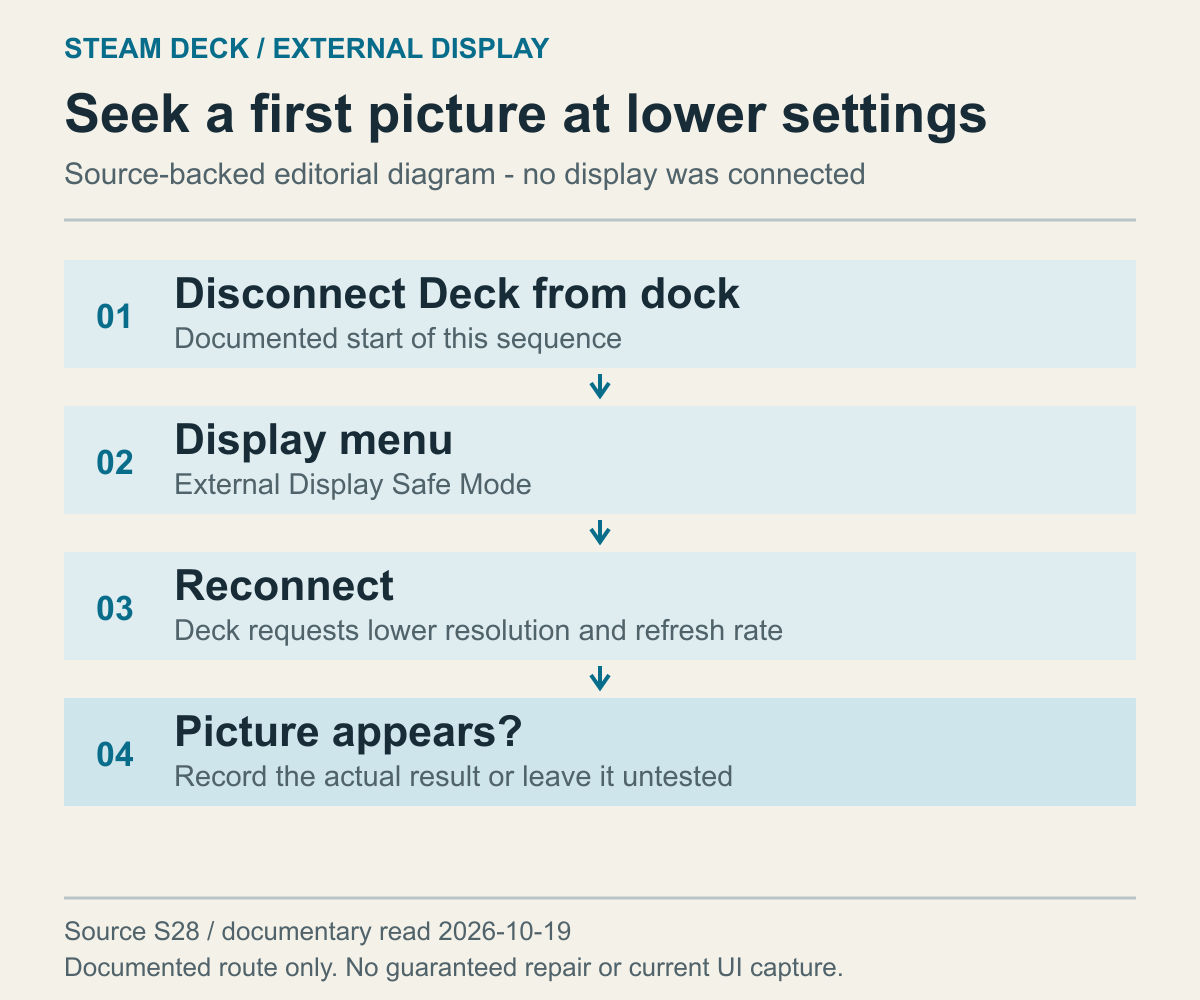
A diagram separating the documented procedure into stages, not a record of a successful physical connection.
If a game or a save operation is running, follow that game's saving and exit guidance first. This sequence does not call for forcibly closing a program while it saves just to inspect an external display. Distinguish being ready to change the connection from being able to see a picture.
Valve's documented order is to disconnect the Deck from the dock or hub, set External display safe mode to On in the Deck's Display menu, and then reconnect the Deck to the dock.
The connection being separated here is between the Deck and the dock or hub. Don't merge this with a full power reset of the dock. Adding disconnection of the TV video cable and the dock's external supply would change connection state as well as the mode choice. If the result differs after reconnecting, you could no longer isolate which change you compared. The task here is to compare through one feature's documented sequence, not to combine several reset methods.
Before choosing the feature, preserve the resolution-and-refresh pair you already know and the input currently selected on the TV. Preserving the current mode means preserving a record of its previous value. It does not mean forcing the old high mode to remain while no picture is visible. Leave an unknown value unknown rather than guessing. Avoid moving to another TV socket during this comparison. Changing the input and the mode together would prevent separating their effects in the resulting picture.
The feature chooses a low resolution and refresh rate for the external display. If a picture appears after reconnection, compare the currently available mode information with the earlier record. Judge from what you can confirm now rather than writing that the previously requested value returned automatically. The first decision is whether this display meets today's purpose. Choosing a higher mode is a subsequent question, not another outcome already established by the first picture.
A picture under those conditions means that this particular path displayed under those conditions. It doesn't establish support for higher modes or perfect condition of every cable and dock component.
If there is still no signal after reconnection, provide the current input and connection path to official support. This feature alone cannot identify cable damage or the dock's video technology.
Identify the dock's video method, not just its USB-C shape
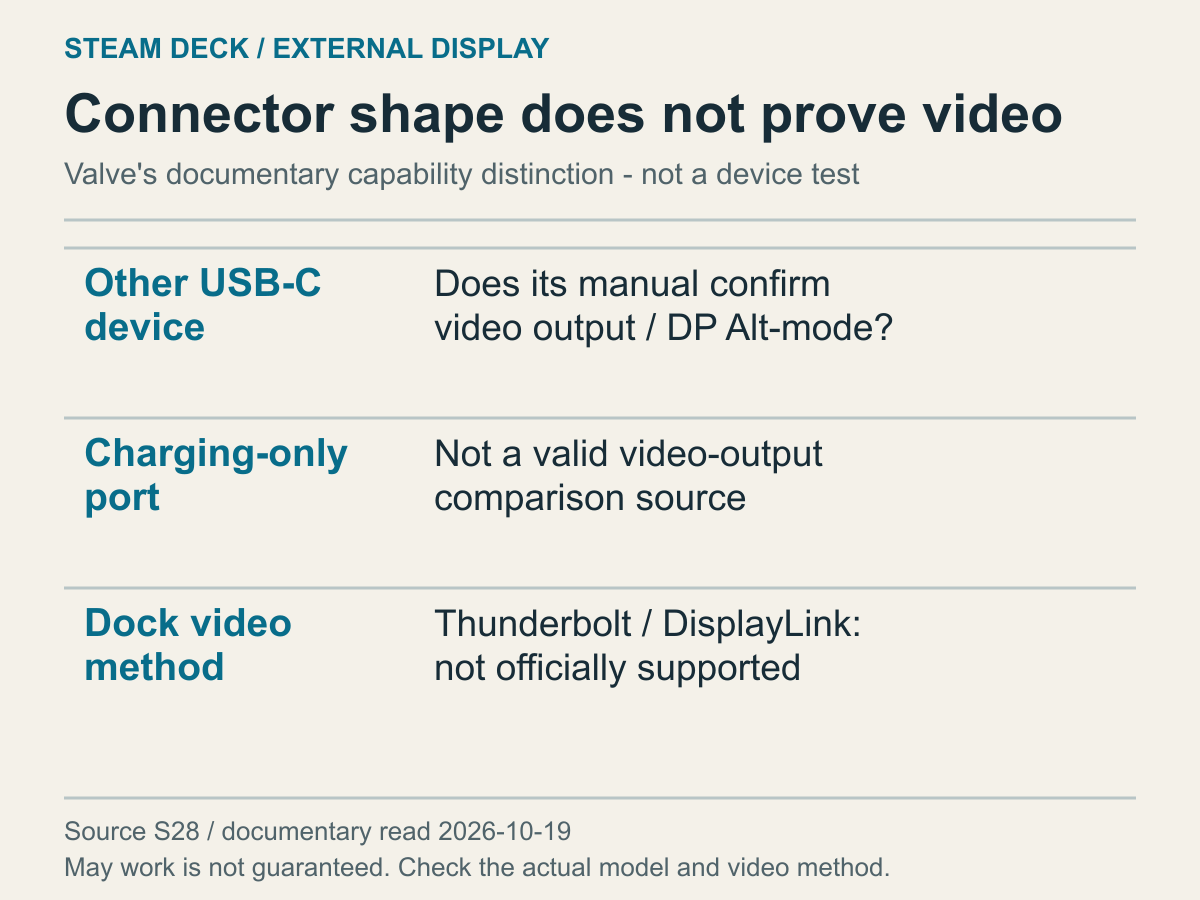
Questions about connectors and video methods are placed side by side, not physical compatibility-test results.
Even after describing the path, the dock's video method may remain unknown. A USB-C connector isn't enough to close that question. Microsoft's USB-C guidance describes video alternative modes requiring compatible device hardware and software, connected equipment and cable. This does not apply Windows settings procedures to SteamOS. Use the general capability condition, then separately check the Deck and the particular dock's official support.
Imagine connecting a work dock previously used with another computer. Its earlier picture doesn't establish the video method's support on a Deck. This isn't a claim that a particular business product is incompatible. It shows that success with the previous host and the conditions of the new host are different evidence. Record the model and video method from its manufacturer's documentation. Don't start by installing unidentified drivers or unofficial software to fill in a missing specification.
With conversion products, identify the source end too. The VESA FAQ says the USB-C end of USB-C-to-HDMI, DVI or VGA converters connects to the video-source device. Connectors physically fitting at both ends doesn't establish the correct direction. A product described for the reverse path cannot simply be assumed suitable for HDMI output into a USB-C display. For Deck-to-TV use, compare the stated input and output ends. This is neither a claim that every converter is identical nor a guarantee for a different method.
A picture from an appropriate comparison device establishes that device and mode combination. It doesn't immediately diagnose a failure when the Deck differs. Conversely, no picture from a comparison device whose video support is unknown is weak evidence for replacing a component. Before comparing, establish whether the comparison device can perform the same role. If suitable equipment isn't available, the comparison can remain unknown rather than being replaced by a guessed result.
Distinguish failure of every USB accessory from failure of external video alone. Combining them as one display problem removes information about the larger dock connection. Record whether an accessory such as a keyboard responded, if that was already observed. This isn't a request to acquire or attach new devices. Video-only failure and a setup in which neither video nor accessories have been checked lead to different support questions. A charging indication cannot supply missing results for the other functions.
If the product method or support scope is difficult to establish, describe the arrangement to Steam Support and consult the dock manufacturer's official guidance. Include Deck and dock models, power and cable paths, TV input and any observed lower-mode result. Today's decision might be retaining a working condition or identifying an unknown video method first. Choosing that branch before buying equipment can prevent replacement unrelated to the unresolved question. Preserve the limitation that not every combination was tested.