
If you've downloaded games for a flight or a hotel with unreliable internet, an installation-complete message may feel like preparation is finished. A first-launch installer or login request can still get in the way once you're there.
Offline Mode doesn't provide the online functions a game requires. For a trip, I'd record what I've actually checked without a connection alongside the game names and installed sizes. A check before departure is more useful than remembering that the download finished.
Owning a game isn't the same as being ready offline
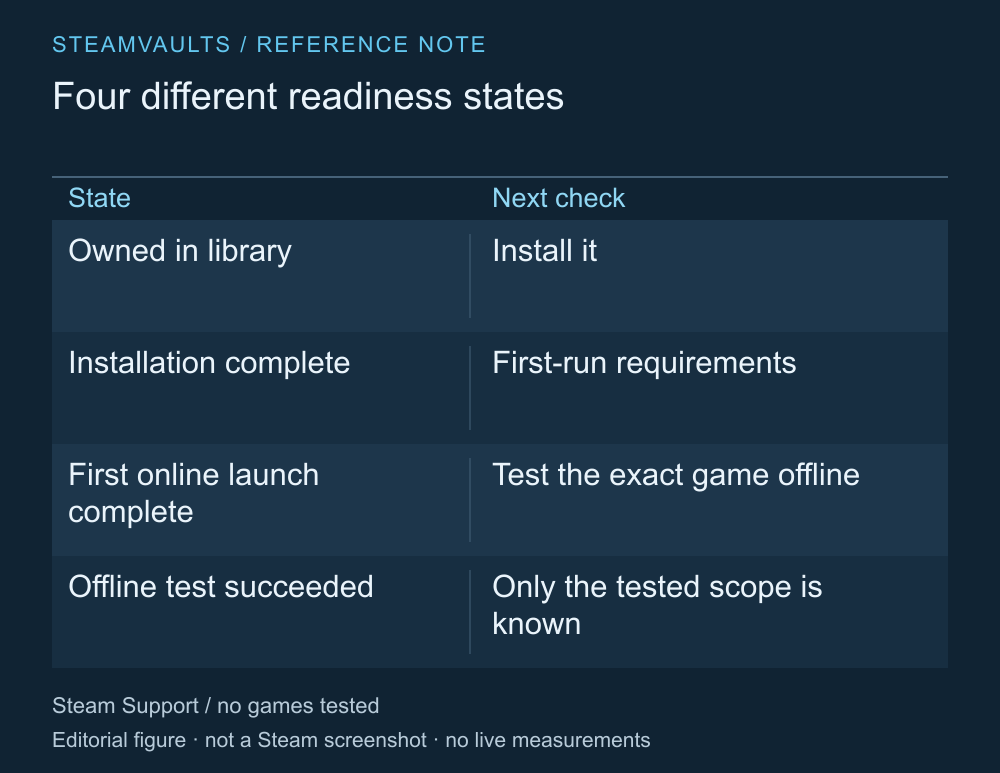
A sequence of checks. No game was run for this guide.
Valve's preparation instructions tell you to start online with saved login credentials, finish updates and launch the games to check for further requirements. Steam Support's Offline Mode guide
If the first launch starts another installation or asks for separate authentication, deal with that before leaving. A completed Steam installation and a completed first launch can be different states. Checking one favorite game doesn't establish that another is ready.
An older download that you haven't opened recently is another reason to launch the game online now. This guide hasn't inspected your library or account, so it can't produce a ready-to-play list for you.
Finish login and updates while connected
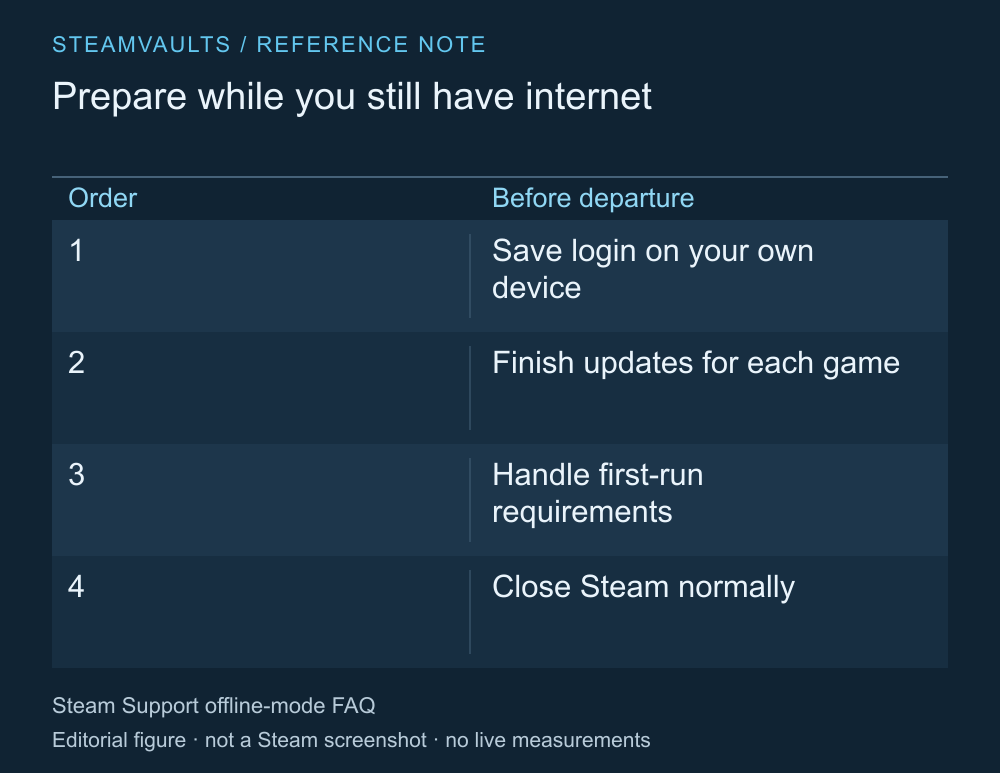
A summary of the current official preparation instructions, without credentials or account screens.
The help page read on October 5, 2026 assumes that Steam has stored your login information. Check the Remember me option at login and make sure the setting that prevents Steam from saving account credentials isn't enabled. Follow the current official guidance for exact menu names. Login information and preparation conditions
This isn't advice to save your login on a public PC. You're checking the device you manage and intend to take with you. Preparing it doesn't require sending anyone an account password or verification code.
Finish downloads and updates, then launch each game you plan to take. Beyond checking the start screen, you can check whether the save you intend to continue opens. An unresolved installation or authentication request shouldn't be expected to resolve itself offline.
Close Steam normally when preparation is done. Valve explains that forcing it to close can cause stored login information to be lost. I'd avoid abruptly turning off the device after preparing it.
Test the exact game as well as Steam's Offline Mode
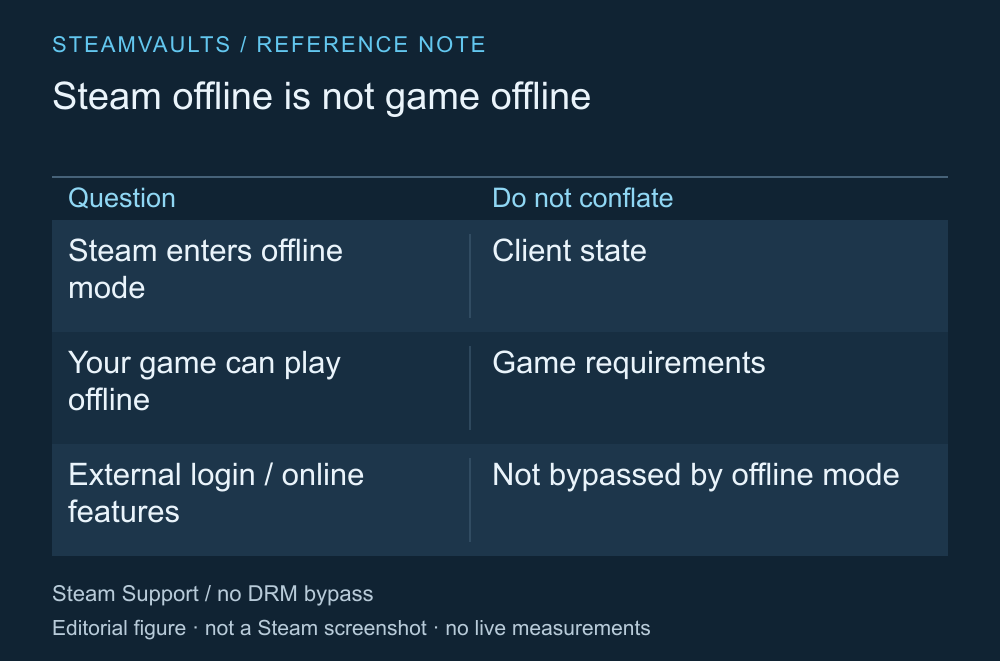
Success with one doesn't establish success with the other.
Check the official help page for the Go Offline procedure in Steam's menu. Then open the games you plan to take under conditions where internet access is actually unavailable. Complete downloads and account tasks before disconnecting a connection you still need. Switching to Offline Mode
Valve explains that games requiring an active connection or using an external launcher may not work offline. Offline Mode can't supply a connection for online multiplayer. Calling a game single-player doesn't establish that it has no separate authentication requirement either.
If it won't launch, note which screen appears and what it asks for. Read the game's official support instructions while you can still connect. This guide doesn't offer file modifications or authentication bypasses for a login prompt after connectivity is lost. The official help page also says that if Steam requires a login again, you need to go online.
Bring the local progress you plan to continue
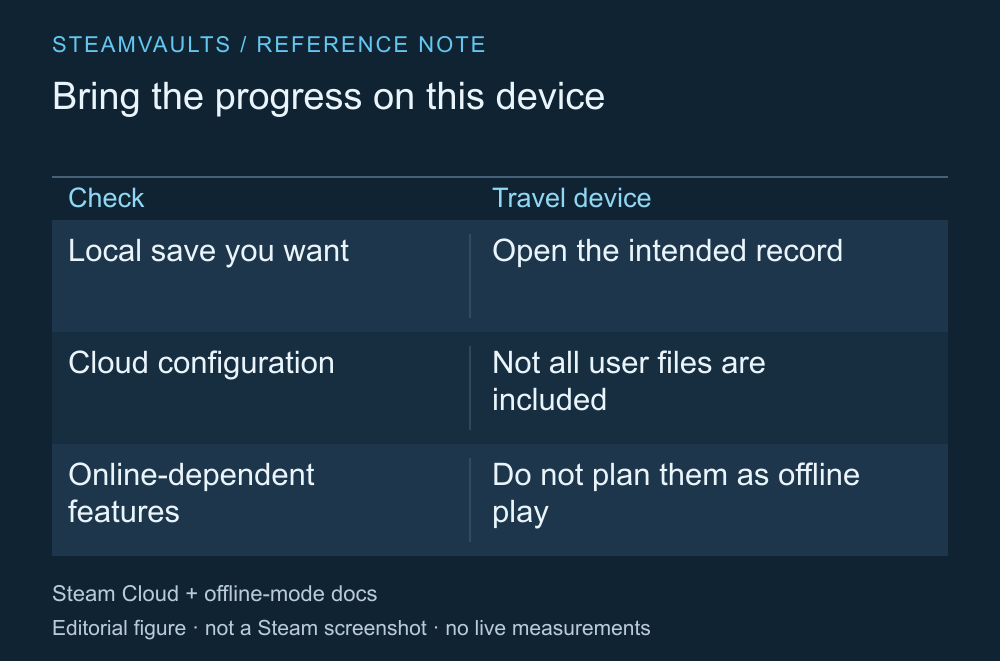
Check the save on the device you'll use rather than relying on a memory that it's in the cloud.
If you plan to continue a desktop playthrough on a travel laptop, check that the desired save opens on that laptop. Owning a game on Steam and having the needed file locally are separate facts. Steam Cloud operates on files configured by the developer. Official Steam Cloud explanation
Preserve the originals if you encounter a save conflict during preparation. This guide doesn't decide which conflicting file to choose. Read how to check a cloud save conflict for that separate problem.
Don't build a travel plan around online features with friends or extras that require connectivity. Check each game's available offline functions. One successful launch doesn't guarantee authentication for the entire offline period or access to every feature.
Keep a brief, specific note before departure
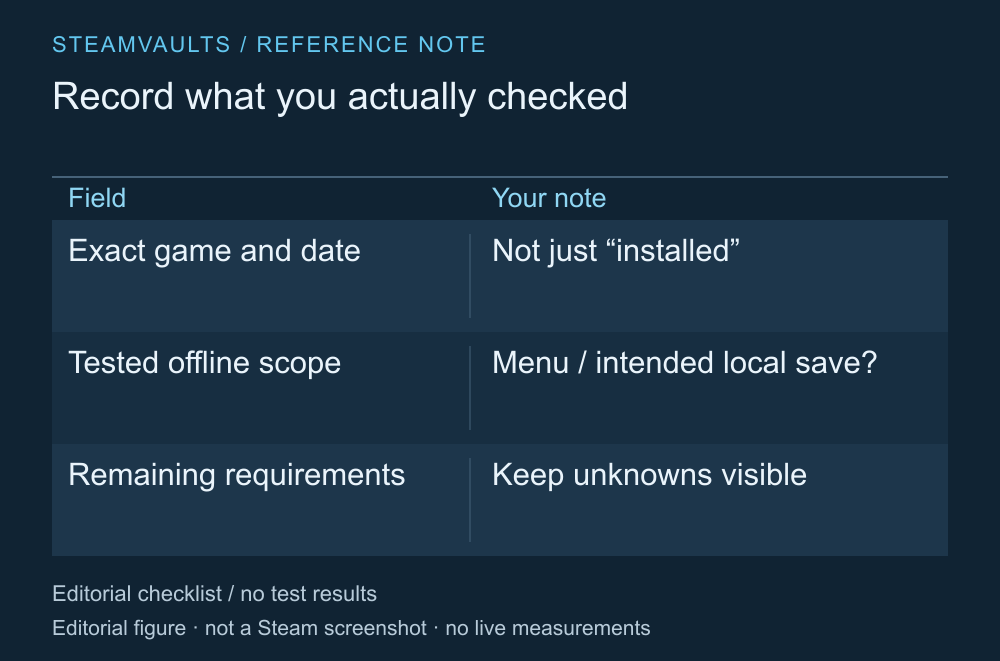
A format to fill in yourself, not a list of games actually tested.
Instead of only writing “installed,” record the game name, check date, what you opened offline and any remaining requirements. If you only reached the start screen, say that. If you opened a save, record that scope. Leaving untested conditions unanswered makes it easier to see what still needs checking before you leave.
You can't count on receiving an update after departure. Steam and games cannot update while offline, so consider what you can use in the version already prepared. Before clearing random games to make room on the travel device, settle which ones you intend to take and whether they're ready.
No actual offline game launch was performed for this guide, and it doesn't offer a list promising that all Steam games work without connectivity. It separates the tasks to finish online from the checks needed for each game. Discovering a requirement while you can still address it at home is preferable to finding it after departure.