
Verification finishes, yet the game stops at the same point. Before deciding to run it again, examine mods or reinstall everything, establish what you were doing when the error appeared and whether it still occurs under those conditions after verification.
This guide helps you choose a check from the symptoms you've seen and preserve originals before any next step involving deletion.
The procedures and evidence come from public official documentation read on October 12, 2026, Korean time. No PC restart, verification, game launch, mod removal or save restoration was performed for this article. The symptom tables and comparison sequence are editorial suggestions for choosing a next check, not diagnostic results.
Check the verification message and the original symptom separately
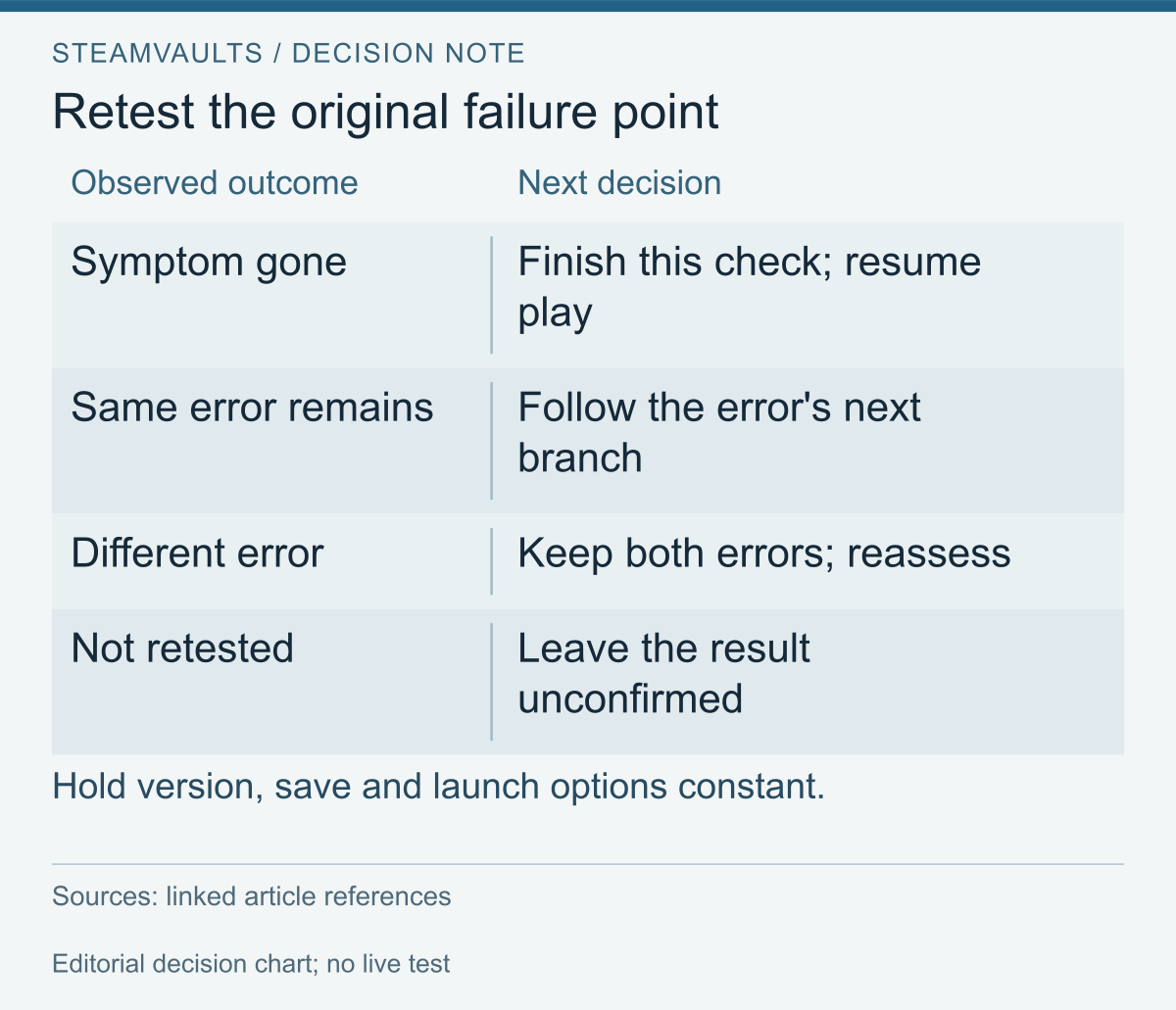
The table compares outcomes under the original conditions; it does not diagnose a cause.
Record the original error and failure point. After verification, return to that point with the same game version, launch options and save. Mark any intervening update or settings change as a difference in conditions.
| What you saw after verification | Result when testing the original conditions | Next action |
|---|---|---|
| Files were downloaded again or processed | The same symptom did not occur this time | Finish this check and continue playing. One successful attempt doesn't establish long-term stability |
| Files were downloaded again or processed | The same error remains at the same point | Record that it persists after file processing, then examine the other branches below |
| Verification passed | The same error remains | Follow what the error points to: a save, mod, component or connection condition, rather than seeking another pass message |
| A failure message or interruption occurred | You haven't launched the game yet | Record the message and follow-up processing. Leave the launch result unconfirmed |
If verification passes and the symptom is also gone at the original scene, this step can end. Further verification isn't necessary unless the problem returns or a new symptom appears.
When can a failed-file message be an exception?
Valve documents possible verification failures for local configuration files it does not replace. Configuration-file exception Do not extend that exception to unidentified files or other errors.
If the problem remained and you verified again, note whether a mod tool reapplied changes or the settings or game version changed in between. A repeated file count alone doesn't diagnose a faulty storage device.
The failure stage determines what to check next
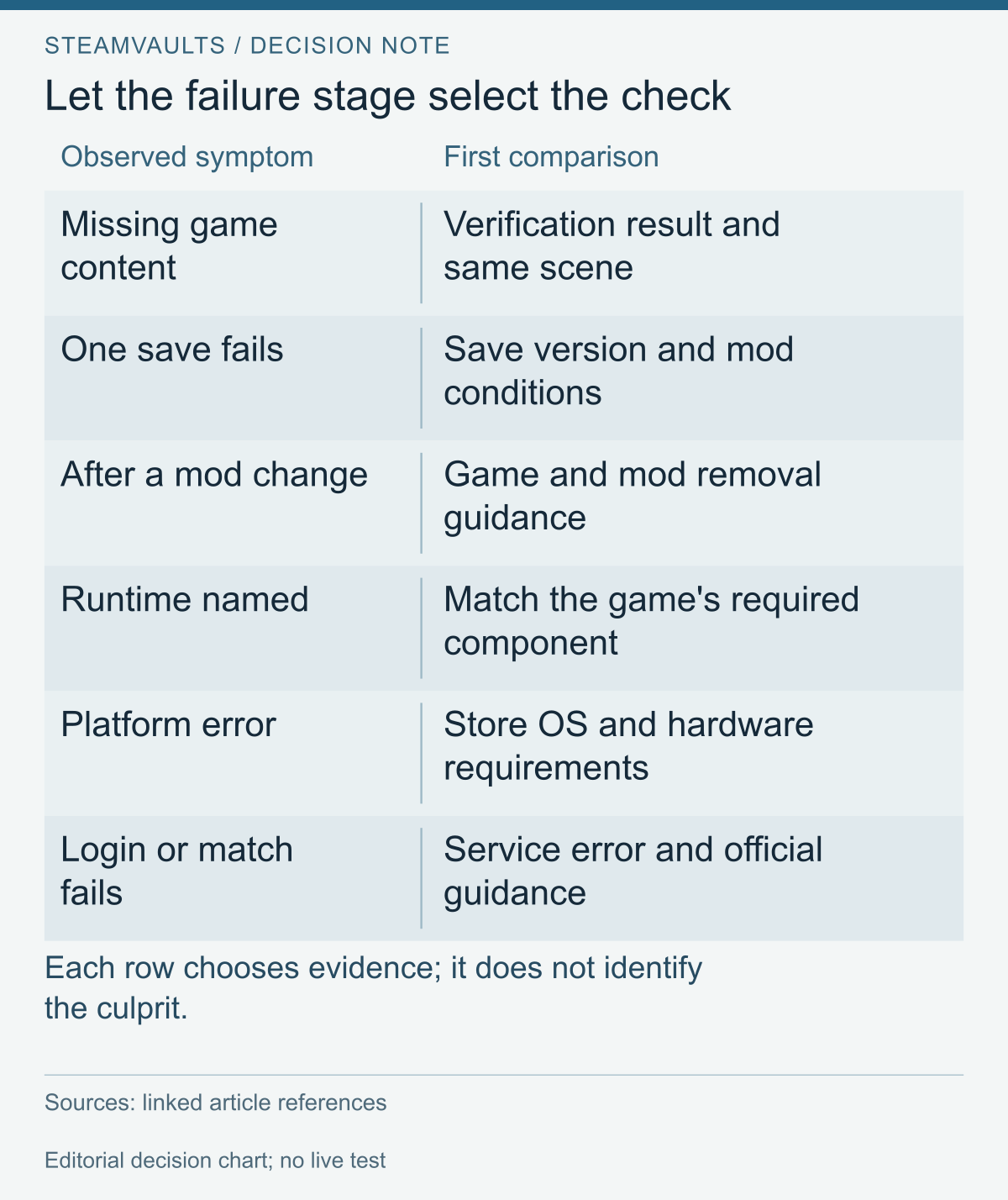
Missing content, saves, mods, runtime components, platform errors and connection errors lead to different comparisons.
The table helps choose which evidence to compare first from what you've already observed. It doesn't identify the cause.
| What you observed | First comparison | Question that remains after a verification pass |
|---|---|---|
| Missing textures or content, or an error saying an installed file cannot be found | Verification and subsequent file processing; changes in the same scene | Is the same content still missing? Does the error refer to a game installation file? |
| The menu opens, but only a particular save fails to load | That save's version and mod conditions; a safe comparison with another save | Does it differ only for the existing save, or does another save fail too? |
| The issue began after adding or updating mods | Game and mod versions; the mod author's compatibility and removal guidance | Did the tool reapply changes after verification? Could the mod still affect that save? |
| The error names Visual C++, .NET or DirectX | The exact error name; the game's developer guidance on required components | Have you matched the required component and installation conditions for this game? |
| The game opens, but login or joining a match fails | The service's error code and official connection guidance | Is the question about the account or connection stage rather than installed files? |
| An error says the game is unavailable on the current platform | Supported operating systems and system requirements on the store page | Does the actual operating system and hardware meet the supported conditions? |
A login or online-connection error doesn't immediately establish a server outage. Identify the failing stage and error code first. This comparison doesn't require bypassing login or trying offline mode in a game whose offline support you haven't established.
Turning mods off does not establish that their effects are gone
CD PROJEKT RED warns that Cyberpunk 2077 mods can cause unexpected behavior and leave effects in save files. That game-specific warning cannot define how every game saves progress. It does give a concrete reason why disabling a mod may not make an existing save independent of it.
If you've used mods, a verification pass is not evidence of completed mod removal. Consult the game and mod guidance on reverting overwritten distribution files, user-added files and the mod tool's applied state. If removal or existing-save compatibility is unclear, ask the mod author or game support before deleting originals to make a comparison.
Compare another save only after confirming how to preserve the original and prevent overwriting it. If only the existing save fails, include that difference in the support request; it doesn't prove corruption. Skip this comparison if creating a new save could overwrite existing progress.
Check runtime components and compatibility separately
Steamworks Common Redistributables lets developers configure installation of required components such as Visual C++, .NET and DirectX 9. A successful installed-file check and a separate component error can therefore coexist.
Microsoft's Visual C++ Redistributable guidance directs users fixing an app to its developer's instructions first. The package must match the application's target architecture, such as x86 or x64; the operating system's name alone isn't enough to choose it. Compare the error's name with the game's support guidance. Don't add DLLs from unknown sources or indiscriminately remove all existing packages. Registry deletion described in developer-facing Steamworks documentation is not a default repair step for players.
Valve defines Game is not available on your current platform as an unsupported-operating-system error. Check operating system and hardware conditions under the store's System Requirements. If the operating system is supported and the error persists, contact Steam Support. Official platform-error checks
If the game closes before opening a window, the launch environment remains relevant. Valve's launch-failure guidance includes system requirements and interference from nonessential software. This doesn't identify a particular driver or background app as your cause. It provides grounds to check changes requested by game support, recording them one at a time.
Preserve originals and comparison conditions before verification
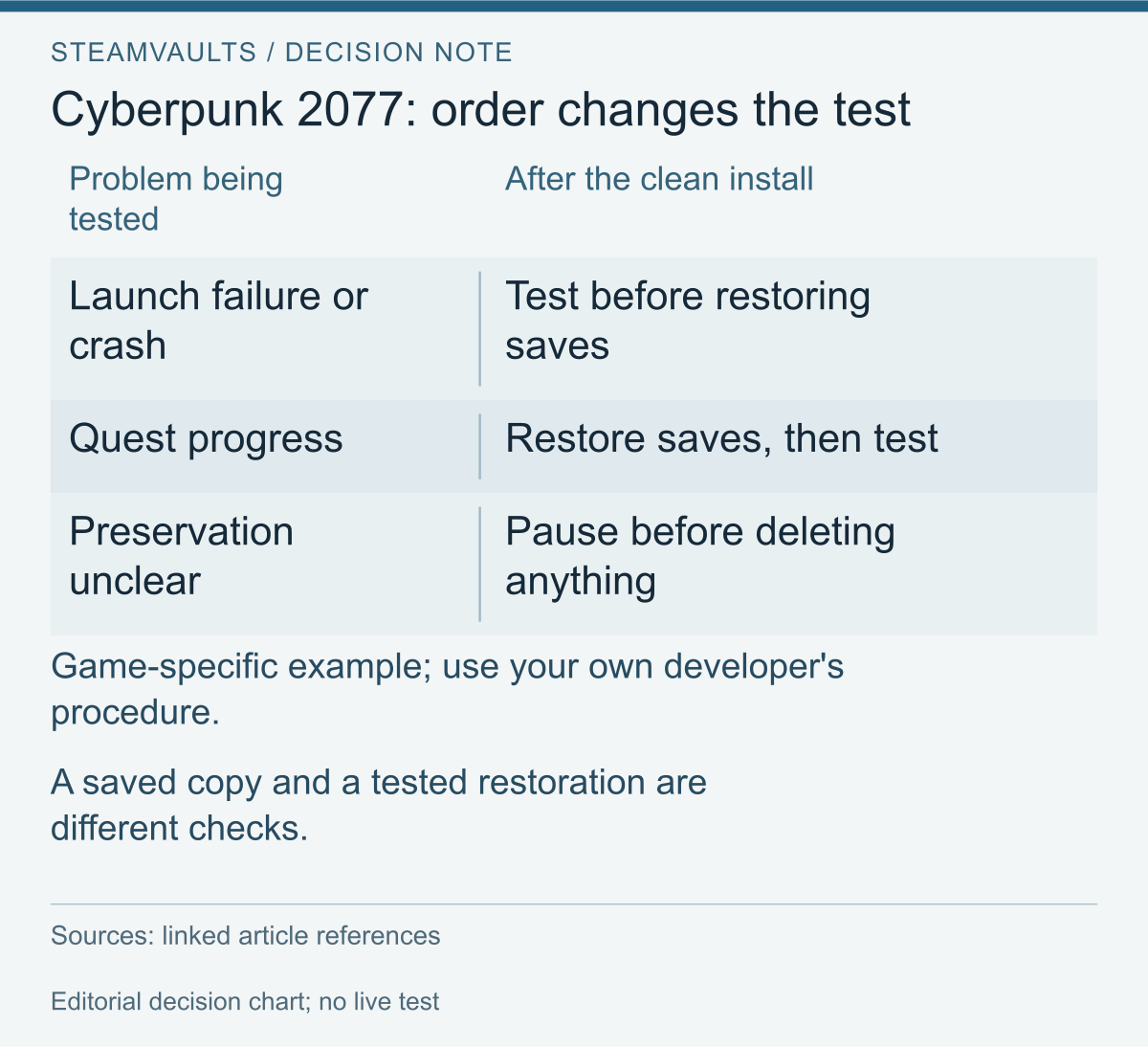
The two sequences come from that game's procedure; the third row pauses deletion when preservation is unclear.
Exit the game normally. Check for unsaved changes in mod tools or configuration editors. If a tool automatically reapplies mods during the comparison, consult its official method for checking the applied state. This doesn't call for forcibly ending every process or switching off security features.
For important progress, find the developer's save-location and preservation guidance. Record what to copy, the original location, the separate copy's location and when you copied it. If the path or necessary files remain unknown, stop before a next step involving deletion or a reset. Having a copy doesn't mean you've tested restoration in that game.
Steam Cloud synchronizes files through developer-configured paths or APIs. It is not necessarily a backup of the entire installation folder and all personal files. What Steam Cloud synchronizes Don't delete saves or overwrite Cloud files before verification. If a sync conflict already exists, first consider preserving originals during a Cloud conflict.
Before proceeding to a clean reinstall
A normal uninstall and reinstall isn't necessarily the developer's clean-install procedure. Cyberpunk 2077's official clean-install instructions, for example, address save preservation and Cloud settings before game-specific folder deletion. Their paths and deletion scope don't transfer to other games.
The instructions also distinguish the post-install checks. For technical problems such as launch failures or crashes, test before restoring saves; for quest-progress problems, test after restoring them. The point at which you reintroduce the problem's conditions changes what you can check. Follow the relevant developer procedure for your own game.
If support recommends a clean reinstall, establish the deletion scope, the files and locations to preserve, how to handle Cloud and when to restore originals. Don't begin deleting folders while preservation or restoration conditions are unknown. This article does not substitute a deletion path for your game's instructions.
Return to the original failure point after the check
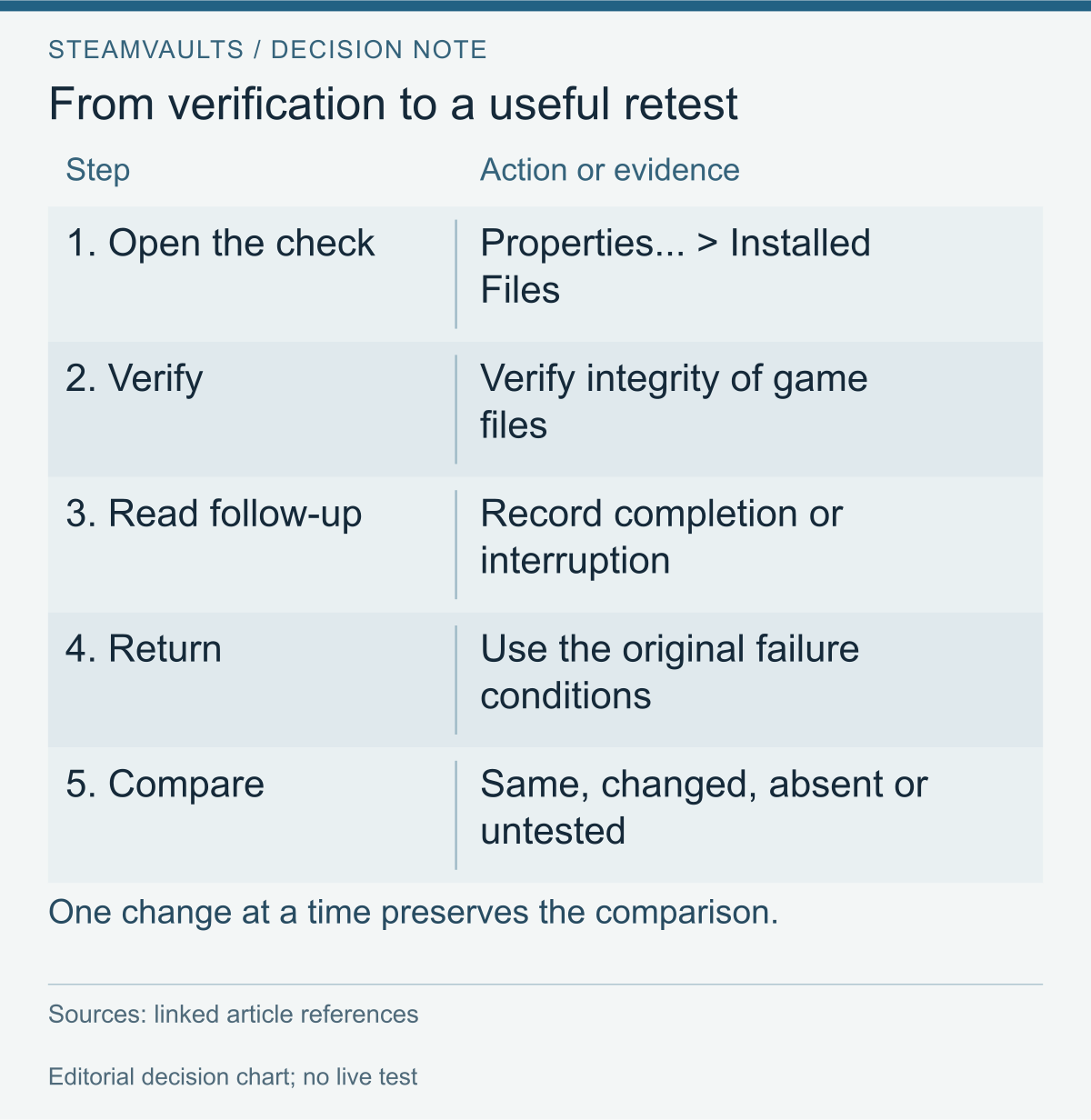
The first two rows summarize the documented controls; the remaining rows are an editorial comparison sequence.
Restart the PC, then right-click the game in the Steam Library: Properties... > Installed Files > Verify integrity of game files. Verify one game at a time, separately from intensive tasks such as defragmentation or a virus scan. Official verification instructions
Record the completion message and subsequent download or file processing, then launch with your prepared comparison conditions. Return to the failing menu, or the particular save whose preservation conditions you've checked. If the error changes, record the old and new errors together rather than marking the issue resolved. Interrupted follow-up processing or an untested launch under the same conditions leaves that result unconfirmed.
Tell support what you checked and what you could not check
The following details reduce the conditions support has to ask about again. Exclude passwords and authentication codes. If logs or screenshots contain personal information, check what is needed before submitting them.
- Symptom: Failure point, complete error message or code, and time of occurrence.
- Environment: Game version and operating system; device information or diagnostics requested by support.
- Your setup: Mod and tool versions, launch options, the affected save and changes since the last successful launch.
- Verification: Time and result message; whether subsequent processing finished or was interrupted.
- Retest: What you actually saw: the same error, a different error or no recurrence; any changed conditions.
- Attempts and preservation: Steps actually taken and originals retained. Mark unperformed steps and unknown values explicitly.
If game support requests a Windows diagnostic report, follow its instructions. CD PROJEKT RED gives Windows key + R → dxdiag → Save All Information... for a DxDiag report. This communicates the PC environment; it doesn't establish a verification pass or the cause of an error.
If the same symptom remains under the same conditions, take that result to the relevant support guidance. Details for reporting a game problem can help organize the request. Repeating verification without a changed condition, or combining mod removal, a settings reset and reinstallation without records, doesn't add a useful comparison.