


When download speed falls to 0, it's natural to look at the internet connection first. Yet disk activity may continue, with Steam showing an installation or patching task. Would cancelling the download mean starting again?
The download number alone doesn't establish that the task has stopped. Receiving files over the internet and applying their contents to an installation are different operations. Disk activity alone doesn't prove that everything is healthy either. Look for what is actually changing.
Read the current task, not just the speed
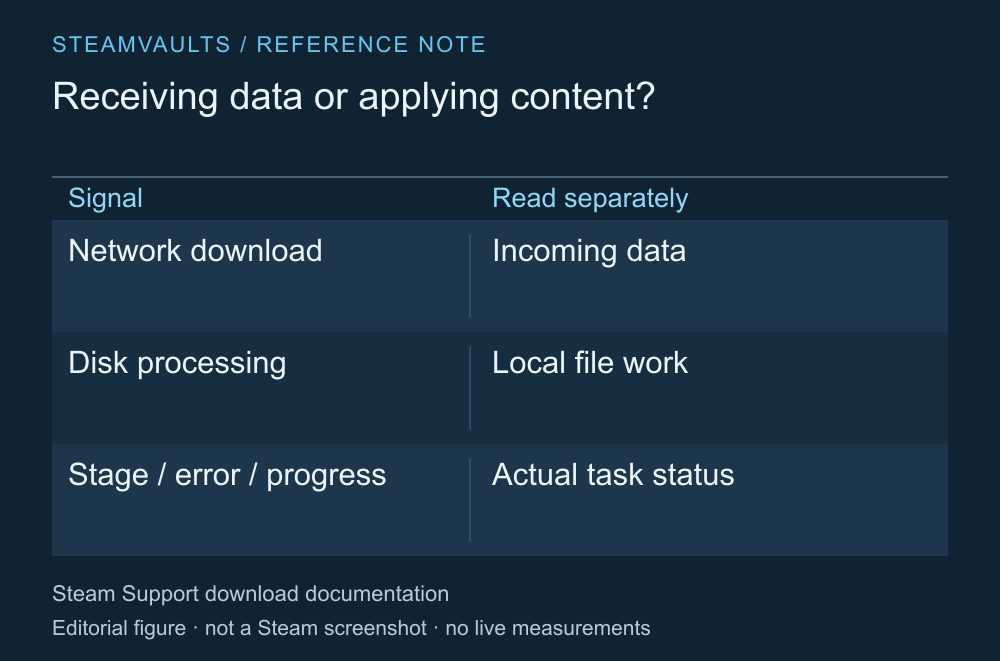
An explanation of task stages, not an invented speed graph.
Steam's Download Manager lets you track downloads and installation progress. First read the task shown for that game, changes in overall progress and any error message. A brief peak speed tells you less than the stage Steam is working on now. Steam Support's download and update guide
Once a download has finished and a patch is being applied, there may be periods with no further internet transfer. Rebuilding existing content doesn't follow the same pattern as downloading it. Also check whether the task is waiting for the network, paused or stopped by an error.
Don't compare the download and disk displays as if their numbers must match. Depending on the setting, network transfer may appear in bits or bytes. Similar speeds aren't a test of a healthy installation. The useful information is the task state for the game.
A small patch can rebuild a large file
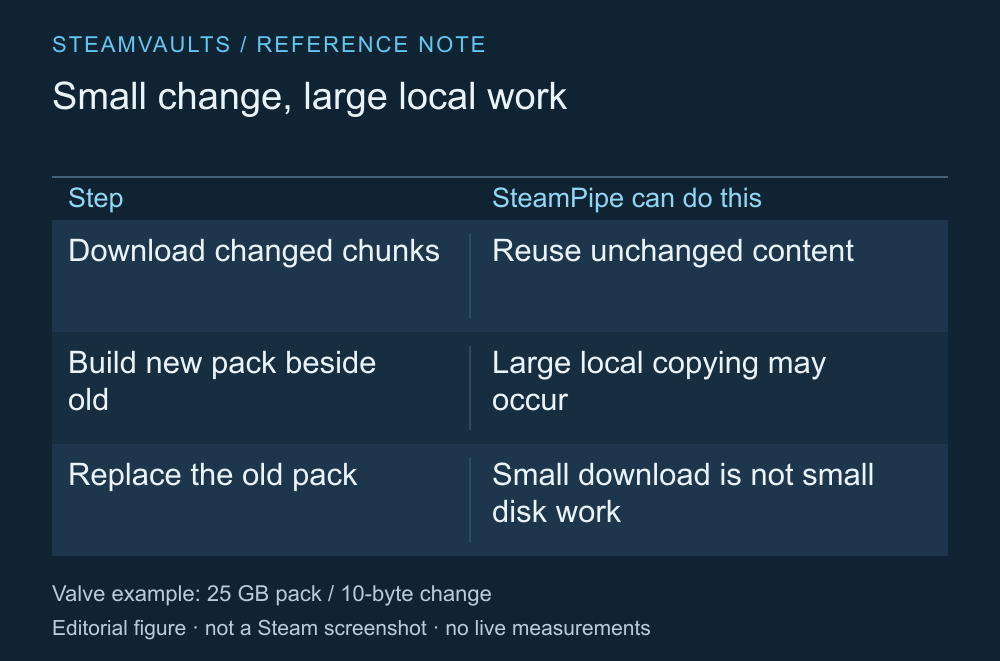
A reference table based on Valve's distribution documentation. Your disk activity was not measured.
Valve's SteamPipe documentation explains how unchanged content is reused while the necessary changed chunks are downloaded. If a game uses large pack files, Steam may build a new pack beside the old one and then replace it, creating substantial local disk work. SteamPipe update processing
Valve's illustrative example says that changing only 10 bytes in a 25GB pack can still require copying almost 25GB locally. It's an example of the distribution structure from Valve, not a measurement I made on a particular game. It doesn't establish that your current update needs that amount of work.
A small remaining download therefore doesn't tell you that installation is nearly finished. Using your drive speed to promise an exact completion time, or claiming every game needs twice its size in free space, would go beyond this evidence. Knowing that local processing can be larger than the transfer helps explain why work may continue after the download figure has shrunk.
Keep checking for actual progress
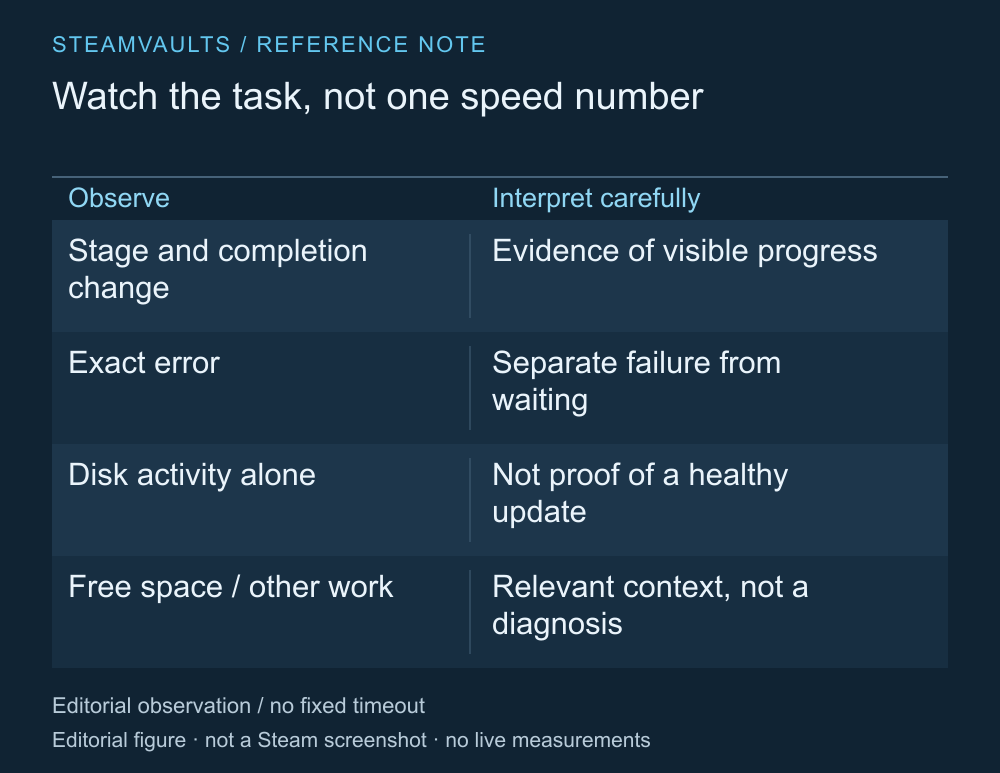
A list of things to observe, not a standard for how long waiting is normal.
Look for changes in overall progress, a different processing stage or a new error. You can also check free space at the installation location and whether another large task is running. Recording the current state before cancelling anything gives support more to work with than “it was at 0.”
This guide doesn't set a normal waiting time in minutes for every PC. File layout, storage hardware and other running tasks can make similar displays describe different situations. An active disk graph isn't conclusive evidence that this patch is successfully progressing.
I'd keep watching when progress is changing and no error is showing. If I can't confirm progress or the same error repeats, I'd investigate that error rather than leave the task indefinitely. Waiting still calls for observation.
Check the problem before choosing a reinstall
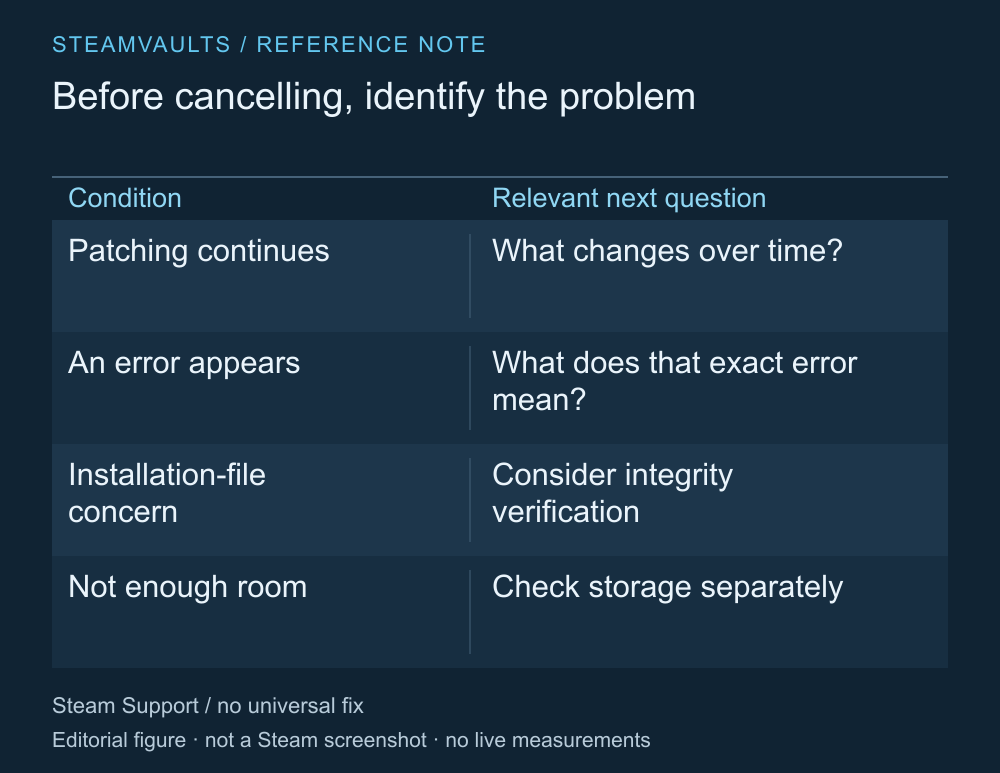
The diagram does not automatically recommend stopping or deleting the installation.
Steam Support gives troubleshooting steps for download and installation errors based on the specific problem. Restarting and checking files are among them, but the help page needn't become a list to apply all at once to every situation. Official installation and update troubleshooting
If there's reason to suspect installation files, read what integrity verification can check. If capacity is the problem, moving to another drive on the same PC is a separate option. Repeating a procedure for a different type of problem doesn't clarify the current one.
Before cancelling a download with continuing disk activity or deleting an installed game, read what Steam is doing. This guide was compiled from official documents read on October 5, 2026. It doesn't diagnose your connection or certify the health of your storage device.