
Steam Families: ¿por qué se bloquea un juego si dos personas quieren jugar?
Qué revisar si un juego de Steam Families aparece bloqueado: copias disponibles, DLC, exclusiones y los dos plazos de un año.
Idiomas del artículo
En este artículo
Un juego aparece en la biblioteca familiar, pero no se inicia. Es fácil dudar si el bloqueo se debe a que otra persona está conectada o a que se configuró algo mal. Antes de salir de la familia y volver a entrar, conviene comprobar quién está jugando ese juego. Cambiar de familia tiene sus propios plazos de espera.
Steam Families permite que hasta seis integrantes cercanos del mismo hogar accedan a juegos que se pueden compartir. Que se unan seis personas no convierte una copia en seis. Para entender la función, me resulta más útil contar las copias disponibles de cada juego que contar integrantes.
Lo siguiente se basa en la guía y preguntas frecuentes de Steam Families, comprobada el 4 de septiembre de 2026. Si la cuenta muestra otra indicación, esa indicación tiene prioridad.
Lo primero que indica el candado: una copia está en uso
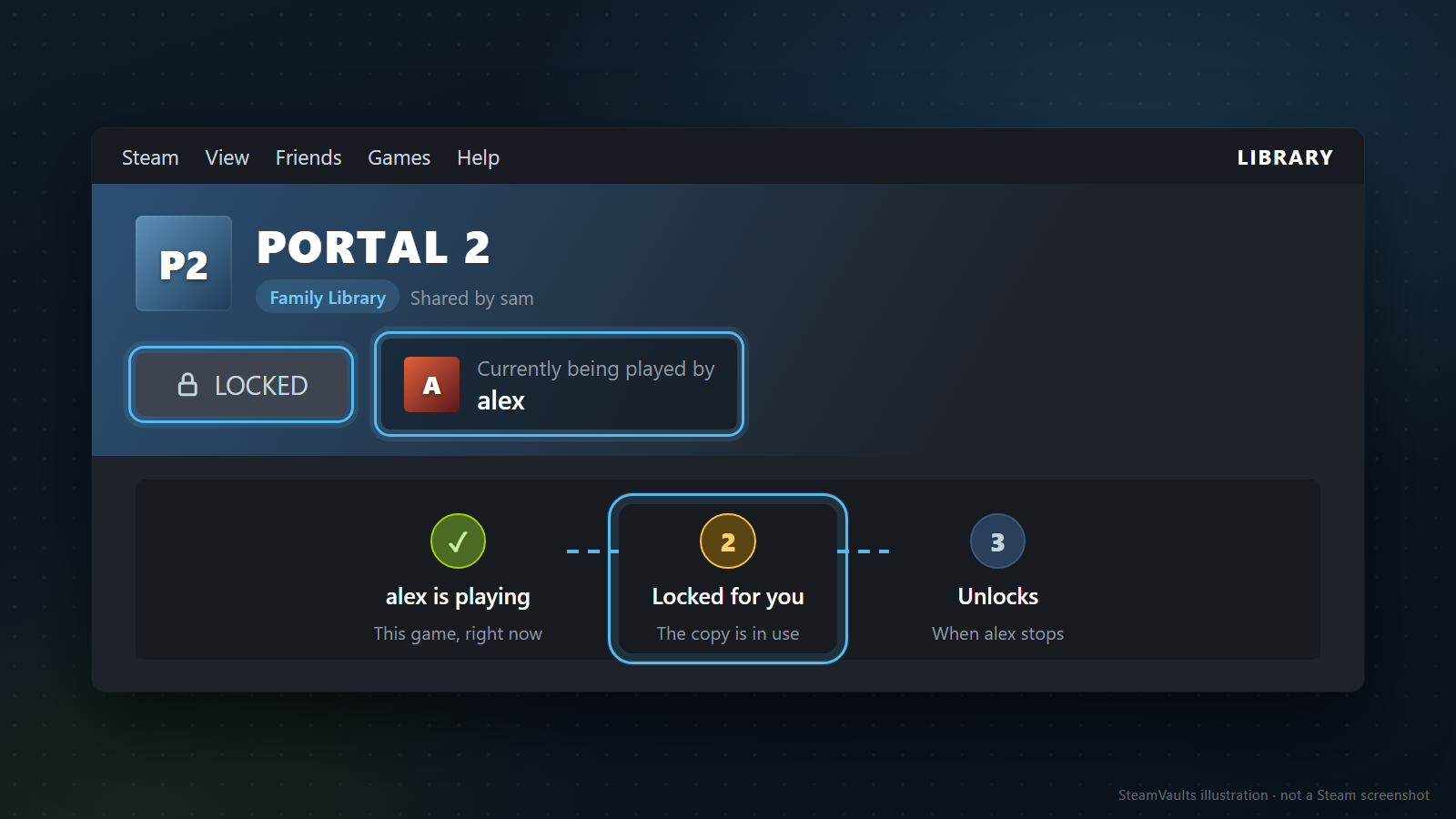
Steam Support explica que, cuando un juego de la biblioteca familiar está bloqueado, el cliente muestra quién lo está jugando y mantiene el bloqueo hasta que esa persona deja de jugar. Lo que conviene comprobar es el estado de uso de ese juego. Que otro integrante esté conectado a Steam o esté jugando otro título no basta para explicar el candado.
Si no aparece quién lo está usando o aparece un error diferente, no hay que dar por hecho que faltan copias. También hay que revisar si el juego está excluido, cómo encajan sus DLC y si existen condiciones de región o de sistema operativo.
Para jugar el mismo juego a la vez, cuentan las copias
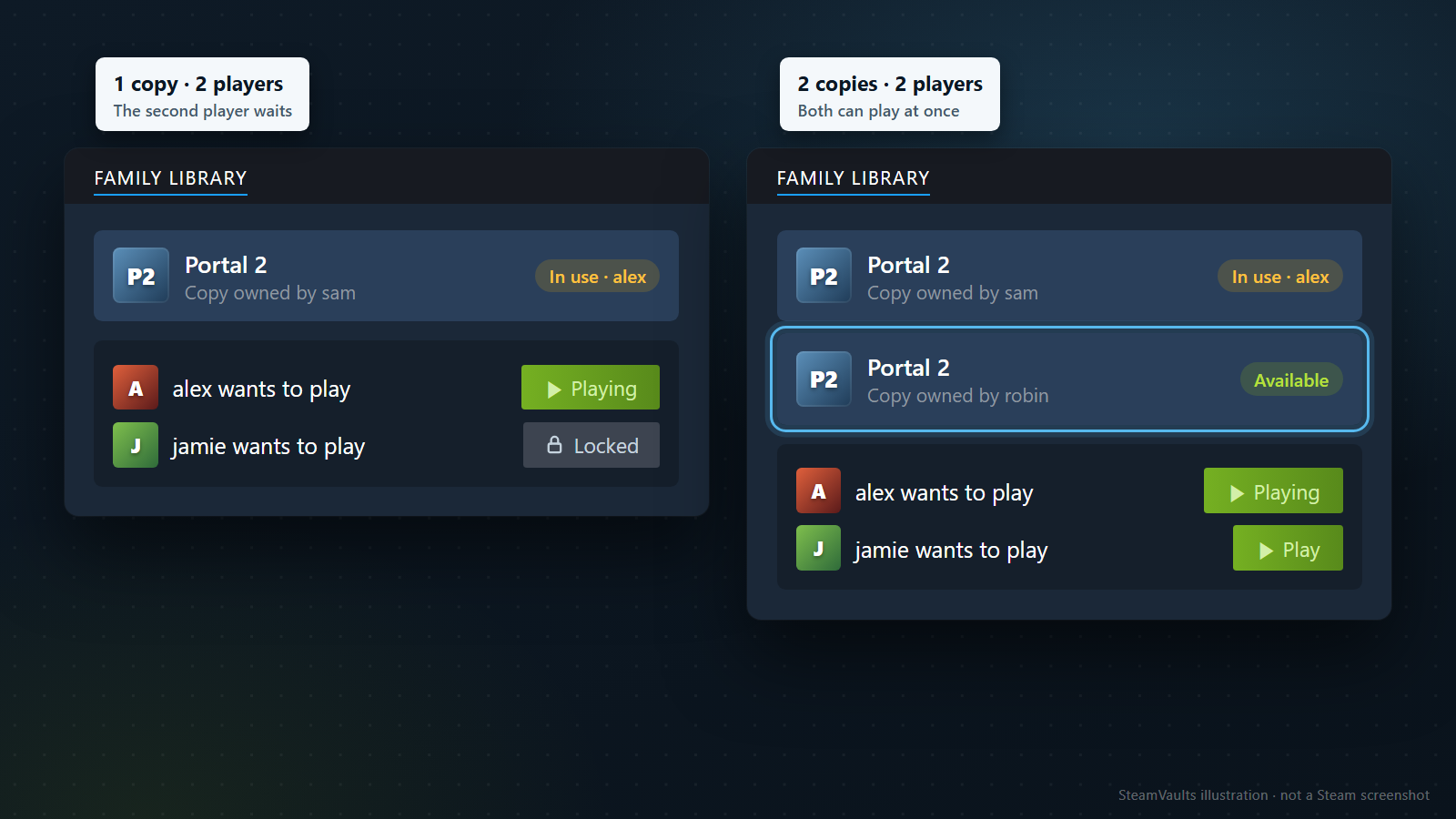
El ejemplo de Valve menciona Portal 2 y Half-Life. Si en la familia hay una copia de cada uno, una persona puede jugar Portal 2 y otra Half-Life. Para que dos personas jueguen Portal 2 al mismo tiempo, hace falta otra copia de Portal 2. Que el mismo título aparezca en las listas de dos cuentas no significa que existan dos copias utilizables.
No hace falta apresurarse a comprar. La decisión depende de si otro integrante ya posee ese juego y de si realmente necesitan jugarlo al mismo tiempo. Si la copia que queda tiene DLC distintos, esa diferencia debe revisarse primero.
Al elegir otra copia, también importan los DLC
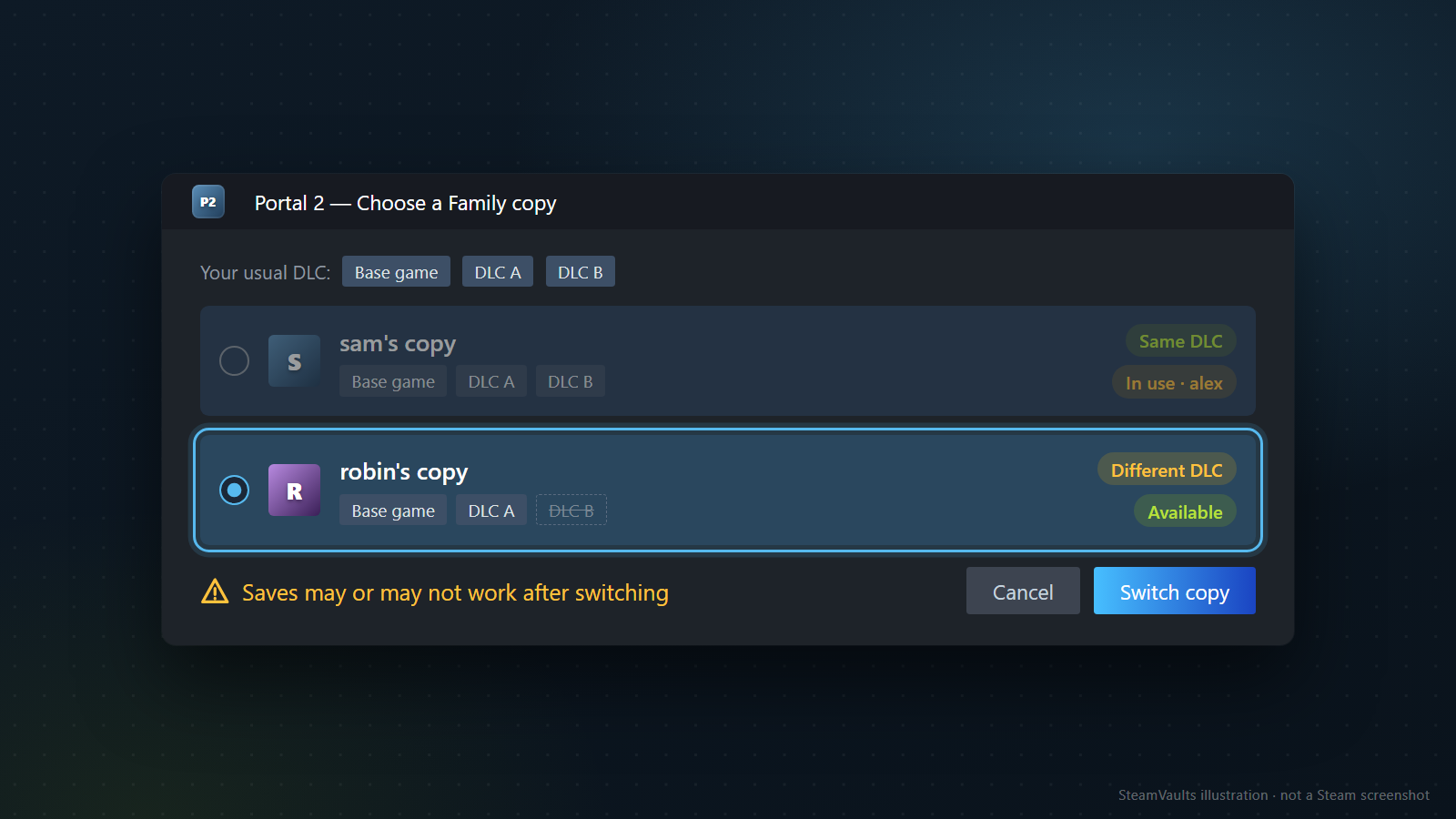
Steam indica que puede usarse otra copia familiar con la misma configuración de DLC. Si no existe una copia así, puede preguntar si se quiere cambiar a una copia con DLC diferentes. Cuando varias personas poseen el juego, se puede elegir qué copia usar y cambiar la elección más adelante; Steam puede recordar la selección anterior.
No conviene elegir solo por el nombre del juego. El FAQ advierte que, al cambiar a una copia con una combinación de DLC diferente, las partidas guardadas pueden funcionar o no. El resultado depende del juego. Si existe un guardado importante, primero hay que comprobar con qué copia se ha jugado.
Los DLC compartidos también tienen un límite. Al ejecutar el juego de otro integrante, se puede acceder a los DLC de esa persona que el editor haya marcado como compartibles. Que alguien de la familia haya comprado un DLC no significa que todos podrán usarlo siempre.
Puede quedar fuera aunque la copia siga disponible
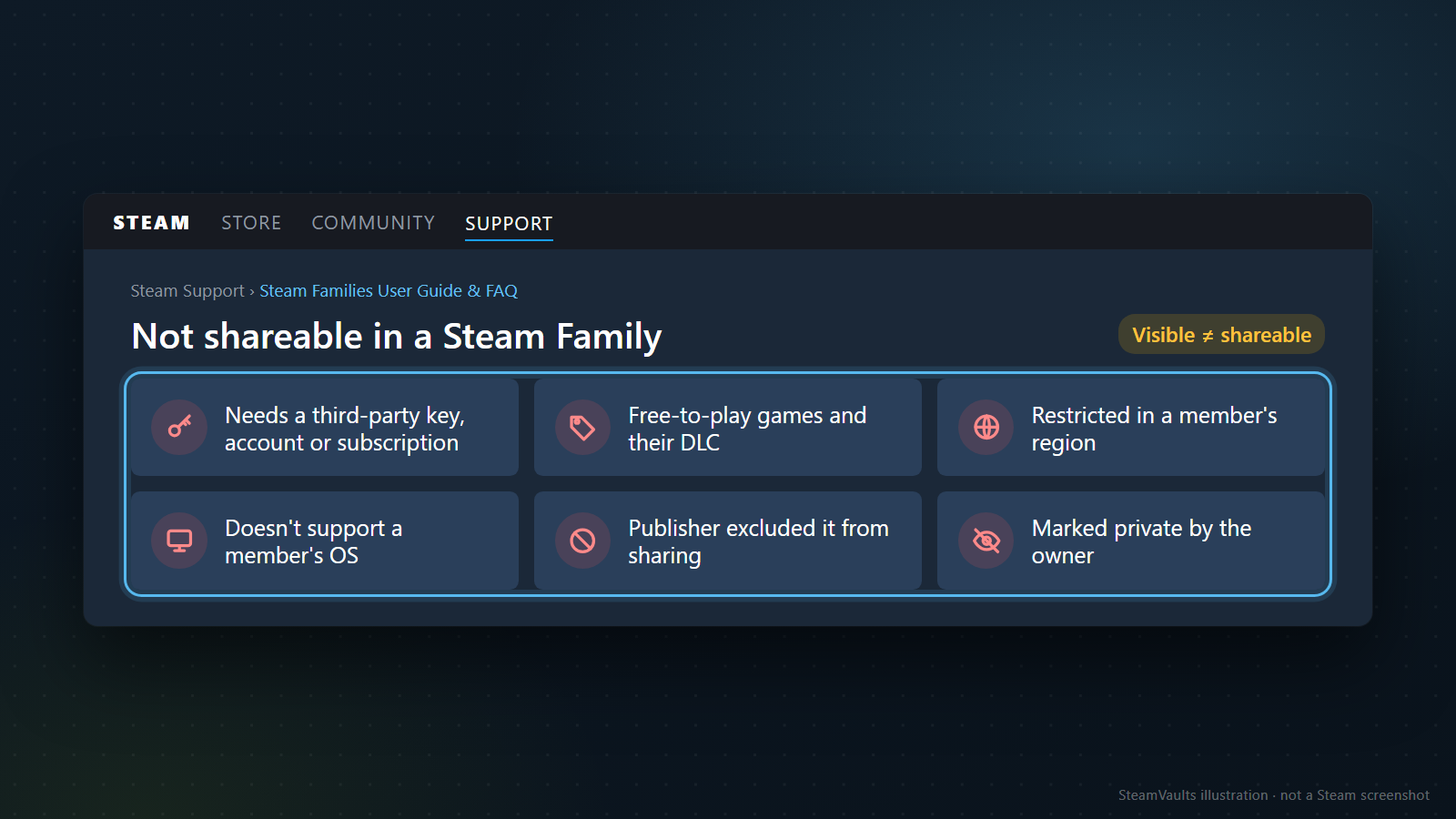
Las exclusiones que enumera el FAQ incluyen:
- juegos que requieren una clave, una cuenta o una suscripción de terceros;
- juegos gratuitos y los DLC comprados para ellos;
- juegos o DLC con restricciones regionales, o títulos que no son compatibles con el sistema operativo de otro integrante;
- juegos que el editor decidió excluir del uso compartido;
- juegos que el propietario original marcó como privados.
El editor puede decidir más adelante excluir un título del uso compartido. Por eso, un comentario antiguo que dice que funcionaba no demuestra que siga siendo compatible. En ese caso es mejor revisar la información del juego que cambiar repetidamente la configuración familiar. Steam Families no sustituye una cuenta o suscripción externa ni resuelve la compatibilidad con el sistema operativo.
Si la invitación no avanza, «un año» puede significar dos cosas
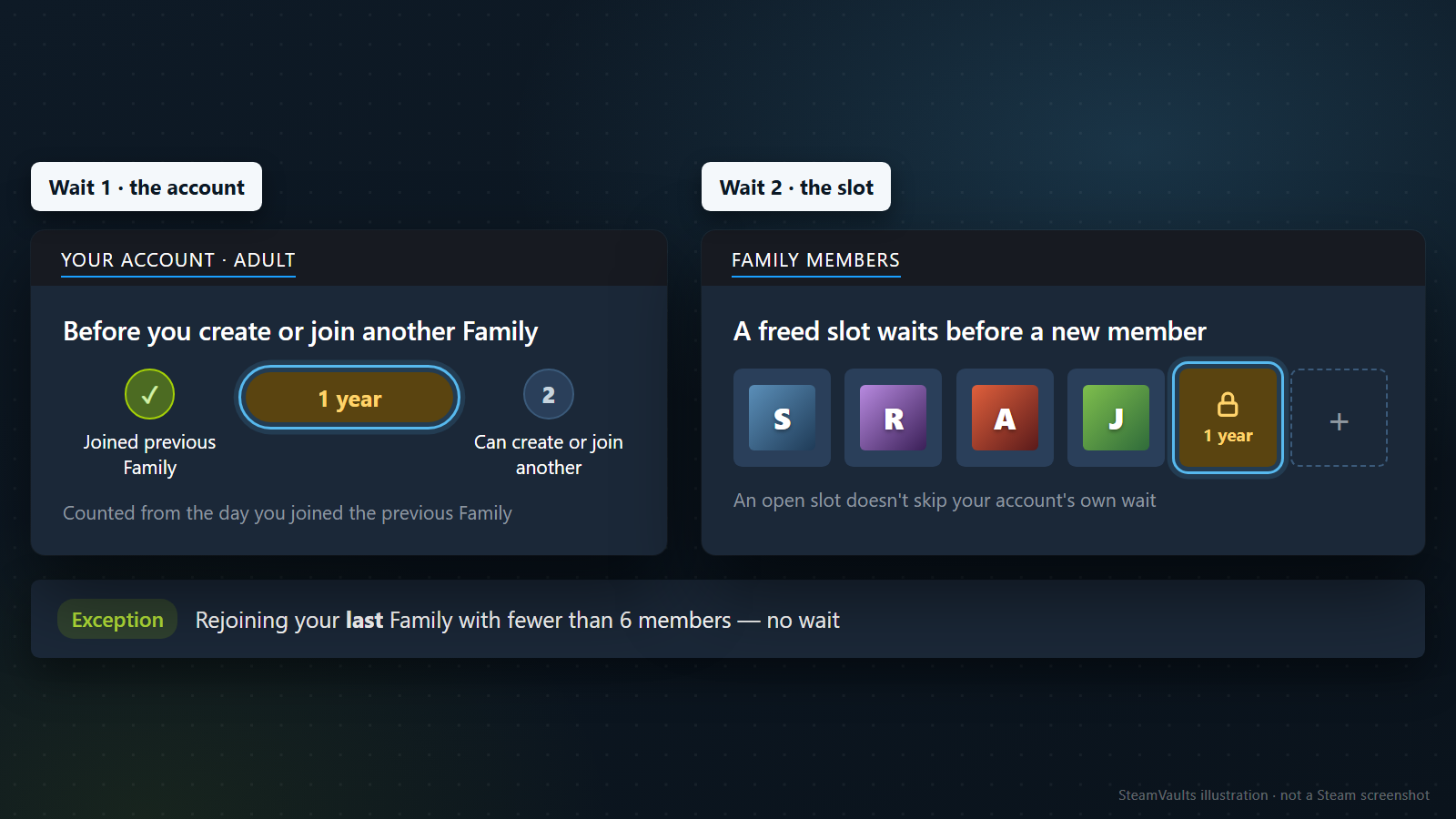
El bloqueo del juego y la limitación para unirse a una familia son asuntos distintos. Un integrante adulto puede salir de una familia, pero debe esperar un año desde el día en que se unió a la familia anterior antes de crear otra o unirse a una distinta. Además, una plaza de la familia tiene su propio periodo de espera de un año antes de que pueda ocuparla una persona nueva. Que haya una plaza libre no elimina el otro plazo.
Si se intenta volver a la última familia de la que se formó parte, hay una excepción: se puede volver sin esperar si tiene menos de seis integrantes. No es una excepción para cualquier cambio. Lo más prudente es consultar el tiempo que muestra la pantalla de invitación. No conviene convertir ese plazo en 365 días exactos para calcular por cuenta propia cuándo termina.
La invitación también puede detenerse cuando la actividad de la cuenta no indica que comparte el mismo hogar con los integrantes actuales. El FAQ no explica cómo decide esa condición. No hay base para afirmar que cambiar la IP, el dispositivo o el medio de pago la resuelva; además, los requisitos pueden cambiar.
Los integrantes menores no pueden salir solos: debe retirarlos una persona adulta de la familia o Steam Support. Por eso, cambiar la composición familiar solo para resolver el bloqueo de un juego puede traer una espera más larga.
La biblioteca familiar comparte acceso, no fusiona cuentas
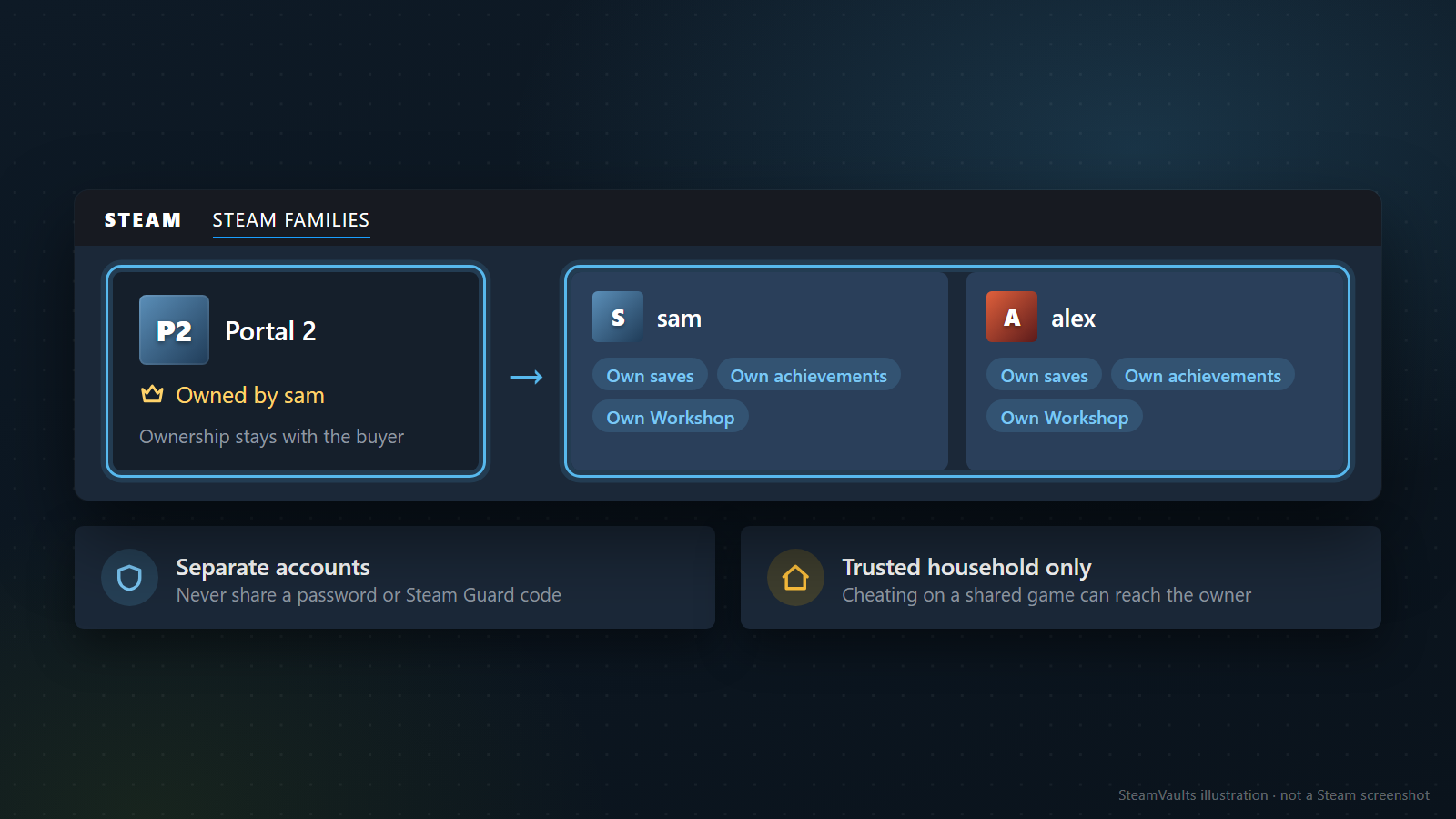
La propiedad del juego permanece en quien lo compró. Al jugar un título compartido, los logros, el acceso a Workshop y los guardados siguen asociados a la cuenta del jugador; Steam aclara que el comportamiento de las partidas guardadas depende del juego. Si el progreso cambia entre dos PC, conviene consultar qué archivo conservar ante un conflicto de Steam Cloud.
No hace falta entregar la contraseña ni códigos de Steam Guard. Steam Families mantiene cuentas separadas. Valve advierte de forma condicional que, si alguien hace trampas o comete fraude mientras juega el título de un familiar, pueden revocarse los privilegios de la familia y la cuenta del propietario también puede recibir un bloqueo VAC. No significa que todas las cuentas queden bloqueadas automáticamente. Por eso Valve recomienda invitar a integrantes de confianza del mismo hogar.
Remote Play Together es otra función: permite invitar a otras personas a la sesión multijugador local que ya ejecuta la persona anfitriona. No elimina la cantidad de copias necesarias para abrir un juego de la biblioteca familiar ni los límites para unirse a una familia. Para esa función distinta, consulta la explicación de Remote Play Together y un solo juego.
Alcance de los hechos: este artículo se comprobó el 4 de septiembre de 2026 con la guía y preguntas frecuentes de Steam Families de Steam Support. La guía puede cambiar sus requisitos de participación y la elegibilidad de los juegos. Las imágenes son maquetas explicativas, no capturas de una cuenta real ni resultados de una partida. Este texto no garantiza lo que ocurra con una cuenta, familia, juego, DLC, partida guardada, invitación o sanción concretos.
¿Listo para vender Sack of Gems compatibles?
El USDT se acredita en tu saldo del sitio tras la recepción confirmada por el bot. El retiro por Polygon se solicita aparte.