
Steam achievements: missing popup or record?
Separate a missing Steam achievement popup from a missing record, check game-specific offline and mod rules, and preserve evidence before replaying.
Article languages
On this page
You finish an objective, but no achievement notification appears. Before repeating the same section—especially a long one—open that game's achievement list in Steam. If the achievement is already unlocked, investigate the notification. If it is still locked there, check the game's requirements and the record passed to Steam. An in-game completion screen alone cannot tell you which problem you have.
This guide uses Valve developer documentation and publishers' support material checked on October 23, 2026. It is not a hands-on reproduction of an achievement bug. There is no assumption that one recovery method works for every game. Requirements, offline recording and mod restrictions need to be read alongside the official guidance for the particular title.
Separate completion, the Steam record and the popup
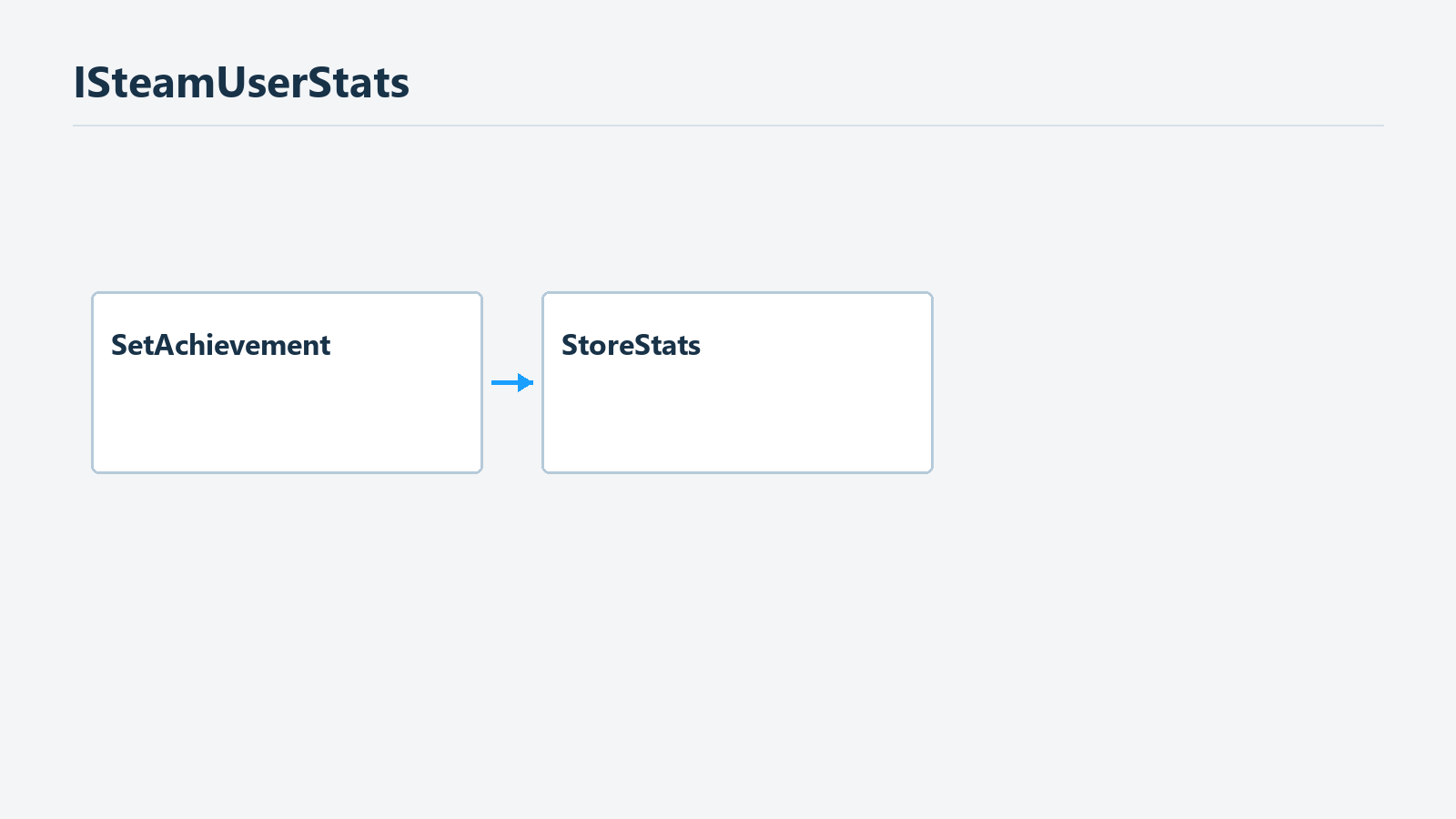
This explains a documented relationship, not an observed in-game execution trace.
“The achievement isn't showing” can describe several situations. A quest may be marked complete inside the game. Steam may show an unlocked achievement even though you missed the corner notification. Or a reward message generated by the game may have looked like a Steam achievement popup. Separating these possibilities helps avoid unnecessary replay when searching for a fix or contacting support.
Start with one game and one achievement. Write down the game, achievement name and the description shown in its list. A similar icon or translated name can lead you to compare different requirements. Revealing a hidden achievement may also expose a spoiler. Decide whether preserving that surprise or checking the exact requirement matters more before opening its details.
If Steam shows the achievement as unlocked, with an unlock time where available, keep that screen. Repeating a mission simply because you missed its popup adds little to the record check. If it remains locked, note exactly what you completed in the game. Does the quest name cover the same objective as the achievement description, or only one part of it? In-game completion is useful evidence, but it does not display Steam's unlock state for you.
Valve's developer documentation distinguishes setting an achievement's unlocked state from sending changed data for server storage. These are not commands for players to run. They explain why an event on screen, the result reported by the game and the stored state should not automatically be treated as a single instant. A video of defeating a boss and a screenshot of Steam's achievement record therefore provide different evidence. Valve's achievement interface documentation
For cumulative achievements, read the popup carefully. Valve provides a separate progress-notification function and explicitly says that displaying this notification does not itself unlock the achievement. Seeing progress is therefore different from confirming the final unlock. If you remember the number displayed, record it. If you do not, avoid turning an uncertain recollection into a definite unlock message.
Three lines can describe the issue clearly: what completion indicator you saw in the game, whether the individual Steam entry is locked, and whether you saw a notification. Preserve any disagreement between those observations rather than interpreting it away. “Quest completed; Steam achievement locked; no popup noticed” is accurate before the cause is known. “Steam deleted my achievement” includes a conclusion that needs evidence of the earlier record.
When the record exists but the popup was missed
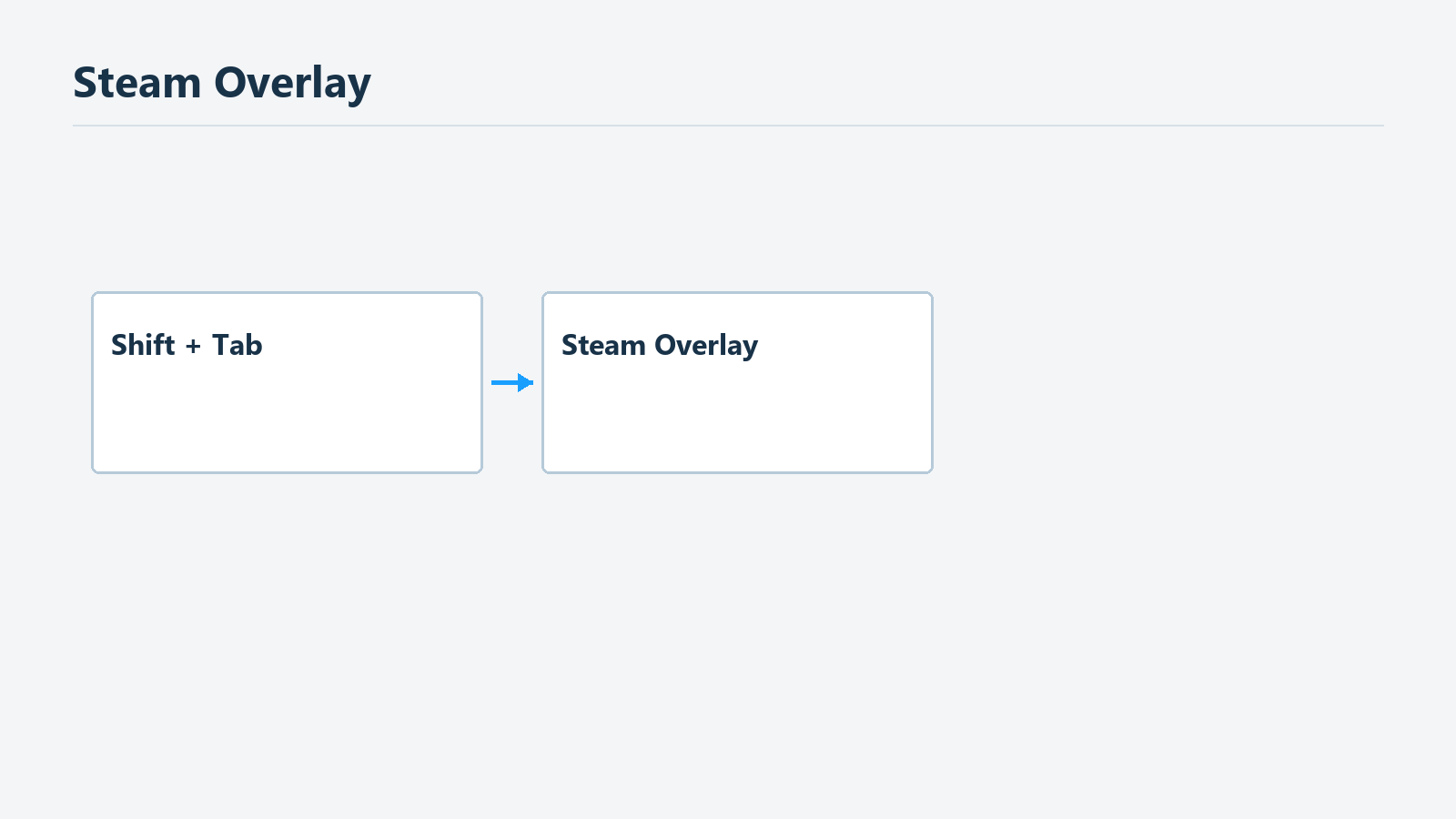
The default shortcut is documented; notification display or achievement recovery is not guaranteed.
Once you have confirmed an unlock, spend your time on the display environment rather than changing progress. The remaining question is whether you can see future notifications. You do not need to erase the record or repeat an old objective. Nor can this guide promise to replay a notification you missed. Understanding the earlier absence and checking future display behavior are separate jobs.
Valve describes the Steam overlay as an interface that opens above a game. Its default shortcut is Shift+Tab, although users can change it. If that combination does nothing, first check the shortcut you have configured. Successfully opening it proves that the overlay opened. It does not prove that a particular achievement unlocked or that every future notification will appear. Valve's Steam overlay documentation
Check the overlay at a point where it is safe to pause, then inspect Steam's settings and the overlay setting applied to that game. Client versions and translations can change the layout, so this article does not give an unverified switch label or fixed menu path. You are looking for in-game overlay use and notification display. Record the starting settings and change one thing at a time so that any difference remains explainable.
Display mode and notifications from other programs can also be useful details in a support request. Their presence does not establish a cause. They help describe the environment and distinguish an overlay that never opens from one that opens while an achievement notification remains unobserved. Treating those as identical can mix a display issue with a problem that still requires checking the game's achievement conditions.
When you naturally earn another new achievement, compare the popup and the list. There is no need to begin a lengthy challenge solely to perform this check. Repeating an already unlocked objective is not guaranteed to test a new unlock notification. Keep the existing unlock screen as your reference so that repeated attempts to see a popup do not become the mistaken conclusion that the achievement has no record.
If the record appears to have disappeared after a settings change, compare the same account, game and achievement again. Check that you are not looking at another edition or a similarly named game. The subject here is the individual game's unlock record, not the profile's aggregate achievement count or showcase update. If the individual record exists and only another surface differs, describe the issue in terms of that surface.
Read the complete requirement, including its scope
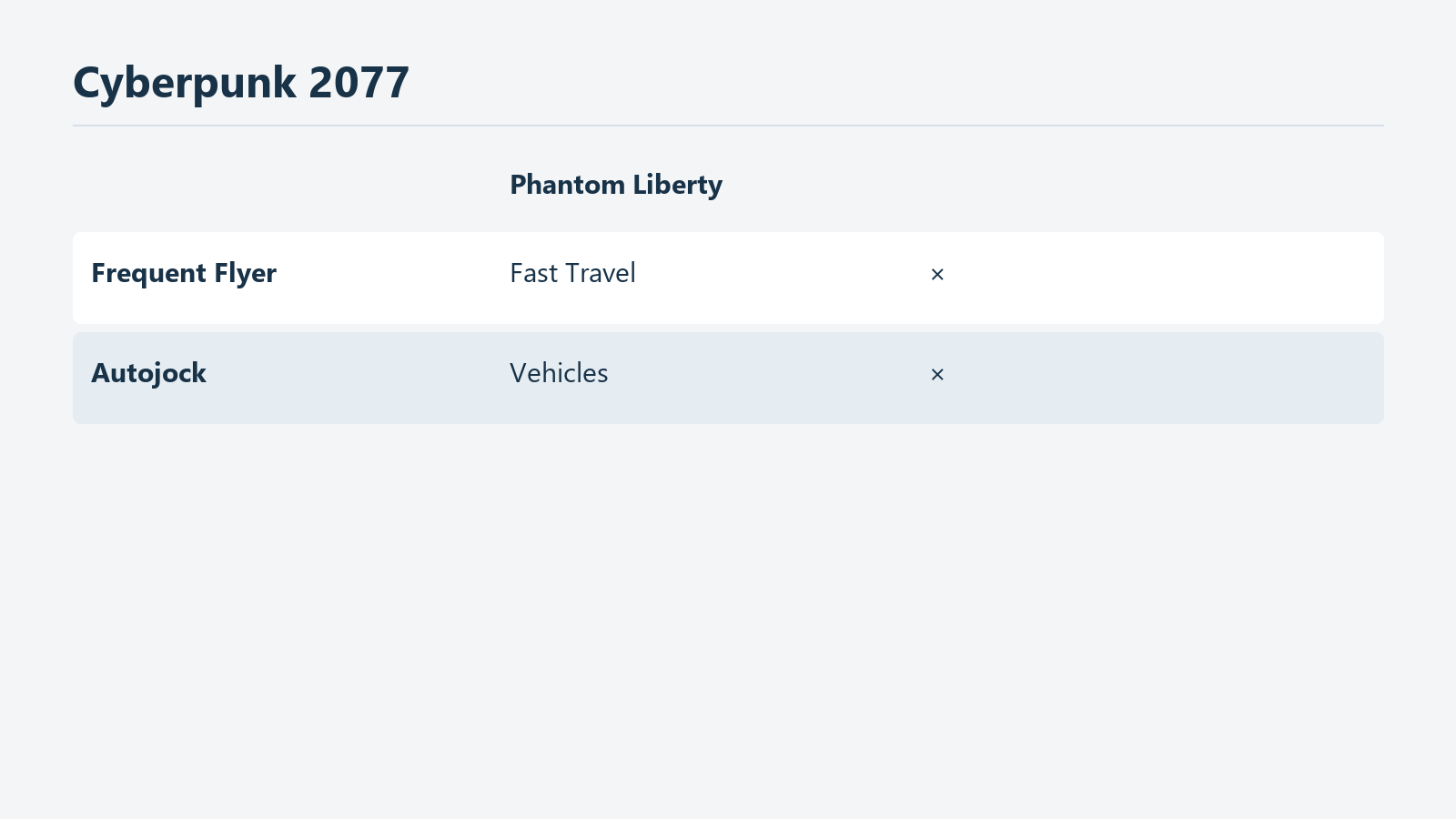
This official guidance concerns only the two named Cyberpunk 2077 achievements.
If the Steam entry is locked, read more than the action word. “Collect,” “complete” and “win” are followed by a target and a scope. Note which content, conditions and extent of completion the description requires. This makes it easier to compare the objective you finished with the achievement itself. Where the wording is ambiguous, search official support for that achievement's name rather than inventing an additional rule.
CD PROJEKT RED provides a concrete example for Cyberpunk 2077: the fast-travel dataterms and vehicles added in Phantom Liberty do not count toward Frequent Flyer and Autojock. Finding more locations or acquiring more vehicles in the expansion does not therefore establish that you have completed the relevant set. This guidance concerns those two achievements, not every expansion or every collection achievement in other games. Official Cyberpunk 2077 achievement guidance
The useful task is to compare the list you counted with the list the official requirement describes. Check whether you combined base-game and expansion entries, counted similarly named objects together, or substituted an in-game total for the achievement's target. If you cannot identify a missing item, record only the checks you completed. “I checked these entries and counted expansion entries separately” gives support more to work with than “I did everything.”
When the game's translated name differs from the English name used in support material, compare the icon, description and game as well. Similar meanings alone do not establish that two names refer to the same achievement. Keeping the original-language name in parentheses can help support locate it. If translation appears to change a condition, preserve both wordings and ask about the difference instead of deciding which is correct without evidence.
An older walkthrough also needs a date and version check. Age alone does not make it wrong; a high search ranking does not make it current. If an official patch note names the same achievement, read the affected version and what was fixed. A changed requirement, a display correction and a fix preventing future failures mean different things for a playthrough already completed.
Unless the developer says existing progress will be recalculated, installing a patch is not a promise that past objectives will immediately appear. Whether replay is required may also remain unknown. Preserve the current state and version before asking, particularly when a new attempt would mean replaying a long campaign. Starting again before understanding the issue can leave you with less evidence of the earlier state.
What offline recording does—and does not—establish
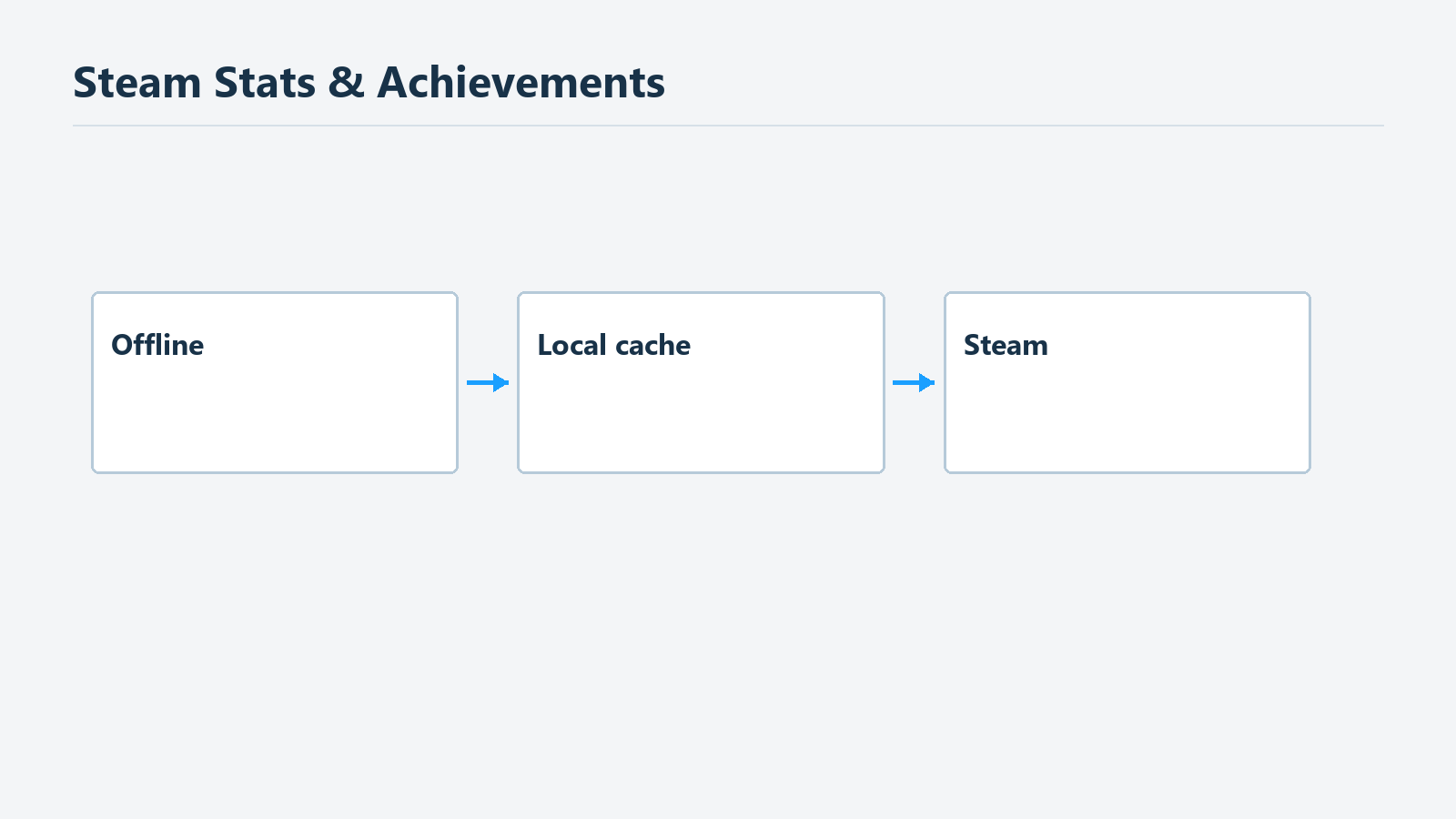
Cache capability does not prove a particular game met its conditions or establish a sync deadline.
Playing offline does not by itself establish that all your achievements were lost. Valve describes a local cache for stats and achievements and says stats that could not be committed are kept for the next online connection. This supports use of the relevant functions offline. However, the platform's ability to retain data does not prove that a particular game correctly recognized a particular action. Valve's offline achievement documentation
The official Civilization VI manual gives a game-specific example: requirements met offline are stored, with the achievement unlocked the next time the player logs into Steam. That is the behavior described by the Civilization VI manual. It cannot establish an identical recheck point for every Steam game. Official Civilization VI manual
Cyberpunk 2077's support article, meanwhile, tells players troubleshooting an unlock to check that they are online and their platform application, such as Steam, is running. Different games provide different troubleshooting instructions. Saying connectivity is irrelevant because Steam has a cache, or that no game can unlock achievements offline, would ignore the limits of both documents. Follow the relevant game's own support sequence.
After an offline session, keeping the same account and device while checking the connection makes comparison easier. Once connected, inspect the same individual achievement in Steam and see whether the game's official guidance calls for relaunching it. This is a diagnostic suggestion, not a guarantee of recovering every missing record. To establish what changed, compare the same entry before and after reconnecting.
Deleting local files immediately can remove useful evidence. This article does not recommend deleting progress or arbitrarily overwriting files between devices to fix achievements. Preserve the game state while checking the connection and list. If a save-file operation is required, read the publisher's separate instructions first. A missing achievement popup cannot decide which save to choose in a cloud-conflict dialog.
Waiting periods also need a source. When a publisher tells you to wait briefly, keep that advice tied to its game. The general Valve documentation examined here does not set a universal number of minutes by which every game must update. Elapsed time alone establishes neither permanent loss nor eventual recovery. Note when you checked after reconnecting and what you saw, so a later request can describe the delay or continued absence accurately.
Keep publisher instructions tied to their game
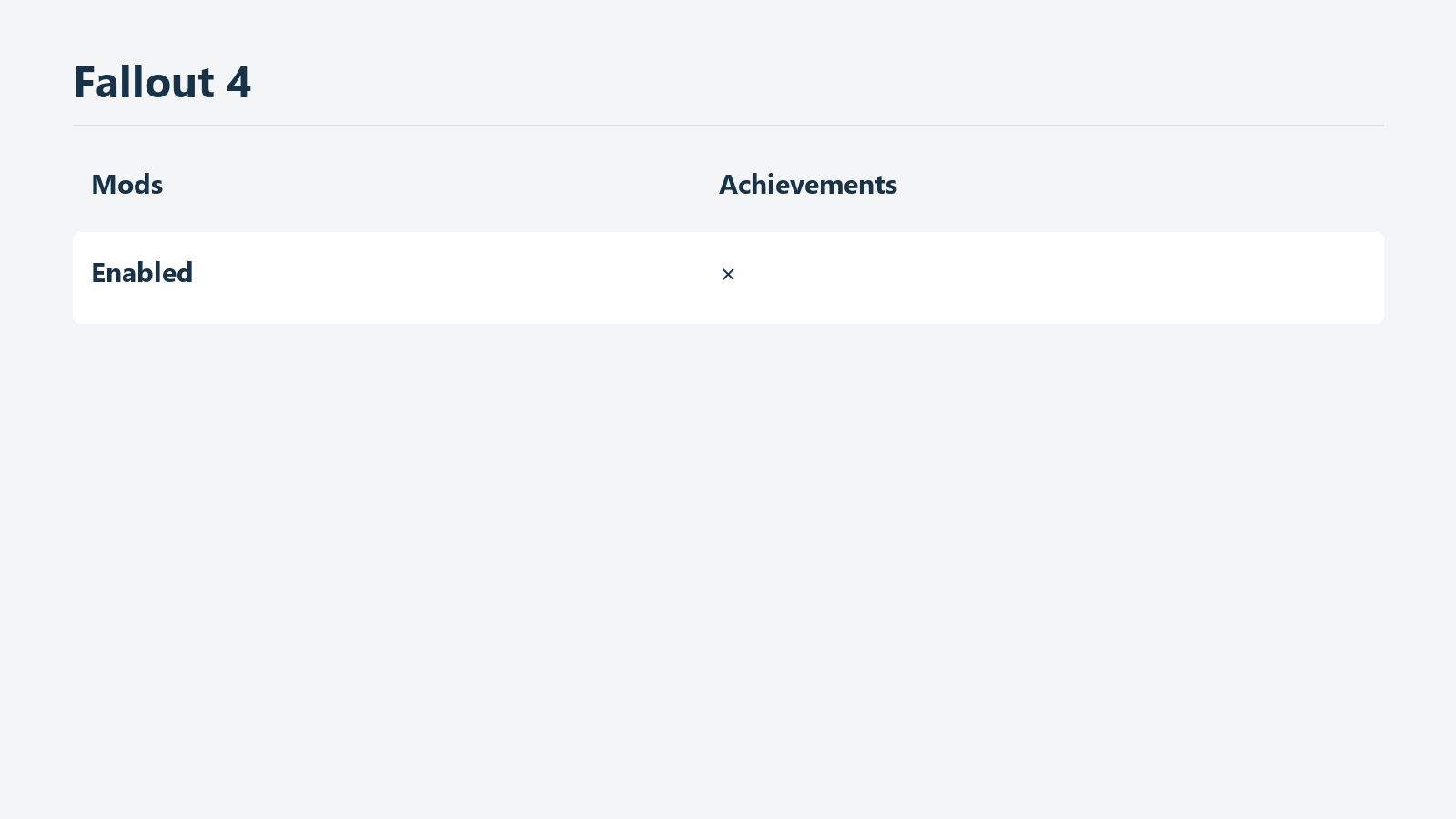
This guidance concerns Fallout 4, not the mod rules of every game.
After checking requirements and connectivity, Cyberpunk 2077's official guidance says to leave the game open and wait a few minutes because activation may be delayed. It also tells players to check that their security software allows both the game and the platform application. Do not rewrite this as an instruction to disable security software entirely. Check whether a block was reported and consult the product's own allowlisting instructions.
The same article includes restarting the PC and trying again from an older save. Read this step after preserving the current state. Loading older progress may mean replaying a section, and it cannot be done simultaneously with the earlier instruction to keep the game open and wait. Jumping straight to a restart skips the opportunity to observe a delayed update during that earlier step.
These are the publisher's instructions for a particular game, not a mandatory sequence for every title on Steam. The game implements its condition checks and rechecking behavior. Include the game and achievement names when searching instead of relying only on a broad “Steam achievement bug” query. You can investigate shared connectivity issues while keeping the actual requirement tied to the game that evaluates it.
Fallout 4 offers an official example where mod use matters. Bethesda says achievements and trophies are unavailable once a game has a mod enabled, and directs players seeking them to disable all mods and return to a save from before mods were enabled. An empty current mod list therefore does not by itself establish that the present save meets that condition. Fallout 4 mod and achievement guidance
That is not a recommendation to immediately change saves for one achievement. First establish whether you used mods, when you used them, and whether the official article applies to your title and platform. Duration of use can be recorded, but it does not justify relaxing an official condition. Whether to retain current progress or attempt the achievement from an earlier state depends on the saves available and how much replay would be involved.
There is no universal rule here that all games handle mods identically. Applying one title's support page to another can prompt irrelevant changes. Do not decide that a mod caused the problem merely because one is installed; check what that game officially says about achievements. Keep platform boundaries too. Instructions to sign out of a console account and reboot a console are not permission to invent equivalent PC file changes.
Preserve useful evidence before trying again
These are author-suggested records, not required official form fields. Submit save files only when official support requests them.
Replay is a different decision when you understand the cause. Even for a short objective, choose what to change before repeating it; otherwise a different result may remain unexplained. A full campaign requires more caution. Record the current state, then choose one applicable official step you have not yet tried. The aim is to compare before and after.
Center your evidence on the achievement itself: its Steam name and locked state, the in-game completion screen, and why you believe the condition was satisfied. Separate observation from judgment. “I saw the ending scene” describes an observation; “I therefore thought all requirements were met” explains your interpretation. Keeping them separate gives the developer room to identify an additional condition.
Useful environment details include game version, operating system, whether Steam was running, connectivity, additional content and mod use. You need not gather every unrelated detail, but complete the fields required by the official support form. Look up an unknown version in the game or the publisher's instructions rather than guessing. If the starting version of a save matters for the title, report only what you know.
Time records help even when they are approximate. Distinguish when you completed the condition, first checked the list, and checked again online. Include the time zone used in your notes when writing to a team elsewhere. “Around the afternoon” is better than an invented exact timestamp. The purpose is to communicate the order of observations, not infer the server's internal timing.
Make screenshots legible enough to identify the achievement and state, while hiding unrelated conversations and email addresses. A public community post and a publisher's private support form have different audiences. Passwords and verification codes do not help describe an achievement. If save files are needed, check that the official support channel actually requests them and submit them there.
Keep unsuccessful attempts too. A line such as “Still locked after restarting the game” or “Unlocked in Steam; popup not observed” is enough. If you changed several settings together, do not claim to have isolated a single cause. Tell support what you have already tried without concealing what remains untested.
Where to ask, and what an answer can promise
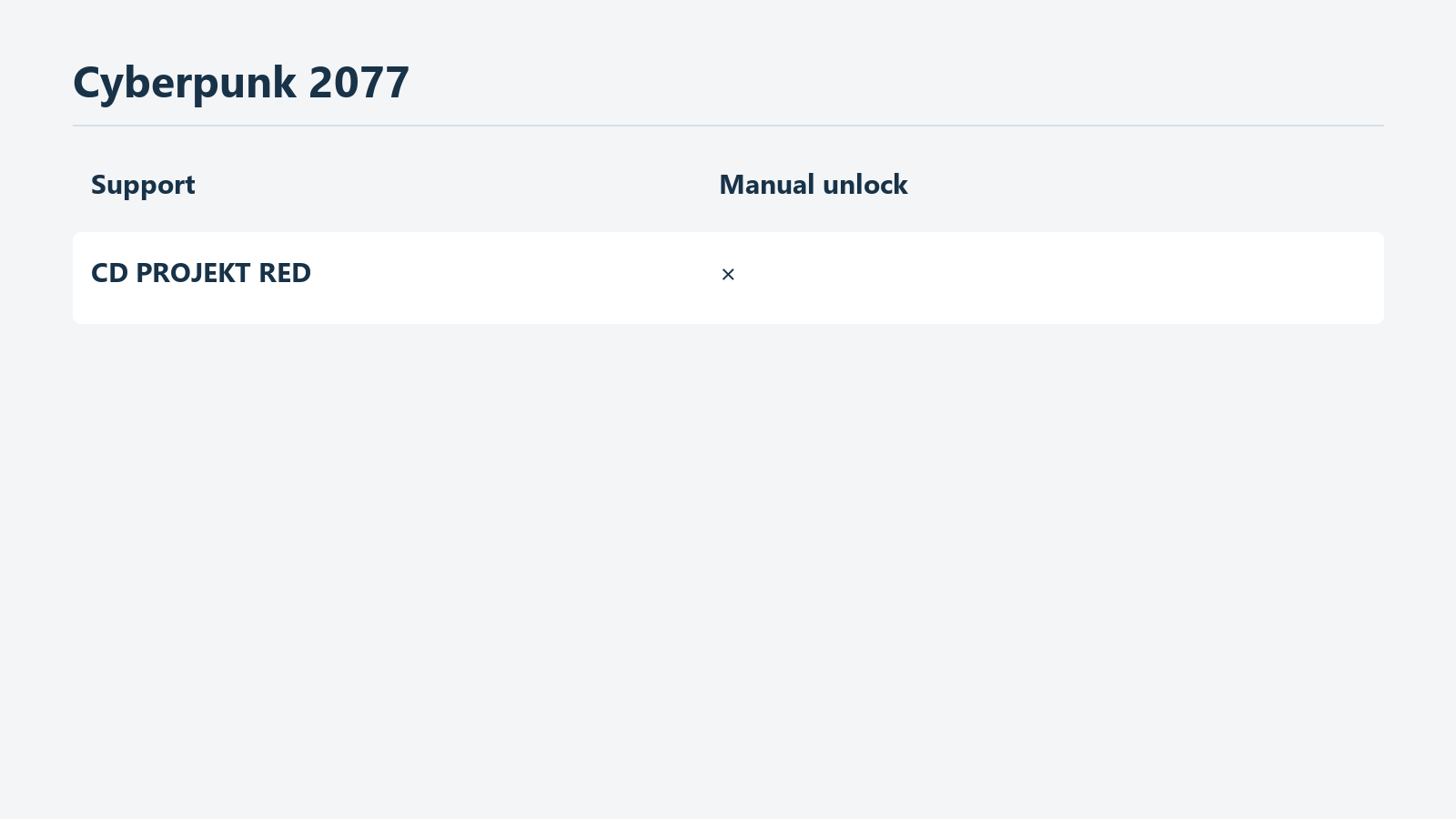
This describes the developer support boundary, not a promise that Steam will manually unlock an achievement.
If the Steam entry is locked and the game's requirements are in question, the game's official support page is a useful starting point. Its developer can explain condition checks, known version-specific problems and whether earlier progress is rechecked. If the record exists and the issue is a Steam display or overlay, describe that display state to Steam Support. If the boundary is unclear, begin by stating exactly which record you checked.
CD PROJEKT RED accepts reports for investigation but explicitly says it cannot grant achievements itself. Its referral to platform support is not a promise that Steam will award an achievement on request. Receiving a report, investigating a bug and having authority to change a record manually are distinct capabilities.
Bethesda's Fallout 4 Hostile Takeover support article also says its customer support cannot manually unlock achievements or trophies. This does not establish the powers of every other publisher's support team. Read what the relevant official guidance actually offers. A support request seeks investigation and a documented next step; treating it as a guaranteed desired outcome can misread the reply. Bethesda's Hostile Takeover guidance
Use the game, achievement and Steam record state in the subject. Briefly explain the completed condition, in-game evidence, Steam list state, connectivity and version. Then add the official steps tried and their results. Asking whether an additional requirement or a known issue in that version applies is more actionable than simply saying nothing works.
Similar community reports can be attached as leads. Match the achievement, version, platform and conditions, not just the game name. Do not describe a community post as official confirmation. Several similar reports may be useful to an investigation, but they do not replace evidence of your own record's state.
If support requests a particular action, compare it against the state you preserved. Before a step that changes progress, read what needs to be retained; ask about the purpose if the instruction is unclear. External tools that force or reset unlocks fall outside the diagnostic and official-support scope of this guide. Preserving the original state also makes the issue easier to explain.
Choose the next action from the record you have
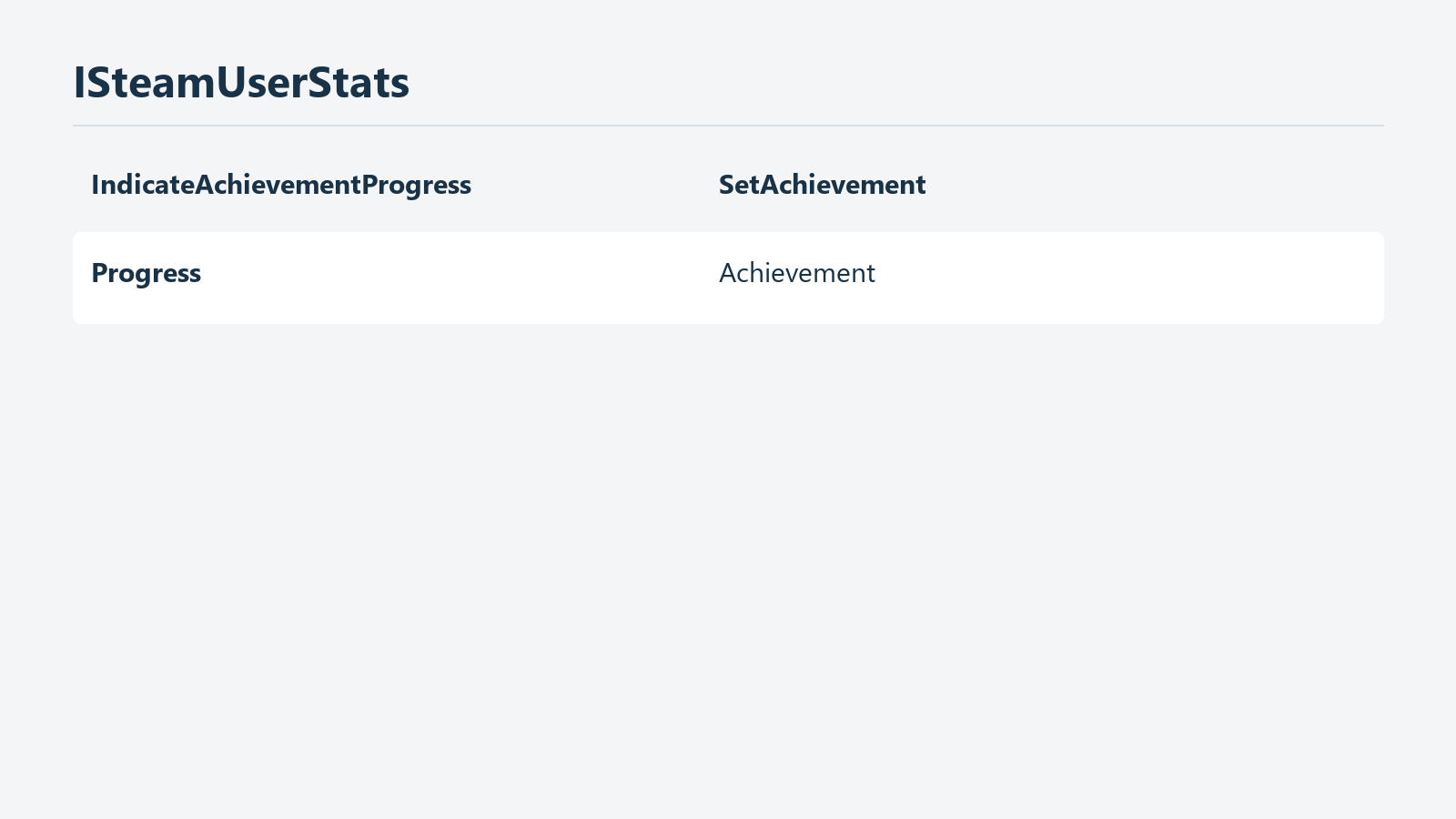
This diagram distinguishes a progress notification from an unlock record; it is not an achievement test.
If Steam currently shows the achievement unlocked, check notification display. You do not need to begin by considering a rollback of game progress. Check whether the overlay opens and what the display settings are, then compare notification and record when you naturally earn a new achievement. Recreating a missed historical popup and seeing future popups are different goals.
If the Steam entry is locked and the requirement is unclear, verify it before replaying. Compare the scope of base-game content, additional content, the achievement description and the in-game objective. If official guidance excludes specific targets, separate them in your own count. It is acceptable to leave an unverified condition unresolved. That narrows a question better than beginning another full campaign without checking it.
For a missing record after offline play, examine connectivity and the game's guidance. Steam's cache capability does not prove that this game reported every condition. Reconnect, compare the same account and entry, and distinguish any documented waiting step from a relaunch step. Keeping track of when the record changed can help if the issue recurs.
Where mods are relevant, read the official restriction first. Having mods disabled now may differ from using a save that never had them. If guidance specifies an earlier save, as the Fallout 4 FAQ does, include that qualification. The amount of progress you would have to replay is part of the decision. Preserve your record before choosing between continuing the current playthrough while asking support and attempting a separate eligible run.
If the record remains absent after checking requirements and connectivity, use the evidence you prepared rather than changing more settings at random. Being able to explain the difference between in-game completion and the Steam entry already makes the issue concrete. Neither screen alone establishes data loss or a platform-wide failure. If an official reply has not established a cause, leave it unresolved and find out what additional evidence is needed.
The decision to replay should rest on the achievement's present record, the condition actually completed and the game's documented handling—not only a memory of a popup. Checking those can prevent replaying a long campaign for a notification problem or waiting indefinitely on an unmet condition. Start by opening the individual Steam achievement and recording its current state.