


The game description says that its text size can be adjusted. Will that also enlarge the item descriptions you struggle to read? If you find a note saying that voice guidance is available, can you hear it in the language you use? You can spot the feature you need in the store and still stop before clicking Buy because a label alone cannot answer questions like these.
This article does not rate Steam accessibility feature names as good or bad. Instead, it translates them into the conditions of the tasks you actually need to perform. It covers only the date, platform, and scope stated in the official PC descriptions and dated patch notes for three games. It does not claim to have checked the current menus or Korean support in games that were not run. The scenes below are fictional ways to think through a decision, not lived experience, user research, or gameplay results.
Start by writing down one or two tasks that make you hesitate about buying. Separate what is required from what would simply be nice to have. If reading the material changes your mind, note what still needs checking. That gives you a clearer comparison based on your own conditions than a general impression created by a long list of feature labels.
Start With the Task You Need to Perform, Not the Feature Name
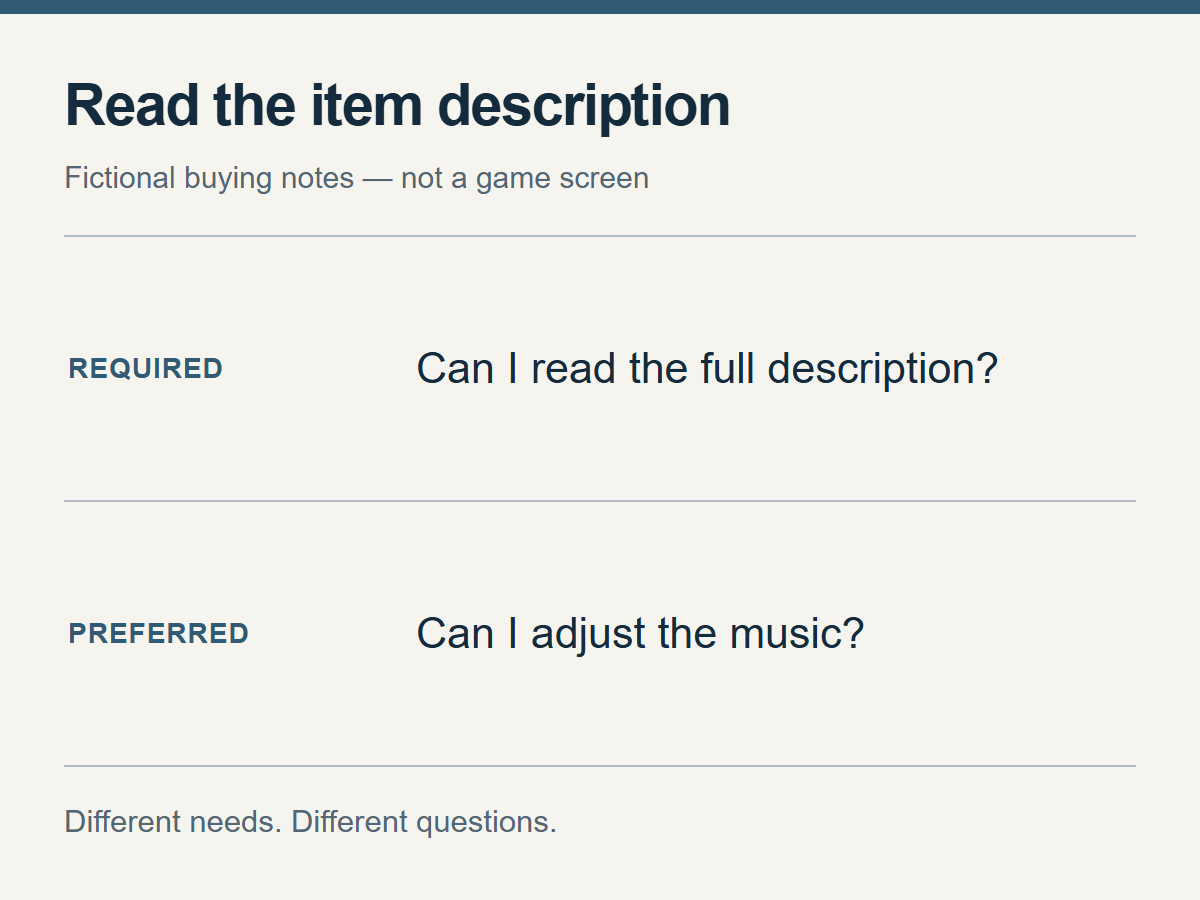
This is only the priority order in the example. Start with the task you need to perform.
Developers enter Steam accessibility information in Steamworks. Valve explains that this information appears in the store and in search. Text-size and caption options, as well as input- and time-related features, are listed as separate items. The definition of each item and the developer recommendations shown beneath it should not be read as if they mean the same thing. Valve's accessibility feature documentation
That makes the list a starting point for finding candidates, not a verdict on whether a game suits you. If text size matters, a label saying that background music can be reduced does not solve the reading requirement. Define the task you need to perform first, then look for the description that addresses it.
Write down whether you need to read small numbers on screen, press one button while holding another, or check spoken information in text. If reading the text in a choice is required and adjusting background music is merely preferred, check the former first. Someone else may need music adjustment as a requirement, so there is no universal ranking—set your own buying conditions before comparing games.
The setting name and the result you want can differ. You may be looking for text enlargement when your real goal is to read an equipment description all the way through. An enlargement button does not achieve that goal if the sentence you need still does not fit on screen. After confirming that a feature can be enabled, check what screen and what action remain between turning it on and being able to read.
If the Text Gets Bigger, Which Text Is It?
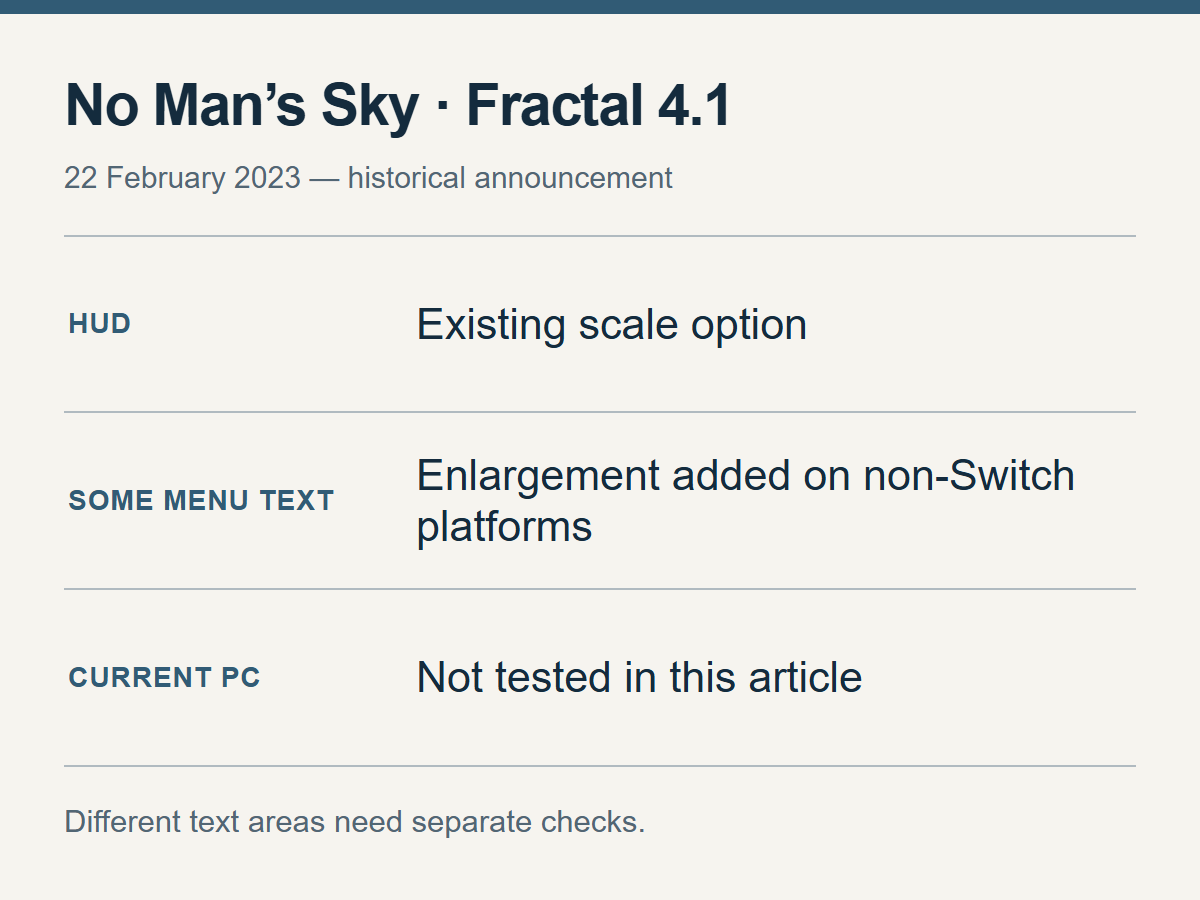
This reflects the scope of the 2023 announcement, not a capture of the current game screen.
No Man's Sky's Fractal materials show why scope matters. In the version 4.1 material announced by Hello Games on February 22, 2023, some menu text could also be enlarged in addition to the existing HUD Scale. The detailed patch notes say that the option to enlarge menu text was added on platforms other than Switch. The important word here is “some.” Fractal announcement, detailed patch notes
The same material says that options could be adjusted from the start screen and the save-selection screen before starting the game. That is what the developer described at the time. These documents do not establish that every piece of text in the current PC version is enlarged, or that the current Korean screens were checked directly.
First separate the places where you need to read. HUD numbers, item descriptions, dialogue, and settings menus are different screens. The scope you need to check also changes depending on whether you only need to identify an item's name or must compare detailed sentences about materials, requirements, and effects. Seeing a large heading on one screen is not enough to conclude that a long description will be readable too.
Being able to increase the size and knowing how the content appears afterward are separate questions. Use the materials or a screen check to find out whether the full description appears, whether collapsed text can be expanded, and whether you can move to the next line or screen. It also matters when and how you reach the setting: before starting, only after making progress, with help once at the beginning, or with another person every time. Each can be a different buying condition for a different person.
An enlargement ratio quoted in the material is not a universal pass mark. Numbers help with comparison, but the remaining question is which content you can read on which screen and whether you can move on to the next action.
Language and Connection Conditions
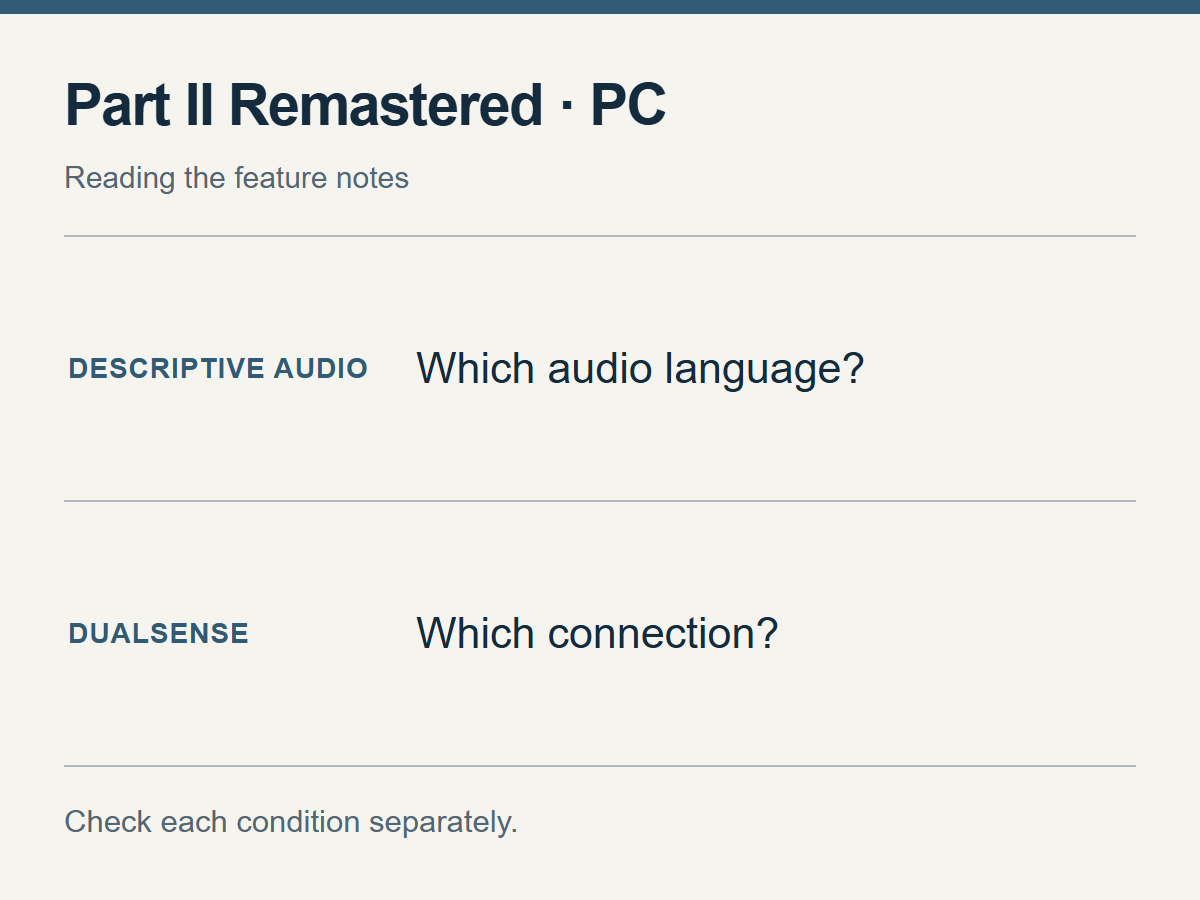
Read the conditions next to each feature separately.
On PlayStation's PC introduction for The Last of Us Part II Remastered, Descriptive Audio is limited to the supported audio languages. Full in-game DualSense functionality requires a wired connection. This description does not establish whether Korean descriptive audio is supported or unsupported. PC feature notes
When you read a language table, do not simply count the familiar languages listed next to the game name. Start by defining what content you need to receive in which language. Someone who only needs to understand fixed menus and someone who needs to follow newly presented descriptions every time may need to check different parts of the same list. Separate whether you need text, voice, or another way to confirm what you heard.
The device footnote brings conditions outside the game into the decision. Check whether you need a new device, whether you must change the connection method you normally use, and whether you can keep a cable connected where you plan to play. Whether a wired connection is acceptable and whether the feature is essential to you are separate judgments. “Just buy a new device” does not answer the conditions that remain.
What Remains After You Remap the Keys
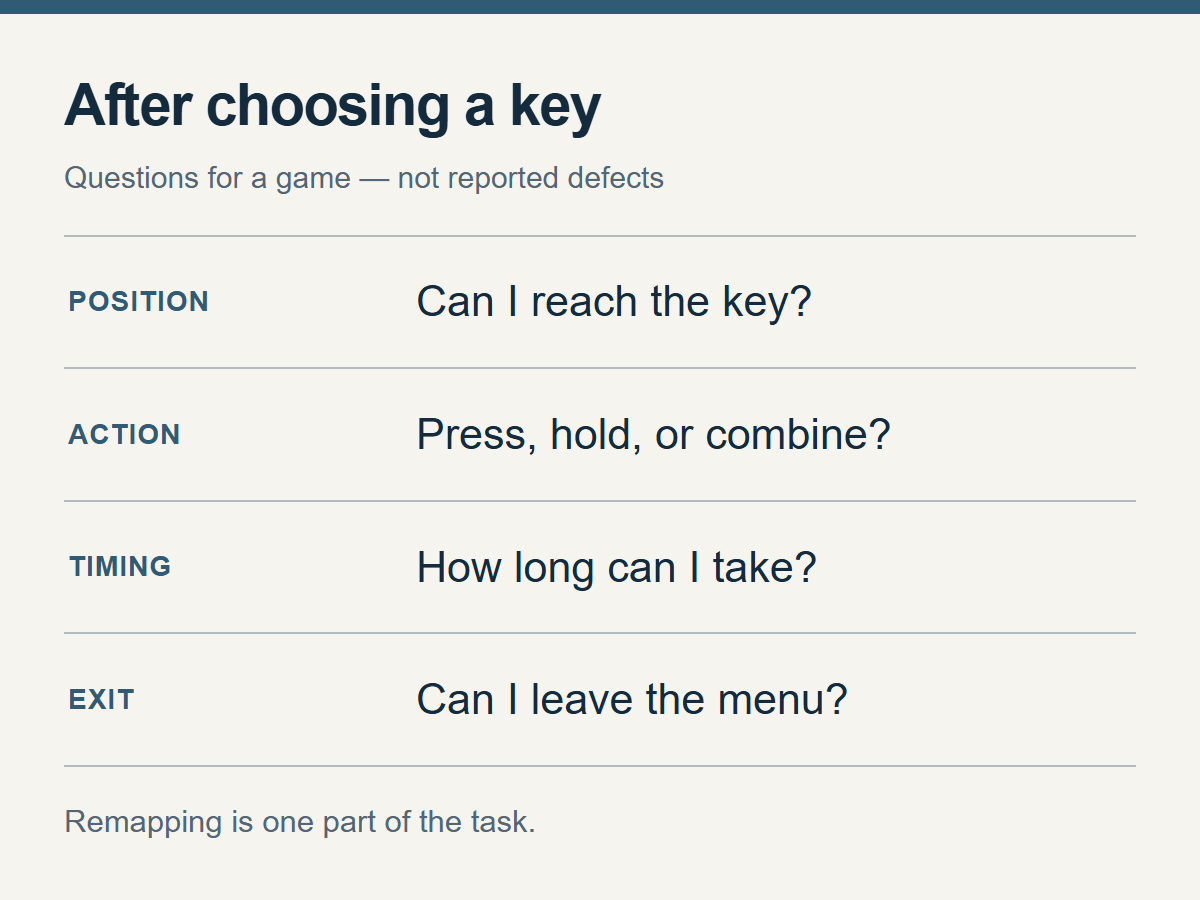
These are example tasks to check, not a list of defects or unsupported features in a specific game.
FuturLab's March 10, 2026 patch notes for version 1.2 of PowerWash Simulator 2 say that key rebinding and controller deadzone sliders were added. PC is among the listed platforms. That announcement does not establish that every menu and action can be remapped, or that the game can be played from start to finish using only a keyboard. Official 1.2 patch notes
When checking controls, separate the key's position from the way it must be pressed. The needed information differs depending on whether an action uses a single press, a held press, or two buttons together. If reaching the key is the problem, look for the scope of remapping. If holding a button is difficult, check whether that held action still remains after the key is moved. This is not a diagnosis of an actual problem in this game; it is a way to find conditions omitted from a patch description.
Steam describes separately the features for inputs that do not have to be timed precisely and the features that let you enter inputs at your own pace. The first covers cases where the input is not required or can be adjusted; the second covers giving yourself enough time, or disabling a time condition or skipping it. Valve's definitions of input-related features
If you need time to read choices, knowing that keys can be moved is not enough. Write down whether the timing adjustment applies to the scene you are concerned about, whether you can save and return to the original setting afterward, and whether you can leave the menu using the same inputs. It is more realistic to narrow the check to the required task most likely to cause trouble than to investigate every action from the start.
Can You Use the Features Together?
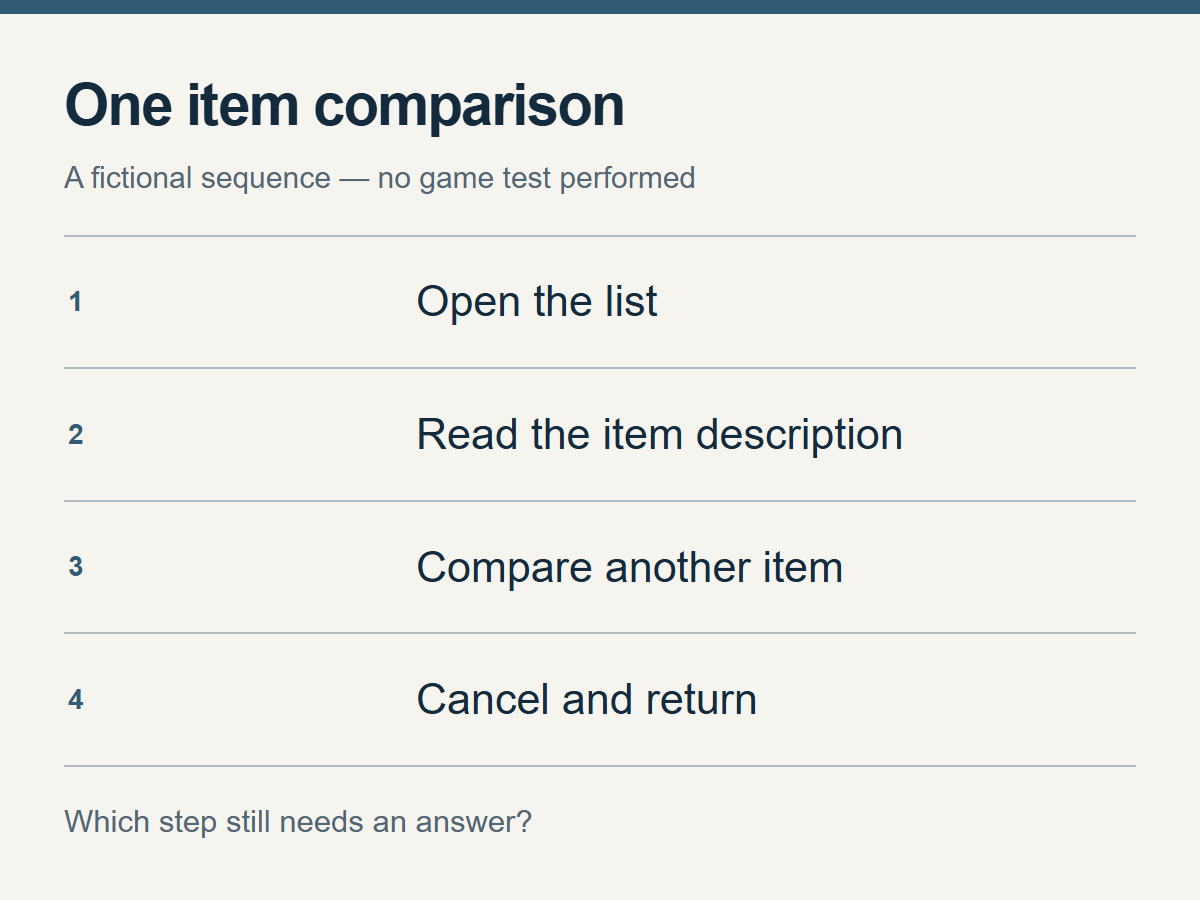
Two features being listed does not establish that this sequence works.
Even if a text-reading feature and a device-related feature are each described, you still need to check whether they carry through a task that depends on both. For example, imagine a fictional sequence: open a list, read an item description, compare it with another item, then cancel and return.
Being told that two features can be enabled at the same time is only a starting point. You need material that shows whether the settings persist until you reach the desired screen, whether you can tell what you selected, and whether someone else has to take over at an intermediate step. This does not claim that a particular game has a feature conflict. It means that combining feature-by-feature descriptions into one user flow requires a separate check.
The two features will not necessarily need to be used together all the time, either. If you plan to switch devices only in certain situations, the time when you can make that change may matter more than simultaneous use. Someone who plans to play only some story-focused modes and someone who wants to play every available mode may also need different scopes of evidence. Either way, keep checking whether the screens and actions you actually intend to use are covered by the description.
Don't Fill in Missing Answers With Assumptions
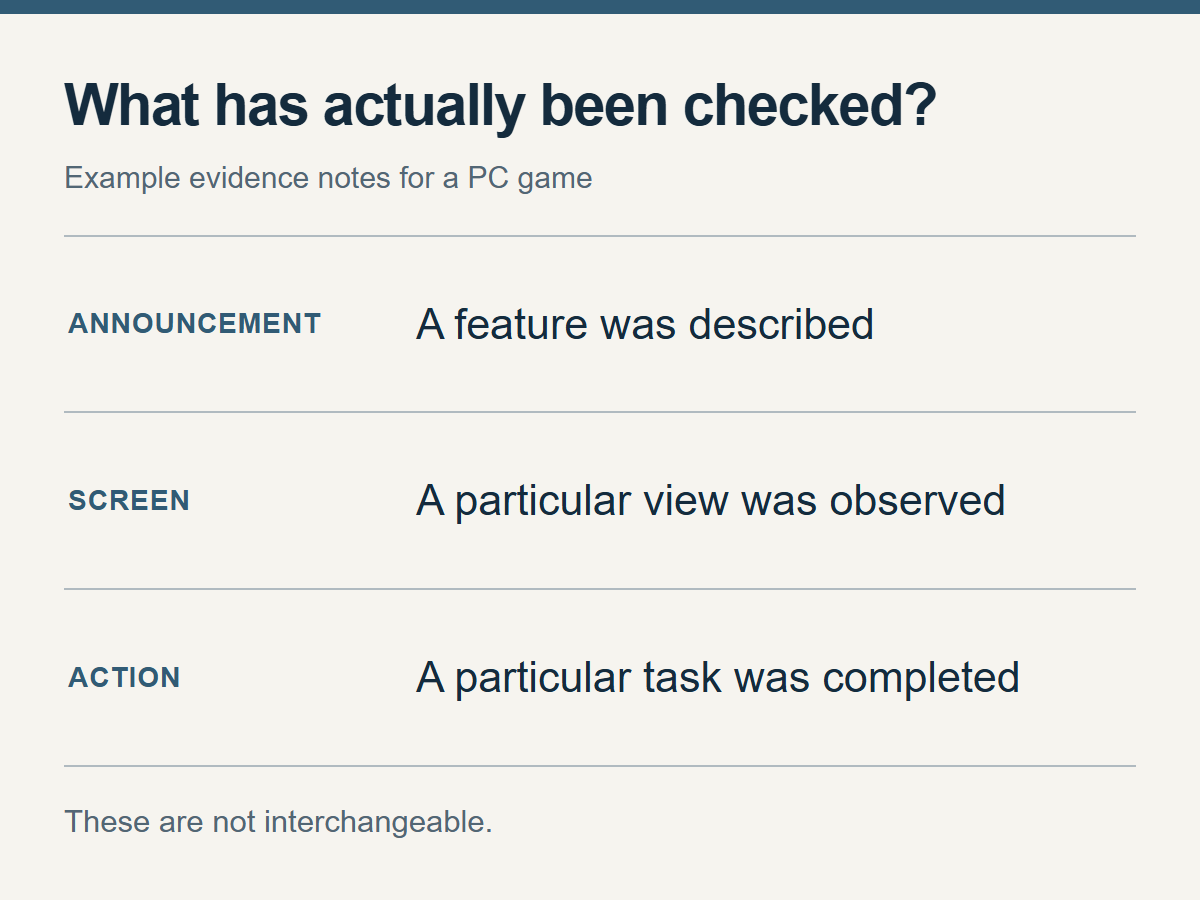
Reading a source is not the same as checking the action in the current game.
Reading an old announcement and assuming that the screen is unchanged today, or treating a console description as if it also proves the PC conditions, can make an answer feel more complete than it is. A dated example confirms what the document said at that time; it is not the same as checking the required action in the version you will use. Writing down that distinction helps keep the source's role within its actual scope.
That does not mean you should discard older material. It can tell you what was described as added and what name the developer used for the feature, giving you a lead for the next source to find. But if only the old description remains, do not write that current operation has been confirmed.
Also distinguish “not supported” from “I could not find the description I wanted.” Silence in the material is not proof that there is no problem. Conversely, do not declare something unsupported without an explicit statement that it is unsupported. Leave the missing answer marked as unknown, then consider pausing on the candidate or looking at another game.
When asking someone else to check, describe the remaining task instead of asking, “Can you play comfortably?” Ask whether they can read the required sentence at a larger size or leave that screen with the inputs you plan to use. Afterward, distinguish an answer that identifies only the option name from one based on seeing a particular screen or completing the action itself. A short note such as “this screen was checked, but the next one is unknown” can save you from rereading the same material from the beginning.
You Can Choose to Wait Before Buying
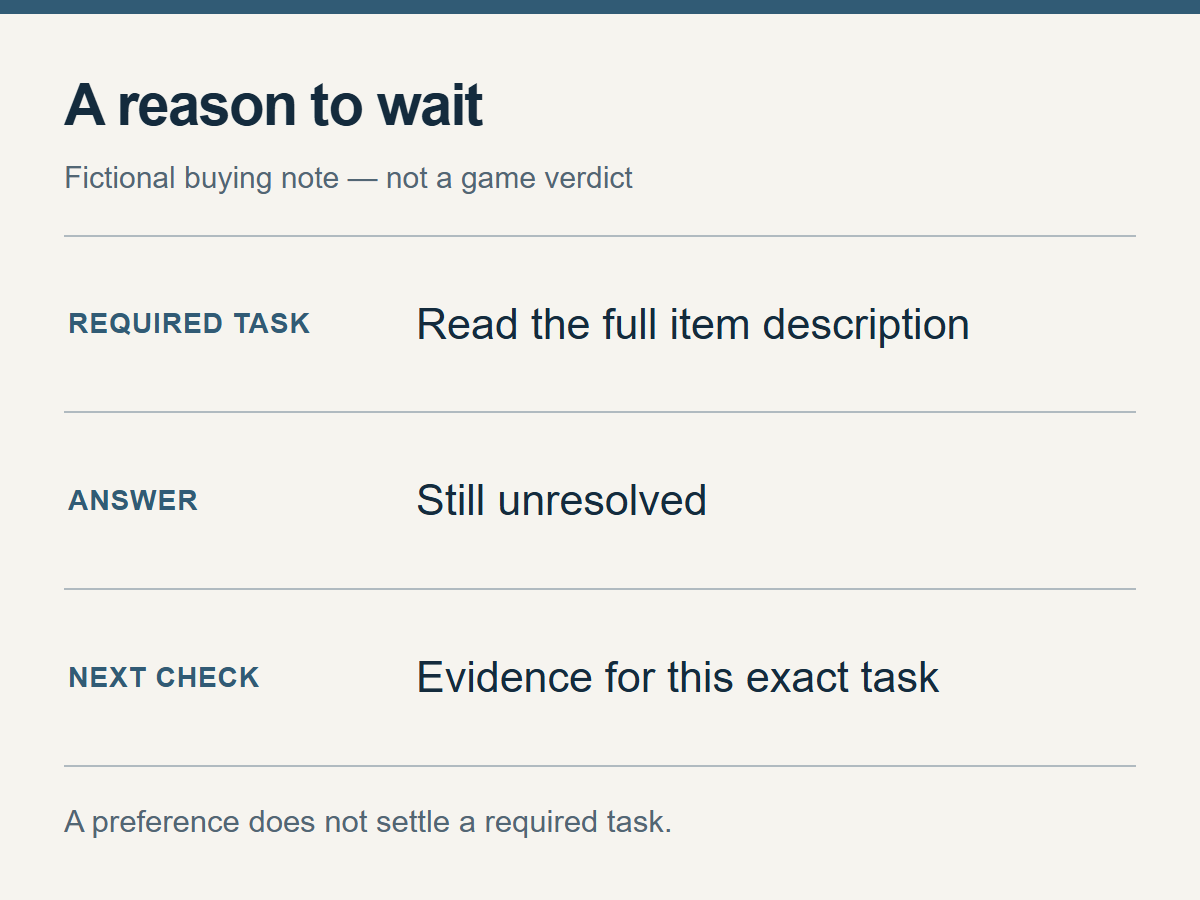
Record what to check next so you can look for it in new evidence.
You do not have to buy a game just because its required conditions have been checked. Once you have enough answers, weigh your preferences and the price together. If the answer to a core condition is still blank, waiting is also a valid conclusion.
There is no need to rule out a game forever just because you waited once. Note which screen or input is still unverified so you can check that part when new information appears. Let the task you need to perform and the evidence it requires guide the buying decision, rather than the number of accessibility labels.