
Ошибка обмена Steam: что проверить перед повтором
Что проверить, если предложение обмена Steam не отправляется или не принимается: записи, подтверждения, доступность предметов и ограничения состава CS2.
Языки статьи
В этой статье
Проверьте сейчас:Проверка задержек и ограничений обмена Steam
Вы отправили предложение обмена, но увидели ошибку. Партнёр говорит, что ничего не получил, а предметы остались в вашем инвентаре. Прежде чем нажимать ещё раз, откройте список отправленных предложений. Одна ошибка на экране ещё не доказывает, что предложение не создалось.
Создание предложения, подтверждение, принятие другой стороной и передача предметов — разные этапы. Нужно понять, на каком из них всё остановилось: тогда будет яснее, проверять ли существующее предложение, создавать новое или обращаться в поддержку. Пока причина неизвестна, я бы не начинал с изменения настроек аккаунта.
Ниже используются материалы Valve, проверенные 5 сентября 2026 года. Ситуации и записи в примерах придуманы для объяснения; это не измерение частоты ошибок, времени восстановления или масштаба сбоя Steam.
Сначала вспомните, какую кнопку вы нажали перед ошибкой
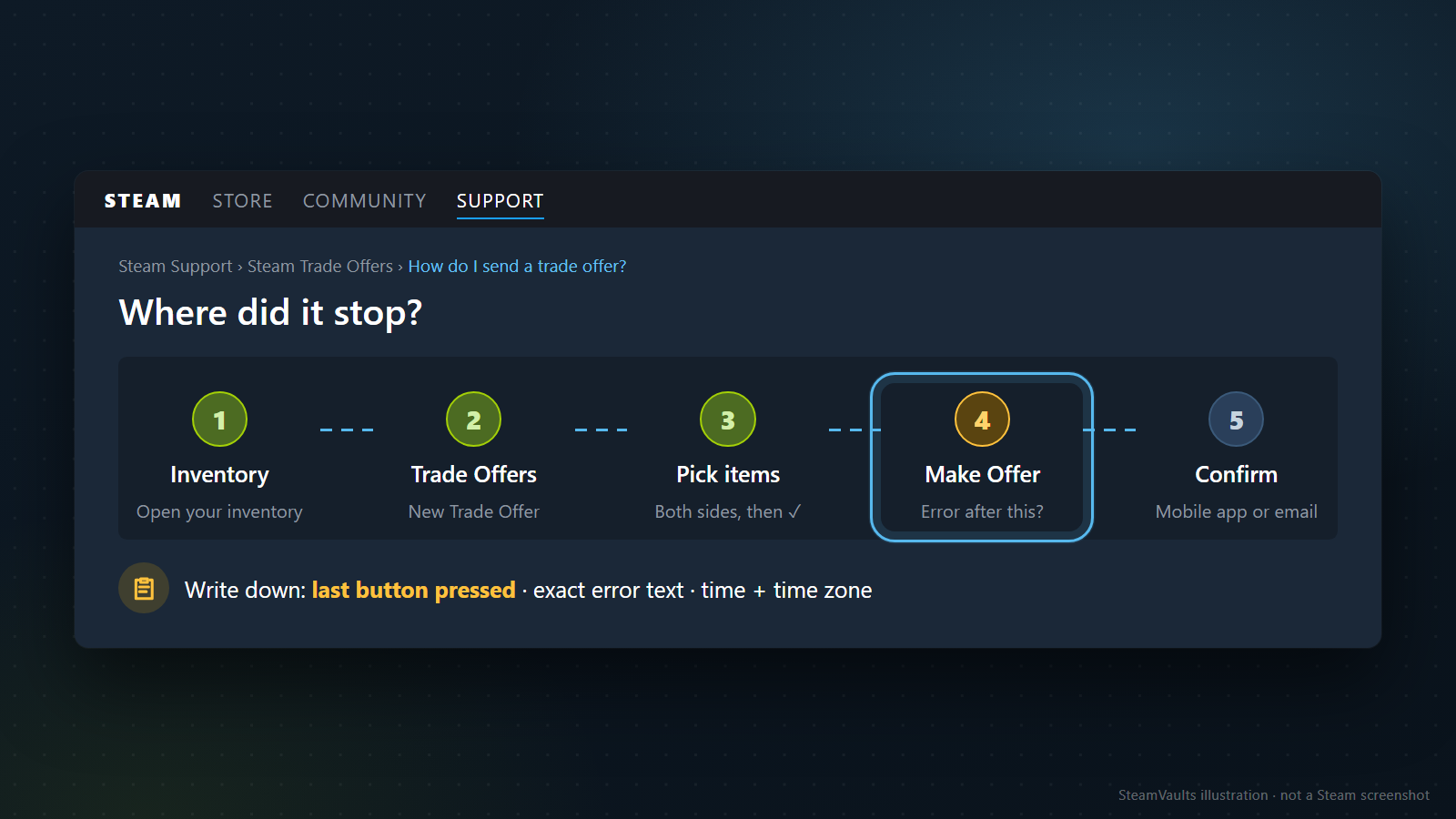
Зафиксируйте, не открывался ли экран выбора предметов, появилась ли ошибка после Make Offer, или вы остановились на принятии входящего предложения и подтверждении в телефоне. Точный текст ошибки лучше переписать без пересказа, а ко времени добавить часовой пояс. Формулировка «ошибка после подтверждения» менее полезна, чем название нажатой кнопки.
Руководство Steam по обменам описывает создание предложения из инвентаря или профиля друга и последующее подтверждение в мобильном приложении или по электронной почте, когда оно требуется. Успешное прохождение экрана создания ещё не означает, что предложение отправлено. Если при повторном открытии страницы ошибка исчезла, не создавайте новое предложение только ради проверки — сначала посмотрите оставшиеся записи.
Список предложений и история перемещения — не одно и то же
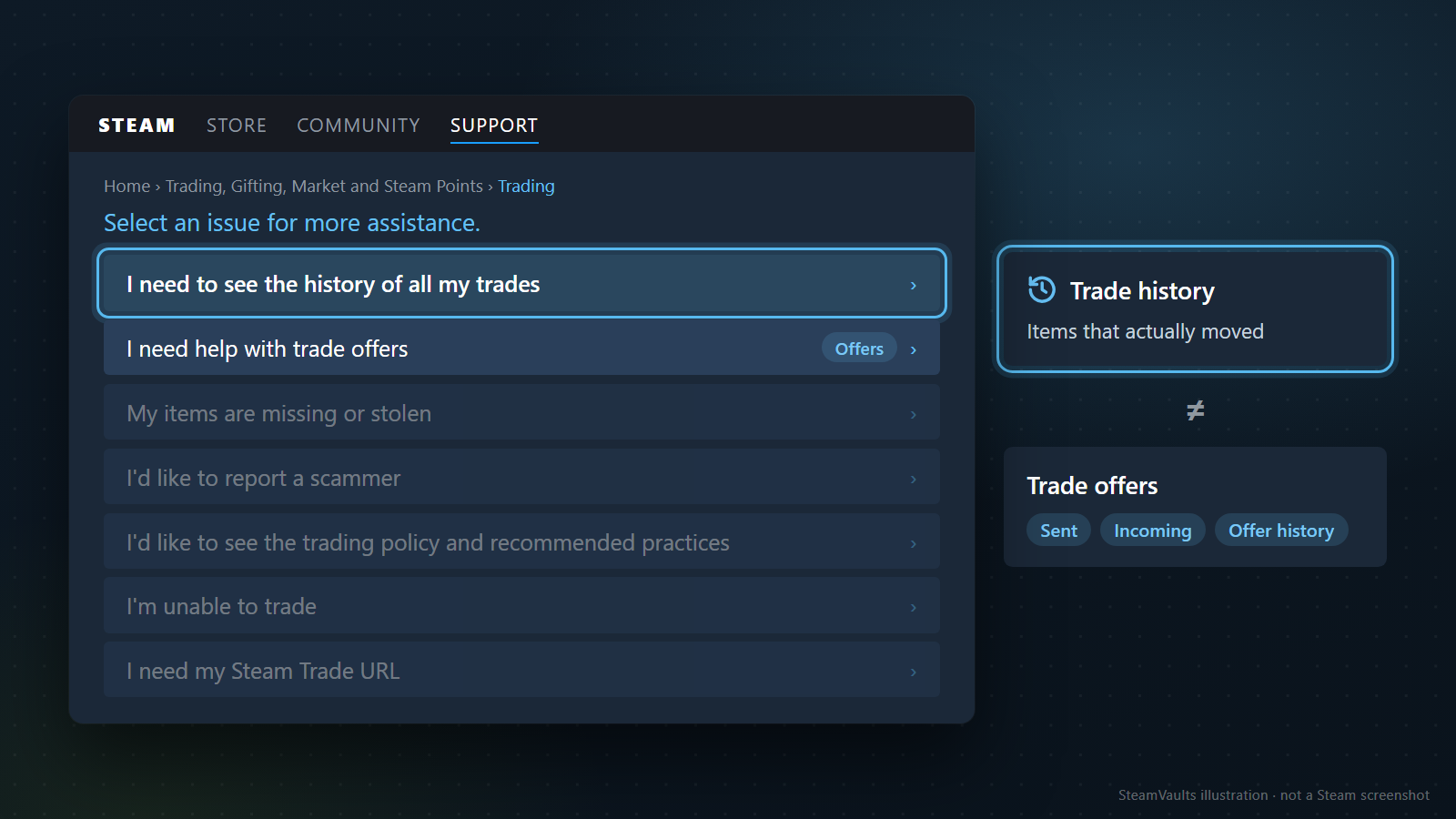
В инвентаре откройте Trade Offers. Если предложение отправляли вы, смотрите Sent Offers; если остановились на принятии входящего предложения — Incoming Offers. Если в текущем списке его нет, проверьте историю предложений. Завершённое перемещение предметов нужно сверить отдельно в истории обменов. Справка Steam по обменам различает эти пути.
Сопоставьте аккаунт партнёра, время создания и предметы, которые отправлялись и получались. Таблица ниже описывает состояния, которые стоит различать на текущем экране, а не расшифровывает неизвестные номера ошибок.
| Что видно сейчас | Что проверить дальше |
|---|---|
| Предложение не найдено | Правильны ли аккаунт, направление Sent/Incoming и история; успешно ли загрузился список |
| Требуется моё подтверждение | Запрос подтверждения именно этого предложения и его фактический состав |
| Ожидается ответ партнёра | Существующее предложение и состояние, которое видит другая сторона |
| Предложение неактивно | Указанную в Steam причину: истёк срок, отменено, отклонено или предмет изменился |
| После принятия отображается удержание | Состояние передачи предметов и указанная в Steam дата окончания удержания |
| Есть запись о завершённом обмене | Какие предметы действительно переместились и что сейчас находится в инвентаре |
Если список не удалось загрузить, это не то же самое, что пустой список предложений. Отдельно различайте «страница открылась, но предложения нет» и «страница не дала проверить результат». Если партнёр говорит, что ничего не получил, сначала выясните: не увидел уведомление, не видит предложение в списке или не получил уже переданные предметы.
В документации Steamworks IEconService GetTradeOffers также отделён от GetTradeHistory: первое относится к отправленным и полученным предложениям, второе — к истории обменов. Для обычной проверки по этой статье API-ключ получать не нужно.
Если написано «ожидает», выясните, чьё действие осталось
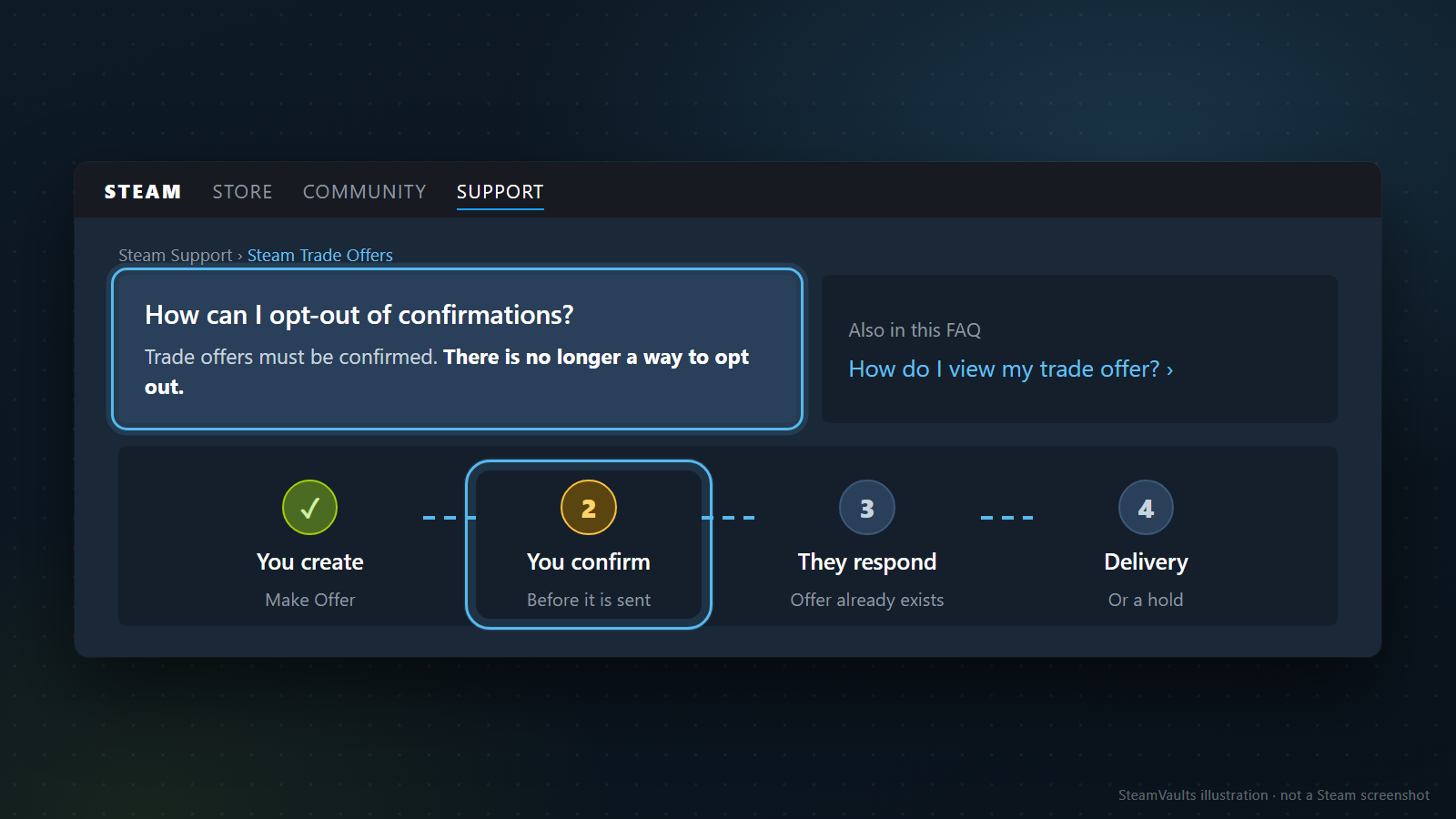
FAQ об обменах говорит, что после необходимого подтверждения предложение отправляется, а отключить этот этап нельзя. Если подтверждение ещё требуется, откройте существующий запрос и не создавайте рядом такой же.
Не подтверждайте несколько запросов сразу: снова проверьте, тот ли это партнёр и те ли предметы отправляются и получаются, как в статье о проверке сделки.
Если вы уже подтвердили предложение и ждёте ответа партнёра, оно создано и отправлено. Ожидание выбора другой стороны — не ошибка передачи из вашего аккаунта. Ситуация, когда обе стороны приняли обмен, а Steam временно удерживает передачу предметов, уже другая; для неё предназначено объяснение разницы между удержанием обмена и удержанием на Торговой площадке.
Для CS2 нельзя автоматически применять обычное объяснение сроков удержания. Отдельная справка о Trade Protection описывает этот режим для CS2. Одного слова «ожидает» недостаточно, чтобы обещать решение через несколько минут или дней. Если на текущем экране указаны действие или момент завершения, ориентируйтесь на них.
Старое предложение может перестать работать, даже если предмет с тем же именем есть
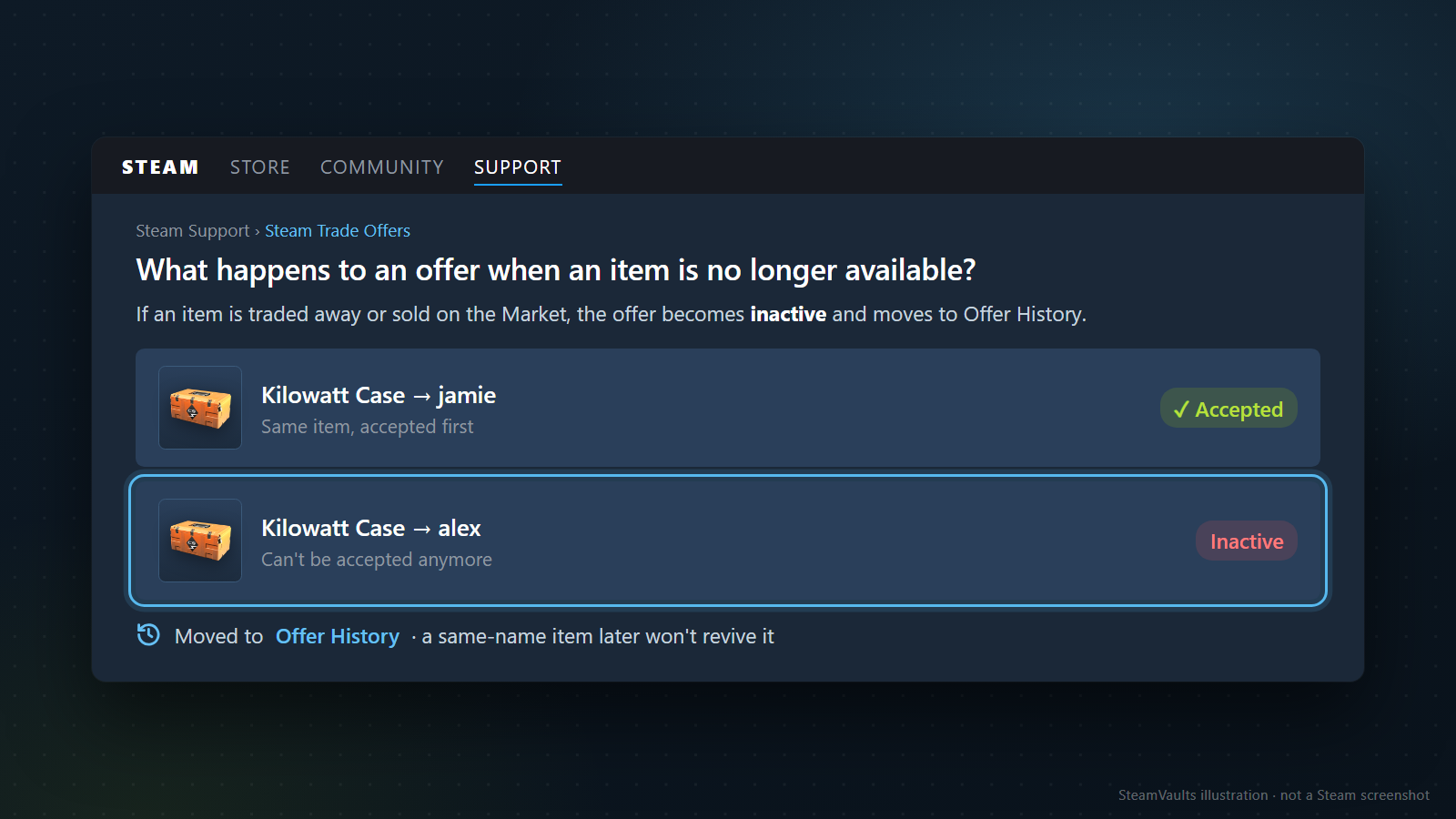
Один и тот же предмет можно добавить в несколько предложений. Но если одно из них приняли, остальные предложения с этим предметом становятся неактивными. То же происходит, если предмет уже ушёл в другой обмен или был продан на Торговой площадке. Пока предложение не принято, добавленный предмет не исчезает из инвентаря только из-за того, что его включили в предложение. Это следует из FAQ об обменах.
Представьте, что одна карточка отправлена в предложениях A и B. После завершения обмена с B старое предложение A уже нельзя принять с этой карточкой. Новая карточка с тем же названием не делает предложение A действующим снова. Наличие одноимённого предмета сейчас и действительность старого предложения — разные вещи.
То же нужно проверить со стороны получаемых предметов: партнёр мог продать или обменять обещанную вещь. Если договорились о новом предмете, это уже новое предложение; снова сверяйте название, свойства и количество. Дату и ограничения конкретного предмета смотрите в руководстве о возможности обмена и продажи.
Несовместимый состав не исправляется настройками аккаунта
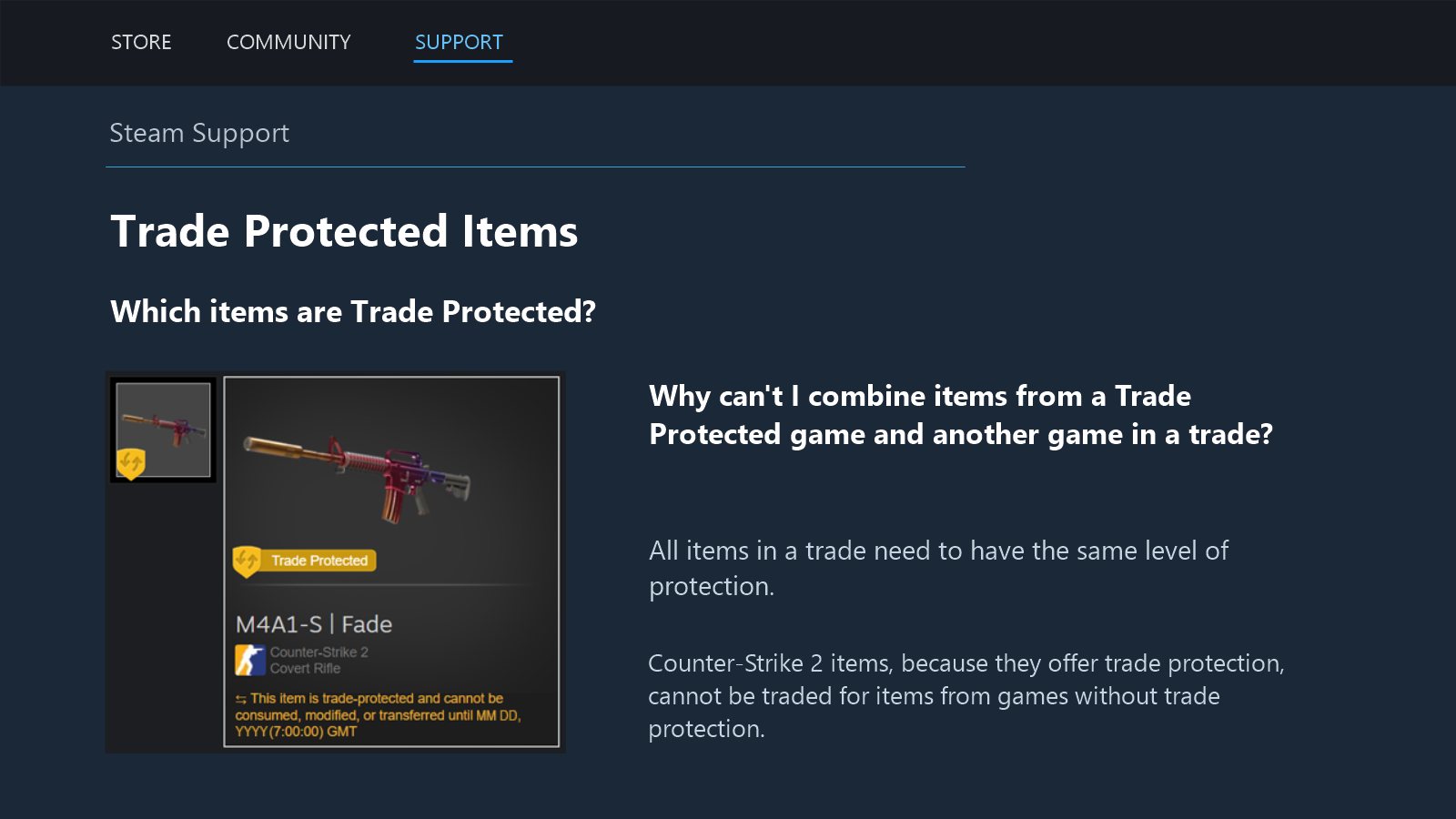
Даже если все предметы по отдельности доступны для обмена, их сочетание может быть запрещено. В справке о Trade Protection, проверенной 5 сентября 2026 года, в качестве поддерживаемой игры указана Counter-Strike 2. В одном обмене разрешены только предметы с одинаковым уровнем защиты. Предмет CS2 нельзя включить в обмен с предметом из игры, где такой защиты нет.
Разбить договорённость на два обмена, чтобы одна сторона сначала отправила свою часть, — не равнозначное решение: это уже другие обещания и отдельные передачи. Состав нужно пересмотреть, а не превращать ошибку в повод для односторонней отправки.
Для полученных предметов CS2 действует 7-дневный период защиты: в это время их нельзя расходовать, изменять или передавать дальше. Это срок защиты предмета, а не время восстановления ошибки сервера. Возможность использовать вещь в игре и возможность снова обменять её — разные условия.
Если сообщение прямо говорит об ограничении аккаунта, прочитайте его и справку Steam об ограничениях обмена и Торговой площадки. Valve указывает, что причина часто отображается при попытке действия, а Поддержка не может менять такие ограничения. Дата и условие на вашем экране важнее чужого срока из поиска.
Выключение Steam Guard или удаление мобильного аутентификатора не является обновлением страницы. Удаление cookie или переход в другой браузер в зависимости от условий авторизации могут быть связаны с ограничением нового устройства; у правила есть исключения, поэтому нельзя обещать одинаковый результат для всех. Но рекомендовать такие действия как первое средство от неизвестной ошибки тоже не стоит.
Повторяйте обмен только после проверки состояния
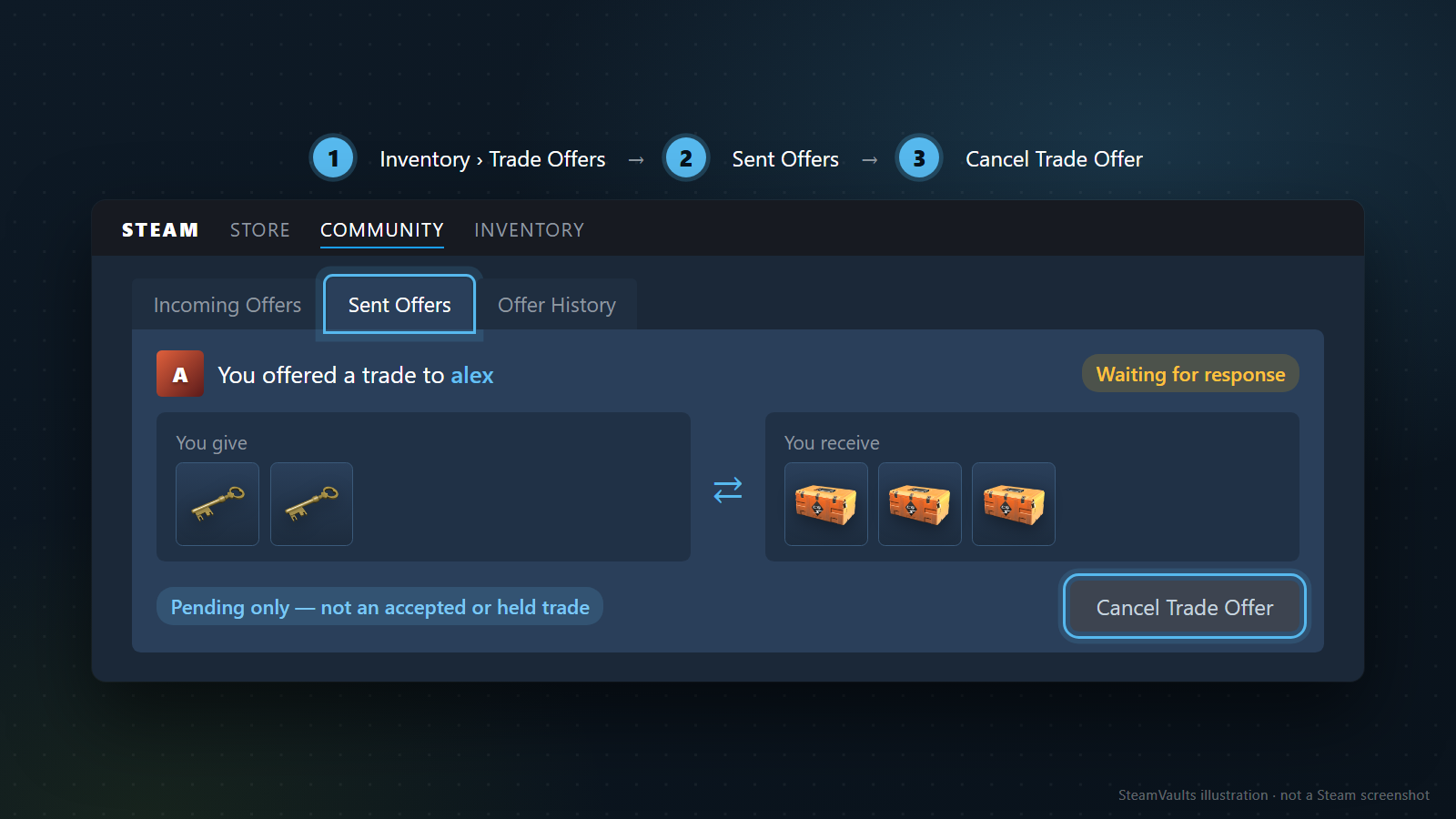
Перезагрузить страницу и создать новое предложение — разные действия. Если прежнее предложение действительно, сначала проверьте его. Повтор можно рассматривать только после того, как список предложений и история обменов нормально загрузились, прежнего предложения там нет, а условия аккаунта и предметов не объясняют отказ. После новой попытки снова проверьте записи.
Перед повтором найдите, что изменилось: согласован ли новый состав, стал ли предмет доступен после указанной даты, исчезло ли реальное ограничение. Если неизвестно, живо ли первое предложение, лучше не создавать дубликат. Если предложений уже несколько, сравните их предметы и количество и определите, какое именно соответствует договорённости; не просите партнёра принимать любое из них наугад.
Отмена тоже зависит от состояния. Отменить отправленное предложение, которое ждёт ответа, — не то же самое, что отменить уже принятый обеими сторонами удерживаемый обмен. Справка Valve об удержании обмена предупреждает, что отмена второго варианта приводит к защитному ограничению. Возврат защищённого обмена также имеет собственный охват и ограничения и не является способом проверить, обновился ли экран. Не отменяйте и не возвращайте всё подряд ради диагностики.
Не используйте найденные в интернете таблицы как универсальный переводчик номеров ошибок. Официальные материалы не дают основания сопоставлять каждый пользовательский код одной причине, а состояние стороннего инструмента не обязано совпадать с номером Steam. Запишите номер и текст как наблюдение, но не выдавайте его за готовый диагноз.
Статус Steam и статус внешнего сервиса нужно сверять отдельно
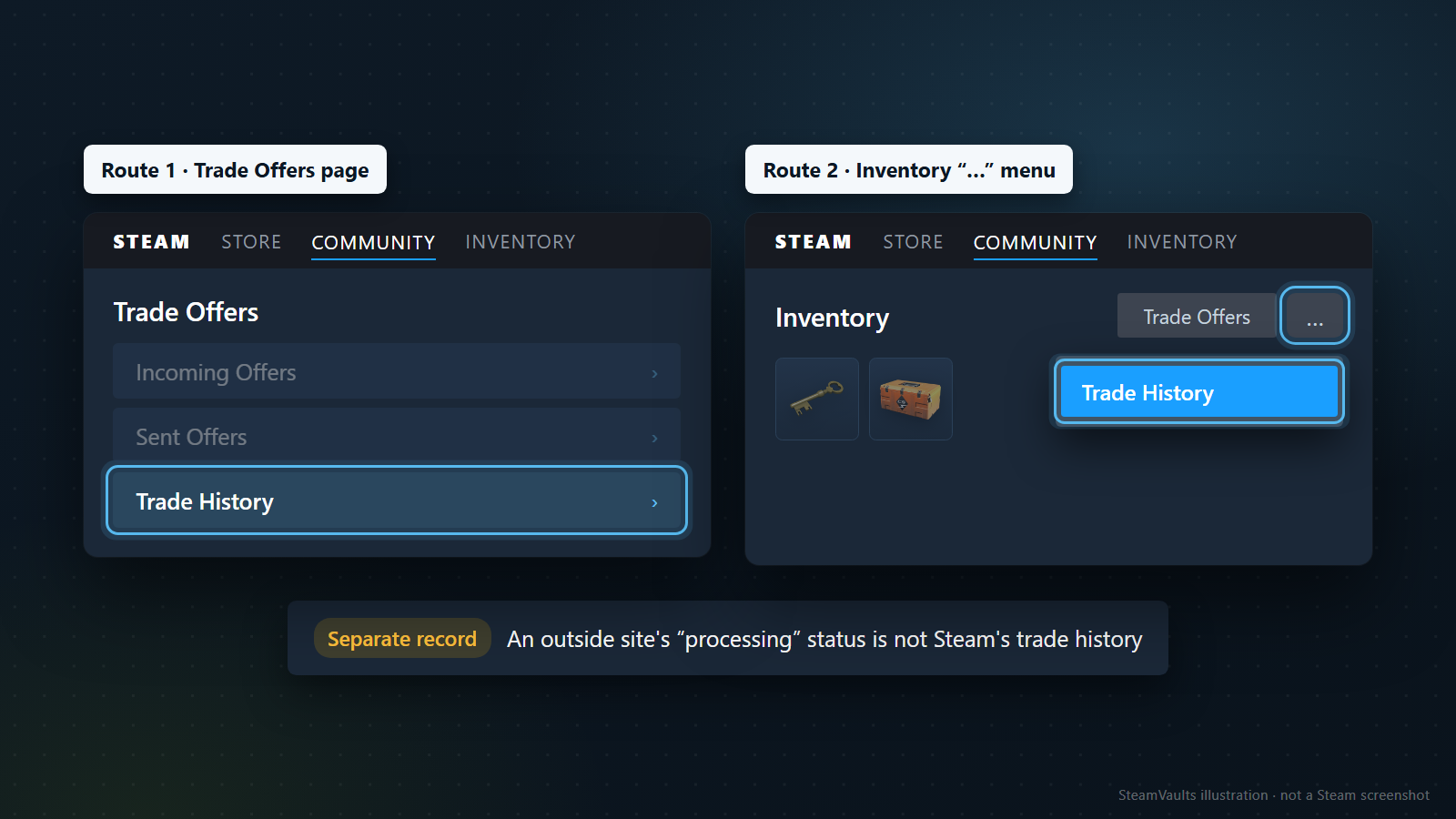
Сравнивайте записи Steam с заказом и поступлением во внешнем сервисе. Если в Steam видно перемещение предметов, а сайт всё ещё показывает обработку, вопрос нужно задавать сервису. Отправка предметов ещё раз не исправит первую запись, а добавит новое перемещение.
В обращении разделяйте номер внешнего заказа и идентификатор предложения Steam. Не предполагайте, что поддержка одной стороны видит внутренние записи другой. Формулировка «в Steam завершено, на сайте обрабатывается» полезнее общего сообщения о неработающей сделке.
Если вам предлагают отправить предметы на «диагностический аккаунт» или подтвердить обмен без получаемых предметов, это новая передача, а не просмотр старой записи. Проверка Trade URL и запрос пароля или кода подтверждения — тоже разные вещи. В рекомендациях Valve сказано, что интерфейс обмена Steam не переводит деньги. Внешнее обещание оплаты, записанное в сообщении, не становится встречным предметом и не доказывает, что Steam его исполнит.
В поддержку передавайте проверенные записи, а не догадки
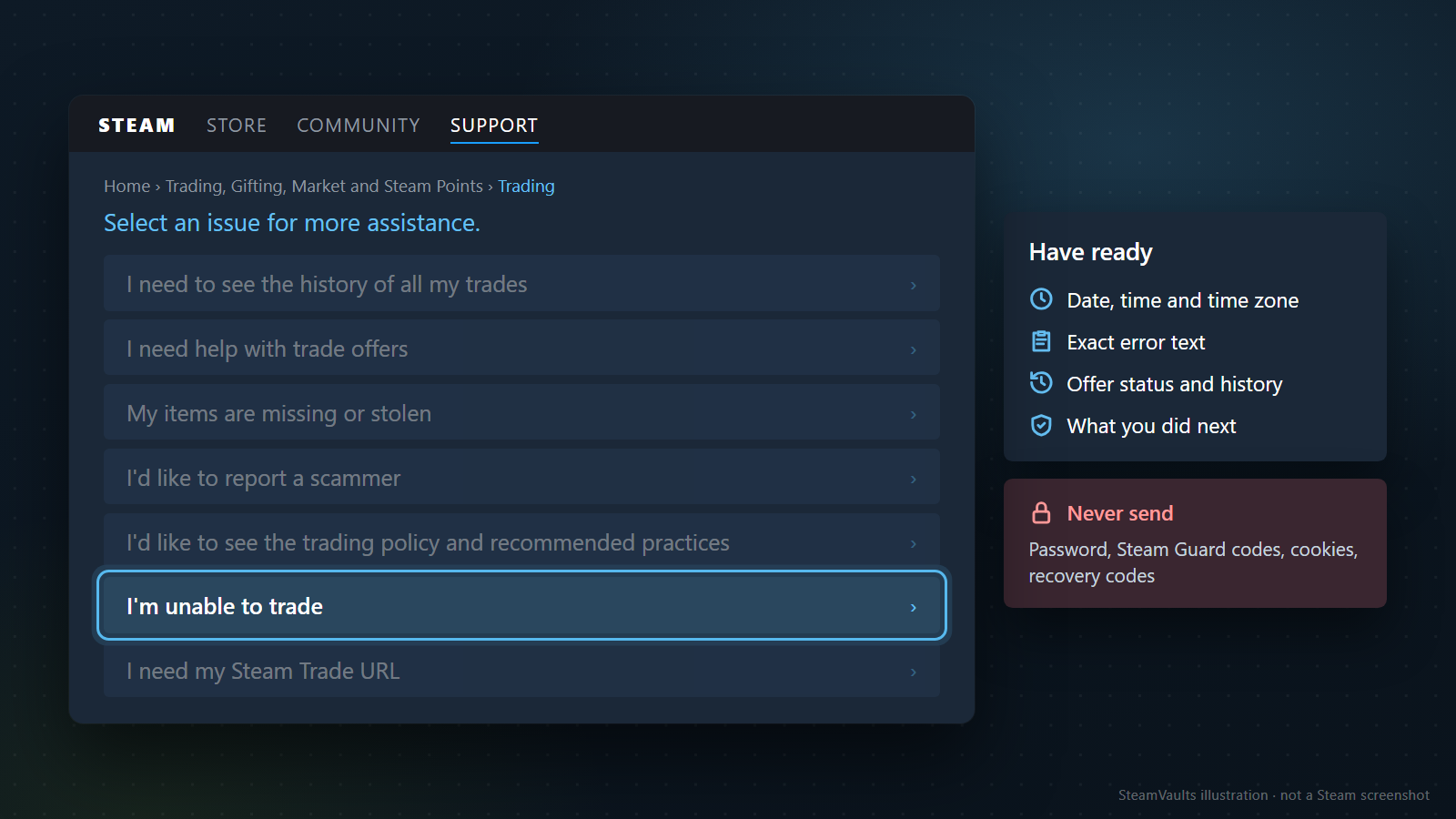
Ниже приведён пример для обращения, а не реальный случай ошибки. В квадратные скобки подставляйте только то, что вы сами видели; неизвестное оставьте неизвестным.
> [Дата, время, часовой пояс] при [создании исходящего предложения / принятии входящего / подтверждении в приложении] появилась ошибка. Точный текст: [сообщение]. Сейчас предложение находится в [отправленных / входящих / истории] со статусом [надпись]. В истории обменов [подтверждено перемещение предметов / запись не найдена после нормальной загрузки / история не загрузилась]. В описании предметов указано [условие]. После этого я [реальное действие] и получил [наблюдаемый результат].
Слова партнёра отделяйте от того, что показал ваш экран. В закрытое обращение можно приложить адрес или идентификатор предложения, а в публичном обсуждении скройте данные аккаунта и электронной почты. Для описания ошибки не нужны пароль, код подтверждения, cookie входа или код восстановления.
Откройте официальную поддержку обменов Steam и выберите раздел, соответствующий остановившемуся этапу. Если вы подозреваете потерю контроля над аккаунтом, сначала перейдите к безопасности и восстановлению аккаунта, а не продолжайте обычные повторы. Если не совпадает только статус внешнего сайта, передайте ему записи обеих систем. Поддержка не обещает конкретное время ответа или возврат предметов.
Готовы продать поддерживаемые Sack of Gems?
После подтверждения получения ботом USDT зачисляется на баланс сайта. Вывод через Polygon оформляется отдельным запросом.